 Ask the community about this page
Execute PowerShell Script as External Executable
Warning
This article refers to Jobs and the Timextender Jobs API which have been deprecated. Please schedule TDI execution packages via Timextender Orchestration rather than using jobs
Info
Released in Timextender Data Integration 6024.1
This article describes how to create, edit and execute a PowerShell Power as an external executable, as well as how to add this executable in an execution package, to allow for a scheduled execution of the PowerShell script. It also covers required permissions for the execution of the script.
Prerequisites
Check and Update the PowerShell Execution Policies in order to ensure that the user executing the script has adequate permissions on the machine running Timextender Data Integration.
Get current Execution Policy
Set current Execution Policy
Install the Azure Az PowerShell module | Microsoft Docs
Sign Into Azure using Connect-AzAccount
Install SqlServer module - modules need to be installed for the User that is running the script. This is typically both developers writing the script and the Timextender Execution Service user. For the latter, run PowerShell as the Timextender Execution Service user, and then run the following:
Creating and Executing a PowerShell Executable
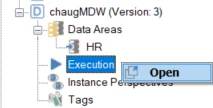
- Expand the Prepare instance and the underlying data area, and open up the execution pane.
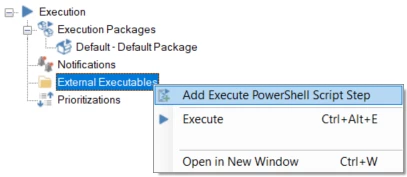
- Right click on the "External Executables" folder and select "Add Execute PowerShell Script Step"
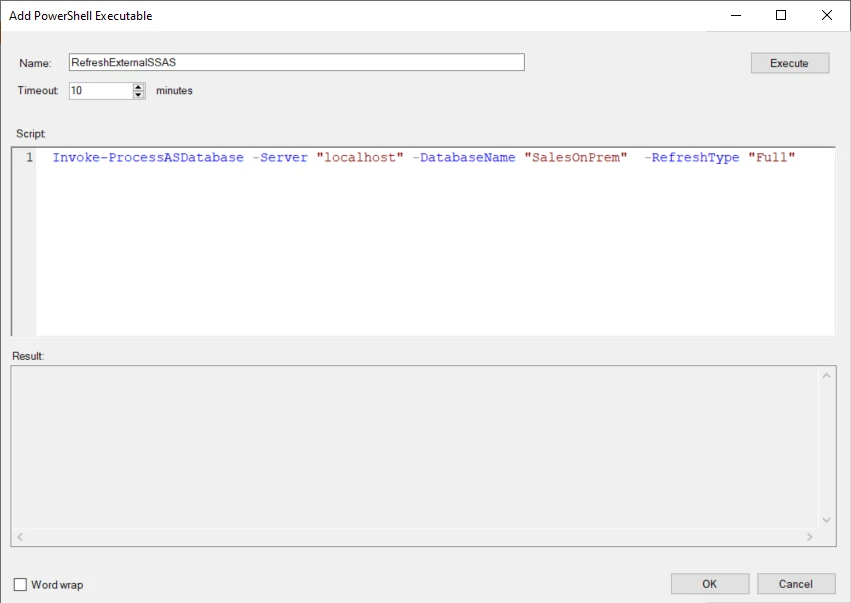
- Add a PowerShell script.
- Click execute in the top right corner, a message will displayed in the results pane, which will indicate if the script was executed successfully or results in an error. This script executes successfully.
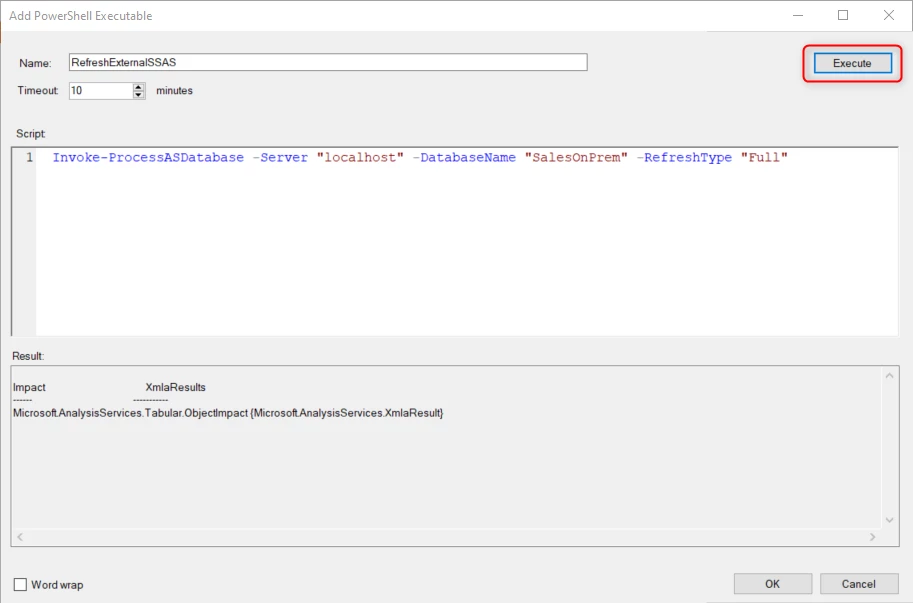
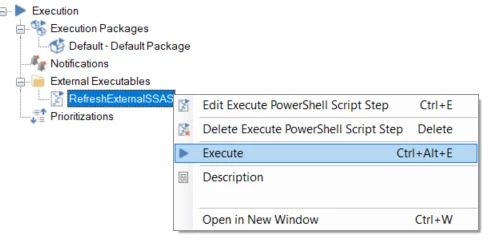
- After creating the PowerShell executable, try to execute it.
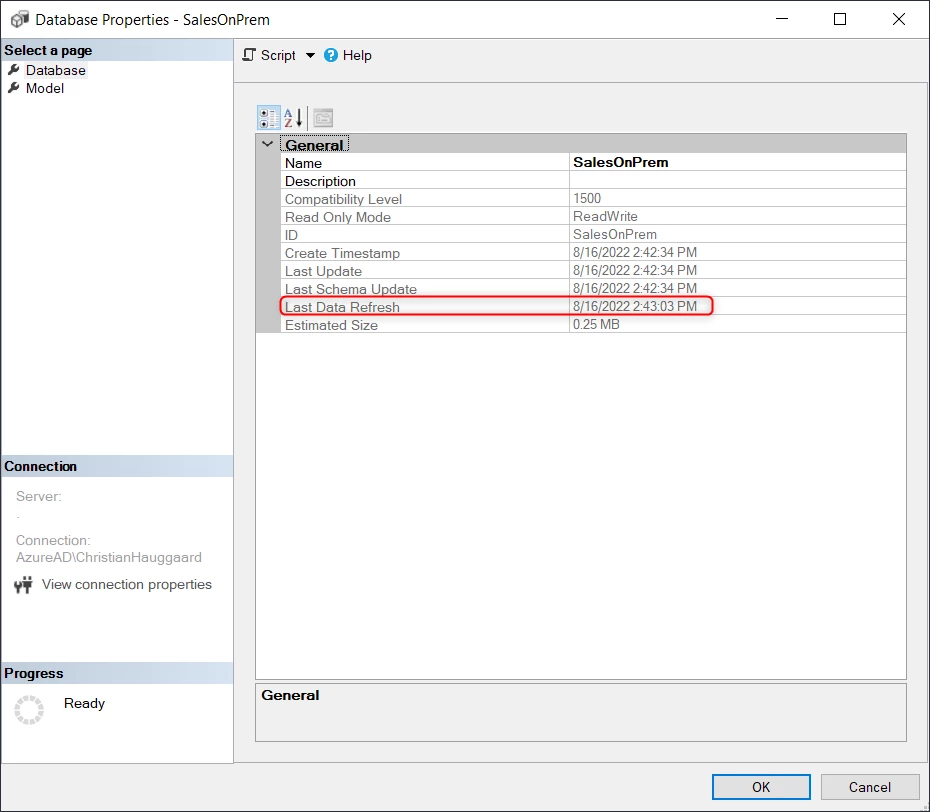
- In SSMS you can see the SSAS database has been updated.
Editing the script
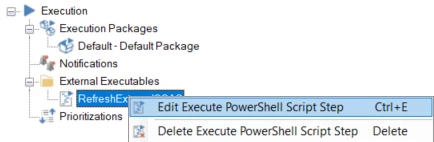
The script can be edited by right clicking on the external executable and selecting edit.
Settings
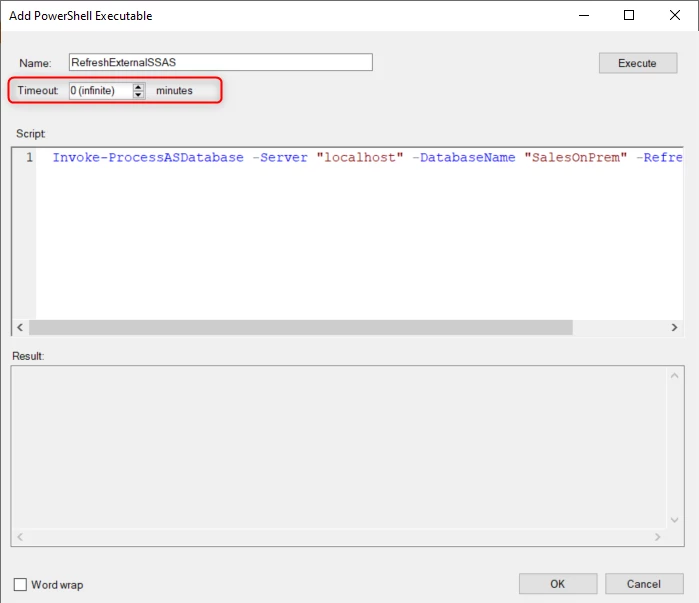
The Timeout setting can also be changed for the script. If this is set to 0, the timeout is infinite.
Adding the external executable to a Execution Package
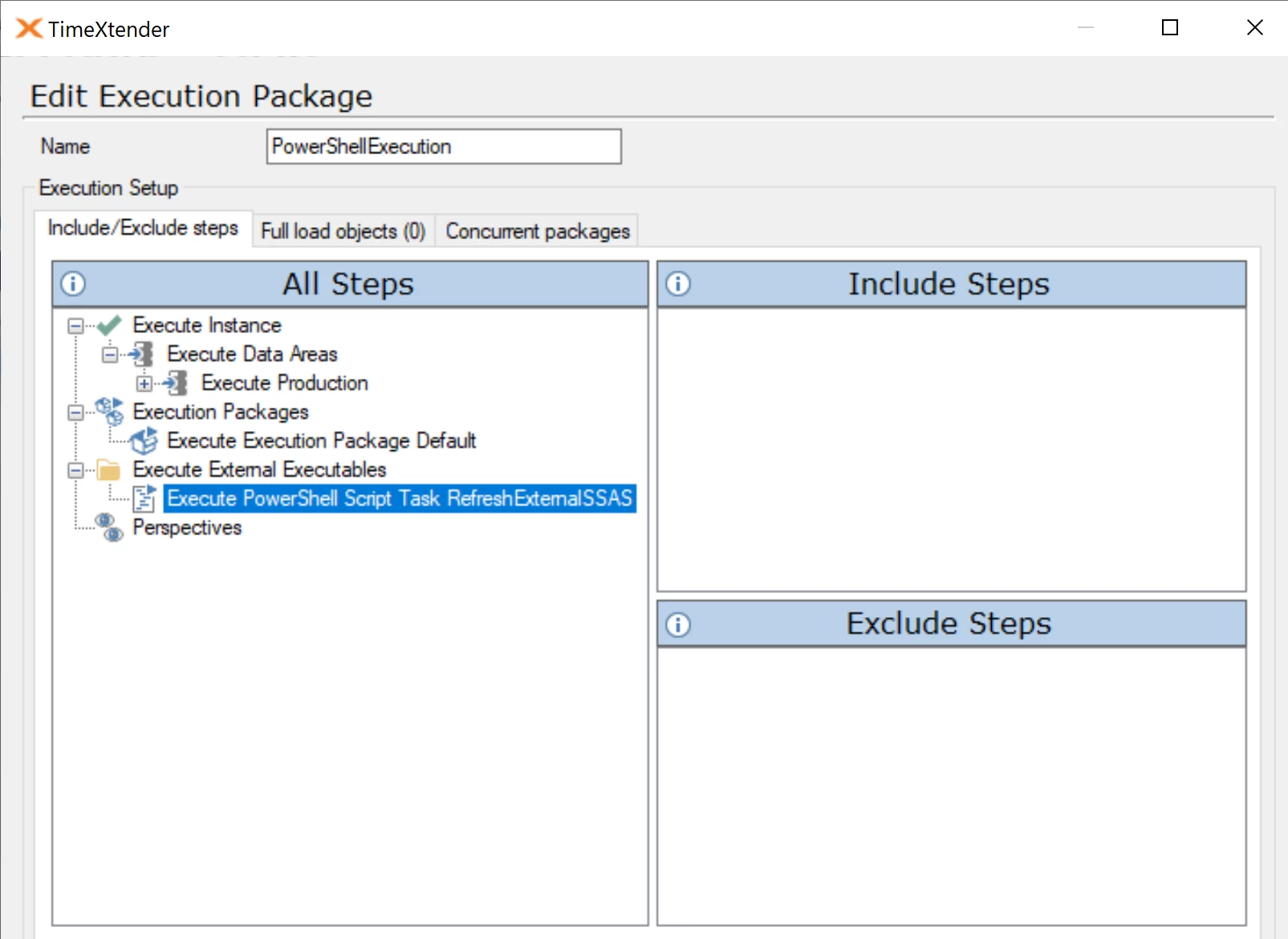
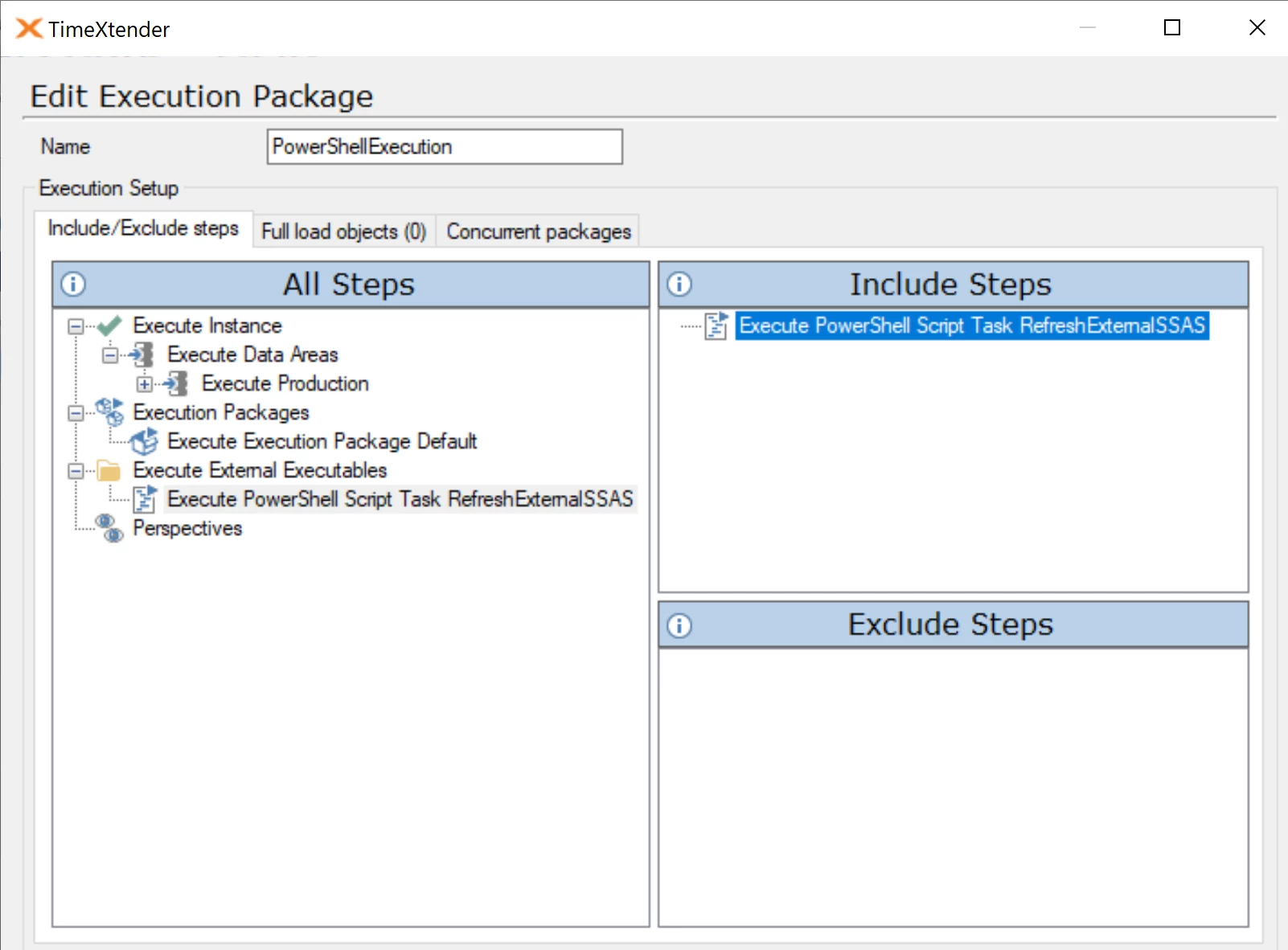
In order to add the external executable to a execution package. Add or edit an execution package and then drag the external executable to the "Include Steps" section.
Example Scripts
Process Analysis Services Database
This example runs the Invoke-ProcessASDatabase command, and processes a SSAS database. The use case for this could be that a SSAS database has been developed outside Timextender Data Integration, and it would be useful to be able to process this database on a scheduled basis using Timextender Data Integration, without having to rebuild the SSAS database as a semantic model within Timextender Data Integration. Other commands could also be used such as Invoke-ProcessDimension to process a tabular table, Invoke-ProcessPartition to process a partition, Backup-ASDatabase to backup a tabular database, Add-RoleMember to add a member to Tabular roles, etc. Please note that in the script above, the accent character (`) is used to denote a new line.
Process a Single table in an Azure Analysis Services Tabular model
$secpasswd = ConvertTo-SecureString "***Pass***" -AsPlainText -Force; `
$mycreds = New-Object System.Management.Automation.PSCredential ('****UID****’, $secpasswd); `
Invoke-ProcessTable -TableName "<tablename>" -Database "<DatabaseName>"  `
-RefreshType Full   -Server "asazure://centralus.asazure.windows.net/<AS_serverName>" `
-Credential $mycreds
Scale Up Azure SQL Db
Set-AzSqlDatabase `
-ResourceGroupName <ResourceGroupName> `
-ServerName <ServerName> `
-DatabaseName <DB Name> `
-Edition "Premium" `
-RequestedServiceObjectiveName "P1"
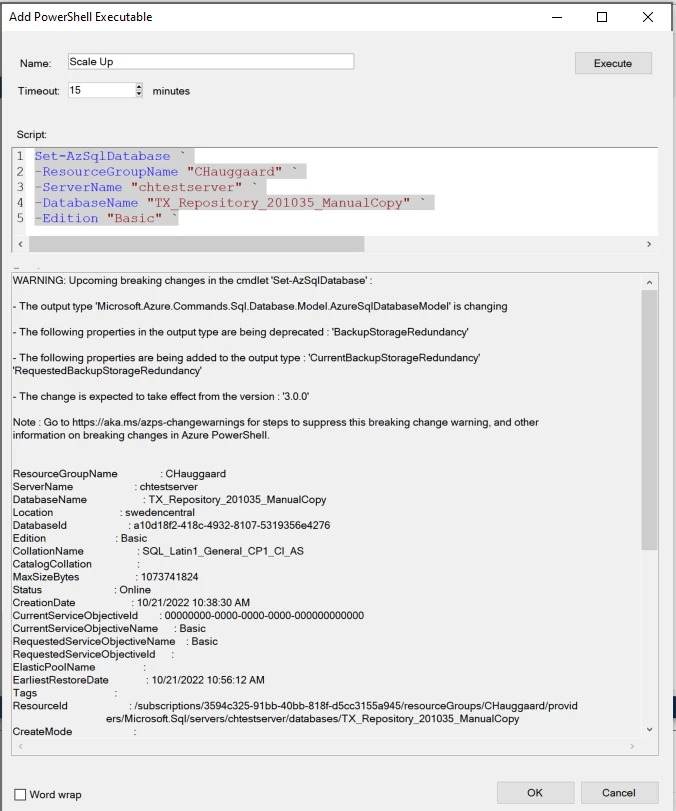
Scale down azure SQL Db
Set-AzSqlDatabase `
-ResourceGroupName <ResourceGroupName> `
-ServerName <ServerName>`
-DatabaseName <DB Name> `
-Edition "Basic"
Example:
Pause PBI Embedded
Suspend-AzPowerBIEmbeddedCapacity `
-Name "<ResourceName>" `
-ResourceGroupName "JTDemo" `
-PassThru
Change and Overwrite Roles in a SSAS database
Execute an XMLA script via PowerShell, for example to implement row level security based on CUSTOMDATA().
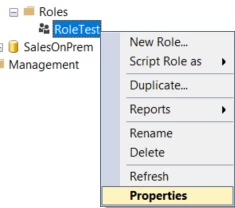
- Go to the properties of the SSAS role in SSMS
- Under Row Filters, create the desired DAX filter on the table based on CUSTOMDATA()
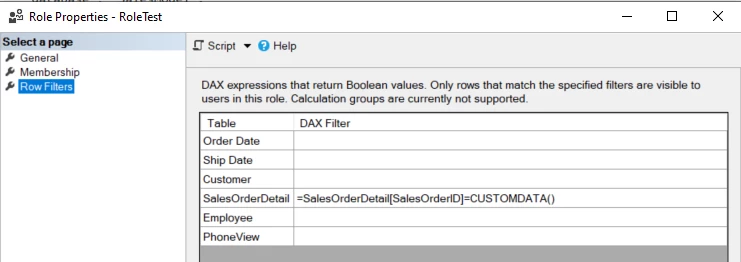
- Script the Role as "CREATE OR REPLACE To" in order to generate the XMLA script.
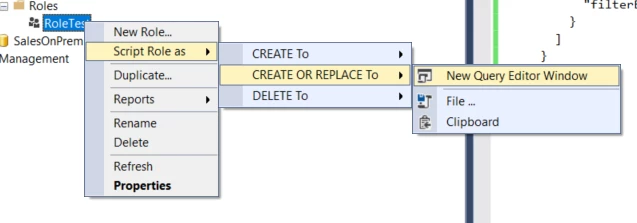
- Save the script in a .xmla file.
- Use the following PowerShell script to execute the XMLA script.
Import-Module SQLPS -DisableNameChecking `
sqlserver: `
[System.Reflection.Assembly]::LoadWithPartialName("Microsoft.AnalysisServices") `
$serverAS = New-Object Microsoft.AnalysisServices.Server `
$serverAS.connect("localhost") `
$db = $serverAS.databases["SalesModel"] `
Invoke-ASCmd -InputFile:"C:\Users\ChristianHauggaard\Desktop\XMLAChangeRole.xmla"
End-to-End Scheduling
In order to execute transfer tasks in Ingest instances where you are using Azure Data Factory, as well as execution packages within Data Areas and Semantic Models, as part of the same scheduled job, then add the following script as a PowerShell executable. Keep in mind that variables ($TriggerJobsInOrder, $ApiKey, $OcpApimSubscriptionKey and $BaseUrl) need to be changed for your environment. Please see the below video for more details,
$TriggerJobsInOrder = "JOB NAME"
$PollInterval = 2500

$ApiKey = "XXXXXXXX"
$OcpApimSubscriptionKey = "XXXXXXXXX"
$BaseUrl = "XXXXXXXXXXX"


$headers = New-Object "System.Collections.Generic.Dictionary[[String], [String]]"
$headers.Add("ApiKey", $ApiKey)
$headers.Add("Ocp-Apim-Subscription-Key", $OcpApimSubscriptionKey)

$JobIds = Invoke-RestMethod "$BaseUrl/jobs" -Method "GET" -Headers $headers

foreach ($JobNameToTrigger in $TriggerJobsInOrder) {

    "Current job: '$JobNameToTrigger'"

    $JobId = $($JobIds | Where-Object { $_.Name -eq $JobNameToTrigger }).id

    # verify job is not running
    $response = Invoke-RestMethod "$BaseUrl/jobs/$JobId/status" -Method 'GET' -Headers $headers
    $response

    if ($response.Status -ne 0) {

        "Job '$JobNameToTrigger' already running; waiting for current execution to finish. Will not trigger again."

    }
    else {

        # trigger execution
        $TriggeredJob = Invoke-RestMethod "$BaseUrl/jobs/$JobId/execute" -Method 'POST' -Headers $headers
        $TriggeredJob

    }

    do {

        Start-Sleep -Milliseconds $PollInterval
        $response = Invoke-RestMethod "$BaseUrl/jobs/$JobId/status" -Method 'GET' -Headers $headers
        $response

    } while
    (

        $response.Status -ne 0

    )

    "Execution of '$JobNameToTrigger' finished."

}
Troubleshooting
Permissions Error
If an error message similar to the following is returned when executing the script, ensure that the user running the script has adequate permissions, as referred to in the prerequisites above.
Error
C:\Users\ChristianHauggaard\AppData\Local\Temp\3cd3f25b-81c8-4acc-a386-9aa6b2218842.ps1 : File C:\Users\ChristianHauggaard\AppData\Local\Temp\3cd3f25b-81c8-4acc-a386-9aa6b2218842.ps1 cannot be loaded because running scripts is disabled on this system. For more information, see about_Execution_Policies at https:/go.microsoft.com/fwlink/?LinkID=135170. At line:1 char:1 + C:\Users\ChristianHauggaard\AppData\Local\Temp\3cd3f25b-81c8-4acc-a38 ... + ~~~~~~~~~~~~~~~~~~~~~~~~~~~~~~~~~~~~~~~~~~~~~~~~~~~~~~~~~~~~~~~~~~~~~ + CategoryInfo : SecurityError: (:) [], PSSecurityException + FullyQualifiedErrorId : UnauthorizedAccess
Missing Module Error
If an error message similar to the following is returned when executing the script, ensure that the user running the script has installed the required module, as referred to in the prerequisites above. In this case, the 'Invoke-ProcessASDatabase' cmdlet is part of the SqlServer module which must be installed for the user running the script.
Error
-'Invoke-ProcessASDatabase : The term 'Invoke-ProcessASDatabase' is not recognized as the name of a cmdlet, function, script file, or operable program. Check the spelling of the name, or if a path was included, verify that the path is correct and try again.
Database does not Exist Error
If an error message similar to the following is returned when executing the script, ensure that the user running the script has permissions on the database. In this case, the user must be given permissions for the Analysis Services database. In SSMS, right-click on the Analysis Services Server and select Properties. Add the user running the script, under Security.
Error
Invoke-ProcessASDatabase : The 'SalesOnPrem' database does not exist on the server.
Discussed in the community
Looking for related questions…
Didn't find your answer? Ask the community about this page — questions are answered by Timextender experts, partners and other users.