How to Add a Query Table to an Ingest Instance Data Source
Normal Timextender staging tables are populated with a simple SELECT <Fields> FROM
Note that complex queries may increase the processing load in the source database during the transfer phase of execution.
Adding a Query Table
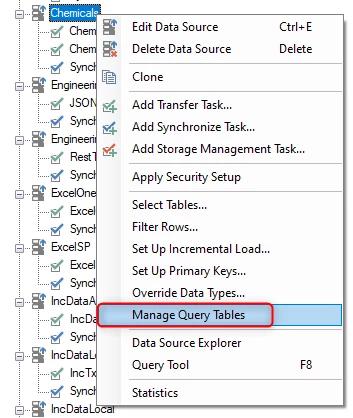
- To create a Query Table, right-click on an Ingest Instance Data Source and select “Manage Query Tables”.
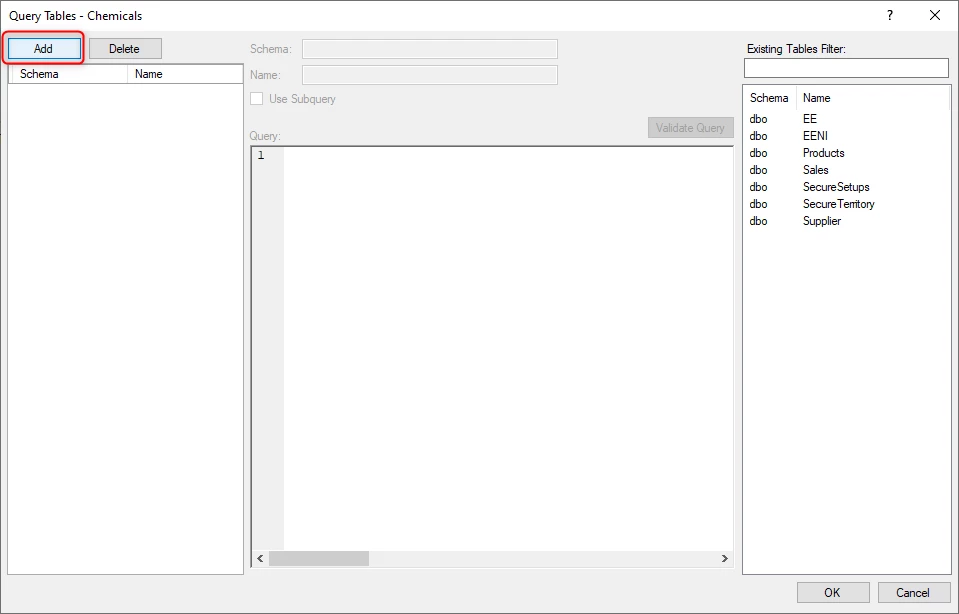
- Click the “Add” button in the Query Tables window.
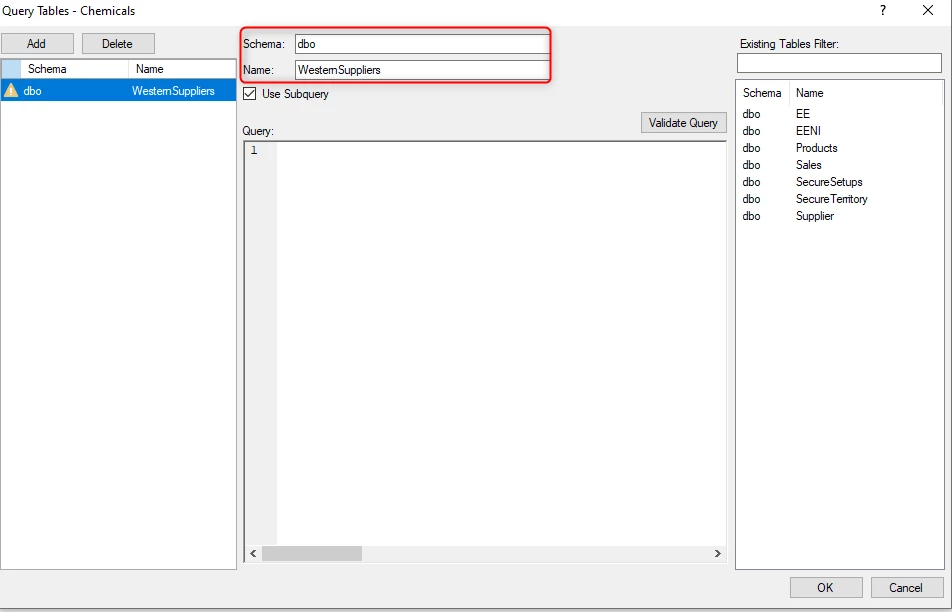
- Enter a name for the Query and amend the Schema as needed.
- (Optional) Drag one of the tables from the table pane on the left into the query window to begin with a standard SELECT statement for all the fields in the table.
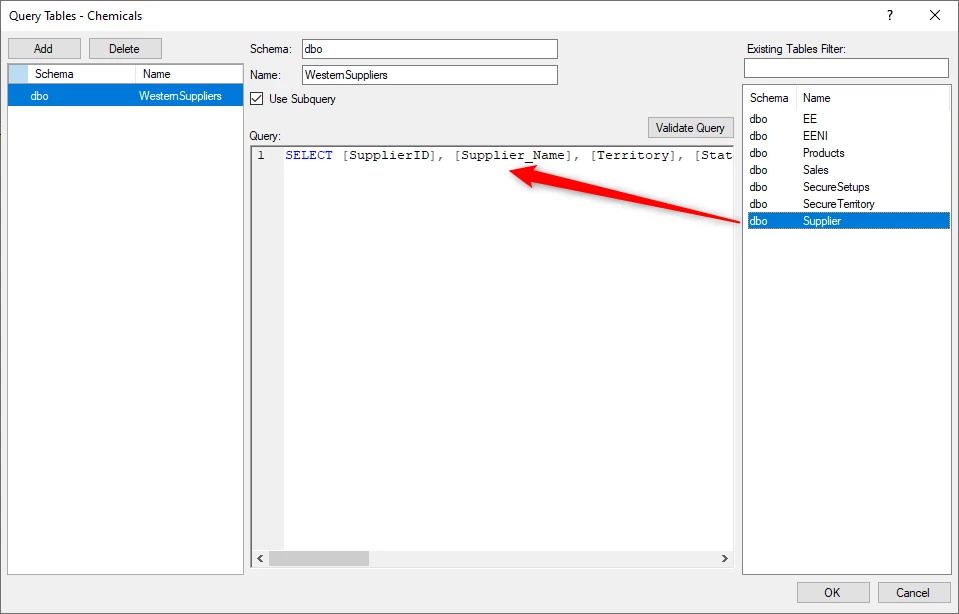
- Update this Query as needed to create the custom query, i.e. add a WHERE statement for one of the fields.
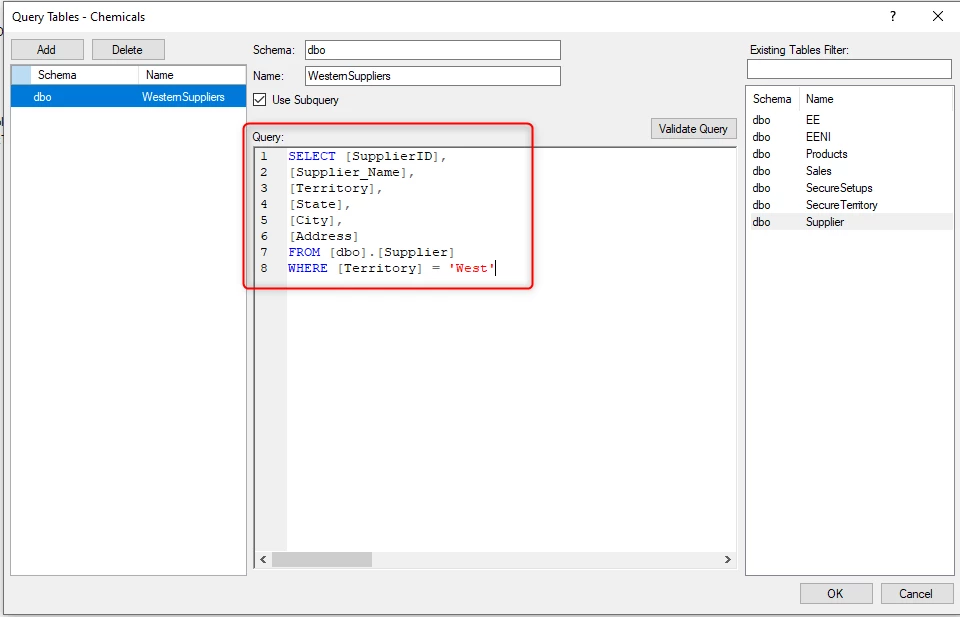
- Once the Query is complete, click the “Validate” button to have the Timextender Ingest Service (TIS) Server confirm the query is ok.
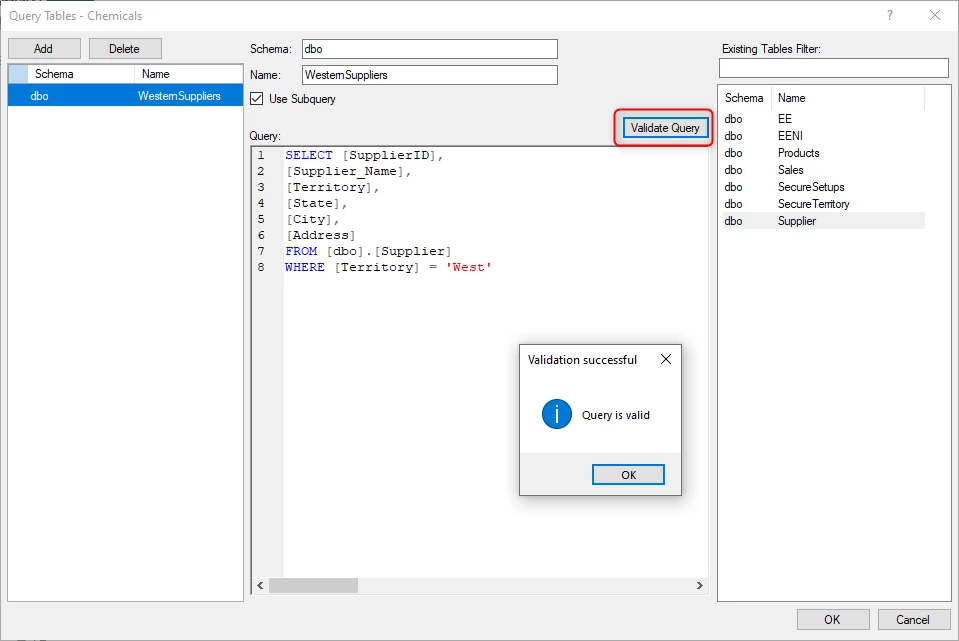
- Click Ok to create the new query table.
- Synchronize the data source.
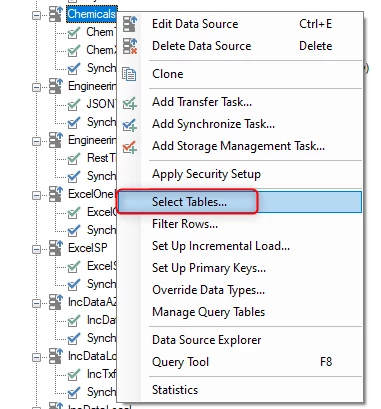
- Right-click on the data source and click on “Select Tables”.
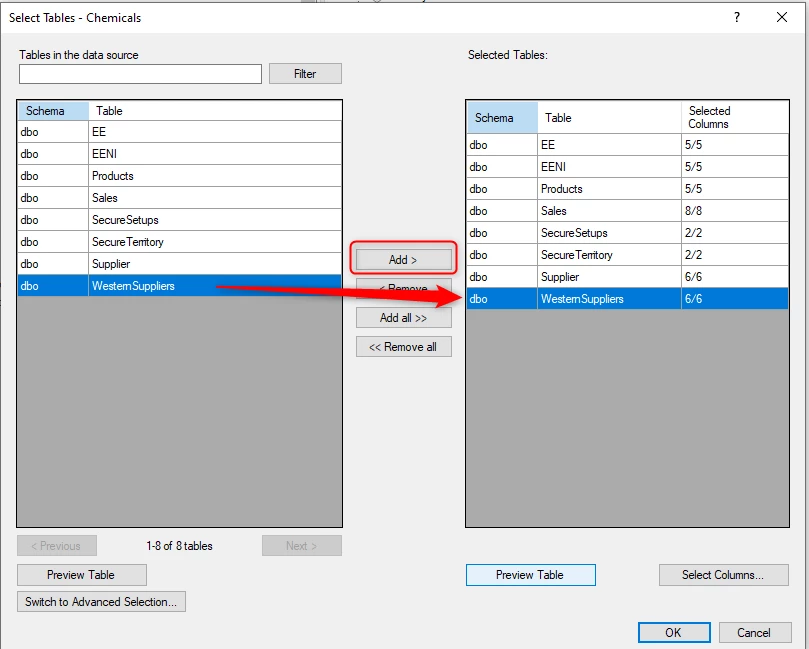
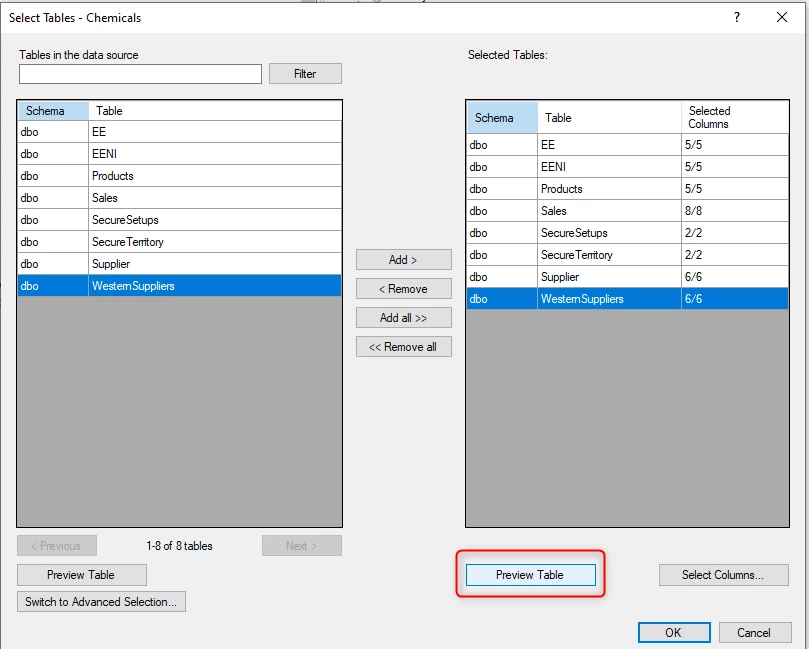
- In the Select Tables window, select the new Query Table and then click the “Add” button to add it to the selected tables.
- Click the Preview button to get a view of the query table.
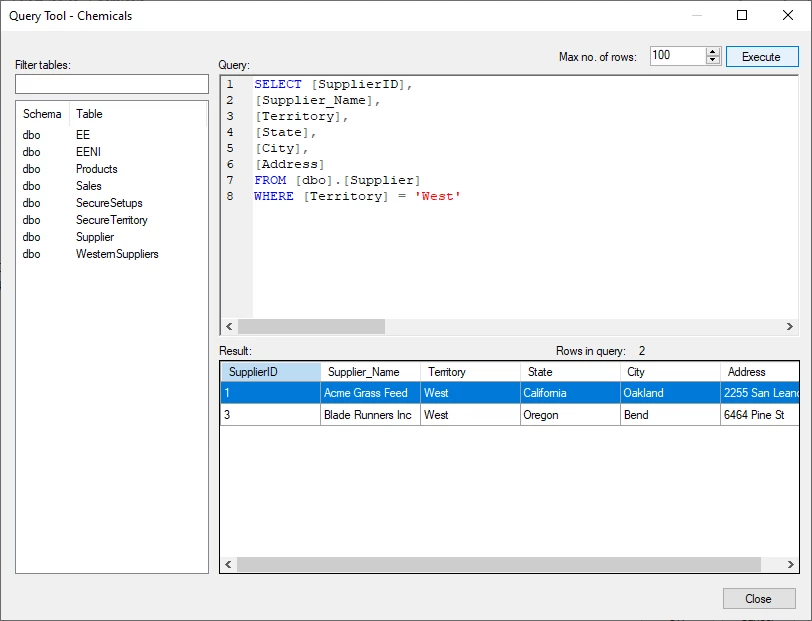
- Click the Execute button to see the data populated below.
Use Subquery
The “Use Subquery” checkbox is checked by default and provides a way to use alias in the query that can later be used to later apply data selection and incremental loading rules to the query table. Using the following query as a query table example (MyCustomerOrderLinesView)
Note
SELECT c.CustomerId, o.OrderDate, l.* FROM Customers c
INNER JOIN Orders o
ON c.CustomerId = o.Customer
INNER join OrderLines l
ON o.OrderId = l.OrderId
The query will expose one OrderId column from OrderLines but the table also contains an OrderId column. For a data selection rule to be able to distinguish between the two OrderID column instances, the “Use Subquery” checkbox would need to be checked. If the “Use Subquery”is notchecked, then the query that Timextender would send would be similar to the following, which results in an “Ambiguous Column Name” message.
Note
SELECT c.CustomerId, o.OrderDate, l.* FROM Customers c
INNER JOIN Orders o
ON c.CustomerId = o.Customer
INNER join OrderLines l
ON o.OrderId = l.OrderId
WHERE OrderId > 100
Msg 209, Level 16, State 1, Line 7
Ambiguous column name 'OrderId'.
If “Use Subquery” is checked, then the query that Timextender would send would look like the following instead, which mitigates the ambiguous column name condition.
Note
SELECT CustomerId, OrderDate, OrderId, LineNum, Product, Quantity, CostPrice, LineAmount, Date, CurrencyCode FROM (
SELECT c.CustomerId, o.OrderDate, l.* FROM Customers c
INNER JOIN Orders o
ON c.CustomerId = o.Customer
INNER join OrderLines l
ON o.OrderId = l.OrderId) a
WHERE OrderId > 100
(24990 rows affected)
It may also be the case that the column names in the data source are hard to interpret and using alias names instead will make it easier for developers to use these fields in a prepare instance. The following example shows replacing letter column names with the following more descriptive alias names:
- Timextender Id
- Name
- LastName
- LastModifiedDate
Note
SELECT A as Id, B as Name, C as LastName, D as LastModifiedDate FROM A_BAD_DESIGN_TABLE
Adding an incremental rule on LastModifiedDate will without "Use Subquery" cause an error: 'Invalid column name 'LastModifiedDate'
Discussed in the community
Looking for related questions…
Didn't find your answer? Ask the community about this page — questions are answered by Timextender experts, partners and other users.