Connect to GoREST with the Timextender REST Data source
There is a free REST API called https://gorest.co.in/ it is specifically made to test calls.
The top features it provides are request limits, header-based pagination, Bearer Token authentication, and nested resources.
For reference, I also made a Postman collection to use to check what is being returned.
Content
Prerequisites
If you want to try out the bearer token option, you will need to set up a token. This is also what can be used for the request limit.
To create a token, go to the following link https://gorest.co.in/my-account/access-tokens and then click New access token.
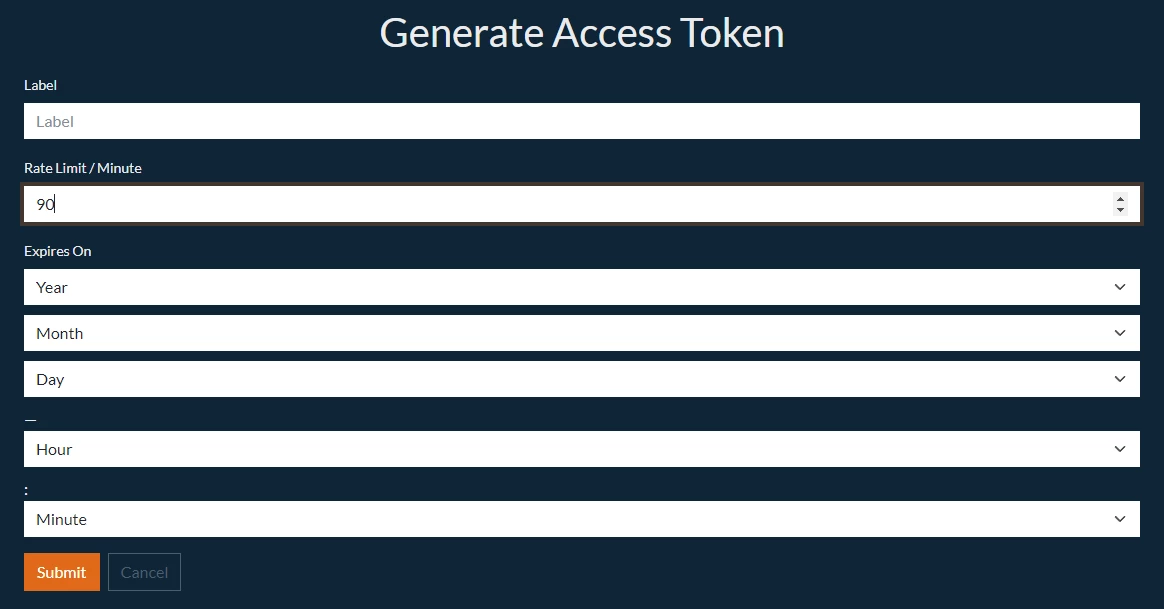
Fill out the fields and click Submit.
You will now have a token to use as a Bearer token.
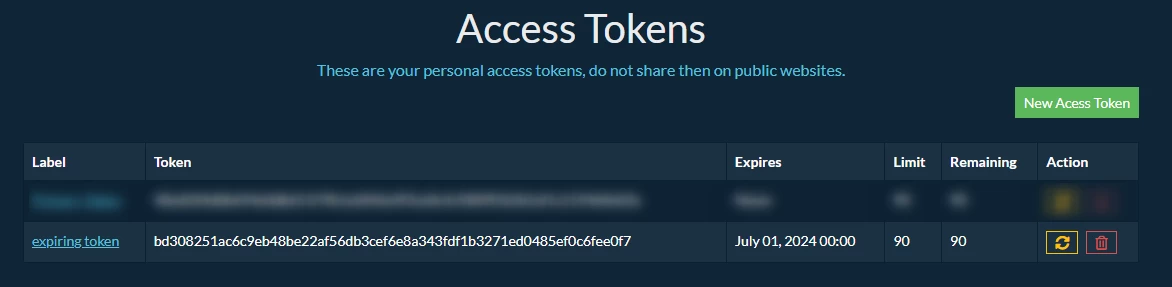
You can regenerate the code by clicking on the orange reset icon.
Note
It is not a requirement that you apply this if you only want to set up pagination or nested endpoints as it is entirely free to pull the data.
Initial Setup
Common Settings
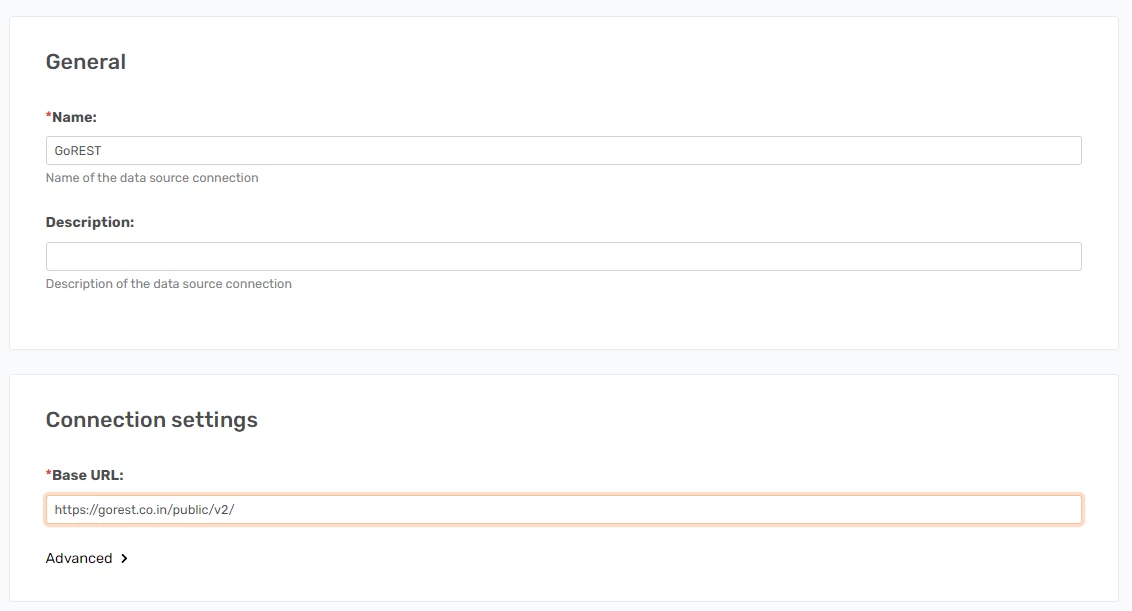
The base URL will be a mix of the main URL and the newest API version.
API Version 2
- Path:
/public/v2/*
Add [https://gorest.co.in/public/v2/](https://gorest.co.in/public/v2/users) to the Base URL field.
Authorization
Change the Authorization option from None to Bearer.
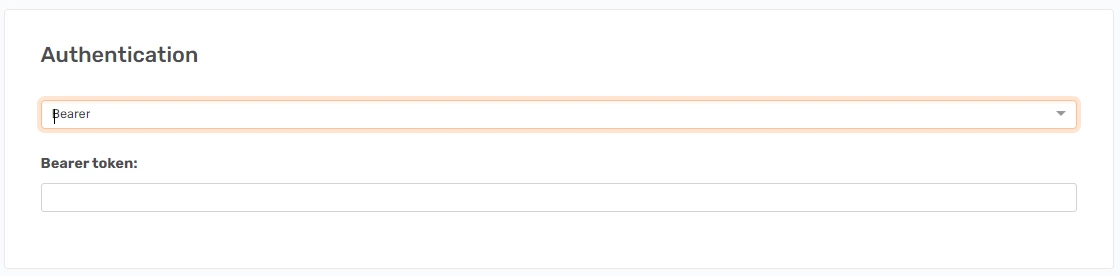
Add the token made before.
Advanced
Request Limits
Expand the Request Limits area and set the request limits per minute to the amount of calls you want it to do. The token allows 90 per minute by default, so a similar value would be ideal.
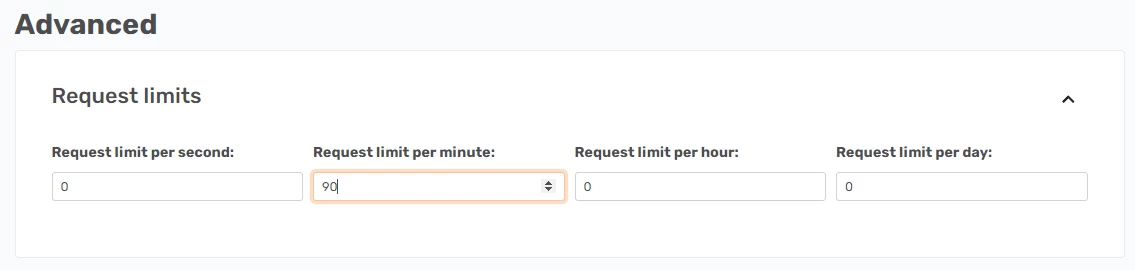
By default, this API has a return limit of 10. After you have applied pagination as explained below, you need to consider how to run the executions. There are 4 main endpoints and they have more than 100 pages each, so you need to only run one of these endpoints at a time or limit the maximum amount of pages to avoid the execution taking a long amount of time to complete.
Main endpoints
Users endpoint
Add users in the path field so it is set up like so.
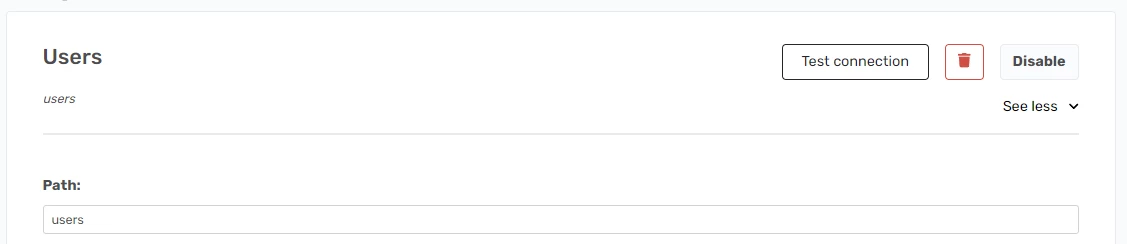
There are no other options you need to apply.
Posts endpoint
Add posts in the path field so it is set up like so.
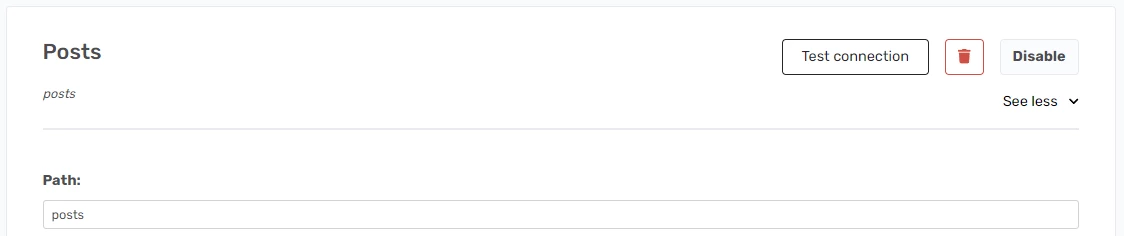
There are no other options you need to apply.
Comments endpoint
Add comments in the path field so it is set up like so.
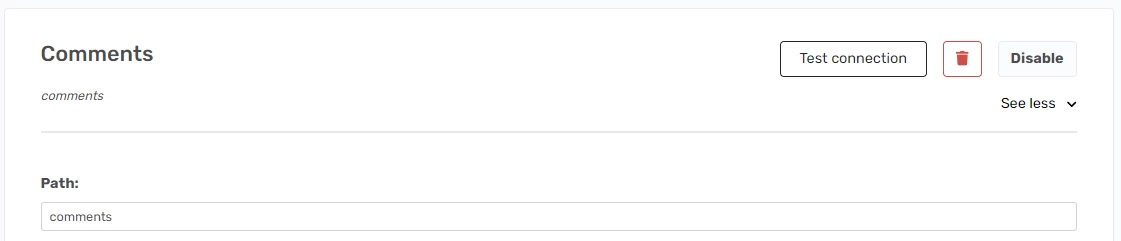
There are no other options you need to apply.
Todos endpoint
Add todos in the path field so it is set up like so.
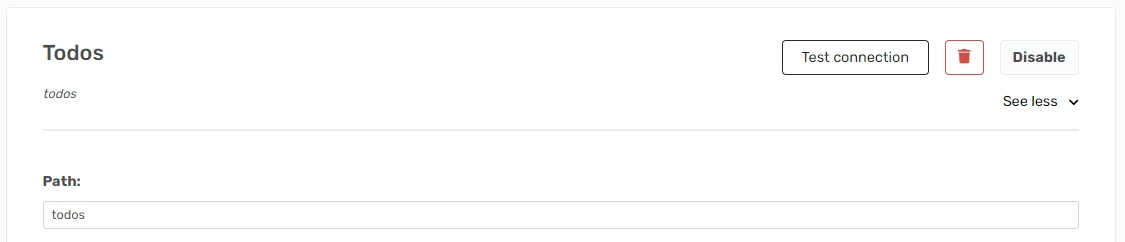
There are no other options you need to apply.
Finalize initial setup
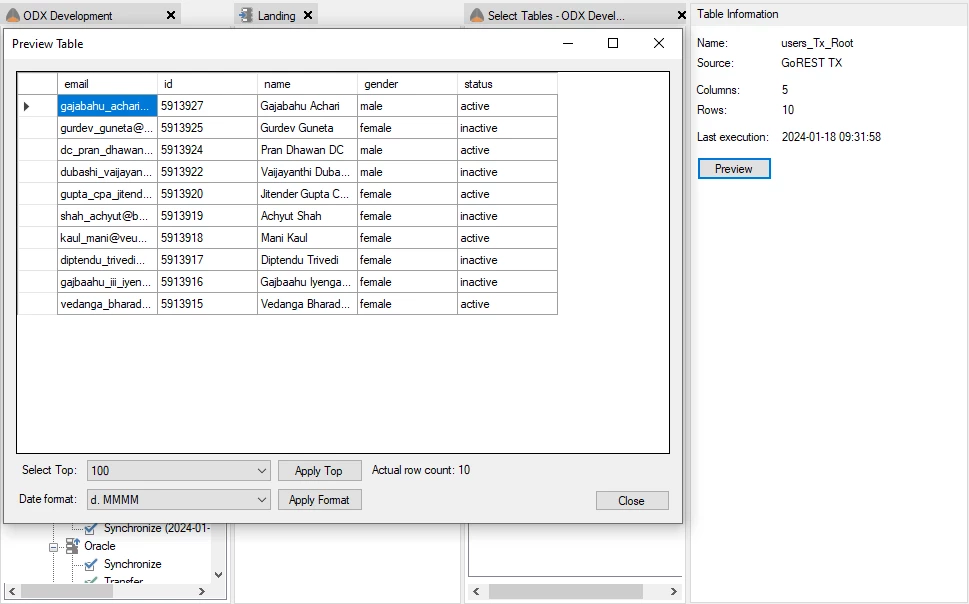
When all four of these are added. Save the data source, run the synchronize task in the Ingest Instance, and run the transfer task.
It should look like this if you preview a table from the endpoints.
Dynamic features
Pagination
This provider has two options for pagination, a header containing a link to the next page and a page URL parameter.
Looking at the Postman collection and running the Users endpoint, you will get the following header values.
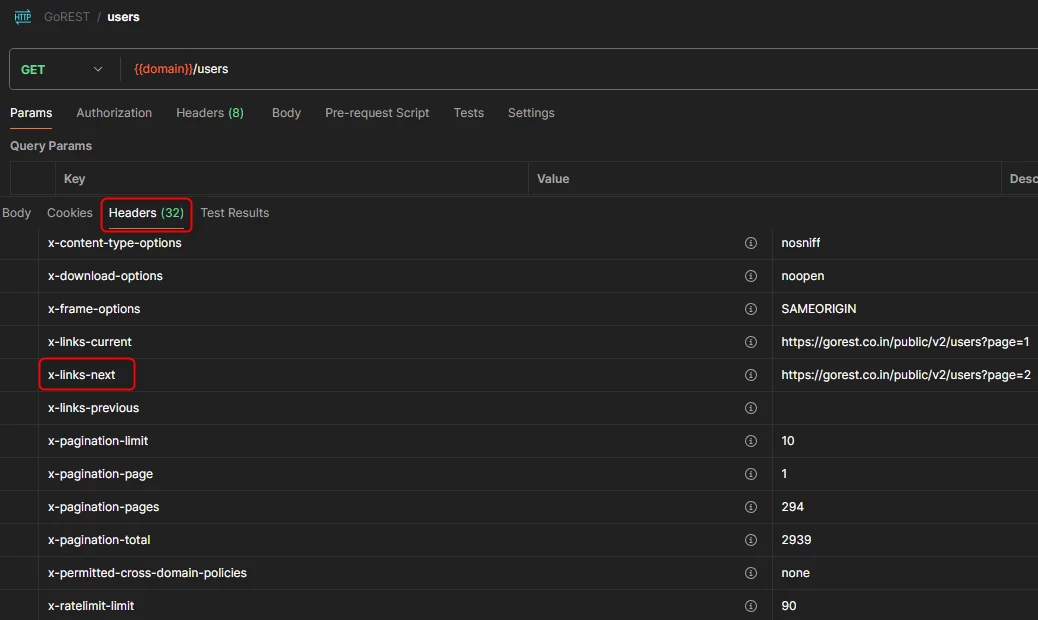
The header value to use is x-links-next which contains a link to the next page.
To set this up click Enable in the Pagination section and click Add next to Parameters. Apply a name to what you want this to be and set x-links-next in the value field.
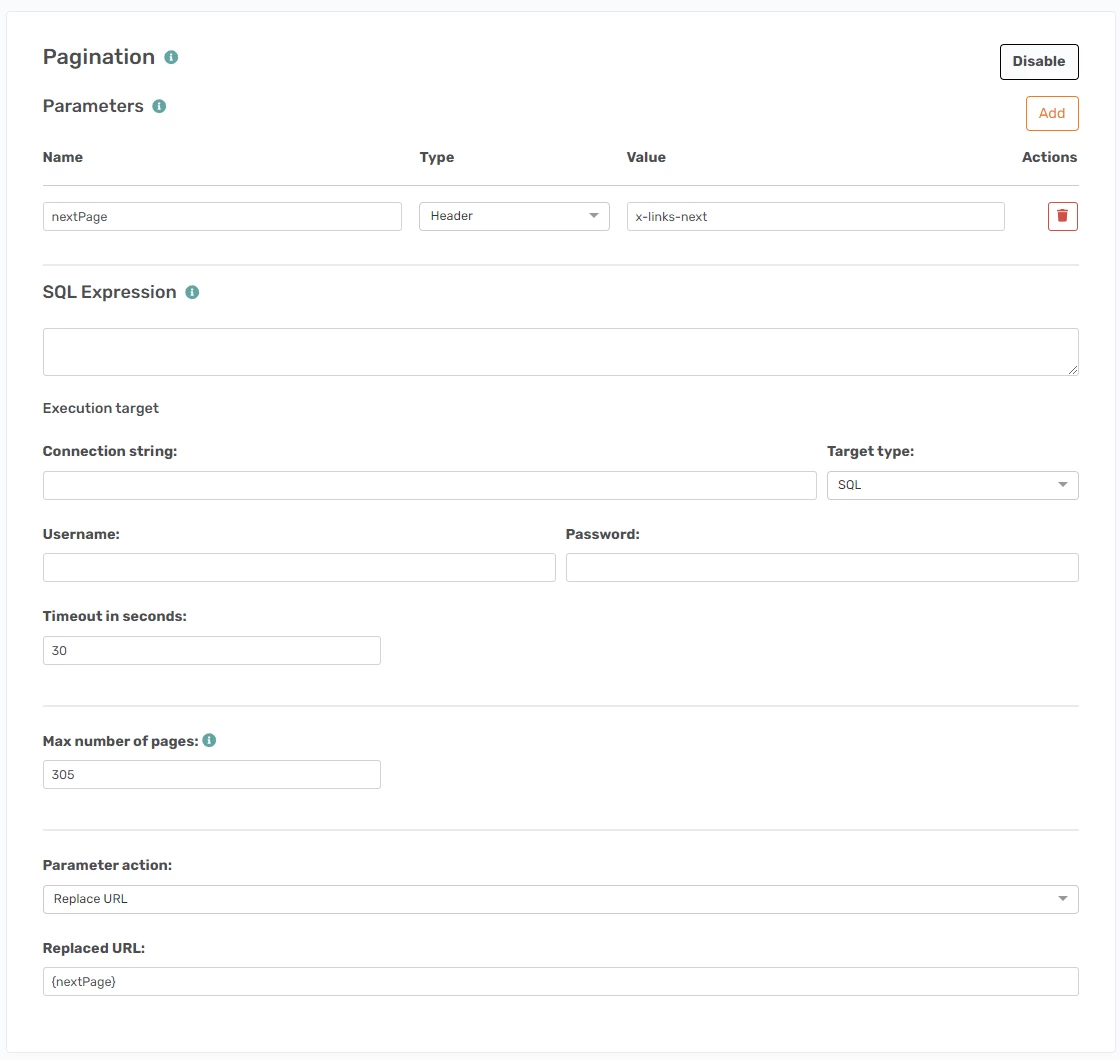
To use the option change the Parameter action to Replace URL and in the Replaced URL field add {nextPage}.
Initially, I set the Max number of pages to 300. According to the Users endpoint header, it has 294 pages currently and this can be used to stop the execution when it hits this value.
If you set up the Users endpoint as explained below and run it once you will see that it hits this max pages option.
It will look like this.
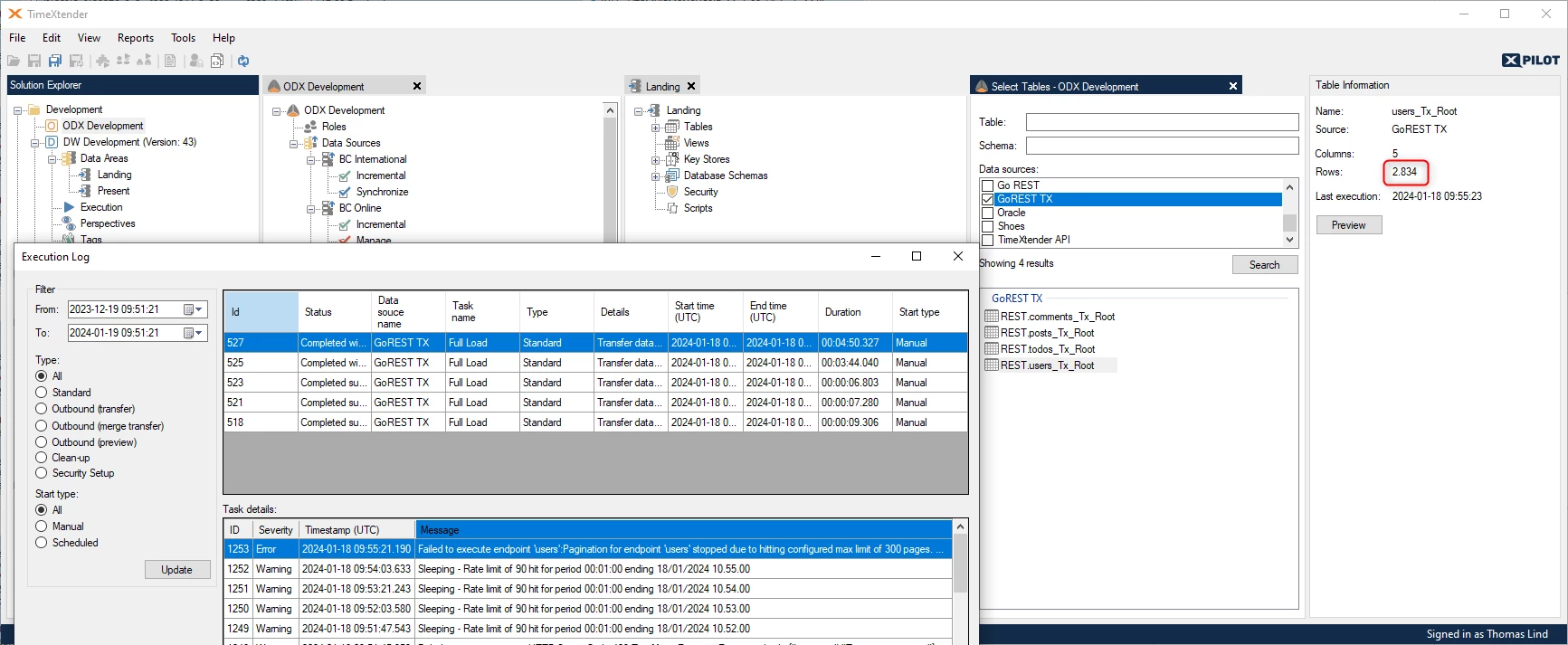
As you can see it got all rows due to it being high enough, but it also ran until it hit the limit, which gave a message. Additionally, you can see how the request limit stops it from running due to hitting the 90 calls per minute option.
Dynamic stop condition
To make it dynamic you will need to add a stop condition.
If you turn on caching to a folder like so.

The empty files will look like this.

You can use that the file is empty as an XPath-type parameter. The path is as follows (//id)[1]. This setup means that it will look for the <id> node and if it does not exist, the pagination will stop.
The stop condition is set up like so.

It is necessary that the Type is set to XPath and the value is the path explained above.
If you run it again, it will stop when the page files are empty.
Now the execution will look like this.
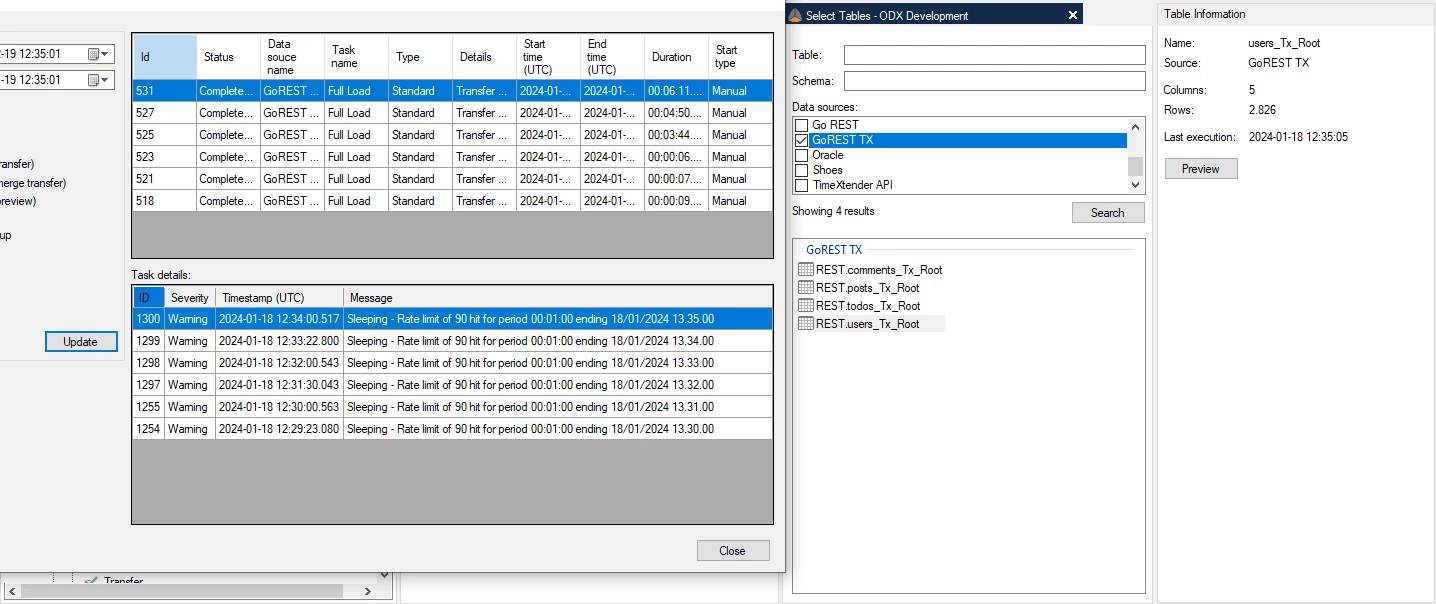
Dynamic endpoint Users posts
It is possible to get the posts of a specific user by calling users/{userid}/posts. To get this {userid} parameter applied you can use a dynamic value from an endpoint source. Specifically the Users endpoint. The value in the source that contains the userid is called id. This makes the path users/{id}/posts. You can set it up like so.
First the initial setup.

Then set up the connection to the Users endpoint.
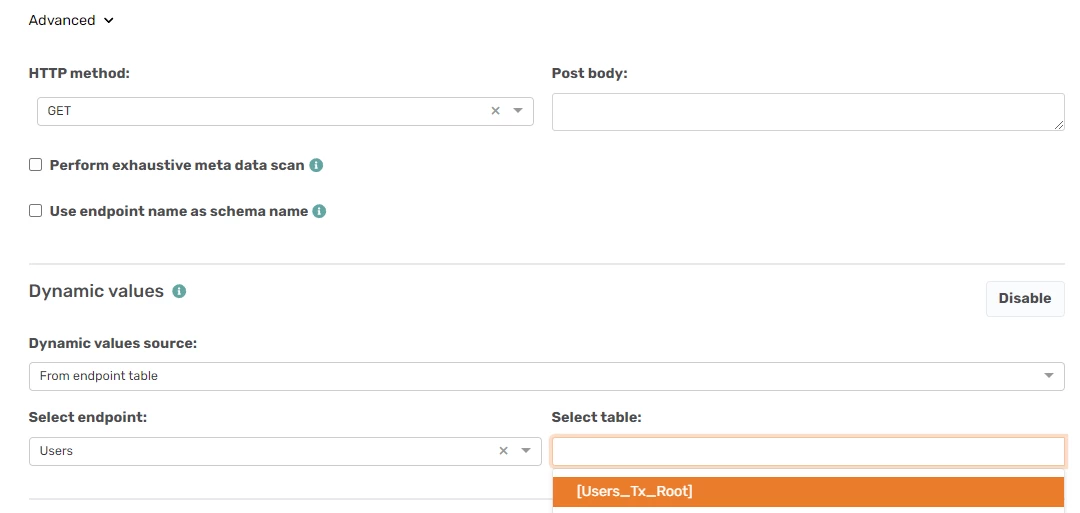
Set the Dynamic values source to From endpoint table, set Select endpoint to Users, and set Select table to [Users_Tx_Root].
That is it, save, run the synchronize task in the Ingest Instance, and run the transfer task in the Ingest Instance.
It should then give this table.
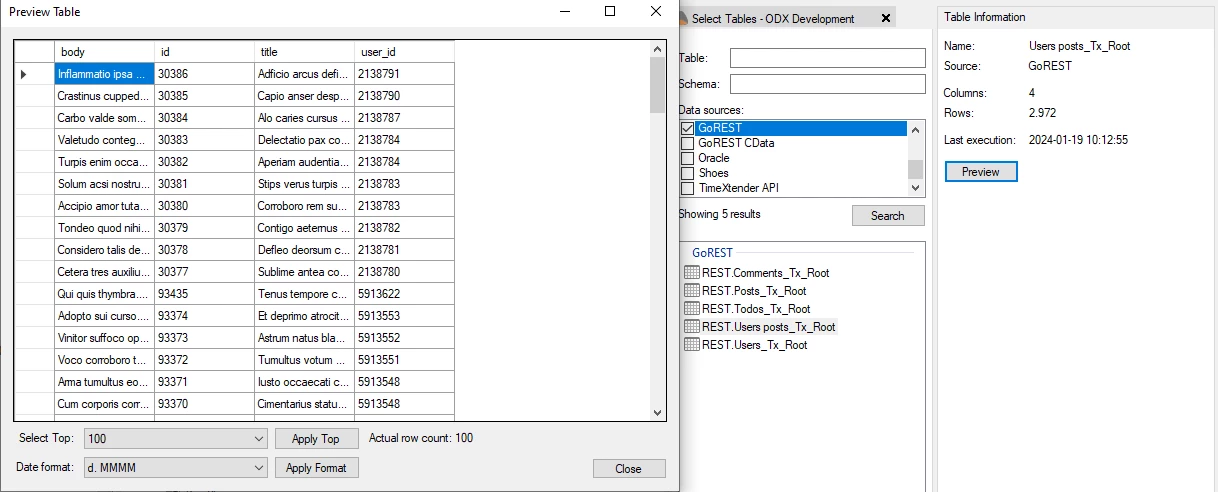
Dynamic endpoint Posts comments
You can get the comments on a post by calling posts/{postid}/comments. To get this {postid} parameter applied you create a dynamic value from an endpoint source. The value that contains this in the Posts endpoint is called id.
The initial setup is done by adding posts/{id}/comments as the path and Posts comments as the name.

Then you set up the connection to the Posts endpoint.
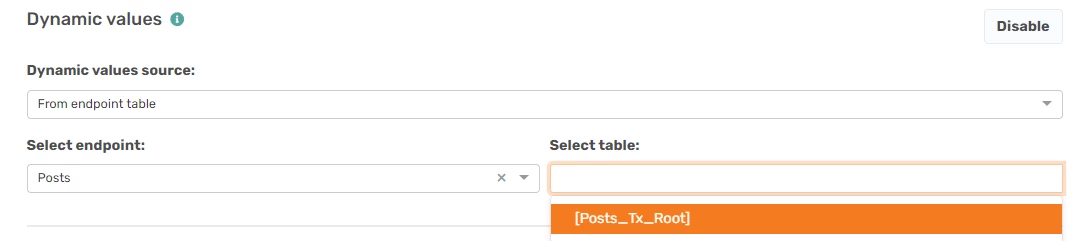
Set the Dynamic values source to From endpoint table, set Select endpoint to Posts, and set Select table to [Posts_Tx_Root].
That is it, save, run the synchronize task in the Ingest Instance, and run the transfer task in the Ingest Instance.
It should then give this table.
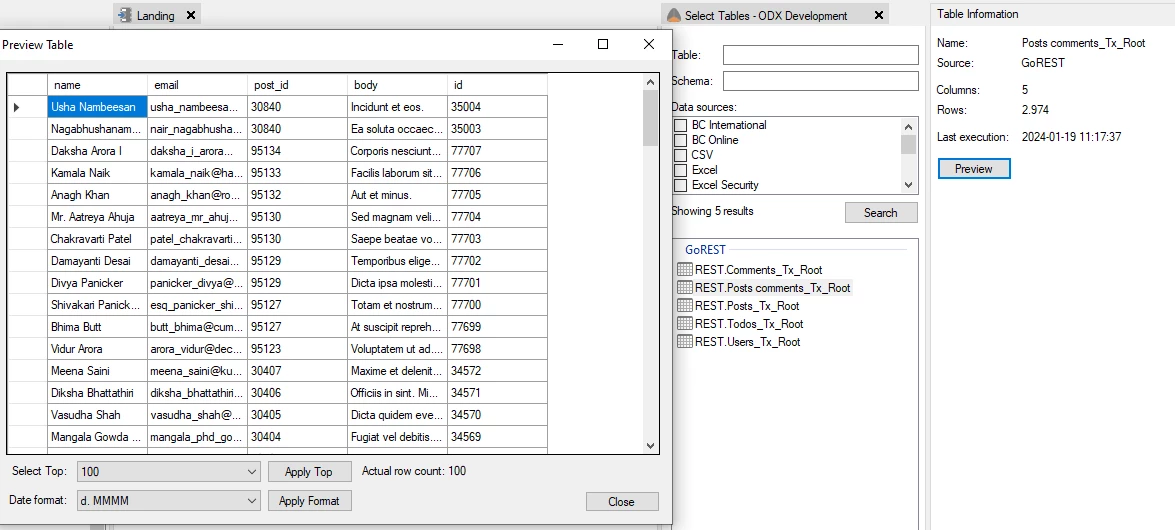
If you by some chance do not get any table, it is a good idea to check the Perform exhaustive meta data scan option. If the first call with the first post have no comments the result will be empty and no table will be created. So checking this will allow it to run all endpoint calls before deciding the table.
Turn it off after doing this as it will take a while to run this scan.
Discussed in the community
Looking for related questions…
Didn't find your answer? Ask the community about this page — questions are answered by Timextender experts, partners and other users.