Prerequisites to Connecting to Dynamics Business Central 365 Online Data Sources
This article describes the prerequisites for setting up a Timextender Dynamics 365 Business Central - Online
Note
Setting up these prerequisites requires at least a Business Central Essentials license in order to to install and manage extensions
User requirements in BC
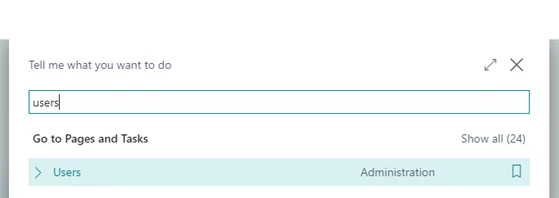
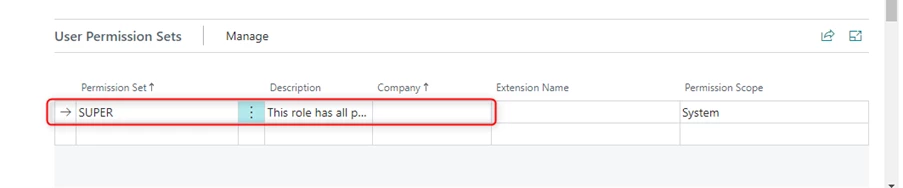
All users that will be authorizing the connection require the D365 AUTOMATION or SUPER access in Business Central (BC), this can be achieved by navigating to the relevant environment in https://businesscentral.dynamics.com/, then clicking on the search button in the top right, then search for users, and click on users. Select the relevant user, and add either SUPER permission set (with blank company name) under User Permission Sets, or D365 Automation.

Setting up the BC extension
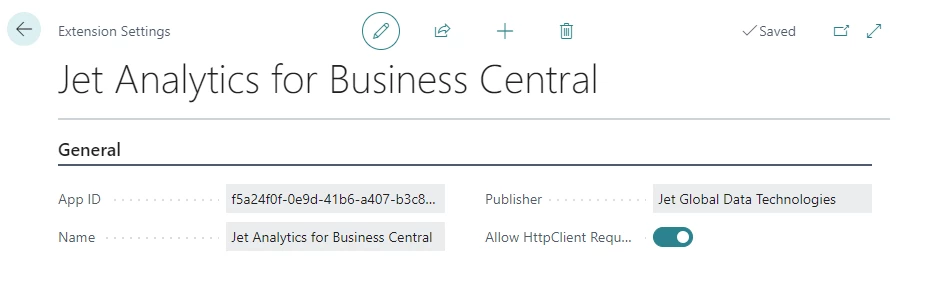
Install "Jet Analytics" from the Extensions Marketplace in BC and enable the setting Allow HttpClient Request, as shown in the following article. Connecting-to-Business-Central-Version-16-or-Later
- Within the Business Central portal, using the search icon, navigate to Extension Management
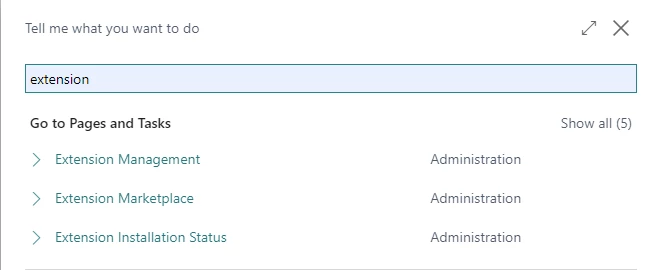
- Click Manage → Extension Marketplace
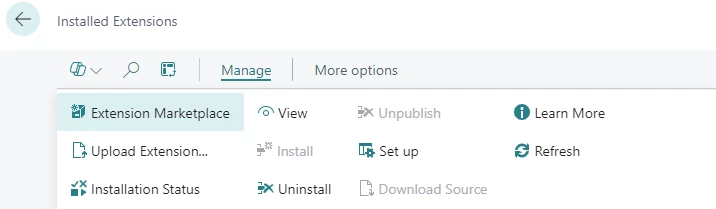
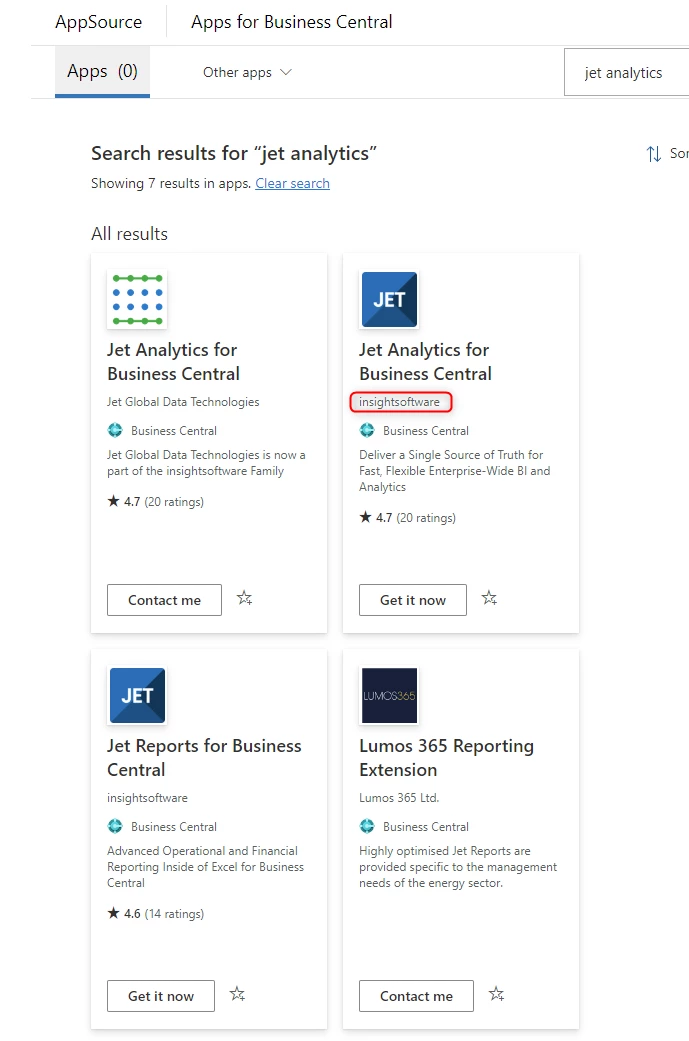
- When you Search for Jet Analytics you will get multiple options choose the one made by insightsoftware and click Get it now to install it.
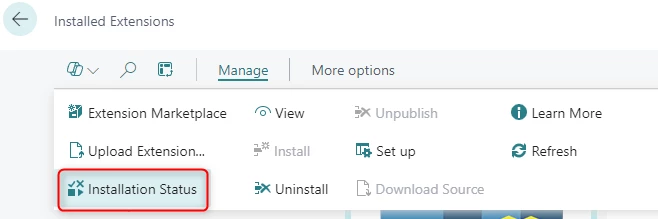
- Verify extension installation. Click Manage and then Installation Status
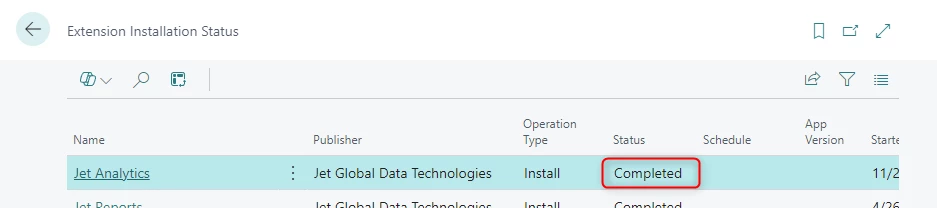
- Verify that the status column has a value of completed
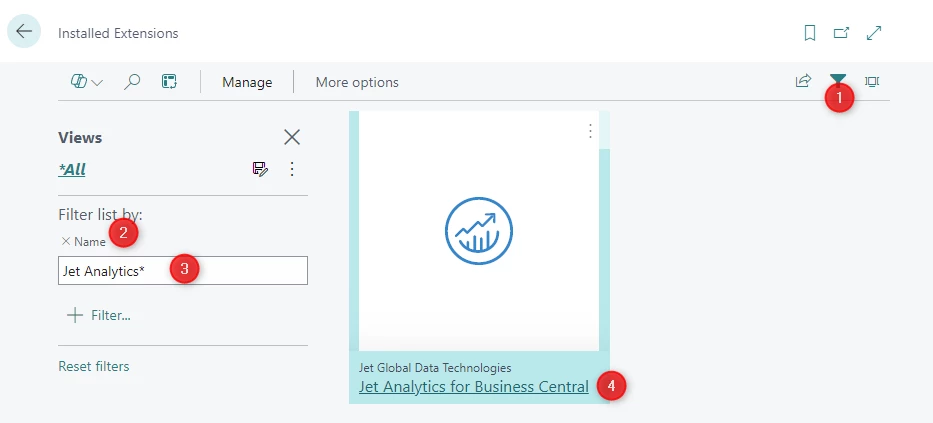
!!! note "Note" If you have installed the old version it makes no difference, it will work the same no matter which of the options you choose. 6. Navigate to Extension Management, click on the funnel icon to turn on filtering, create a filter based on Name and add the search term “Jet Analytics*”, click on the item to open the setup.
!!! note "Note" if you are configuring a Production environment you can skip this step
Change the setting so it allows HTTP client requests.
Set up an app to use for authentication
- To register an Azure AD application for authentication to BC, navigate to API permissions select Add a permission, and add the application permissions: https://docs.microsoft.com/en-us/dynamics365/business-central/dev-itpro/administration/automation-apis-using-s2s-authentication
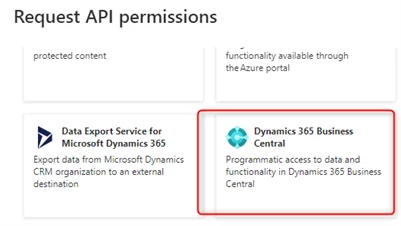
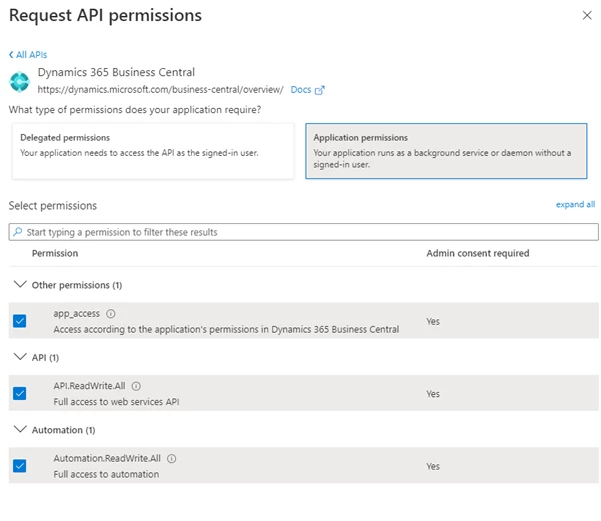
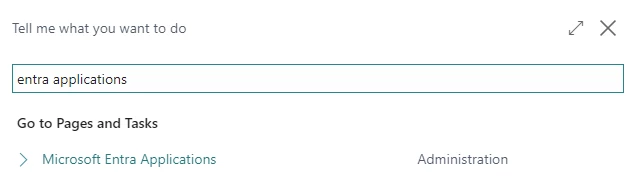
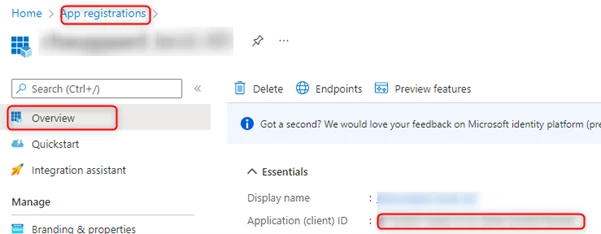
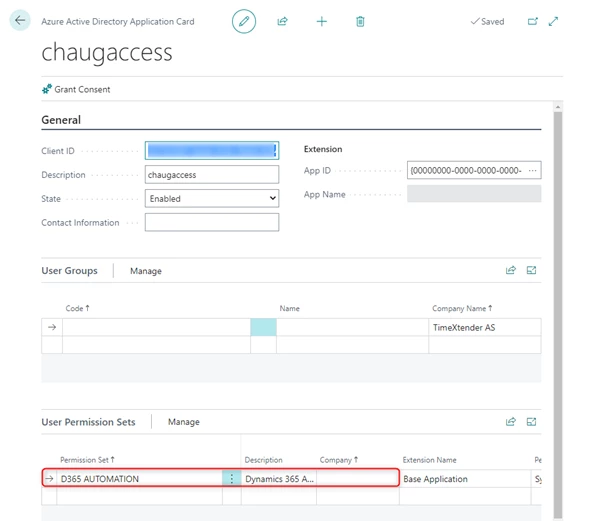
- Once the app is set up you can map it in BC. Search for Microsoft Entra Applications in BC and select new, and to find the client ID enter the Application (client) ID for your app registration, which can be found in the Overview page in Azure, and enter a description. Give the Application the “D365 AUTOMATION” User Permission Set
Discussed in the community
Looking for related questions…
Didn't find your answer? Ask the community about this page — questions are answered by Timextender experts, partners and other users.