 Ask the community about this page
Timextender CSV Data source
This data source can be used to connect to text or CSV files in many locations. It is also able to find files across folders and subfolders. It can then decide to merge these into one or more specified tables.
If your setup requires a specific setup to work there also is various methods available to handle this.
Configuration manual
The following settings can be used with the Timextender CSV Data Source connector.

General notes on setting comma-separated parameters
For every setting where a comma-separated list can be passed as a parameter, it is possible to wrap certain items in square brackets – within the brackets, any special character can be used.
Eg. the following date format list setting will be parsed as a 3-long list (notice the comma within the brackets):
yyyyMMdd,[dd,MM,yyyy],yyyy-MM-dd
Connection settings
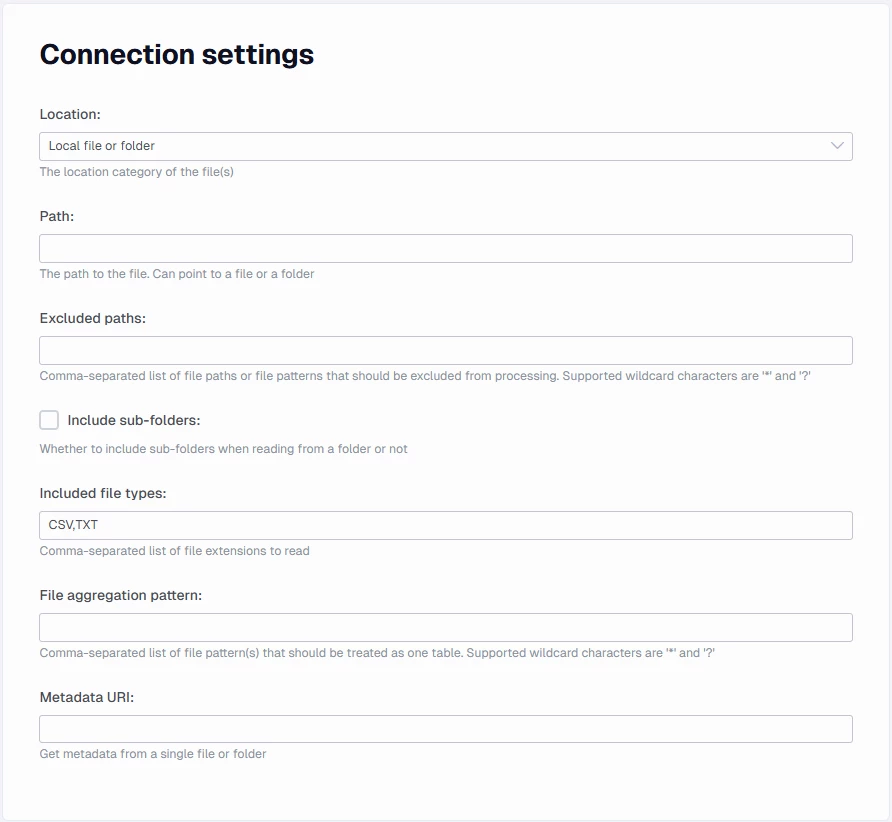
In this section you can specify the location of the file(s) with the additional settings on how to access it.
Path
The actual path to the csv file(s). You can only specify one path per data connector. It can be a folder or a file. If your location isn’t a local one, it may have an alternate field that specifies where it is located like driveid in the SharePoint location option. In that regard it can be a / to show that it is the root level.
Include sub-folders
Specify whether CSV files should be collected from subdirectories too.
Note that this setting is ignored for AWS, Azure and Google Cloud locations.
Included file types
Comma-separated list of file extensions to read. Any file with an extension not specified in this field will be ignored.
File aggregation pattern
Comma-separated list of file pattern(s) that should be treated as one table. Supported wildcard characters are '*' and '?'.
When set, all CSV files belonging to a pattern will be treated as one table. Note that grouped files are expected to share the same schema, otherwise the process will break during full data load.
Location specific fields
The rest of the connection settings are differ based on the selected Location type, and only the relevant fields would be editable – but those fields will be mandatory.
Location
The following location types are supported:
- Local file or folder
- Azure Blob Storage
- AWS S3 Bucket
- SharePoint or OneDrive
- Google Cloud Storage
- SFTP
Local file or folder
- When the file is locally stored on some drive.
- If you are using Azure File Share then use the UNC path, e.g:
\\<storageAccountName>.file.core.windows.net\<fileShareName>\<folder>\<filename.csv>
Before connecting to an Azure File Share, you will need to mount the file share as a network drive.
If you locate the file share you can click on the Connect button, then on Show Script and finally on the copy code button.
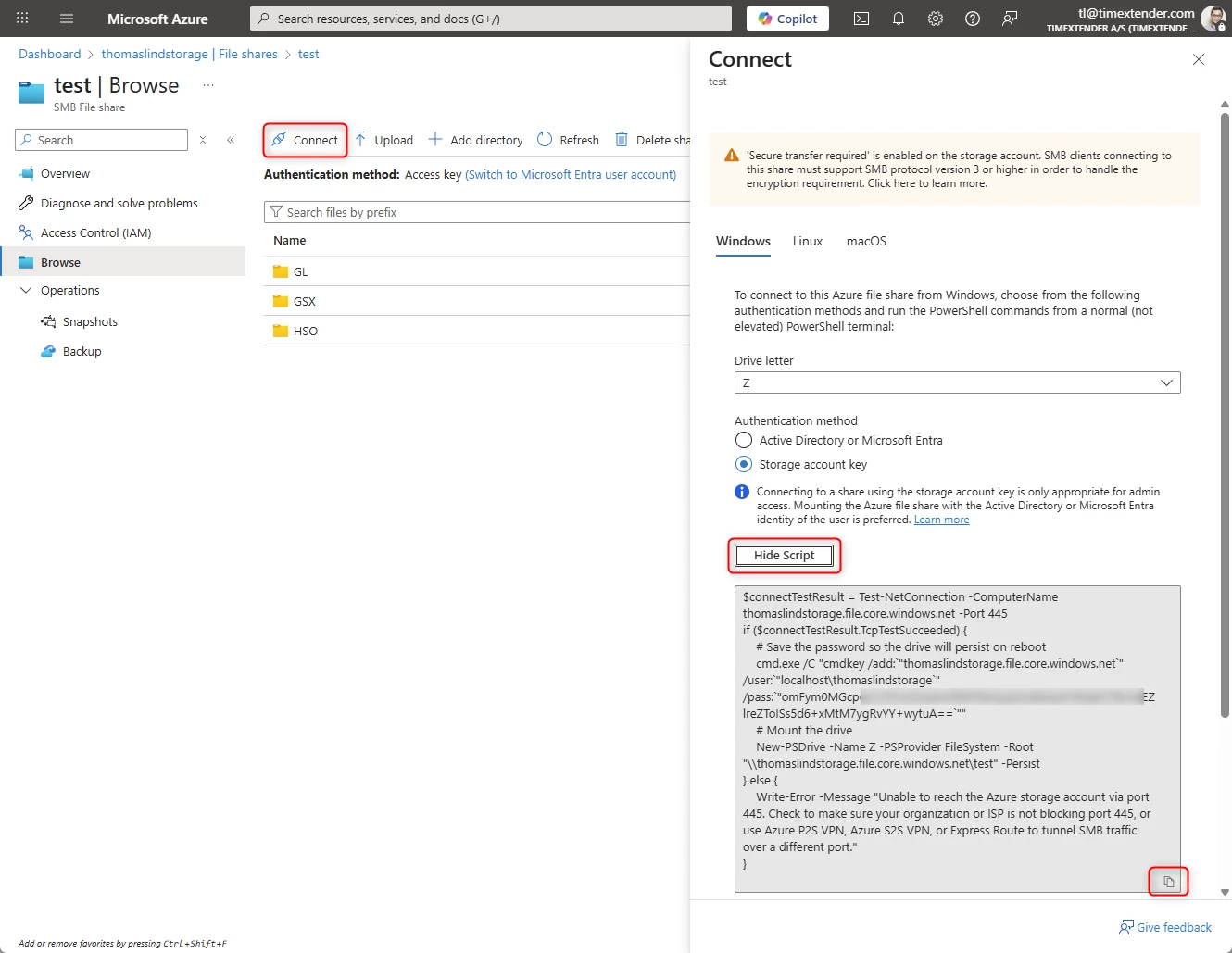
As you can see, you can run this script in PowerShell. It is important that this is done so it runs as the user running the Ingest Instance Service. You can’t do this if you run as Local System.
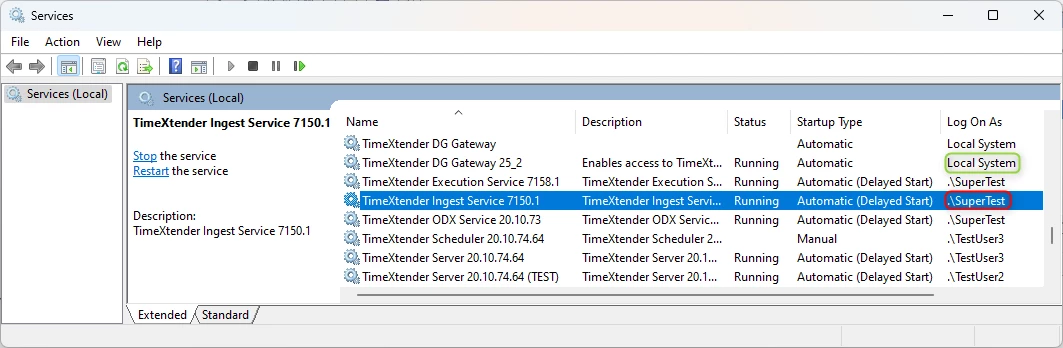
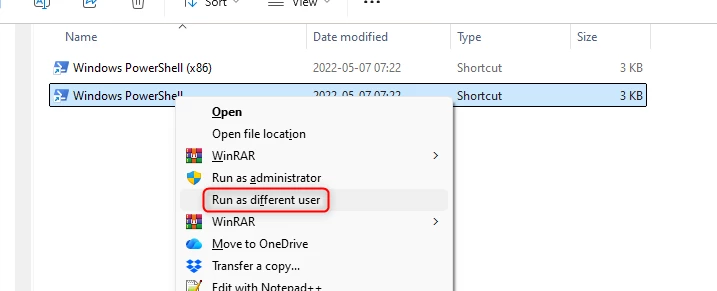
So when you want to run the script start by starting PowerShell as the user that runs the Ingest Service. I did it by searching for PowerShell and right-clicking on it and choosing Open File location. Here I could run it as another user, by right-clicking on the program and choosing Run as a different user.
Once you have copied the script, you can paste it in PowerShell and run it by hitting the Enter button. It will then show a message about the folder being created.
Azure Blob Storage settings
- Azure blob connection string: the complete connection string to the container. You can learn more about configuring connection strings here : Configure a connection string - Azure Storage | Microsoft Learn
- Azure tenant ID: The tenant id the storage account is located in. Is needed when doing OAuth 2.0 authentication using the client grant type.
- Azure client ID: The client id for the application that is used for doing OAuth 2.0 client authentication.
- Azure client secret: The secret value that is set up for the application
- Azure storage account name: The storage account name that hosts the container.
- Azure blob container: the container name
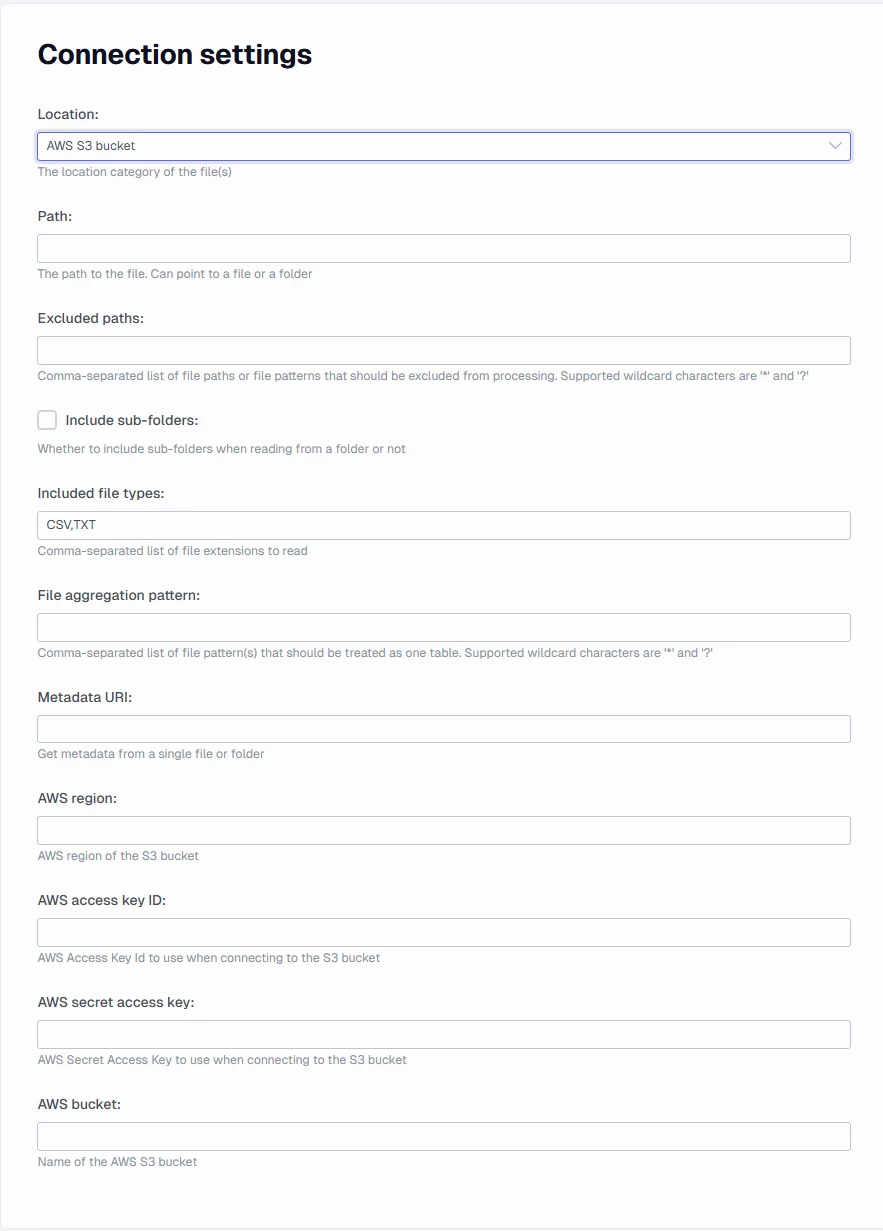
AWS S3 Bucket settings
Currently the connector only supports connecting with Access Key Id. You can learn more in AWS documentation.
- AWS region: the related region string (eg. eu-west-2)
- AWS access key ID: access key id to S3 bucket
- AWS secret access key: secret access key to the S3 bucket
- AWS bucket: the bucket name
SharePoint or OneDrive settings
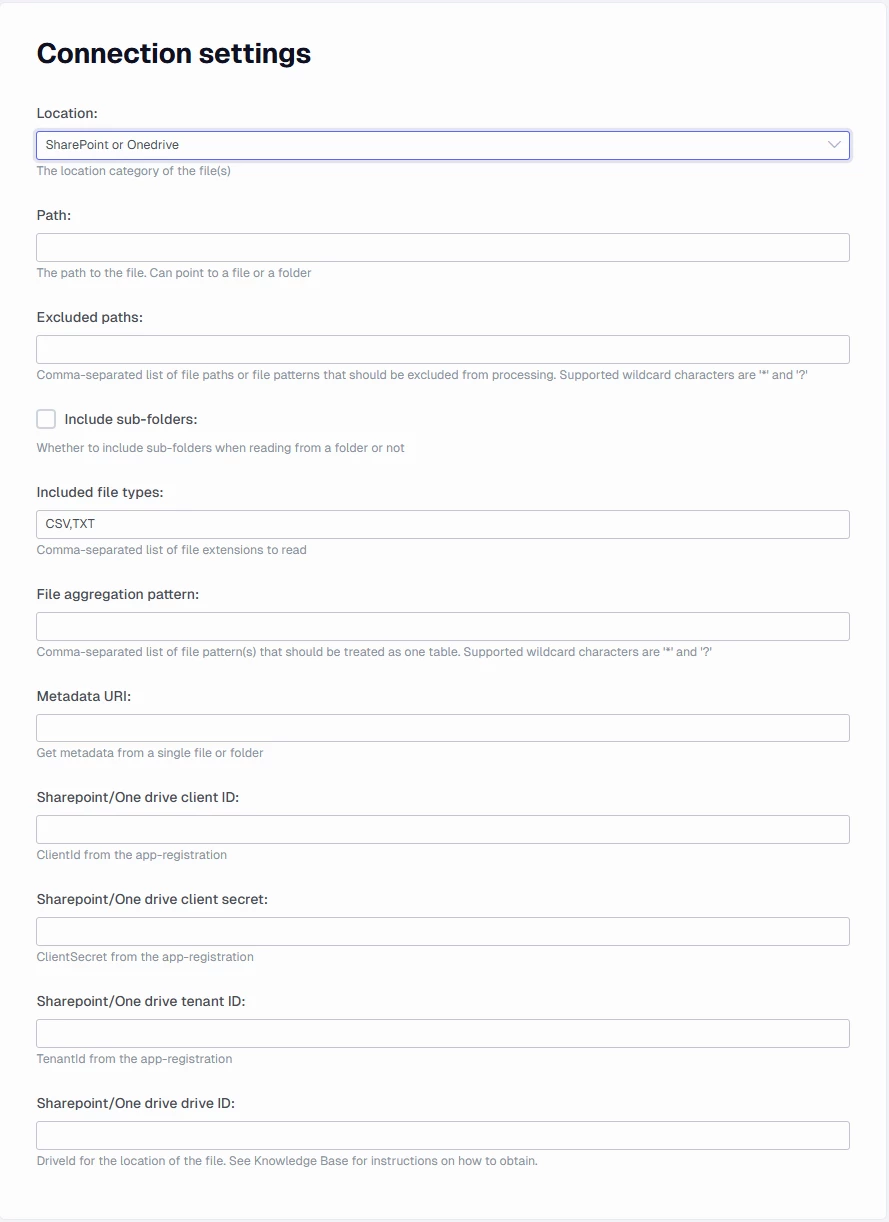
- SharePoint/OneDrive client ID: The Client ID of the app you use for access. The app used needs the following granted Application permissions Files.Read.All and Sites.Read.All. To be sure you have enough rights, you may also add Group.Read.All and User.Read.All.
- SharePoint/OneDrive client secret: The secret code that is set for the app used.
- SharePoint/OneDrive Tenant ID: The tenant id of the company that hosts the SharePoint site.
- SharePoint/OneDrive Drive ID: The drive id pointing to the Document Library you connect to. I made a guide about retrieving this. Locate a SharePoint/OneDrive drive ID
Google Cloud Storage settings
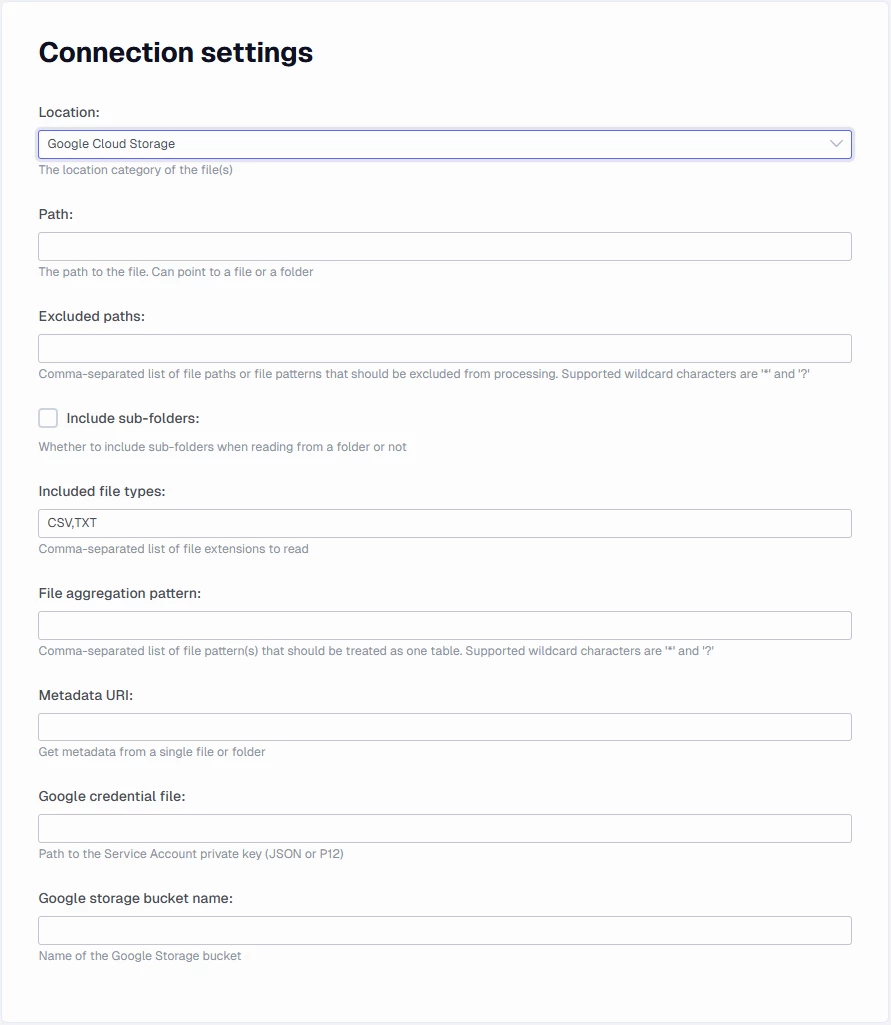
The connector supports GCM authentication with service account keys. You can learn more about them here: Create and delete service account keys | IAM Documentation | Google Cloud
- Google credential file: Path to the Service Account private key (JSON or P12)
- Google storage bucket name: the bucket name
SFTP settings
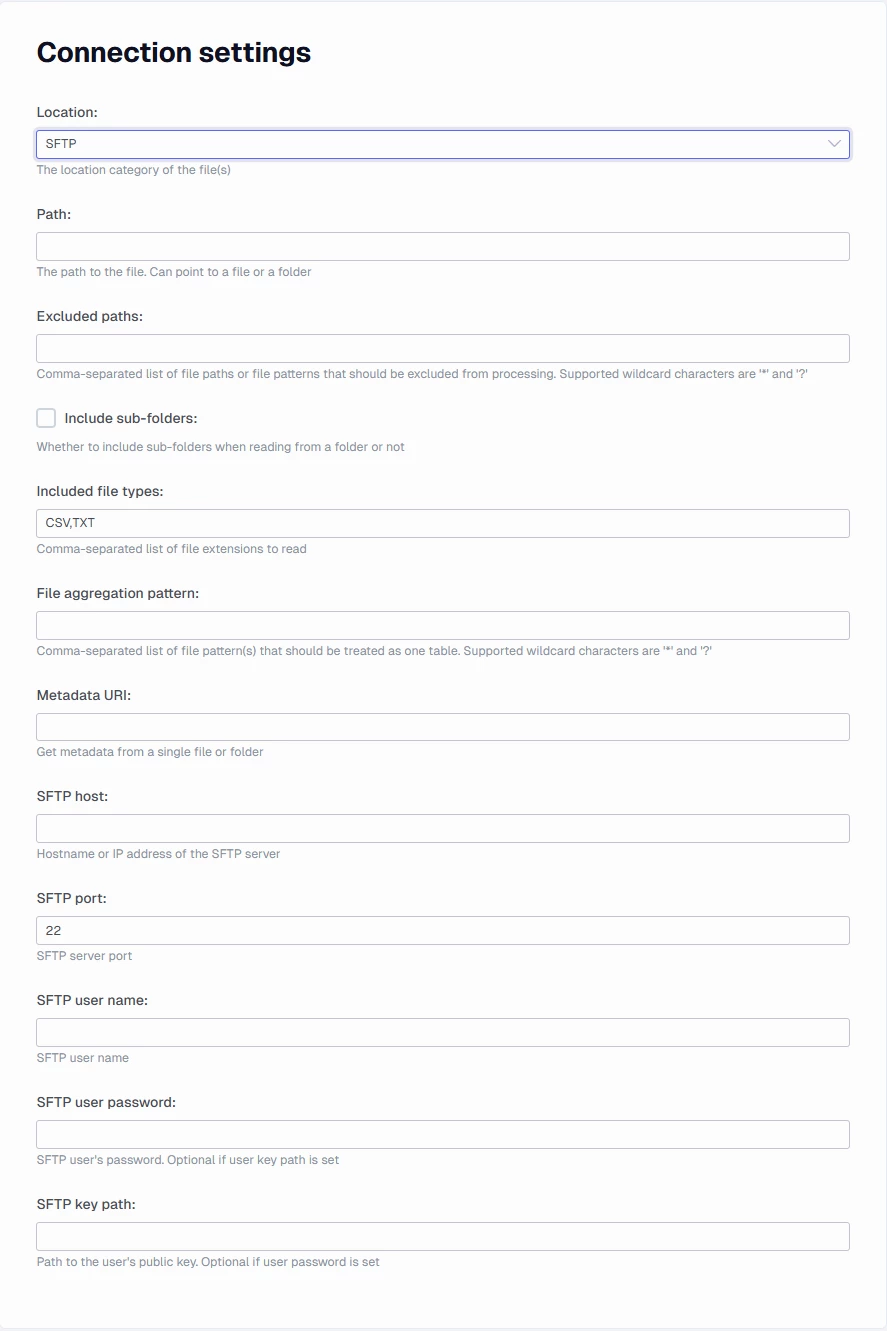
The connector supports SFTP authentication with password or a public key file. It is mandatory to use one of these methods.
- SFTP host
- SFTP port
- SFTP user name
- SFTP key path
Culture setup
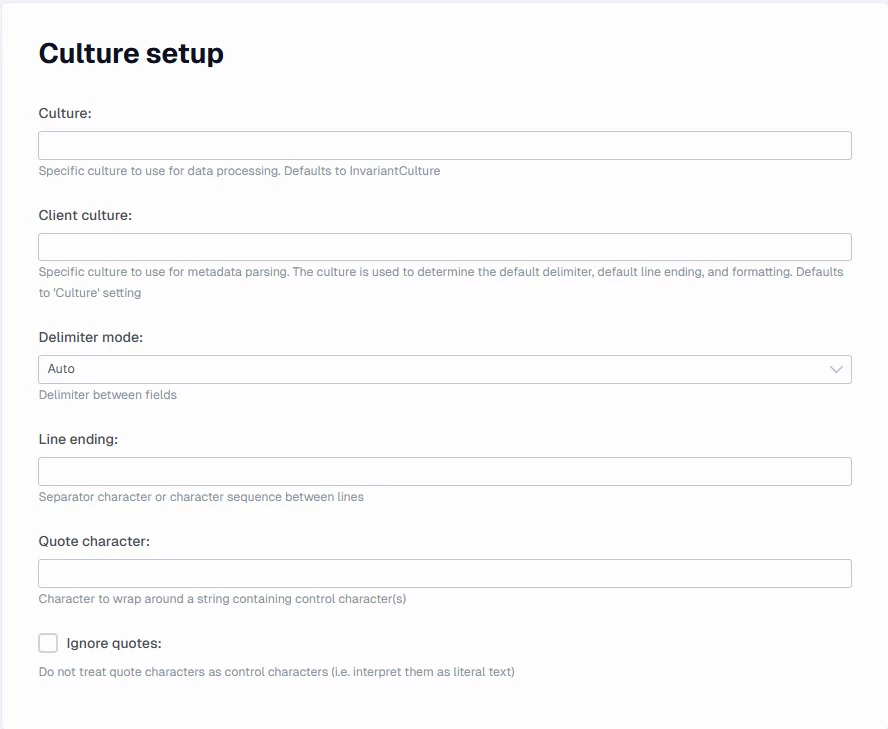
In this section you can find settings related to culture-specific and control symbols.
Culture and client culture
Specific culture to use for metadata parsing. They are optional, the built -in invariant culture is used as the default.
Delimiter
The delimiter character (defaults to comma)
Line ending
Specific character or character sequence separating lines (by default all new-line charcters are supported)
Quote character
Character to wrap around a string containing control character(s)
Ignore quotes
A check to make the set Quote character is read as literal text.
Header setup
In this section you find settings about the file headers and comment rows
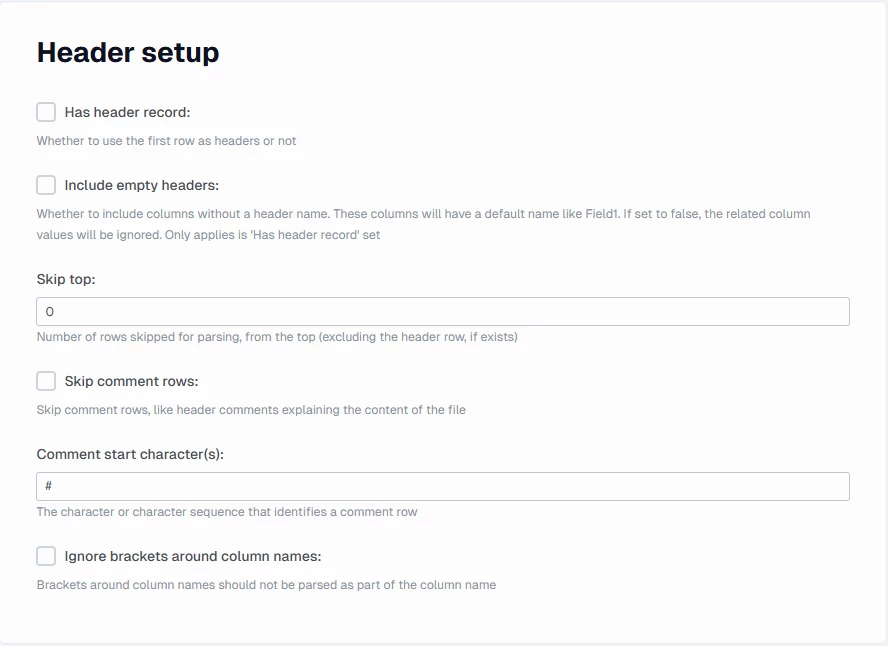
Has header record
Specify if there is a header row. Note that in case there are skipped comment rows, they will be excluded first before the header record is parsed.
Include empty headers
If there is a header record with empty column names, you can specify if you want the related values ignored during parsing
Skip top
Number of rows skipped for parsing, from the top (excluding the header row, if exists)
Skip comment rows
Specify if there are comment rows in the file which should be ignored. Must be set if there are comment rows, not doing so can result in processing errors.
Comment start character(s)
The character or character sequence that identifies a comment row
Ignore brackets around column names
So if the field names in the file contain [] around the names, you can use the check to ignore them.
Incomplete row handling
This section contains settings about empty or incomplete rows and values
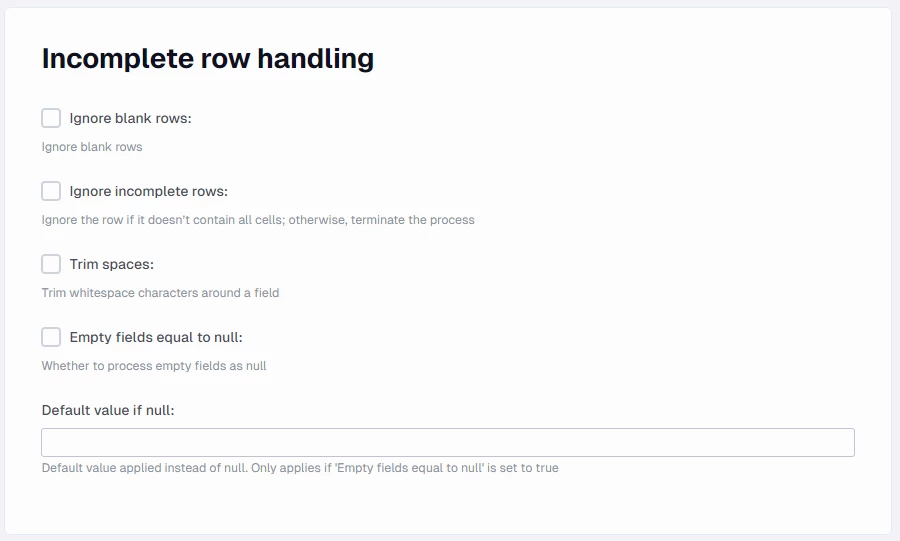
Ignore blank rows
If empty rows should be ignored during parsing. If not set, an empty row will break the processing.
Ignore incomplete rows
Same setting for incomplete rows. If not set, an incomplete row will break the processing.
Trim spaces
Whether to trim whitespace characters around a field.
Empty fields equal to null
Whether to process empty fields as null in the resulting data tables
Default value if null
Default value applied instead of null. Only applies if 'Empty fields equal to null' is set to true
Datatype handling
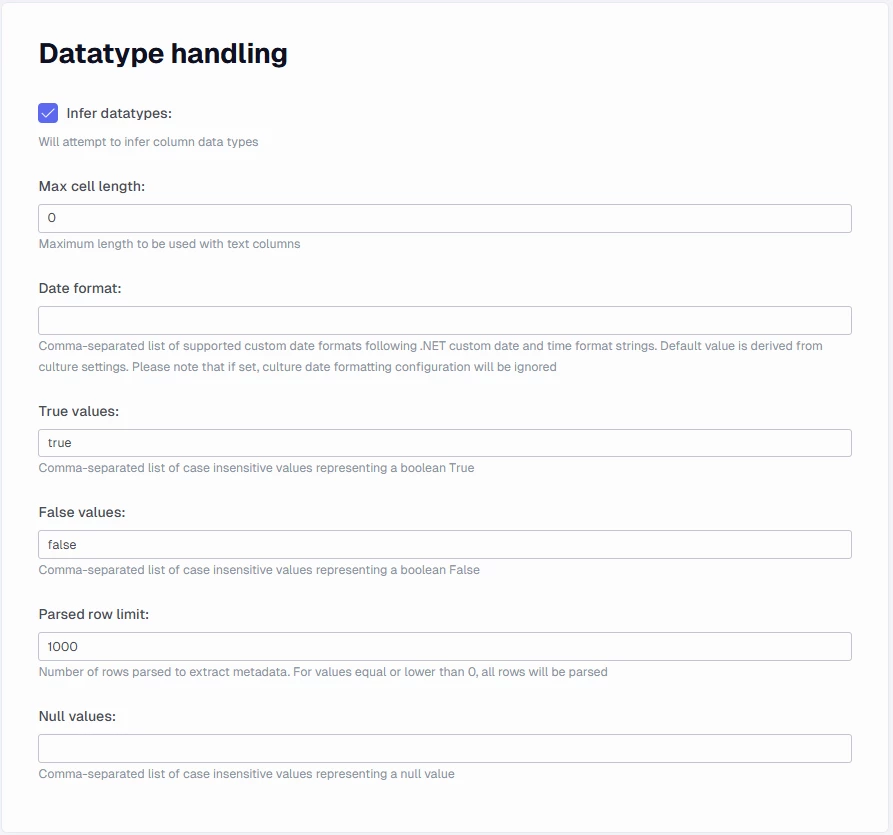
In this section you can find setting related to parsing certain data types.
Infer datatypes
A check that makes it attempt to handle the field types. If this is unchecked all fields will be read as string values.
Metadata URI
(Optional) Specify the path for a single file as a template to define the metadata to be used across the files defined by the path property. This can be used to reduce the execution time required for the import metadata task by limiting the number of rows that are scanned to infer the data type (i.e. only the rows in the metadata file are scanned instead of rows across multiple files). E.g. C:\FlatFiles\Sales.csv
Note
If this setting is used then the other properties to define data types such as Infer datatypes and Parsed row limit will apply to the metadata file instead of the files specified by the path property
Max cell length
Maximum length to be used with text columns. If not set, the column length will be dynamically guessed based on the parsed rows during metadata parse (i.e. the maximum length will be taken, with an extra 25% ). Note that if during full data load, a longer text is found than the set cell length, the process will break .
Data format
Comma-separated list of supported custom date formats following .NET custom date and time format strings. Default value is derived from culture settings. Please note that if set, culture date formatting configuration will be ignored
True values
Comma-separated list of case insensitive values representing a boolean True
False values
Comma-separated list of case insensitive values representing a boolean False
Parsed row limit
Number of rows parsed to extract metadata. For values equal or lower than 0, all rows will be parsed. Defaults to 1000 rows.
Discussed in the community
Looking for related questions…
Didn't find your answer? Ask the community about this page — questions are answered by Timextender experts, partners and other users.