Timextender MongoDB Data Source
You can use this provider to connect your MongoDB database.
Configuration manual

Connection settings
These settings relate to the connection to your MongoDB database server.
Server

Enter the fully qualified domain name (FQDN) or IP address of your MongoDB server.
Examples:
- mongodb.mycompany.com
- 192.168.1.100
- localhost
Port

Specify the port number your MongoDB server is listening to. The default MongoDB port is 27017. Only change this if your MongoDB server is configured to use a different port.
Database

Enter the name of the database you want to connect to. The database must exist on the server before you can connect to it.
Authentication mode
The connector supports 4 authentication modes:
- None: no authentication at all (default)
- SCRAM-SHA-256: Authentication with username and password
- X.509 Certificate: Authentication with a certificate file
- LDAP (SAS PLAIN): Authenticate against an external LDAP directory
Authentication with SCRAM-SHA-256
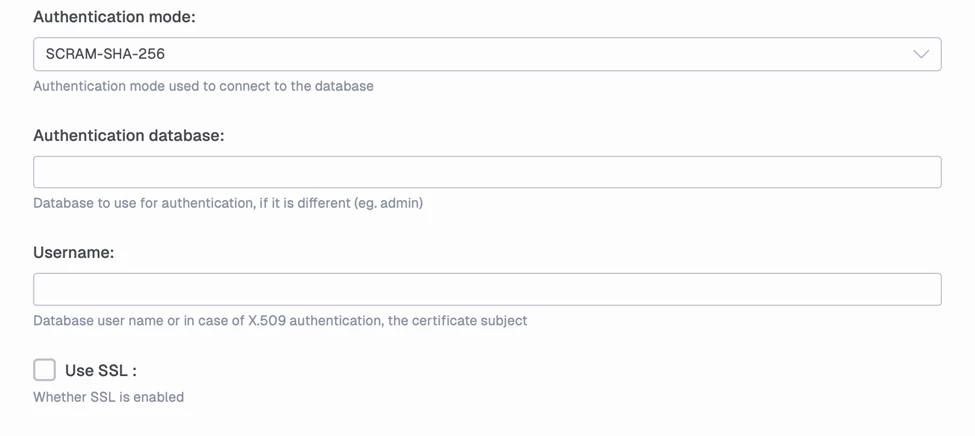
- Authentication Database: Enter the name of the database where the user credentials are stored. This is typically the admin database, but it may differ depending on your MongoDB configuration.
- Username: Enter the MongoDB username for authentication.
- Use SSL: Enable this option to use an SSL/TLS connection for authentication. This encrypts the authentication credentials in transit and is recommended for production environments.
Authentication with X.509 Certificate
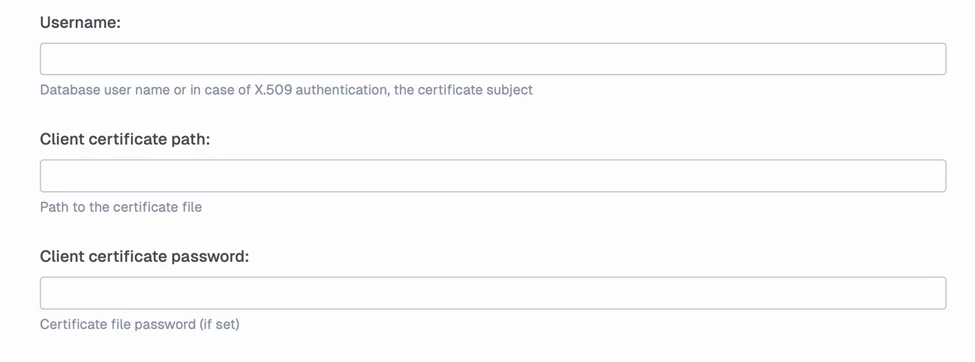
- Username: Enter the certificate subject (distinguished name) used for authentication. This is typically extracted from the certificate file and identifies the authenticated user. This field is optional.
- Client Certificate path: Enter the full file path to the client certificate file (.pem or .crt format). The certificate must be accessible from the Timextender service account running the connector.
- Client Certificate password: Enter the password for the certificate file if it is encrypted. If the certificate file is not password-protected, leave this field blank.
Authentication with LDAP (SAS PLAIN)

- Username: Enter the LDAP username in the format expected by your LDAP directory. This is typically in the format username@domain.com or domain\username, depending on your LDAP configuration. Verify the correct format with your LDAP administrator.
Parsing Settings
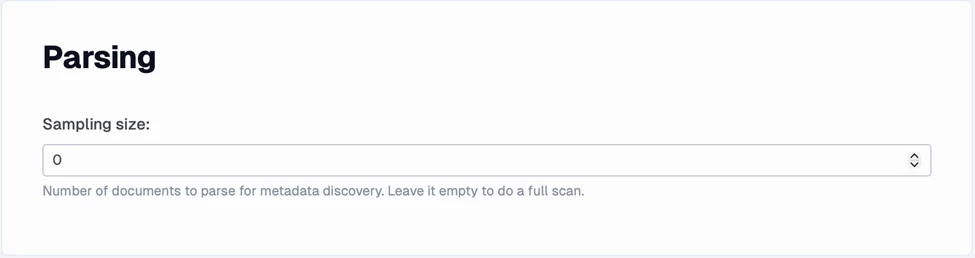
Specify the number of documents sampled during metadata discovery to determine the data schema. Set to 0 to perform a full scan. Only used for metadata discovery.
Discussed in the community
Looking for related questions…
Didn't find your answer? Ask the community about this page — questions are answered by Timextender experts, partners and other users.