Use Amazon RDS for SQL Server for Storage
Amazon RDS for SQL Server is a fully managed Relational Database Service for SQL Server on Amazon Web Services. This guide shows how to create and configure an AWS RDS SQL server as storage for your Prepare Instances.
AWS RDS SQL Reference Architecture
Note
It is possible to setup several data areas (e.g. DSA and MDW) in one Prepare instance, which will then use the same AWS RDS SQL Database.
Configure an AWS RDS SQL Database
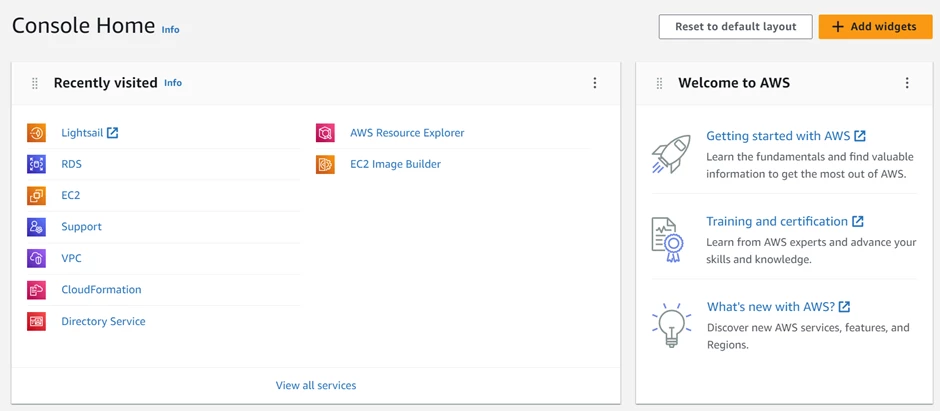
To create AWS virtual machine, select the Lightsail option from Console Home:
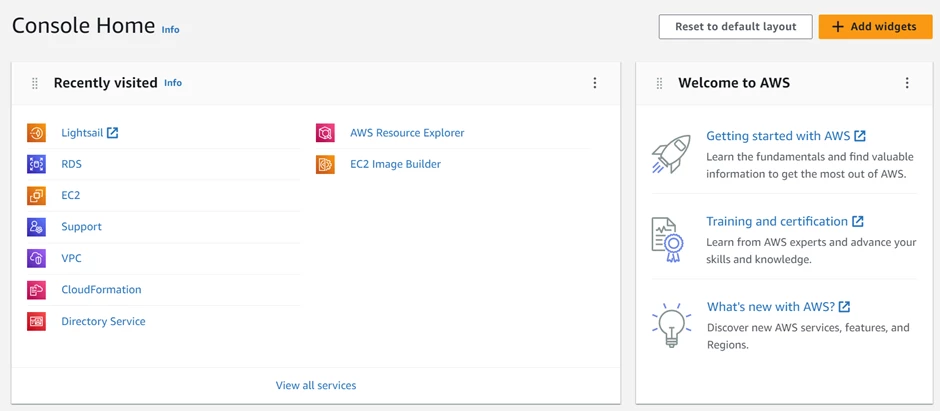
To create a database, click on the RDS option from Console Home:
The easiest way to create the database is by selecting the option “Easy create”
Configuration = Microsoft SQL Server
Select the engine type and enter a name for the “DB instance identifier”.
Enter Master username and Password details.
Click on “Create database” button.
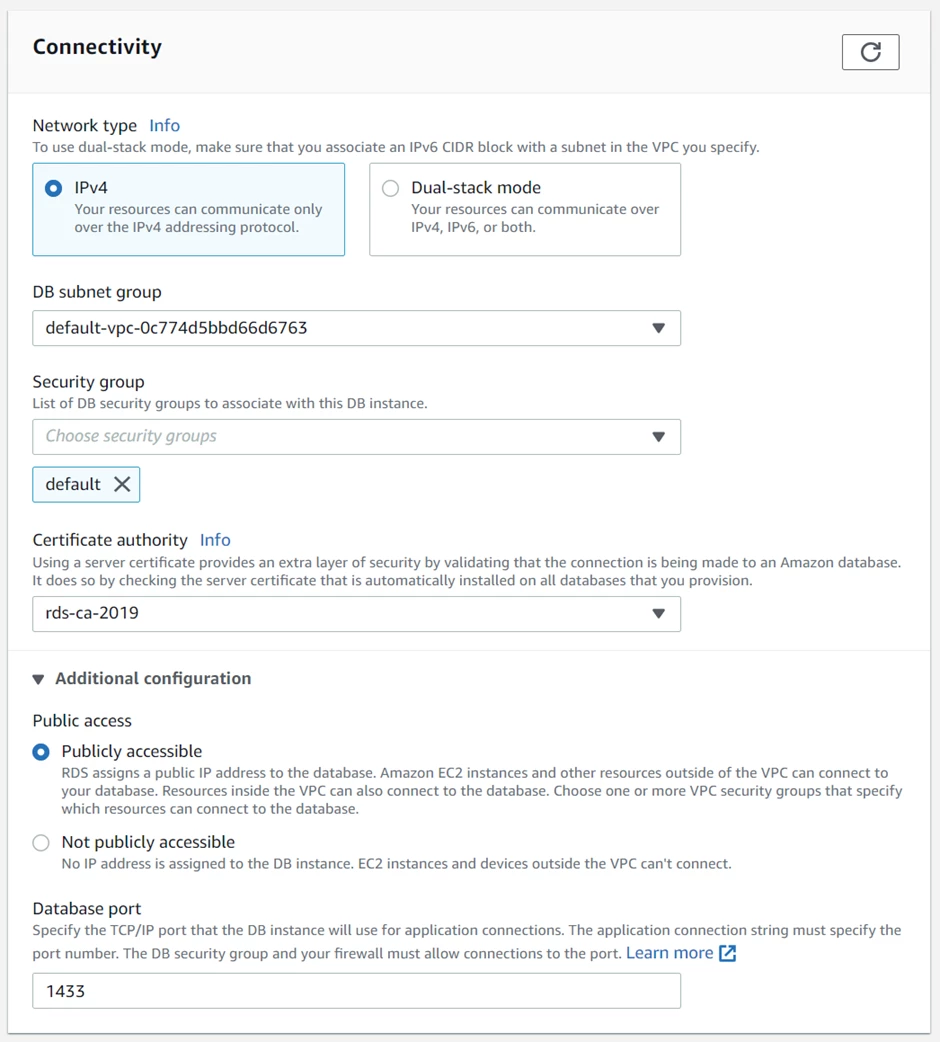
Configure settings to allow remote access
Open the created database and modify its settings.
Go to “Connectivity” settings > Additional Configuration >
Set Public Access to “Publicly accessible”
Set database port to 1433
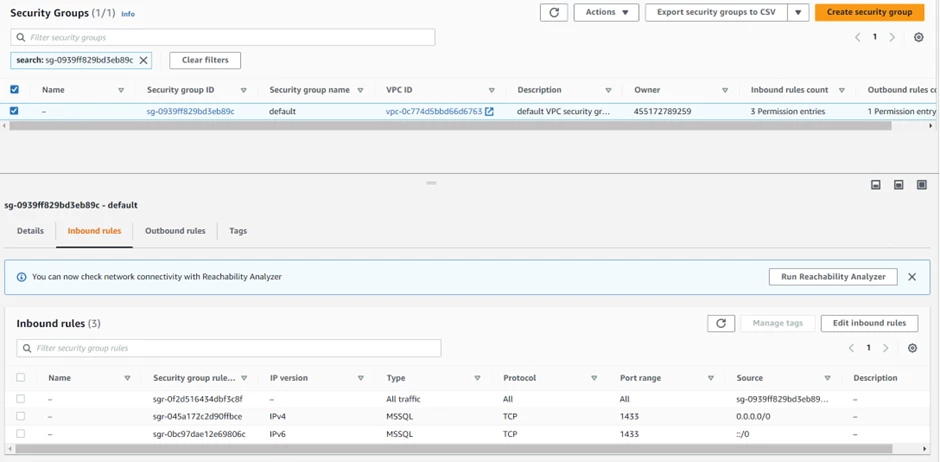
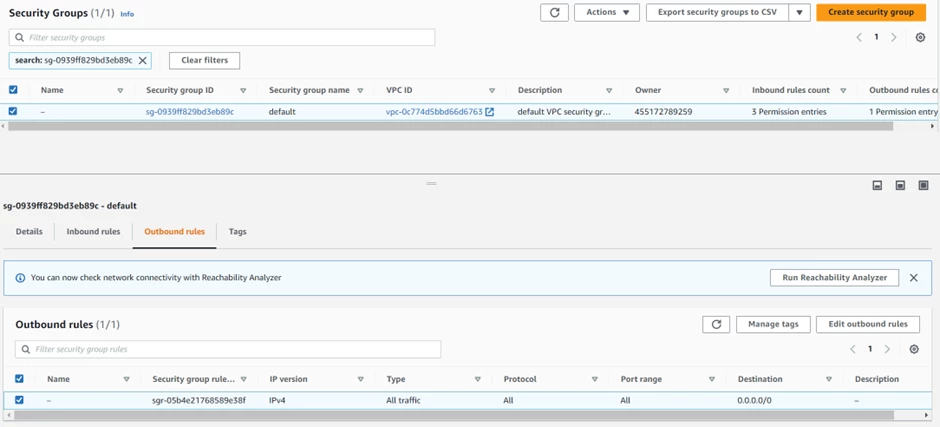
Open the VPC security group and set “Inbound rules” and “Outbound rules” to access the database.
Important
The regular RDS SQL Server has some limitations: the 'sysadmin' role itself is reserved for the 'rdsa' internal SQL Server account, which is managed by the Amazon RDS service and not accessible to users. That's why it's not possible to create new databases in the regular RDS SQL Server. The solution is to use RDS Custom for SQL Server which provides lots of features along with 'sysadmin' role. Use the following videos and guides to understand and configure RDS Custom: Amazon RDS Custom for SQL Server Technical Overview How to Create and Connect to RDS Custom for SQL Server Instance
AWS Docs Setting up your environment for Amazon RDS Custom for SQL Server
AWS Docs Working with RDS Custom for SQL Server - Amazon Relational Database Service
Once your RDS Custom for SQL Server is fully configured, verify the following:
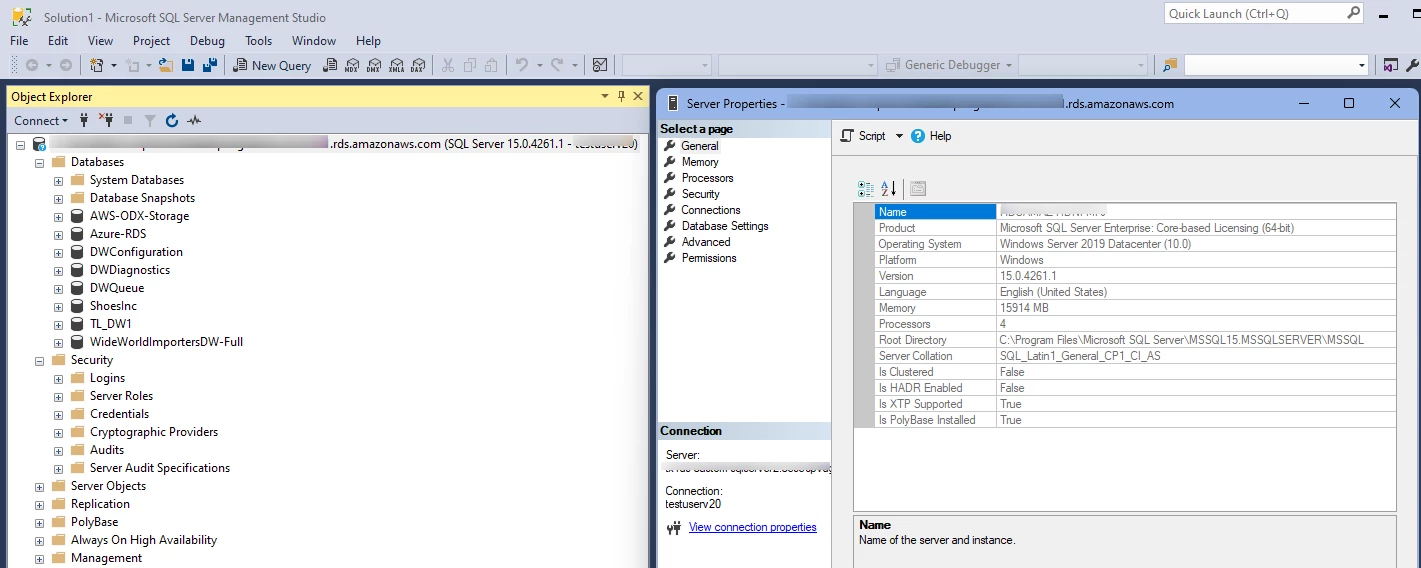
- Connect via SQL Server Management Studio (SSMS) running on a remote machine
- Login via SQL authentication and configure required permissions to create and manage databases. Give admin privileges to the user as needed.
- Test creating a new database and/ or restoring a backup (or bacpac) of a sample SQL database
Note
Remote access to RDS Custom SQL Server and database creation permissions must be working, before using it in your Timextender solution.
Now you may implement the following scenarioswith Timextender Data Integration:
- Use RDS SQL for Prepare instance storage
Configure SQL users & Permissions
Create users in AWS RDS SQL Database with the necessary permissions.
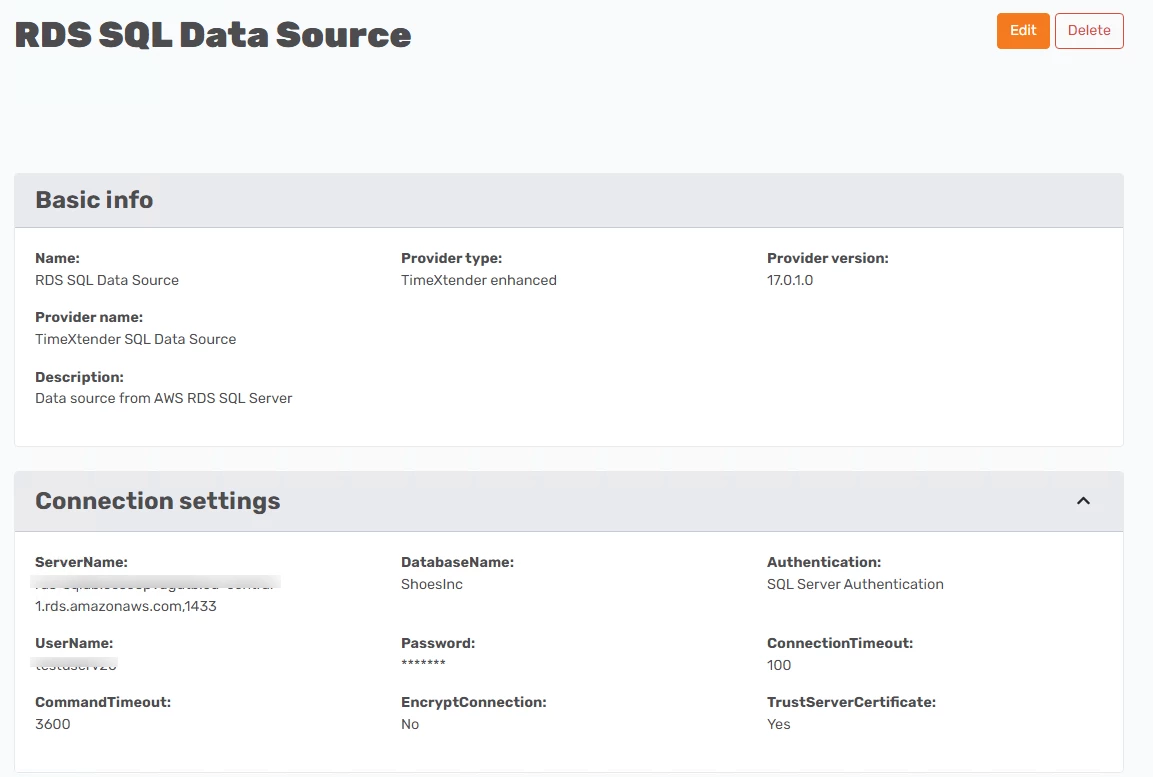
Setup a Prepare Instance with AWS RDS SQL Database as storage
Create a Prepare instance using the guide below.
For the ServerName, copy the server name provided in AWS.
Reference
AWS RDS SQL Reference Architecture
Discussed in the community
Looking for related questions…
Didn't find your answer? Ask the community about this page — questions are answered by Timextender experts, partners and other users.