Data Area Security - Object Level Security
Timextender Data Integration (TDI) includes security functionality that provides a way to set access permissions for objects within a data area. Access permissions can be set for specific views, schemas, tables, and individual table columns. This applies whether your Prepare instance uses SQL Server or Snowflake as its storage.
The Security folder in the data area tree contains all of the security setups. Right-click on the Security folder to see the options needed to configure a new security setup, which is done in two general steps:
- Create a database role.
- Use the database role to set up object level security.
Creating a database role in the data area is a prerequisite for configuring object level permissions. See Data Area Security - Database Roles | Community for a detailed explanation of creating a database role.
Assigning Object Level Permissions to Database Roles
Permissions for database roles can be set on objects to create object level security.
Select from one of the three possible permission settings below.
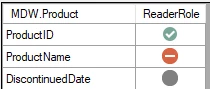
- Not set (gray dot): The database role is not explicitly granted or denied access to the object. On SQL Server, this means access is not actively denied — the user may still gain access through other role memberships. On Snowflake, Not Set and Deny produce the same result: access is denied unless explicitly granted.
- Grant (green with a white checkmark): The database role is granted access to the object. On SQL Server, a Grant can still be overridden if the user is a member of another database role that is explicitly denied access. On Snowflake, permissions are additive — a Grant cannot be overridden by a Deny on another role. If a user holds the privilege through any role, they will have access.
- Deny (red with white bar): The database role is not granted access to the object. On SQL Server, Deny is explicit and always wins — even if a user is a member of another database role that grants access, the Deny takes precedence. On Snowflake, this is not the case. Snowflake has no explicit deny mechanism. Setting Deny in TDI means the privilege is simply not granted to this role — but if the user holds the same privilege through another Snowflake role, they will still have access. Deny does not override Grant on Snowflake.
Since tables may be a mix of different settings, the permission icon for tables may reflect this by being split down the middle and displaying two different icons side by side. The mixed state icons are shown and explained below.
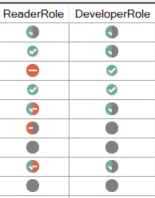
- Partially Granted (green and gray icon): The database role is granted access to some but not all of the table columns. Note that this icon may appear even when the database role is granted access to all of the table columns, as granting access does not automatically set Grant on the table level.
- Partially Denied (red and gray icon): The database role is denied access to some but not all of the table columns. Note that this icon may appear even when the database role is denied access to all of the table columns, as denying access does not automatically set Deny on the table level.
- Mixed Grant/Deny (red and green icon): The database role is granted access to some of the table columns and denied access to other columns.
Use the following steps to assign object-level permissions to database roles:
- Under the data area, right-click the Security folder and select Object Security Setup to open that window.
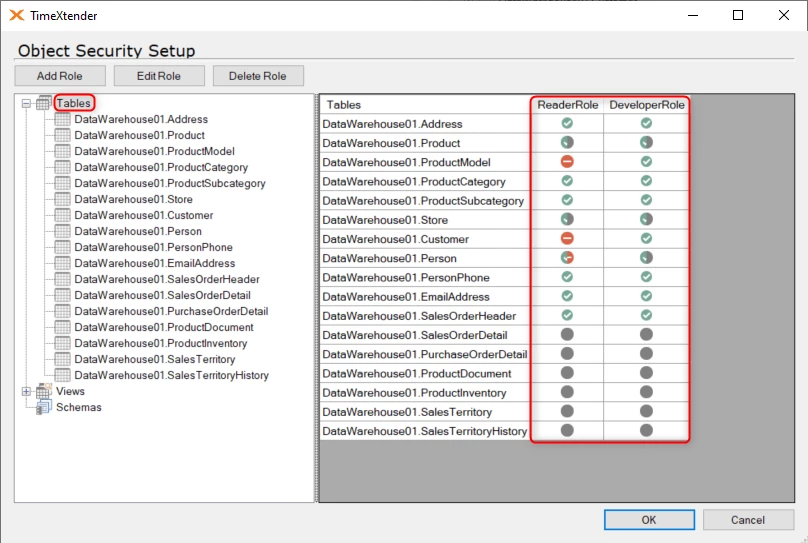
- In the tree on the left, select Tables, Views, or Schemas to choose the type of object to configure. Expand Tables and select an individual table to assign object or column level permissions on that table.
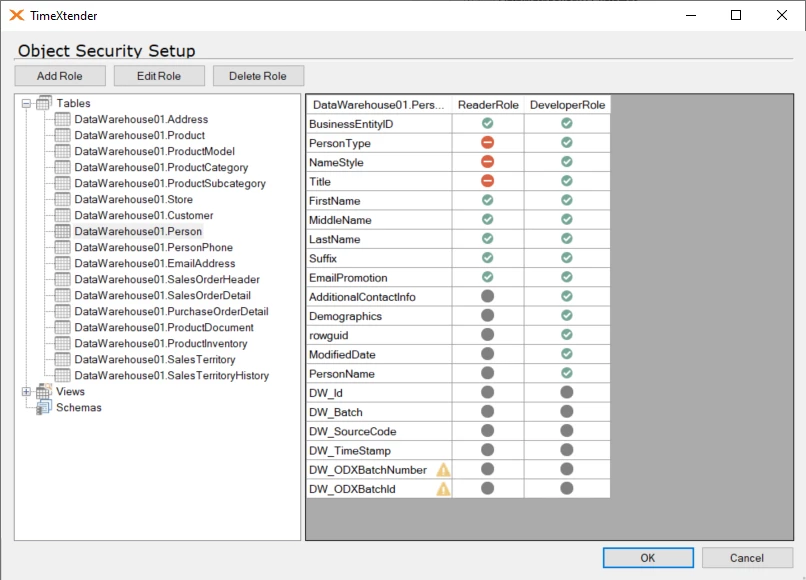
- On the right-hand side, the objects are listed with their current permission setting. Select the icon next to an object to toggle through Not Set, Grant, and Deny. Setting column-level permissions on a table will overwrite any current object-level permissions that have been set.
- (Optional) Select Add Role, Edit Role, or Delete Role to manage database roles as needed.
- Select OK to save changes and close the window.
Column-level permissions
On SQL Server, permissions can be set at the column level. Setting column-level permissions on a table will overwrite any current object-level permissions set on that table.
Snowflake does not support column-level security. If a column is configured with a Deny permission on a Snowflake Prepare instance, TDI will deny access to the entire table or view containing that column, rather than the individual column.
Schema-level permissions
On both SQL Server and Snowflake, granting access at the schema level gives the role read access to all tables and views within that schema.
On Snowflake, schema-level permissions follow these rules:
- A schema with Grant and no excluded objects gives the role SELECT access to all current and future tables and views in that schema. New objects added after deployment are covered automatically without a re-deploy.
- A schema with Grant that has one or more objects explicitly denied gives the role SELECT access only to the specific permitted objects. Future objects added to the schema are not automatically covered in this case.
- A table or view marked Deny within a granted schema is never granted to the role, regardless of the schema-level setting.
- A schema marked Deny is excluded entirely. Any individual tables or views within that schema marked Grant will have no effect — nothing in a denied schema is accessible.
In addition to object level permissions, database roles can also be used to create row level permissions. See Data Area Security - Row Level Security | Community for the configuration and setup of row level permissions.
Discussed in the community
Looking for related questions…
Didn't find your answer? Ask the community about this page — questions are answered by Timextender experts, partners and other users.