 Ask the community about this page
Timextender API Key Management
This articles describes how to create or delete an API key, which can be used to authenticate and connect to Timextender API endpoints. API keys give access to your organization’s resources within the API key scope. Once the API key has been generated, make sure to add the key as a variable in the Postman collection in order to use the Timextender API endpoints, as described here.
Create a new API key
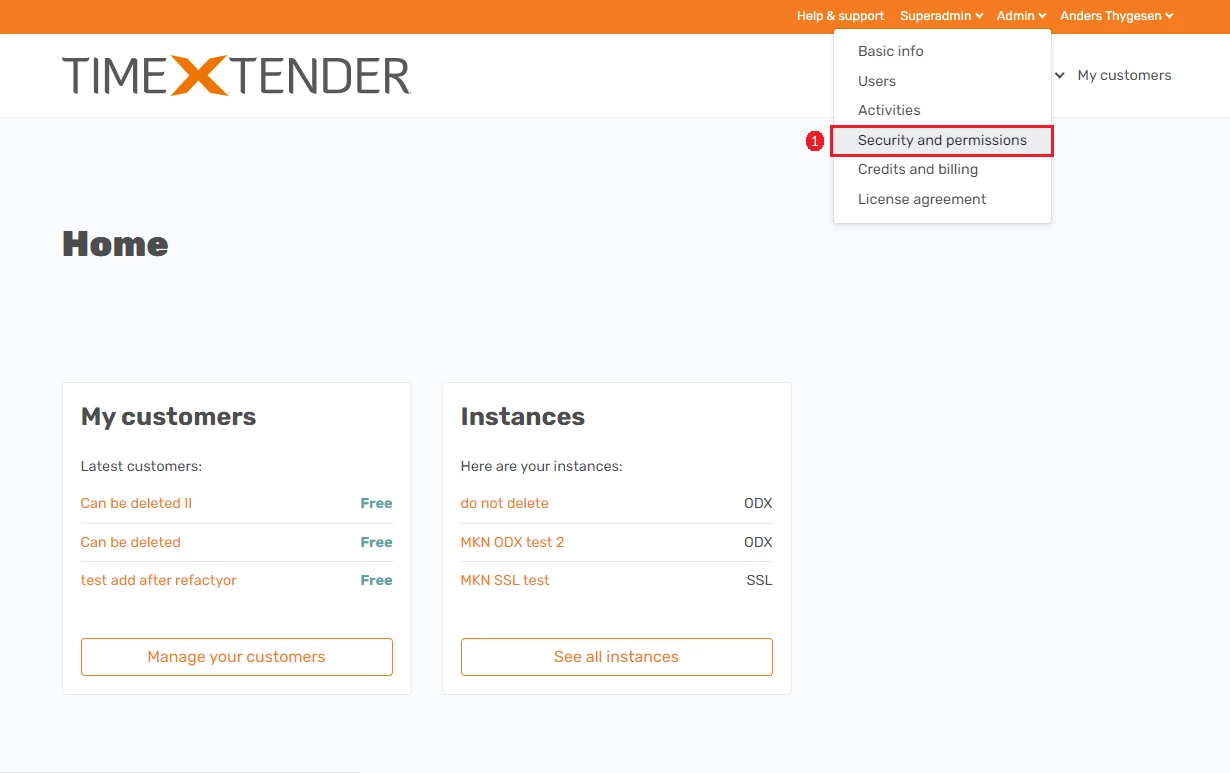
- In the Portal, under Admin, then select Security and permissions
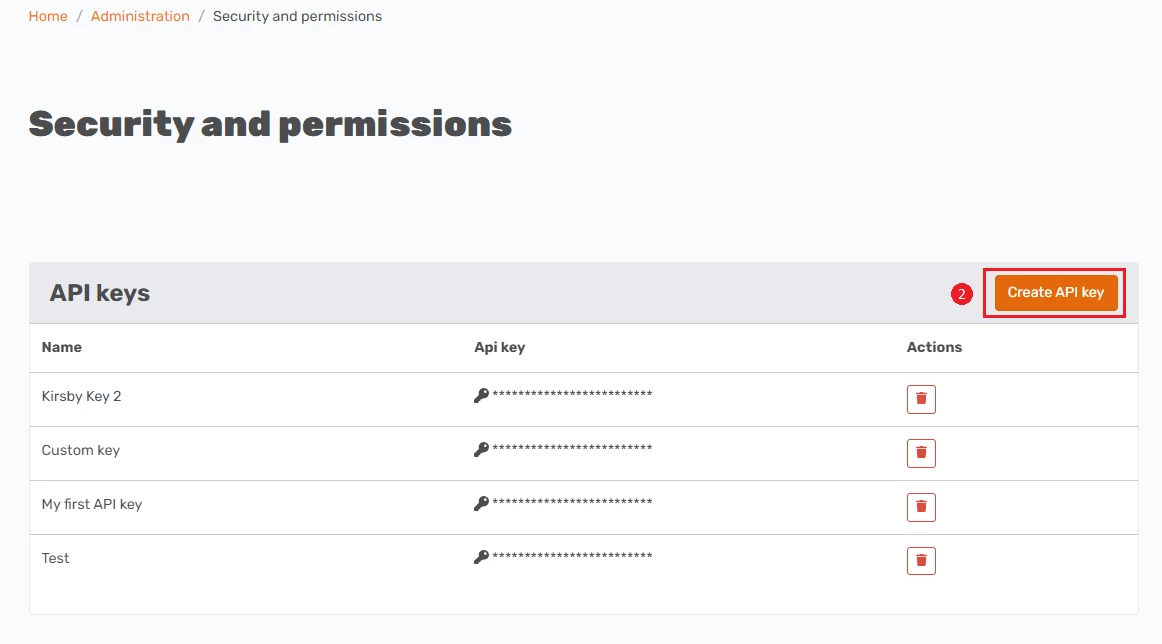
- Select Create API Key
- Provide a name for the API key
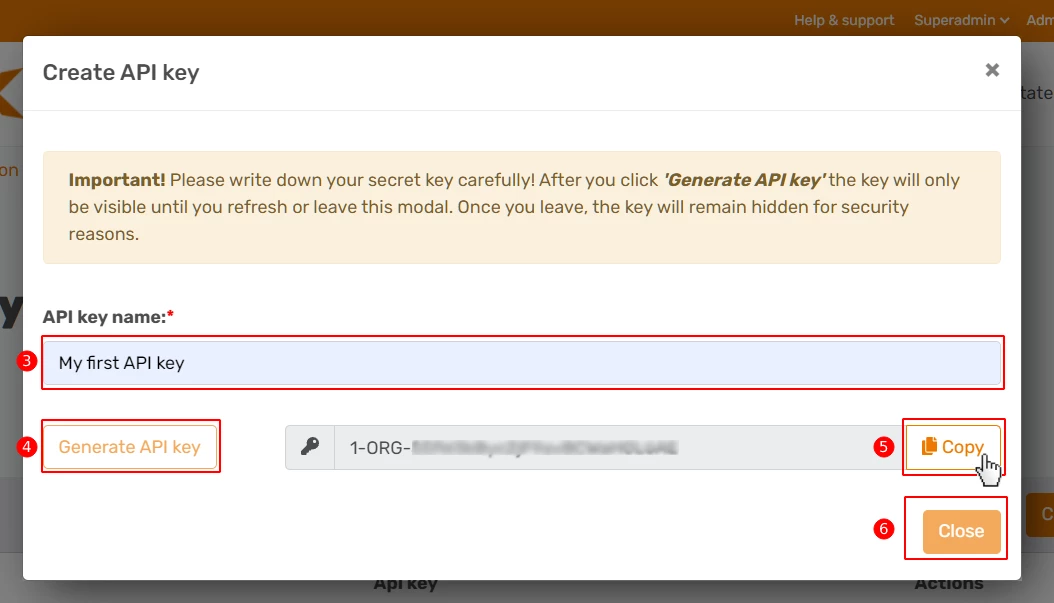
- Select Generate API Key
- Select Copy and ensure that the key is saved in a secure location, as it will not be visible again.
- Select Close to close the window and return to the Security and permission page.
Note
the maximum number of API keys that can be generated is 5
Delete an API Key
Note
deleting an API key is irreversible and cannot be undone, and deleted keys can no longer be used
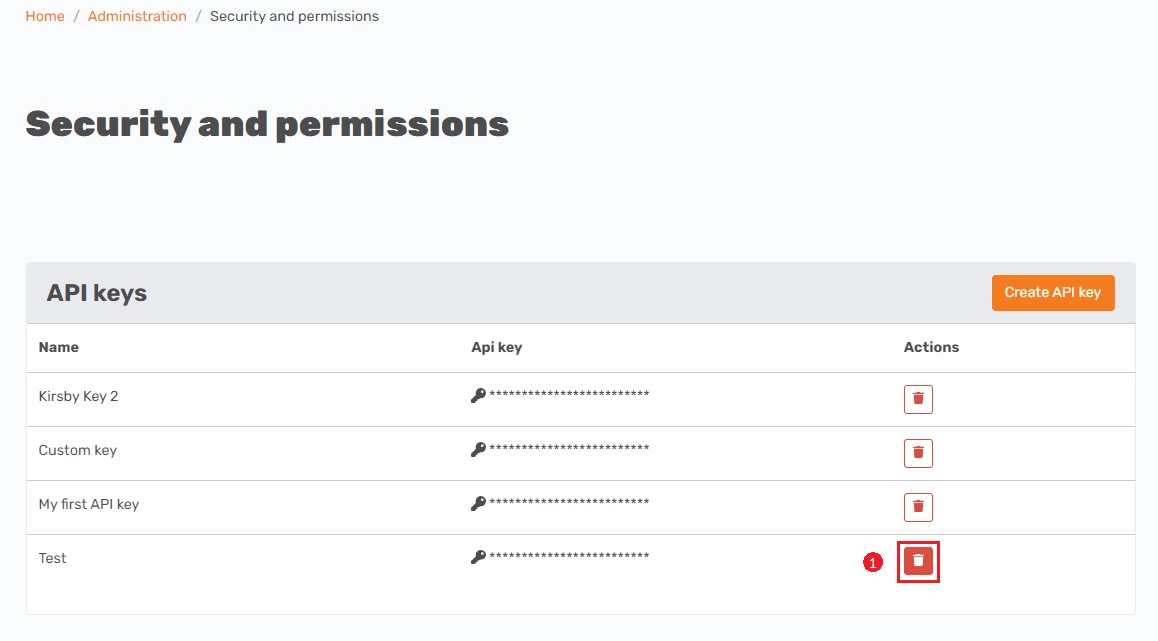
- In the Portal, under Admin, navigate to Security and permissions. Select the delete icon next to the API key in order to delete the key permanently.
- Type the name of the API key to confirm that this is the key to be deleted. Alternatively, click in the field and select from the drop-down menu which API key to delete.
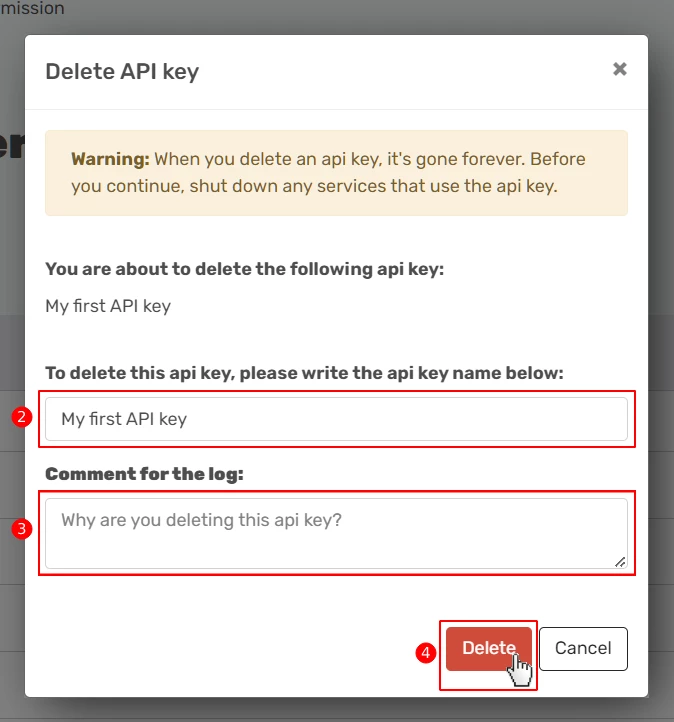
- Add a Comment stating the reason for deletion, as part of logging which can be found under Admin > Activities.
- Select Delete to confirm and finalize the deletion
Discussed in the community
Looking for related questions…
Didn't find your answer? Ask the community about this page — questions are answered by Timextender experts, partners and other users.