Manage users and roles in TDP
This is the canonical guide to users, roles, privileges and desktop client access for cloud customers.
History
- 26.1 — individual user management moved to TDP, with sync and a new privilege model.
- 26.2 — group management also moved to TDP. Groups become roles, and Entra groups become a first-class role type.
On-premise customers continue to manage users and groups in the ODQ Desktop client.
Recommended approach
Assign privileges to roles and add users to roles, rather than assigning privileges per user. Roles are easier to maintain, scale to many users, and support Entra-group-backed membership.
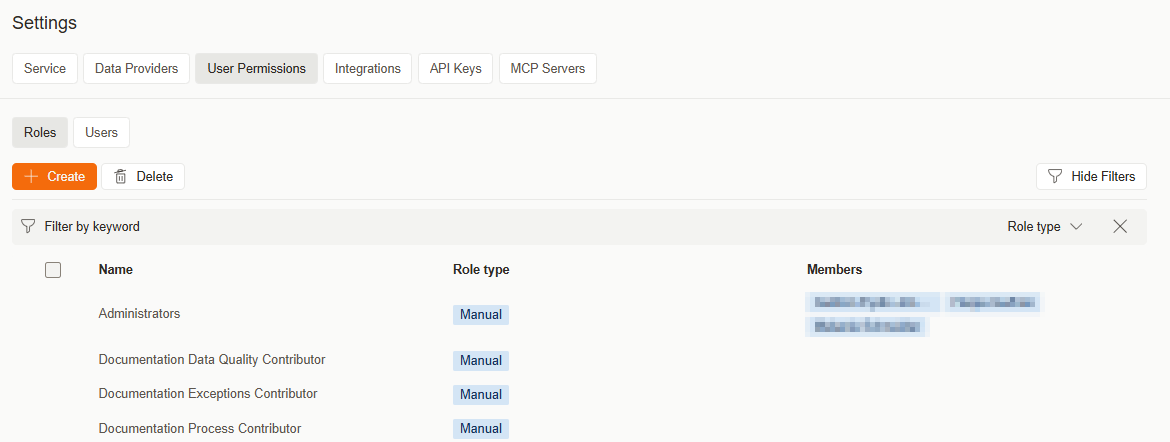
Roles
A role groups a set of privileges that you can assign to many users at once. There are two role types:
- Manual — members are added to the role by an administrator in TDP.
- Entra group — members come from an Azure AD security group. Membership in TDP follows membership in Azure AD automatically. See Use Entra groups for roles for setup.
Desktop client access
Whether a user can sign in to the ODQ Desktop client depends on their TDP privileges.
Any user who is Contributor or Administrator on one or more workspaces can open the desktop client. Viewer-only users cannot — all of their work happens in TDP.
Migrating user groups to roles in 26.2
Existing desktop user groups are migrated once, on upgrade to 26.2.
- Each desktop user group becomes a role in TDP with the same membership.
- Group privileges are mapped using the same desktop-role to TDP-privilege mapping used for individual users.
- After upgrade, group changes must be made in TDP. The desktop UI for managing groups is disabled for cloud customers.
Cloud customers have no AD groups
Only Manual groups are migrated. Active Directory groups are an on-premise feature, so cloud customers do not have any.
Entra group members must sign in to TDP first
Warning
Users who get their access through an Entra group must sign in to TDP at least once before they can open the ODQ Desktop client or the old portal. The desktop user record is created during that first TDP sign-in. Until then, even with the correct Entra-group privileges, they cannot open the desktop client or the old portal.
When communicating new access to an Entra-group user, tell them to start at TDP.
Viewing Entra group membership
Note
TDP does not show which Entra groups a user belongs to. To check a user's group membership, look the user up in the Azure Portal.
Discussed in the community
Looking for related questions…
Didn't find your answer? Ask the community about this page — questions are answered by Timextender experts, partners and other users.