Use Entra groups for roles
An Entra-backed role in TDP grants its privileges to anyone who is a member of a chosen Entra security group, so you do not maintain membership in two systems.
This page covers only the Azure-specific parts. For general role behaviour and what each privilege does, see Manage users and roles in TDP.
Prerequisite: single sign-on with Azure AD must already be configured. See Configure single sign-on with Azure AD.
Prerequisites
Three things must be in place on the App Registration. Each enables a specific part of the experience — partial setup gives you partial functionality.
| Prerequisite | What it enables | If it is missing |
|---|---|---|
| App Registration configured for SSO | TDP sign-in via SSO | Users cannot sign in to TDP at all |
| TDP URL added as a Single-page application redirect URI | The Browse picker can search and list Entra groups from your tenant | The Browse picker fails. Existing Entra-backed roles still grant privileges at login, because group claims are resolved server-side — only the browsing breaks. An admin who knows the group's Object ID can still create the role |
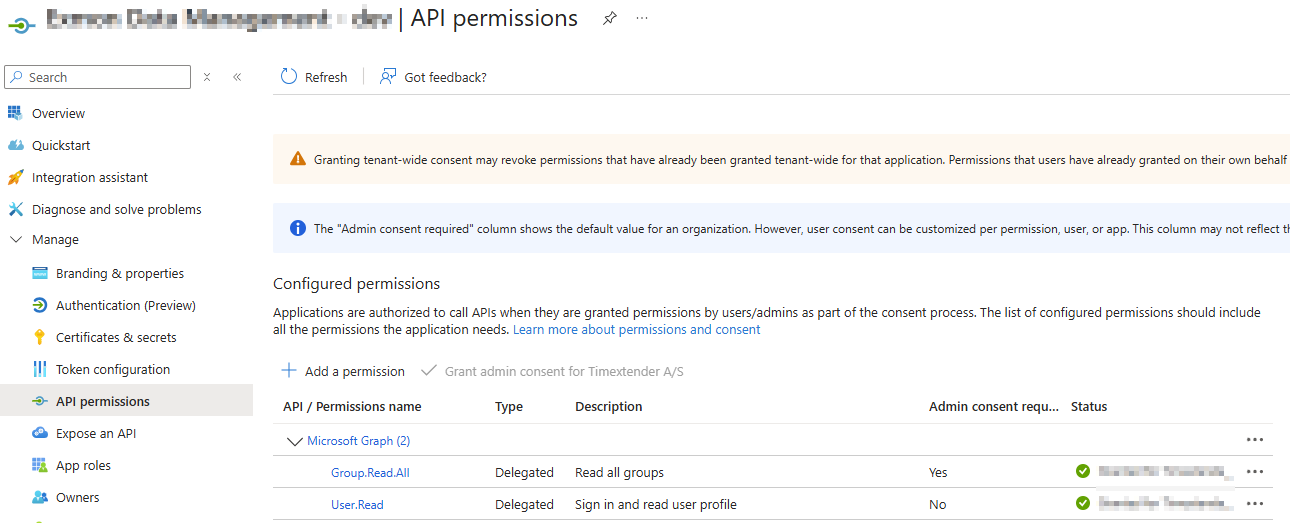
Group.Read.All delegated permission with admin consent granted |
The picker's Microsoft Graph call returns the tenant's groups | The picker opens but returns an empty list or a consent error |
The administrator setting up the role must also be signed in with their own Entra account, so the delegated Graph call has a user context.
Create a role backed by an Entra group
- Open Settings → User permissions → Roles in TDP.
- Click Create role.
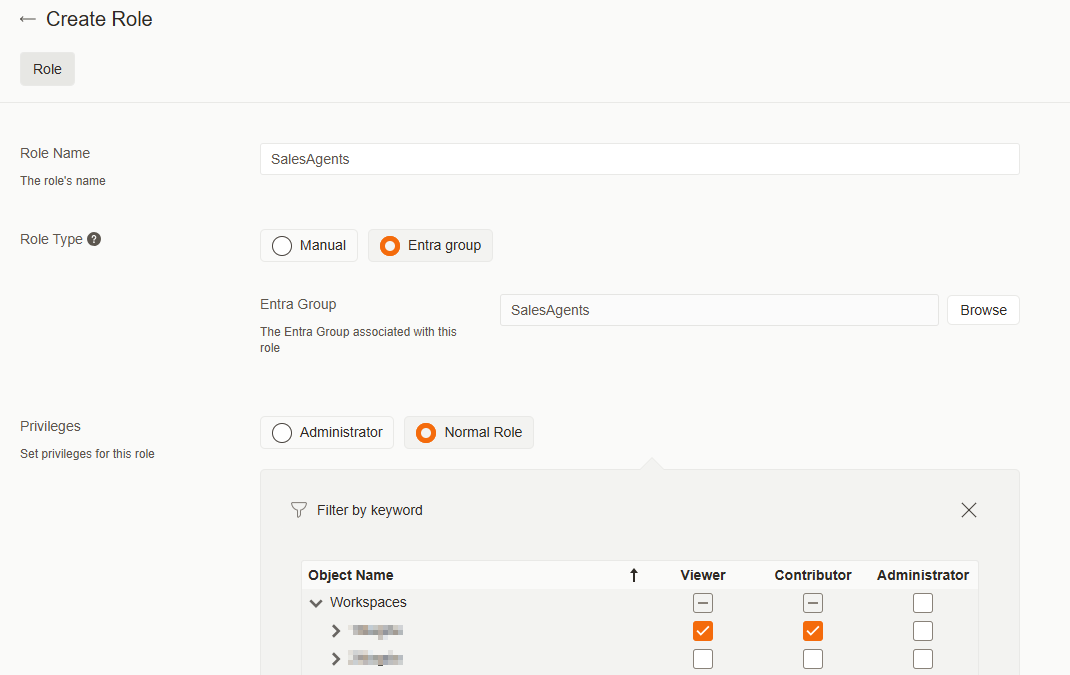
- Set Group type to Entra group.
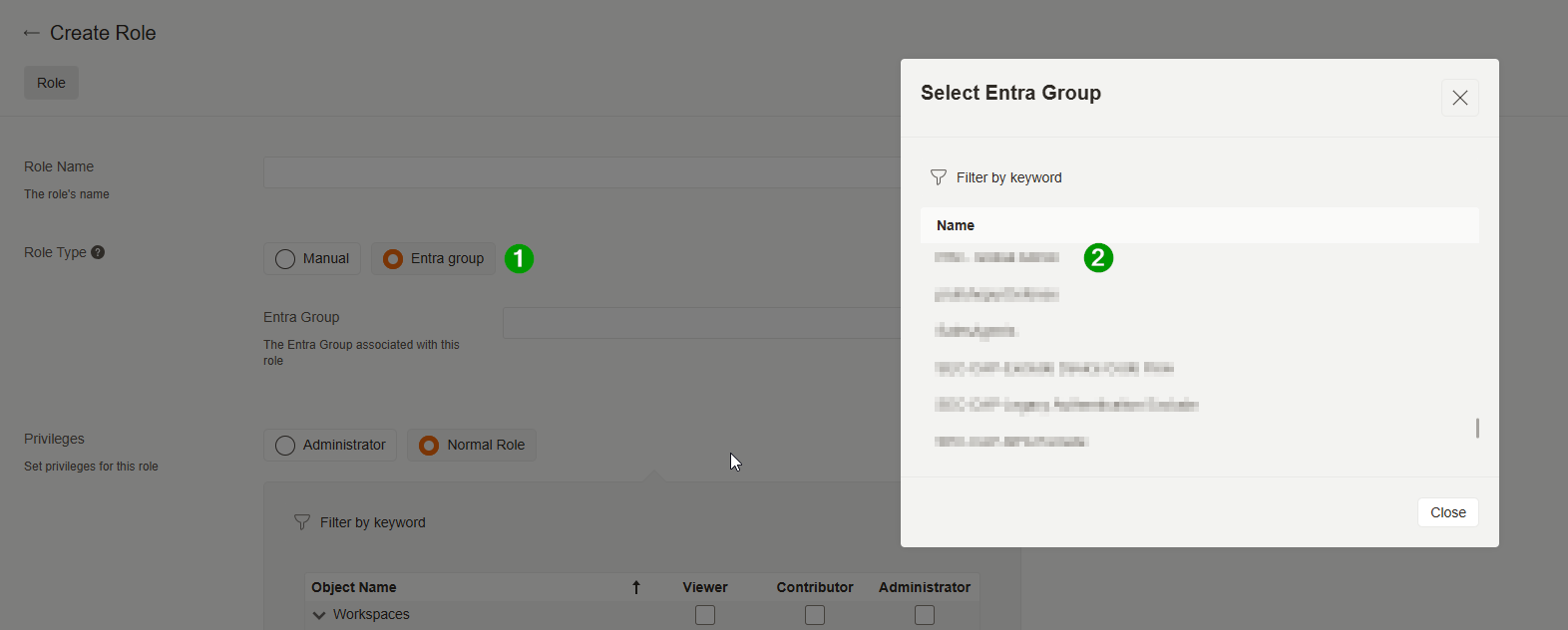
- Click Browse to open the picker. It authenticates you through a Microsoft popup using your existing SSO session and lists the Entra groups in the tenant. Search by name and select the group.
- Assign privileges — workspaces, datasets, rules, process maps and so on. See Manage users and roles in TDP for what each privilege does.
- Save.
How membership works
Membership is resolved at sign-in. When a member of the Entra group logs into TDP, TDP looks up which roles are mapped to their Azure AD groups and grants the corresponding privileges.
Adding or removing someone from the group in Azure AD takes effect at their next login. No action is needed in TDP.
Members must sign in to TDP first
Warning
Users who get access through an Entra group must sign in to TDP before they can open the ODQ Desktop client or the old portal. Their desktop user record is created on first TDP sign-in.
Lifecycle
- Once a role is saved with an Entra group, you cannot switch it to a different group or convert it to a Manual role. Delete it and create a new one.
- Deleting an Entra-backed role removes access for all its members at their next login.
- Recreating a role with the same Entra group restores access cleanly, with no orphaned records from the deleted role.
Troubleshooting
| Symptom | Cause |
|---|---|
| Consent error, or an empty list in the Browse picker | Group.Read.All is missing, or admin consent was not granted |
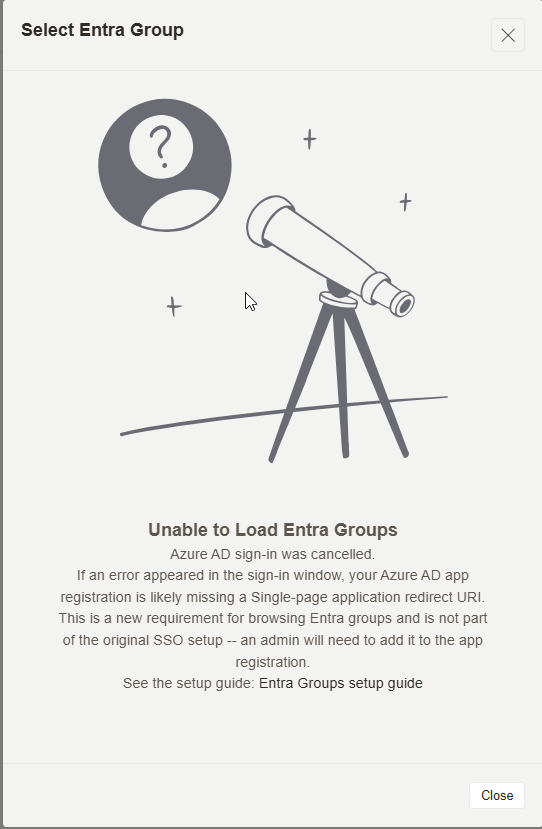
| Browse picker popup fails, or "redirect URI mismatch" | The TDP URL is not registered as a Single-page application redirect URI. TDP sign-in itself still works, and existing Entra-backed roles keep granting privileges — only the picker breaks |
| An Entra-group user sees no privileges in TDP | Confirm in the Azure Portal that they are actually a member. Membership is evaluated at login, so have them sign out and back in |
| An Entra-group user cannot open the desktop client or old portal | They must sign in to TDP first |
Discussed in the community
Looking for related questions…
Didn't find your answer? Ask the community about this page — questions are answered by Timextender experts, partners and other users.