Unable to connect to customer database
In this article, you will learn how to troubleshoot the "Unable to connect to customer database" error in Data Enrichment. This issue usually happens when the user is either working from a different place than usual; normally from home.
Troubleshooting
To find out what is causing this issue, you should first start by opening PowerShell on your machine. When you have done that, you should try to execute the following command:
If your database is hosted on the Timextender’s servers try this command:
If your server is not hosted on Timextender’s servers you should replace mp77op1ebc.database.windows.net with your company's database path. For example:
Contact your company's IT person if the result message for both of these commands is not similar to this:
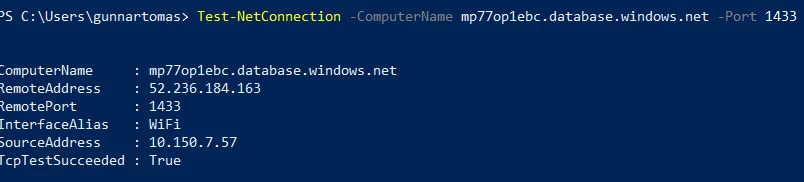
If the results are similar to this then the issue is not because of your firewall and we should try to uninstall Data Enrichment and install it again.
Next steps
- Open Add or remove programs in the start menu of your machine.
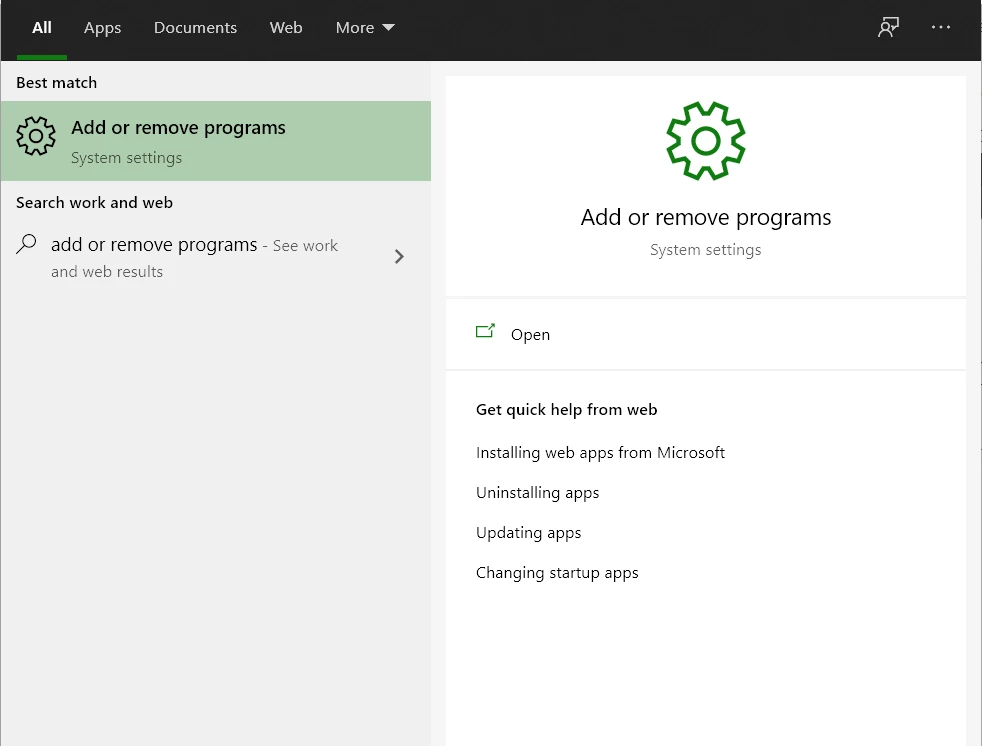
- Search for Data Enrichment and uninstall it.
- Then download Data Enrichment. You can find the correct version under the Data Enrichment web.

- Lastly, run the installer and see if Data Enrichment will now open up.
Discussed in the community
Looking for related questions…
Didn't find your answer? Ask the community about this page — questions are answered by Timextender experts, partners and other users.