 Ask the community about this page
Enable Remote Connections to SQL Server using IP address
Timextender Data Integration (TDI) and the Timextender Ingest Service (TIS) may connect to a SQL Server in various scenarios. This article describes configuration steps to enable a SQL connection from a remote machine.
Before connecting Timextender to a remote SQL Server, you may use SQL Server Management Studio to verify the connections. Take a note of server machine’s IP address.
Configure SQL Server machine
- Windows Firewall ->Advanced Settings->Inbound Rules - Add a rule to enable TCP port 1433 (default port for SQL Server) - Read this article for details: Configure the Windows Firewall to Allow SQL Server Access
-
Run SSMS (SQL Server Management Studio) on SQL Server machine - Server Properties -> Security -> SQL Server and Windows Authentication mode (Enable)
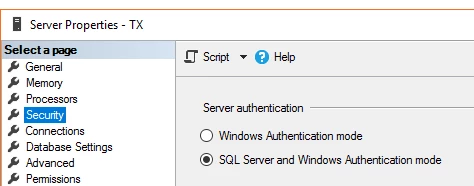
-
Server Properties - > Connections -> Allow Remote Connections ..” should be checked
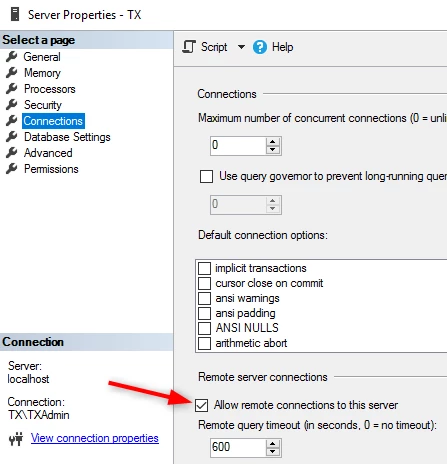
- Add a SQL login (if not already there)
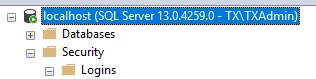
-
Enable SQL Service to listen on TCP/IP - Check SQL Server version and run appropriate version of SQL Configuration Manager to enable TCP.
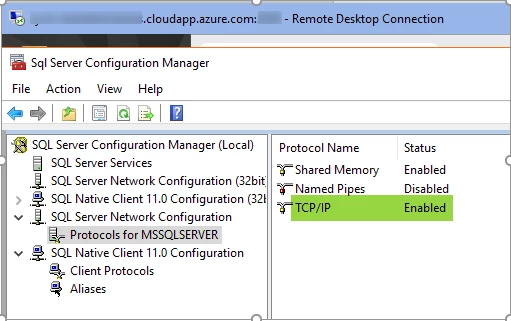
-
Restart SQL Server Service
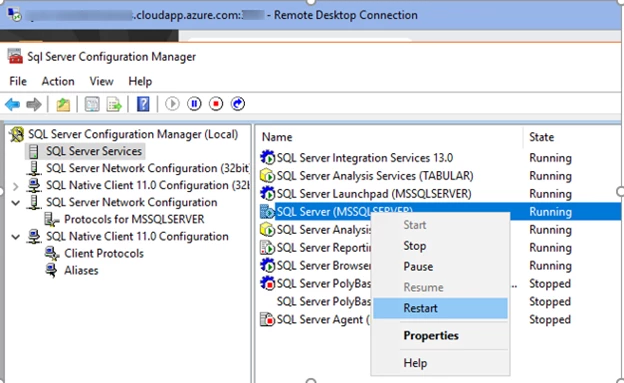
-
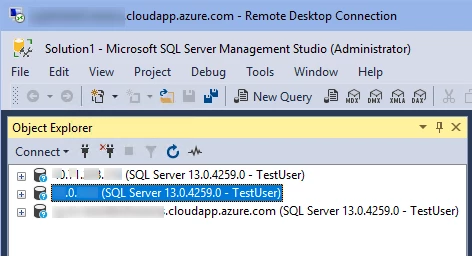
Now you can run SSMS on the client machine, connect to (remote) SQL Server by specifying its local or public IPaddress, or name. In the example below, all three connections refer to the same remote SQL Server. - Once you are able to configure connection to a remote SQL Server, the same address (or server name) should connect OK from Timextender.
Discussed in the community
Looking for related questions…
Didn't find your answer? Ask the community about this page — questions are answered by Timextender experts, partners and other users.