Tracing to Event Viewer or Text file logs
When tracing is activated, the Deployment and Execution information is logged in the Event Viewer or in a Text file which can be used to troubleshoot issues.
How to enable Trace?
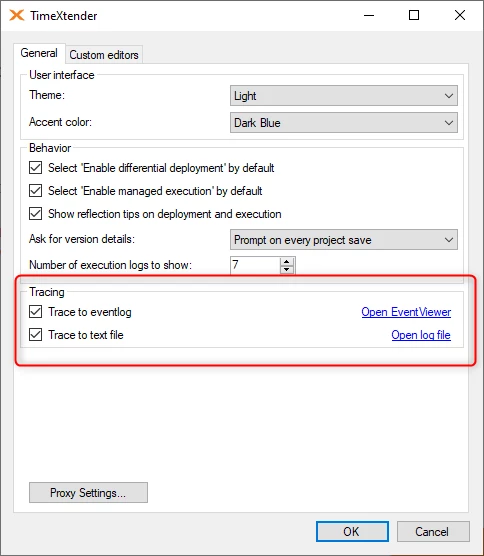
In Tools -> Options -> General tab, there are two options to enable trace.
Where to find the trace logs?
- Select Open EventViewer under Tools -> Options -> General tab to review the Event Viewer Application log for Timextender LogEngine events.
- Select Open log file under Tools -> Options -> General tab. The log file tracelog.txt is created in the following folder upon deployment or execution of objects. C:\Users\<UserAccount>\AppData\Roaming\Timextender\Timextender Saas\<version>
Troubleshooting
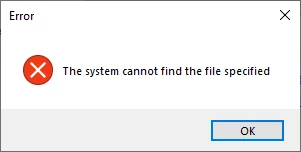
If the trace Text file cannot be found when selecting Open log file under Tools -> Options -> General tab, then this is because no object has been deployed or executed since the trace was activated and therefore the Text file has not yet been created. Deploy or execute an object and then try opening the log file again.
Discussed in the community
Looking for related questions…
Didn't find your answer? Ask the community about this page — questions are answered by Timextender experts, partners and other users.