Creating and Configuring Datasets in Turnkey
Guide to Creating and Configuring Datasets in Turnkey
When working with Turnkey, creating and configuring datasets is a foundational aspect of data management. This comprehensive guide will walk you through each step in detail to ensure you can harness the full potential of your data.
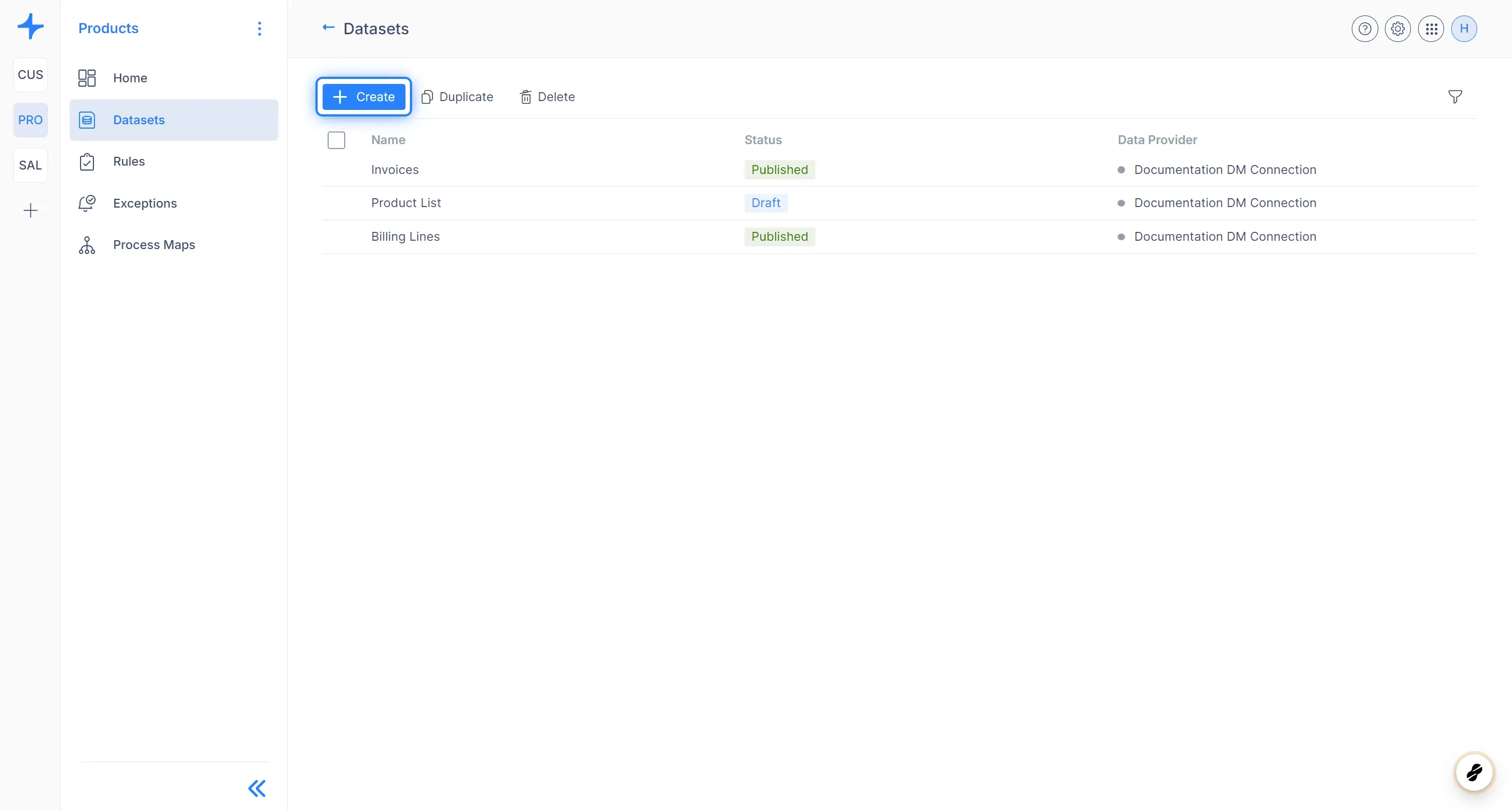
Name and Data Provider
- Name: Begin by giving your dataset a descriptive and meaningful name. This name will help you easily identify and differentiate your datasets.
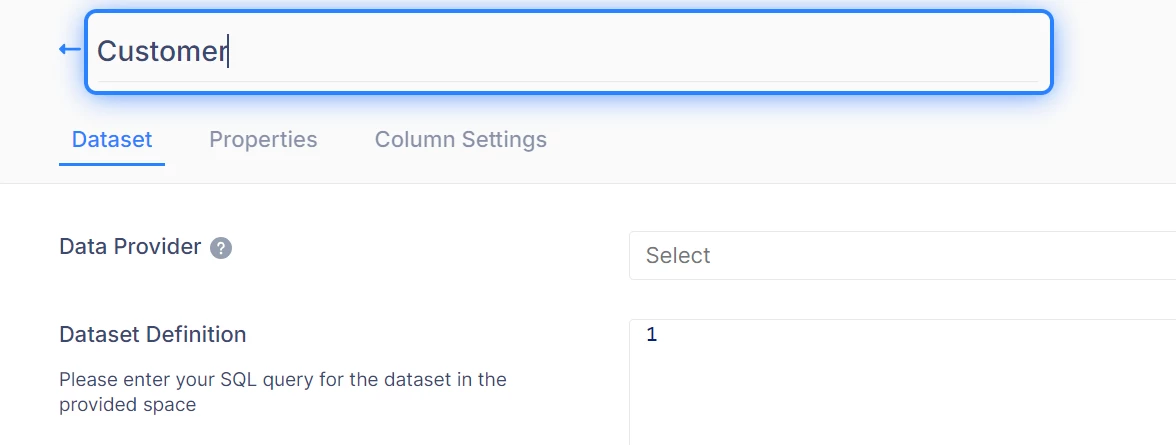
- Data Provider: Select the appropriate data provider that establishes the connection to your underlying database. This choice determines where your dataset retrieves its data from.

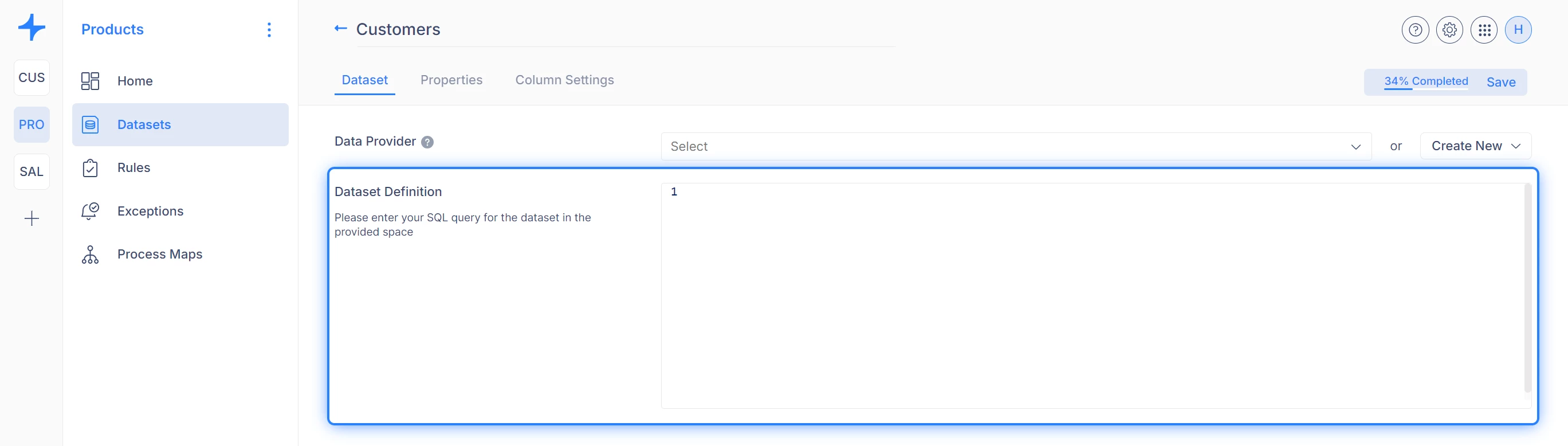
SQL Query
- SQL Query: Craft an SQL query to fetch the specific data you need from your database. This query forms the backbone of your dataset, so ensure it accurately captures the desired information.
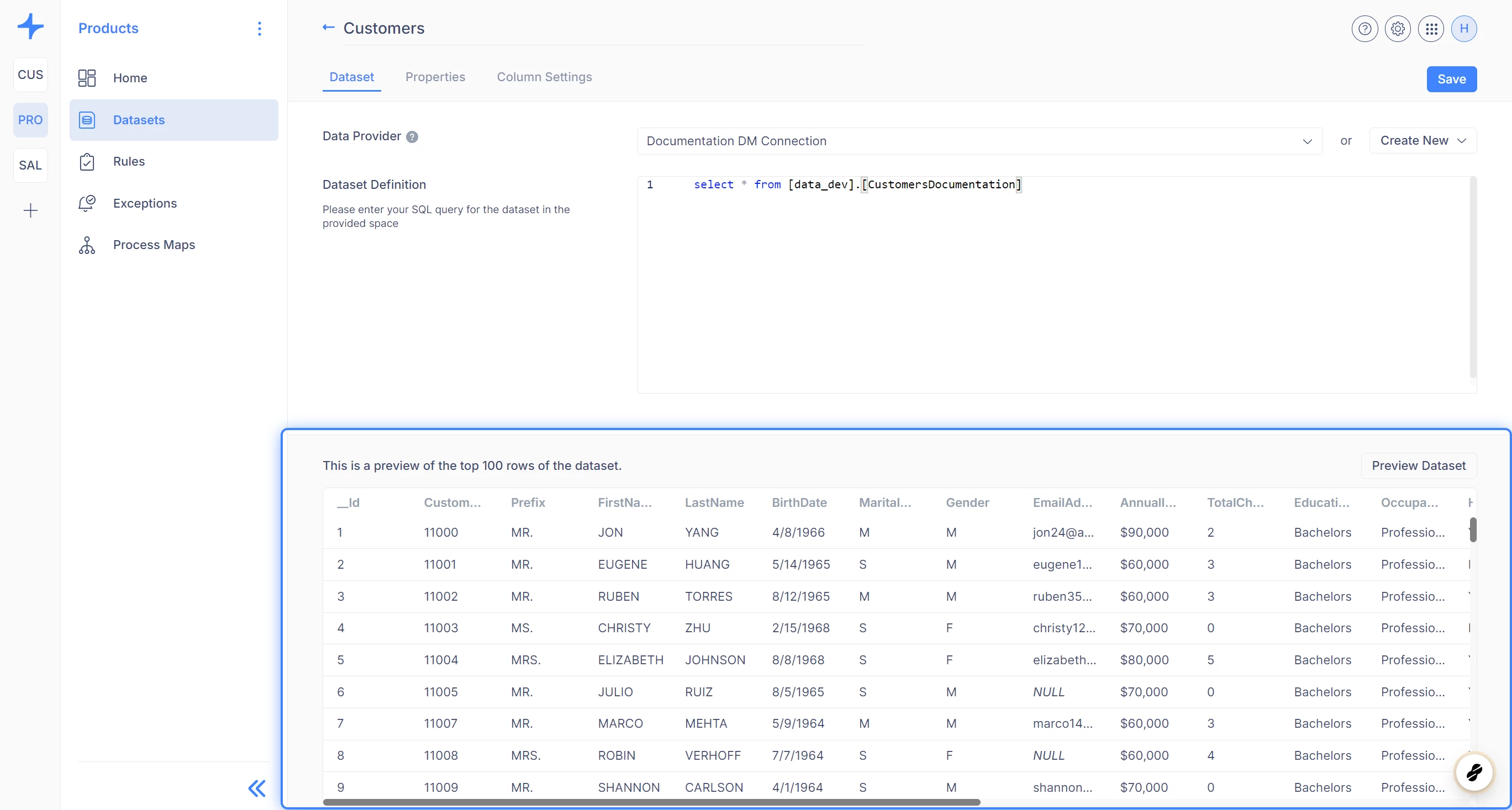
- Preview Results: Before saving your dataset, take advantage of the preview feature to inspect the query results. This allows you to verify that the data returned aligns with your expectations.
Customization
Once you've saved your dataset, you can delve into customization options to tailor it to your exact requirements.
Properties Tab
Navigate to the Properties tab.
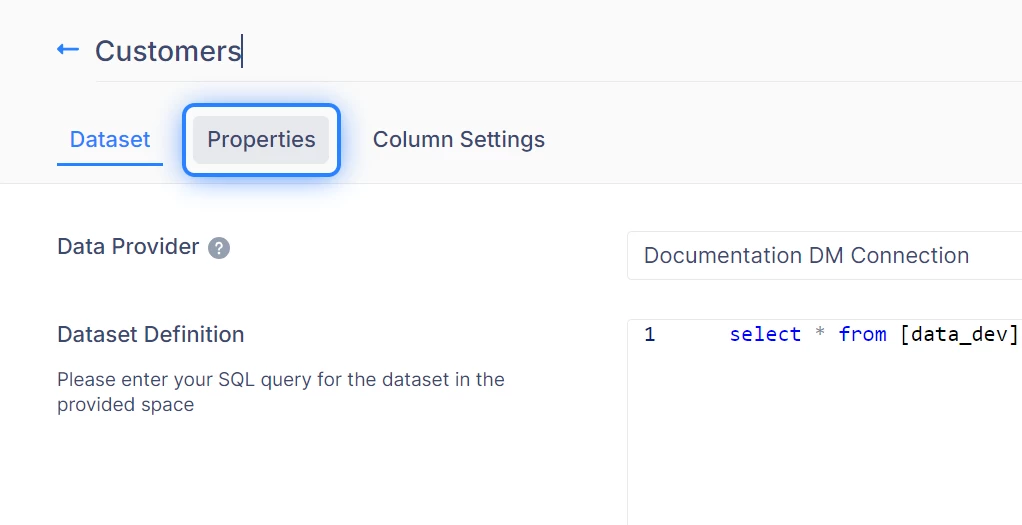
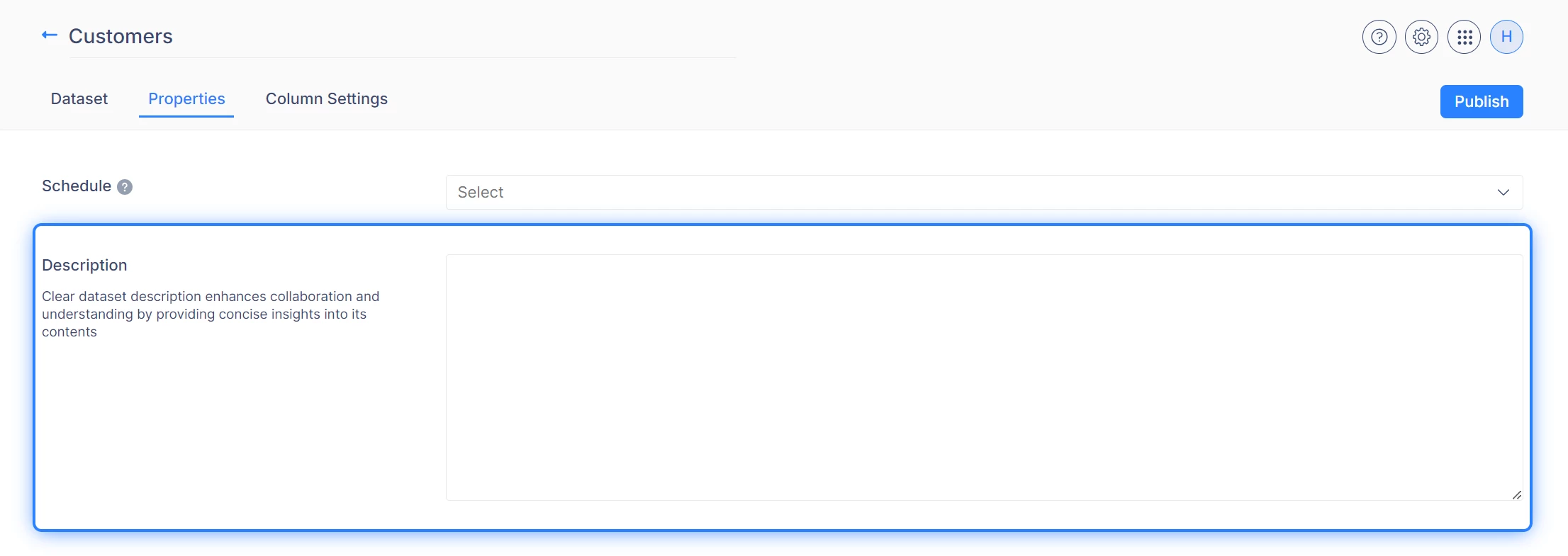
- Schedule: Set the refresh schedule for your dataset to determine how frequently it updates with new data. Choose from intervals ranging from hourly to monthly updates.

- Description: Provide a clear and concise description of your dataset's purpose and contents. This description serves as a helpful reference for users accessing the dataset.
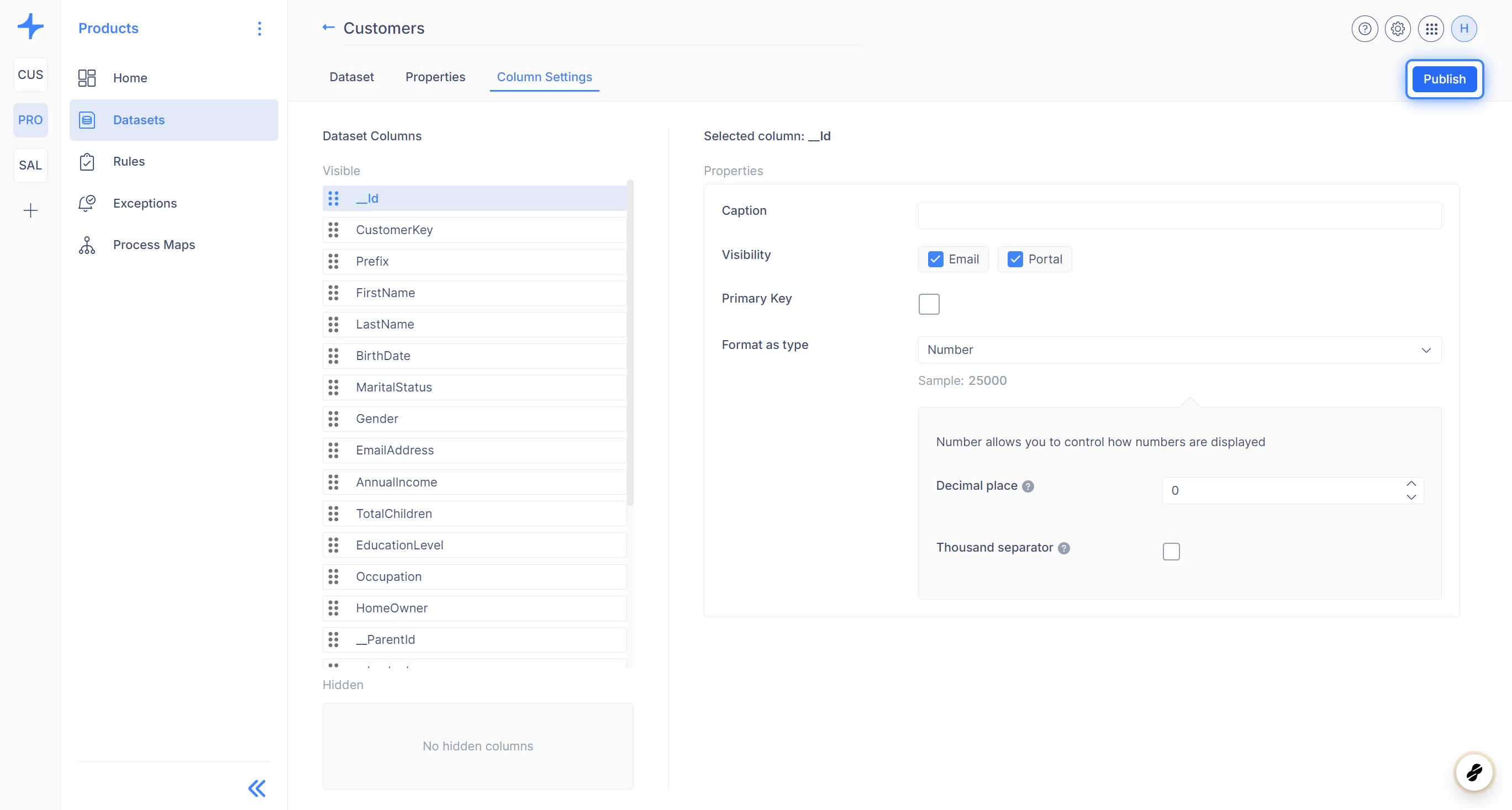
Column Settings Tab
Navigate to the Column Settings tab.
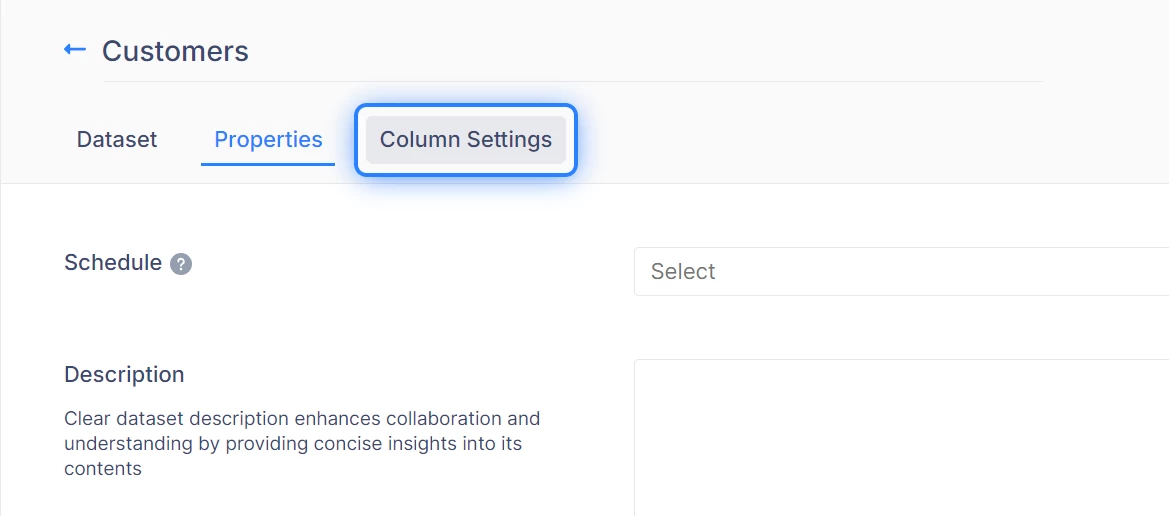
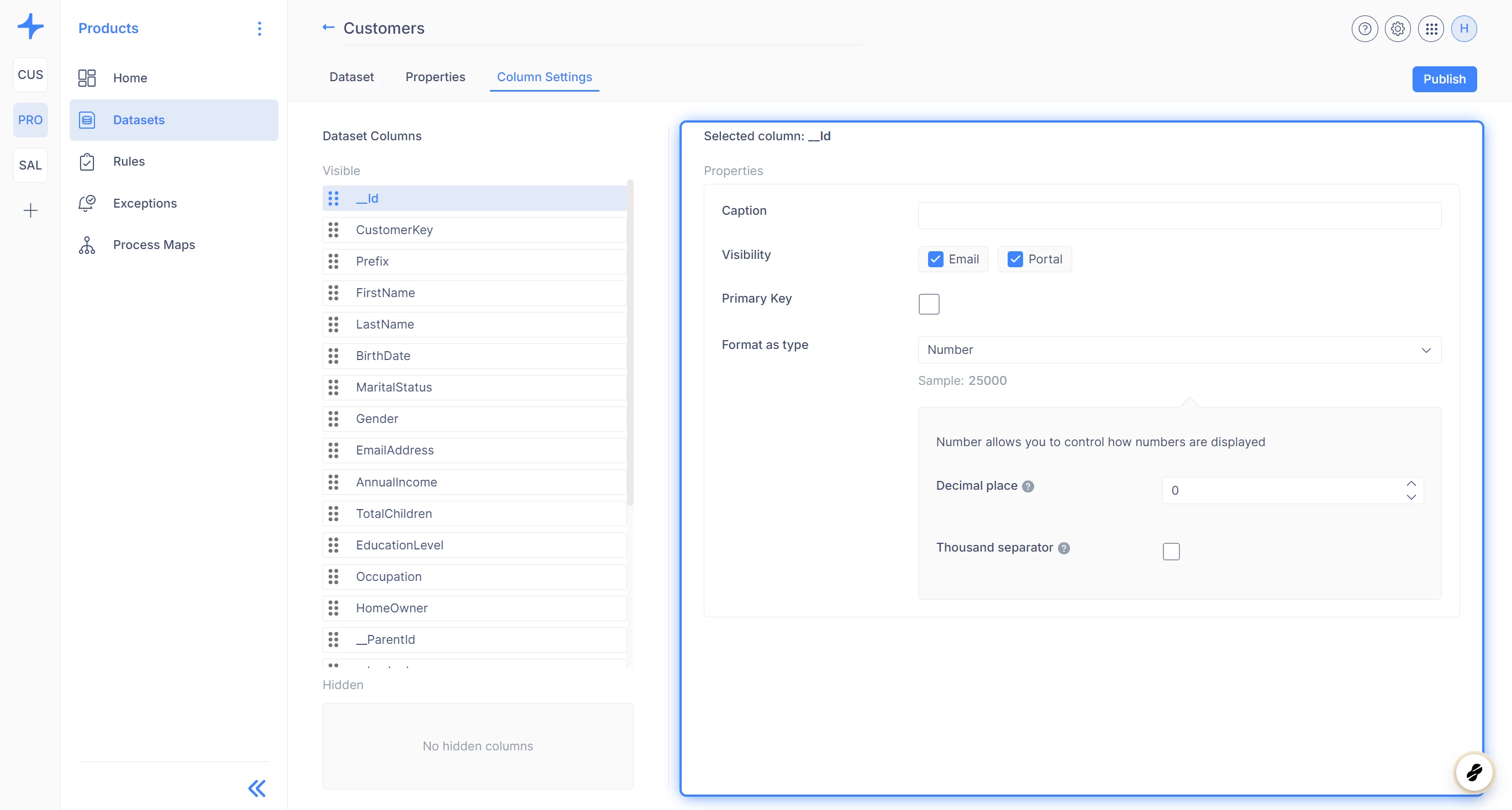
Here, you can fine-tune the properties of each column returned by your SQL query:
- Caption: Assign user-friendly captions to columns to enhance readability and comprehension. For instance, you can rename cryptic column names to more intuitive labels.
- Visibility: Control whether each column is visible in exception manager notifications and emails. This allows you to tailor the visibility of columns based on your specific needs.
- Primary Key: Define a primary key for your dataset to facilitate comparison of exceptions between executions. Selecting a descriptive primary key is essential for accurate exception tracking.
- Format as Type: Choose the appropriate data format for each column to improve usability. Formats include percentages, datetime, currency, numbers, and hyperlinks (textile).
Publishing
After customizing your dataset to perfection, it's time to publish it to production.
Discussed in the community
Looking for related questions…
Didn't find your answer? Ask the community about this page — questions are answered by Timextender experts, partners and other users.