Custom Fields
Custom fields are similar to other fields in a table, but are built from an empty field shell that employs various means to populate the field value, including transformations, scripting, and data copy. Custom fields have many use cases, including the ability to build a model of your setup in the data area before bringing in the data.
Use the following steps to add a custom field.
- Right-click a table and select Add Field
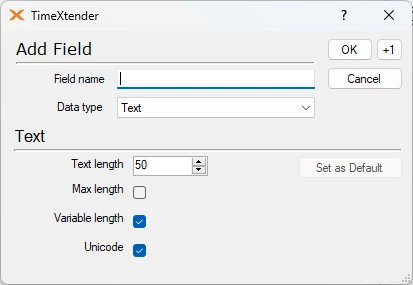
- In the Field name box, enter a name for the field.
- In the Data type list, select the data type for the field.
- Define the selected data type attributes from the following options:
| Data Type | Attribute | Description |
|---|---|---|
| Text | Text length | The maximum number of characters the field can contain. |
| Max length | The field can contain any amount of characters up to a storage size of 2 GB. | |
| Variable length | The field can be of variable length | |
| Unicode | Characters are encoded in Unicode | |
| Integer | Type | The size of the integer: bigint, int, smallint, tinyint |
| Numeric | Numeric precision | The number of digits in the field |
| Numeric scale | The number of digits to the right of the decimal point | |
| Mantissa bits | The precision of the floating point number if floating point is selected. 1-24 bits equals single precision, while 25-53 bits equals double precision | |
| Floating point | The number is saved using floating point notation | |
| Binary | Length | The length of the binary field |
| Max length | The field can contain any amount of characters up to a storage size of 2 GB | |
| 5. (Optional) Click the Set as Default button to save the current settings as the defaults, which may save time later if there are subsequent new fields to be added that will be using the same settings. The Set as Default button will be disabled when the current settings already match the defaults. | ||
| 6. Click OK to add the field and close the window, or click the +1 button to save the field and add another field. |
Discussed in the community
Looking for related questions…
Didn't find your answer? Ask the community about this page — questions are answered by Timextender experts, partners and other users.