Stored Procedures and User Defined Functions
Timextender Data Integration automatically generates the vast majority of the code needed for your data estate, however it is possible to extend the functionality of Timextender Data Integration by writing and executing your own scripts.
Note
Before adding custom Stored Procedures and User Defined Functions, it is important to review and consider all the native Timextender Data Integration functionality first, because custom code can impede the ability to trace data lineage and is also more difficult to troubleshoot and maintain.
Add a Stored Procedure
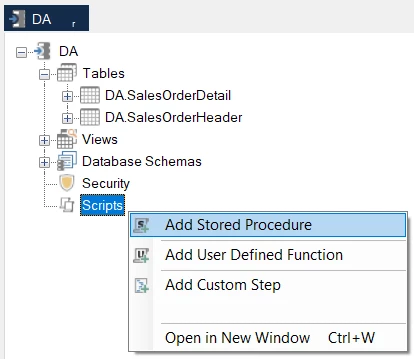
- Open a data area, and then right-click on the Scripts folder and select Add Stored Procedure.
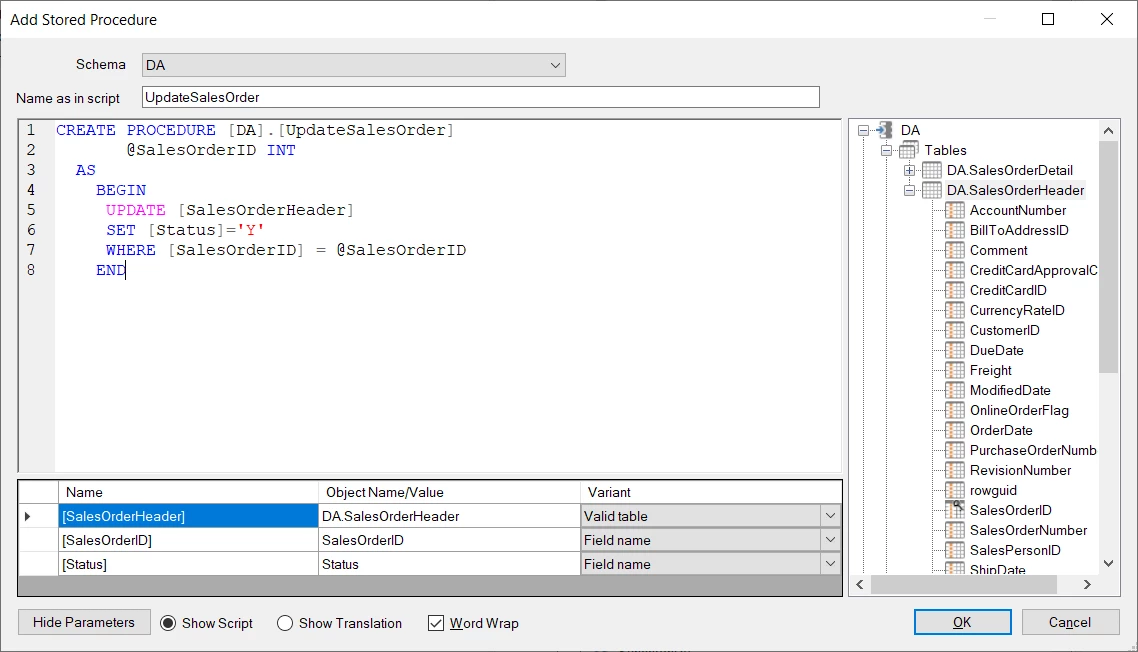
- Enter the script for the Stored Procedure. Drag in the necessary objects from the right-hand pane, such as table and field names. Click OK.
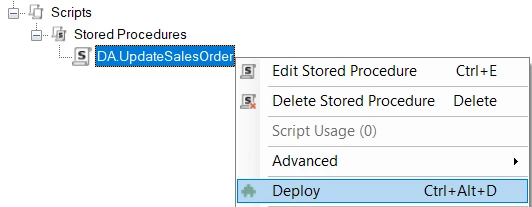
- Right-click on the stored procedure and select Deploy.
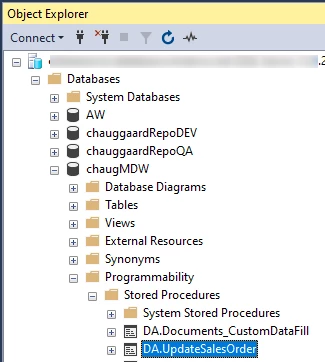
- Once deployed, the stored procedure is visible in the SQL Server Management Studio (SSMS).
Add a User Defined Function
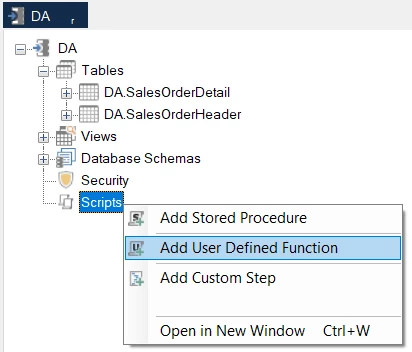
- Open a data area, and then right-click on the Scripts folder and select Add User Defined Function
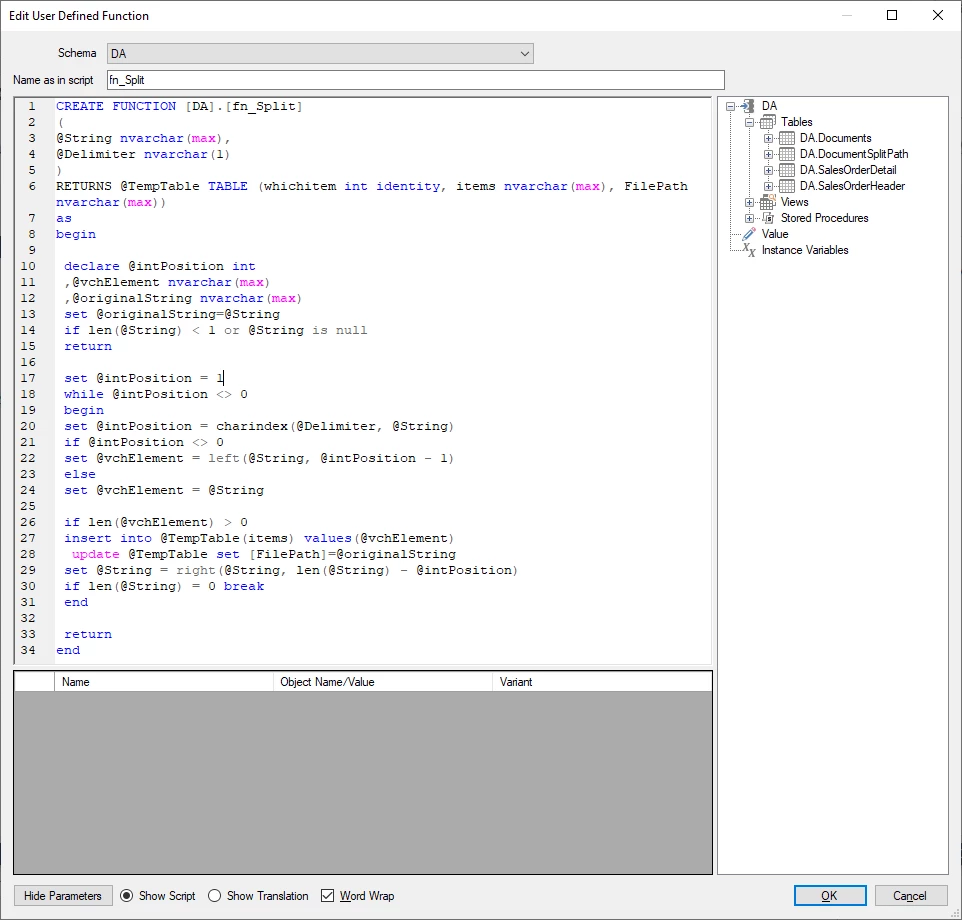
- Enter the script for the User Defined Function. Drag in the necessary objects from the right-hand pane, such as table and field names. Click OK.
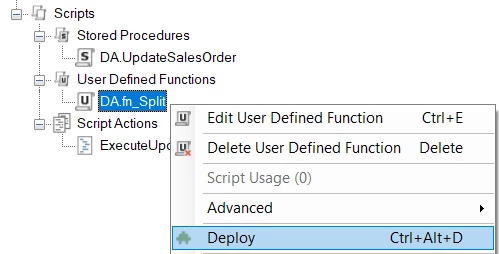
- Right-click on the User Defined Function and select Deploy.
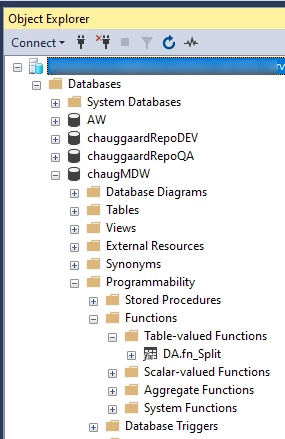
- Once deployed, the User Defined Function is visible in SSMS.
Executing a Stored Procedure
- In a data area, right-click on the Scripts folder and select Add Custom Step.
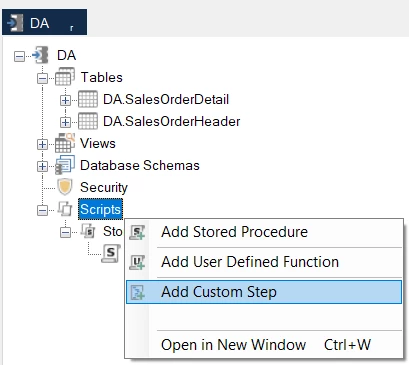
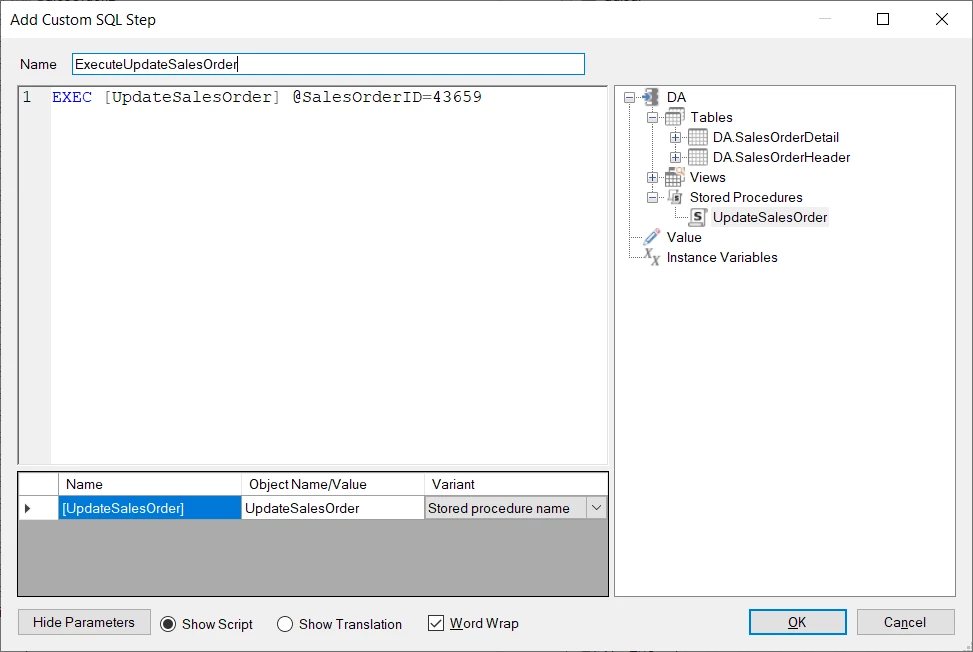
- Enter the script for executing the stored procedure. Drag in the necessary objects from the right-hand pane, such as the stored procedure. Click OK.
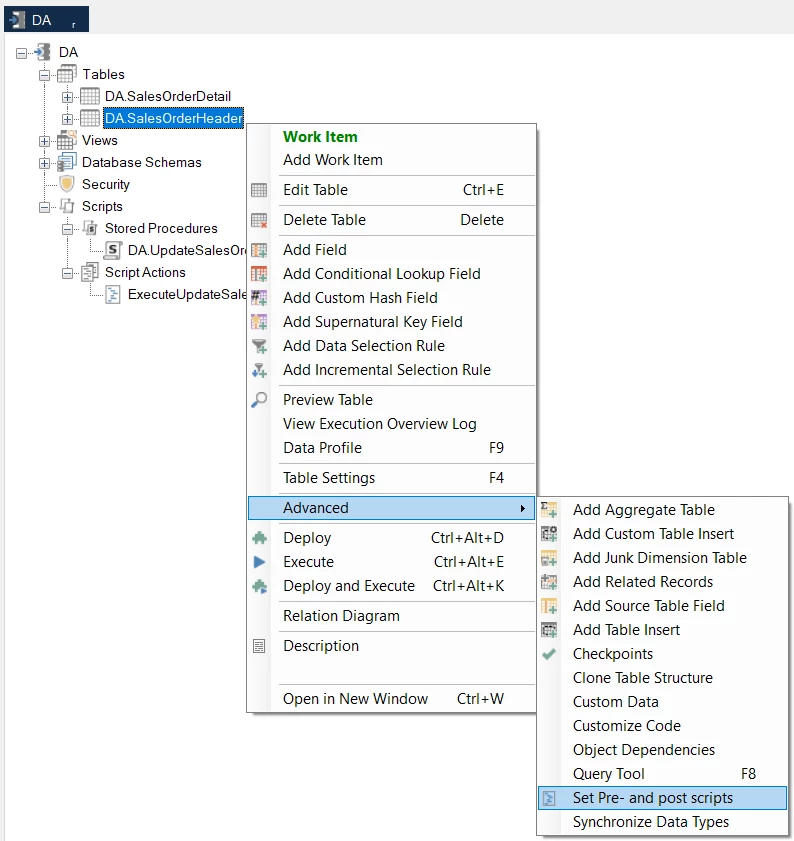
- The Stored Procedure needs to be scheduled to run before or after the deployment/execution of a table, which can be done using the Set Pre- and post scripts dialog. To open this, right-click on the table, select Advanced, and then select Set Pre- and post scripts as shown below.
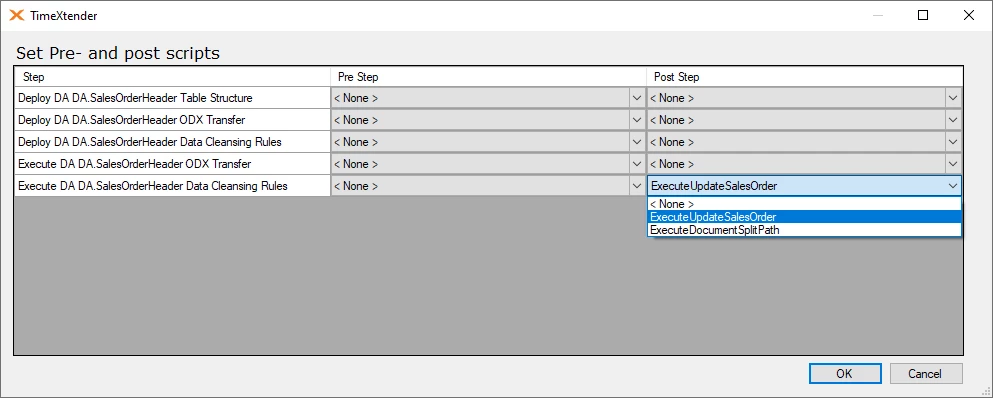
- In the Set Pre- and post scripts window, select the Custom Step from the dropdown menu for either the Pre-Step or Post Step column, depending on which is appropriate for this custom step related to the deployment/execution. Click OK.
- Deploy or execute the chosen table, which in turn will run the Custom Step and execute the Stored Procedure.
- Alternately you can run the stored procedure in a Custom Table Insert as well. It is shown here Add a custom table insert post 4156 and post 4159
Executing a User Defined Function
- Right-click on the Scripts folder and select Add Custom Step.
- Enter the script for applying the User Defined Function. In the case below, the User Defined Function is applied via an insert statement. Drag in the necessary objects from the right-hand pane. Click OK
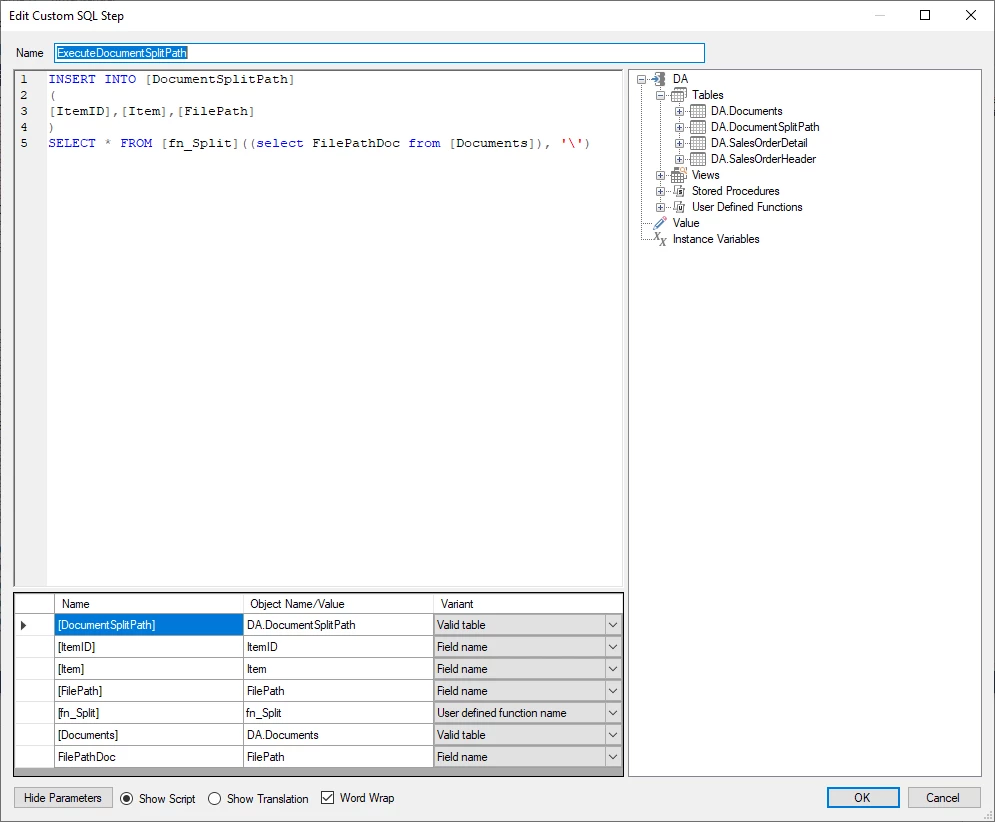
- The User Defined Function needs to be scheduled to run before or after the deployment/execution of a table, which can be done using the Set Pre- and post scripts dialog. To open this, right-click on the table, select Advanced, and then select Set Pre- and post scripts.
- In the Set Pre- and post scripts window, select the Custom Step from the dropdown for either the Pre-Step or Post Step column, depending on which is appropriate for this custom step related to the deployment/execution. Click OK.
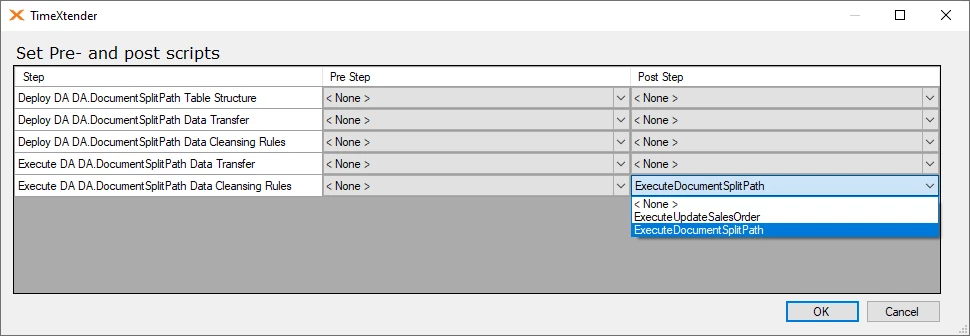
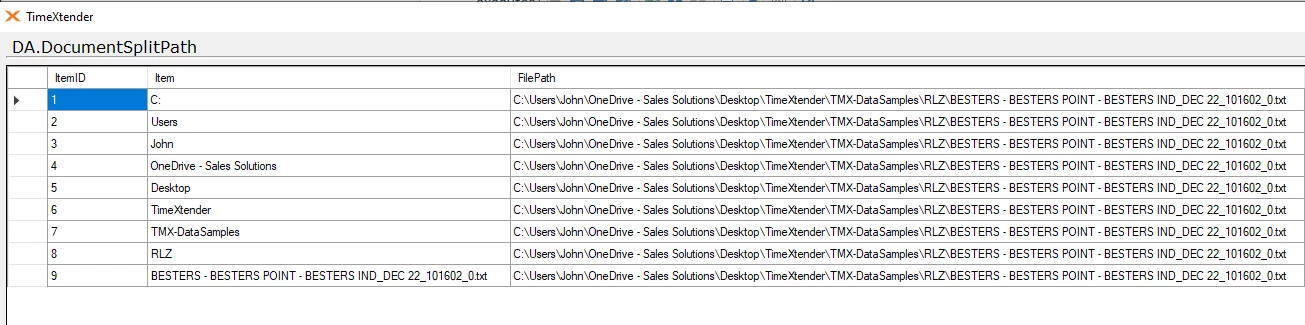
- Deploy or execute the chosen table, which in turn will run the Custom Step and execute the User Defined Function. In this example, once the table is executed, the User Defined Function takes the FilePath field from the Documents table

Then it splits this field out into separate records based on the delimiter and inserts these records into the DocumentSplitPath table
Show Script Usage
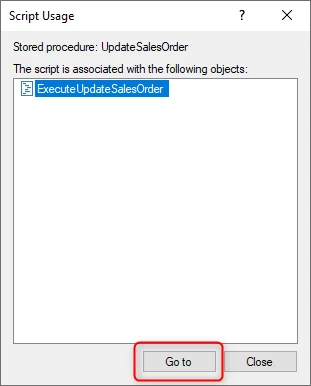
Right-click on the Stored Procedure or User Defined Function and select Script Usage. This will return a list of the Script Actions where the script is used. Select a Script Action and select Go to in order to navigate to the object.
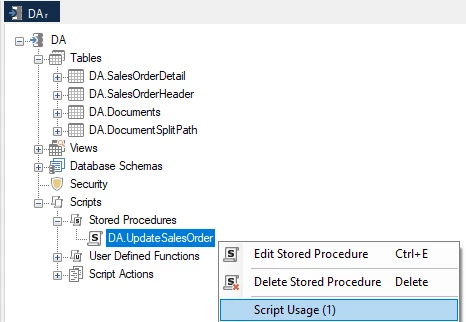
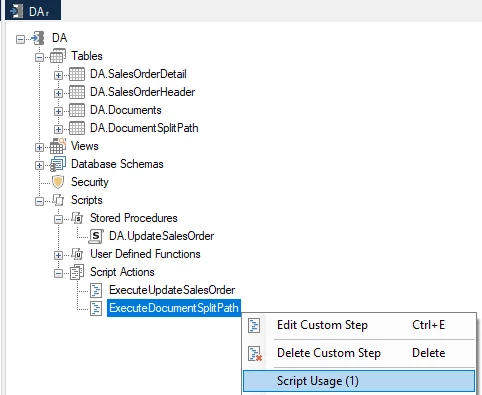
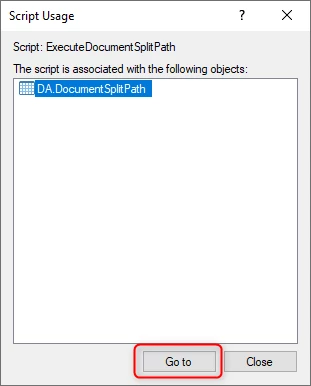
Right-click on a custom step under Script Actions and select Script Usage. This will return a list of the tables where the custom step has been added as a Pre- or post script. Select a table and select Go to in order to navigate to the object.
Downloads
Discussed in the community
Looking for related questions…
Didn't find your answer? Ask the community about this page — questions are answered by Timextender experts, partners and other users.