Use parameters in your scripts, views and calculations
When you are creating custom scripts or views you can use a parameter that converts all instances of that name to what it contains and set it to what the actual name is.
The bonus of this is that you can change the name of fields and tables, without having to change anything in the script. It will also make it possible to auto map custom views.
If you choose to delete something that uses the view, you will get a notification about this as well.
Parameters
In essence you can use parameters every time you have this screen.
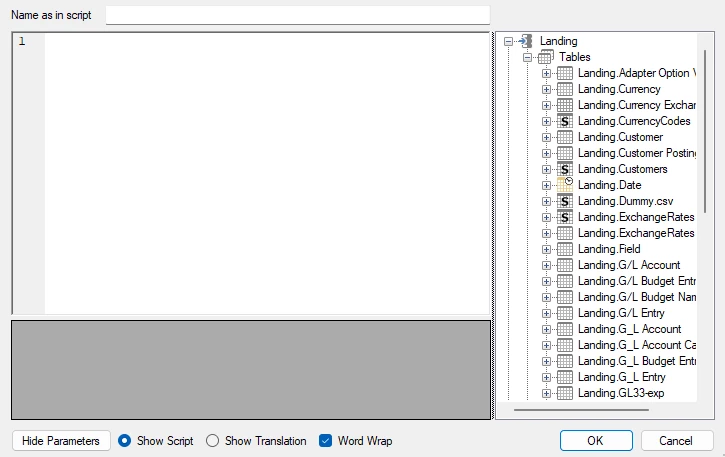
You get that every time you do something custom. Below are a list of features that use this, or variations of this screen:
- Custom Views
- Script Actions
- Stored Procedures
- User defined functions
- Custom Table Inserts
- Custom Field transformations
- Custom Data selection rules
- Deliver Instance Custom Scripts
- Calculated Measures
- Derived Measures
- Script Commands
- Dynamic variables
You can use it in many ways.
Add parameters to a view or script
Say you want to join two tables via a left join. You start by either copying in a already working script, or you write the first lines such as below.
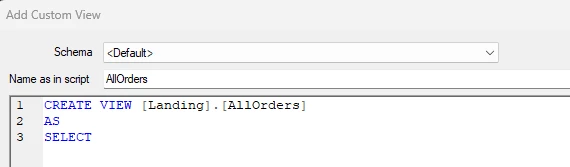
The next step is to drag and drop some fields from a table you want to use. Notice that they are added in the parameter area.
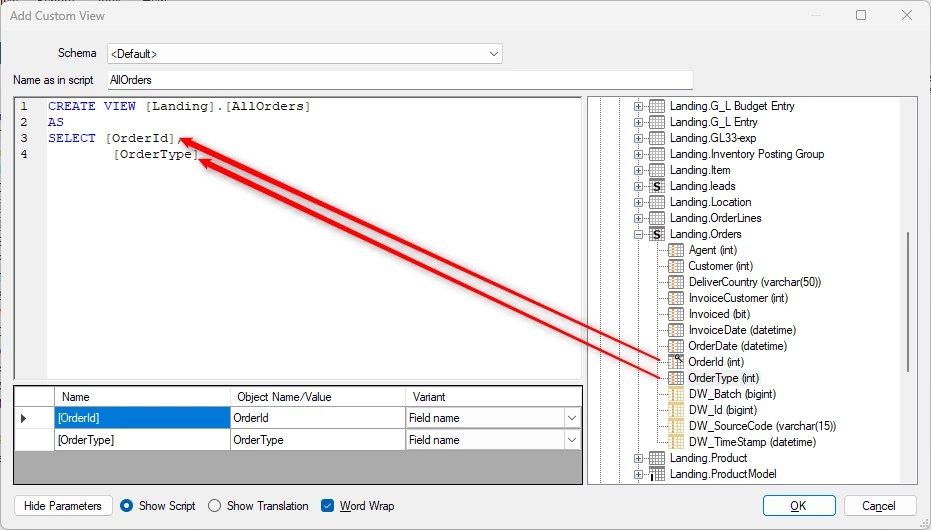
Keep it on until you have pulled in all the fields you want, from the tables you want. The next step is to pull in the tables itself. It is done the same way, be sure the variant is what you want. The Valid table is the default.
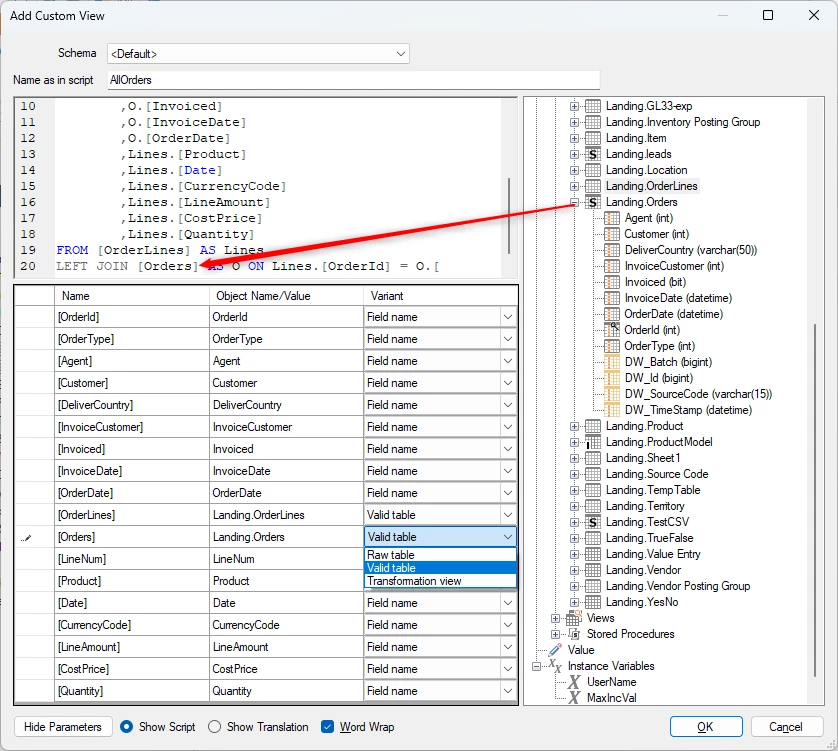
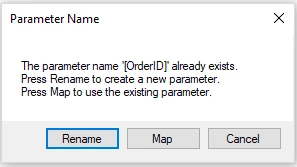
The next step is to join the two tables and that poses a problem. When you try to pull in the field from the other table you will get the following notification. Press on the Rename button and give it a distinctive name.
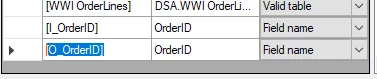
You can also change it manually, by marking the Name area and just typing in its name.
When all the fields are added you will have a long list of parameters. Consider giving all fields a unique name, so no fields have the same names.
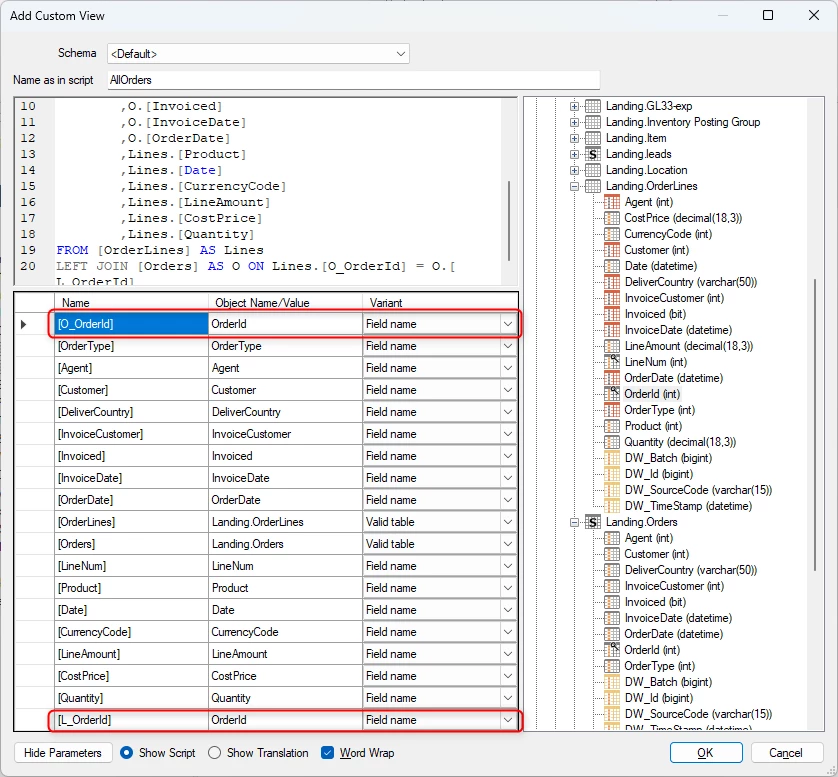
Even though it is not completely necessary to use only unique fields, you can do it for all the fields you map.
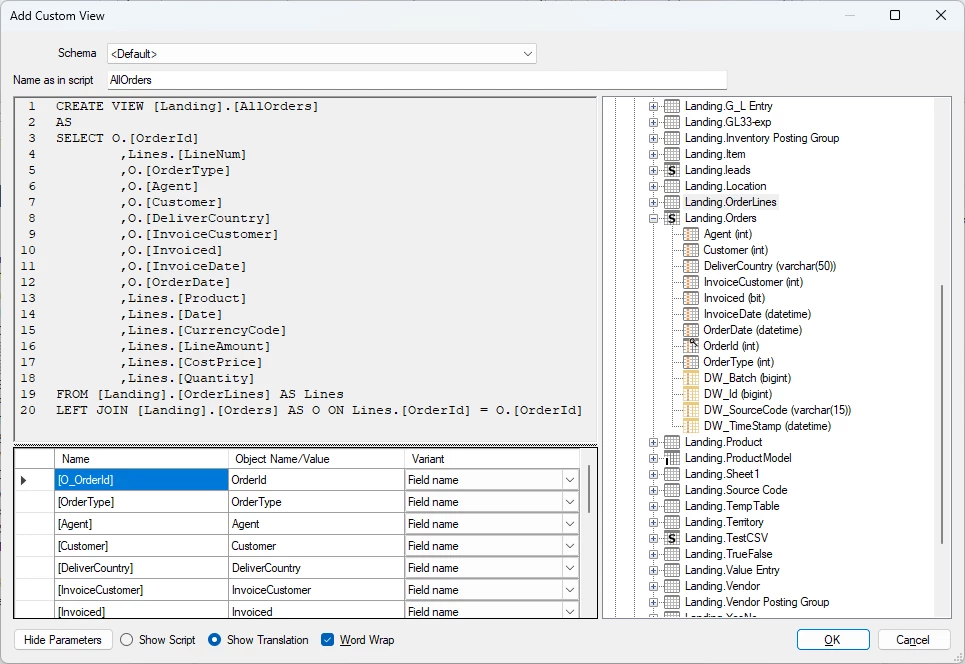
Here is how its translation looks.
If you forgot a field and changed it in the name area, but not the script you will get the following notification.
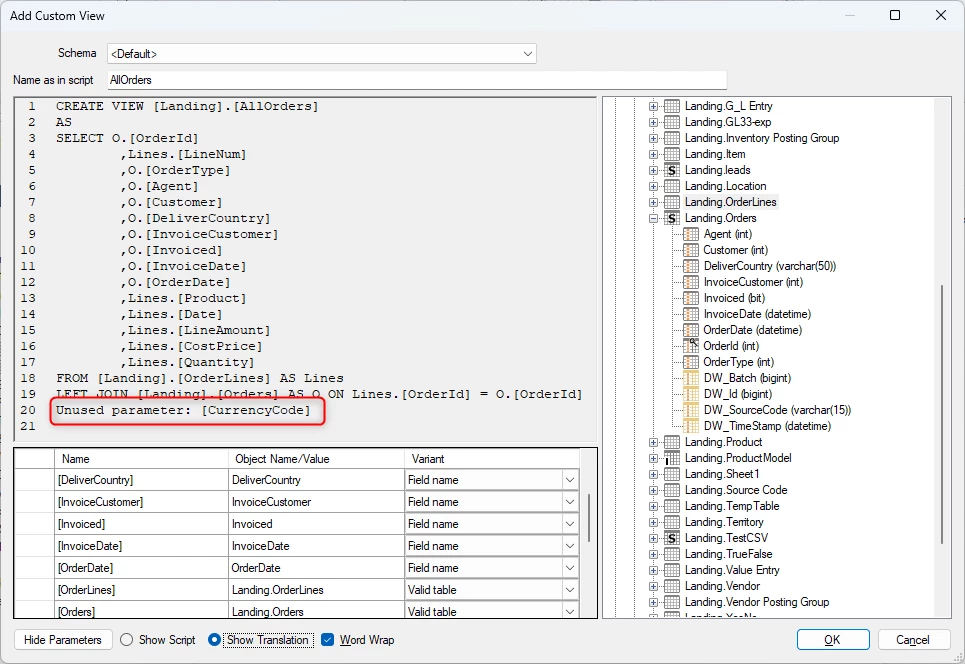
The smart thing is that you now can do changes in the other tables and they will be noticed and keep working in the script. Below i change the names of two fields in my view.
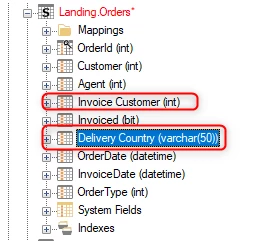
Even before i have deployed the changes the names have changed in the code. It knows what table each field comes from, so it changes the correct one.
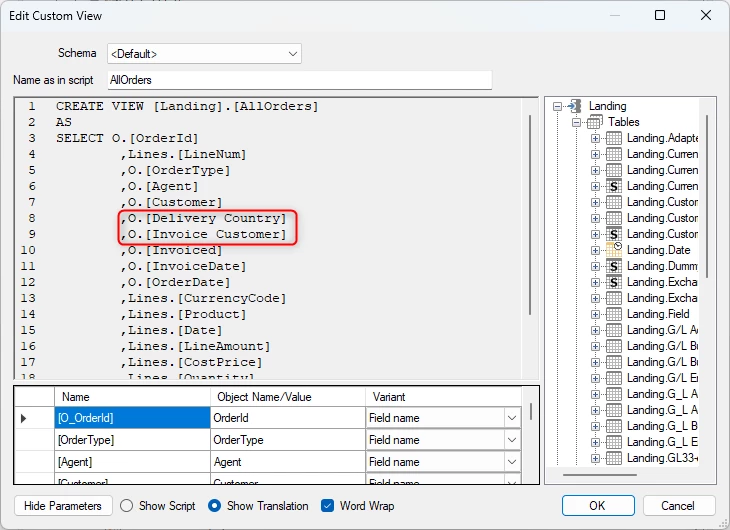
This applies to all the variations of menus added.
Discussed in the community
Looking for related questions…
Didn't find your answer? Ask the community about this page — questions are answered by Timextender experts, partners and other users.