 Ask the community about this page
Grant and Revoke Access to Instances
Info
Released in Timextender 6024.1
This article describes how to grant and revoke users' access to instances. Users that are granted to a particular instance will be able to see and edit the given instance within the Timextender Desktop Application.
Pre-requisites
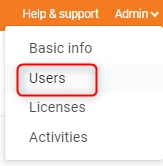
The individuals need to be added within the Portal as users, before access can be granted to them. The Users section can be found under the Admin settings.
Grant Access to Instances
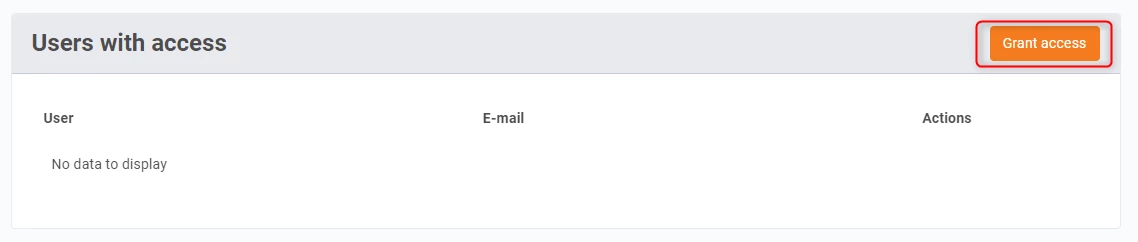
Select an instance and scroll down to the section called Users with access, and select Grant access.
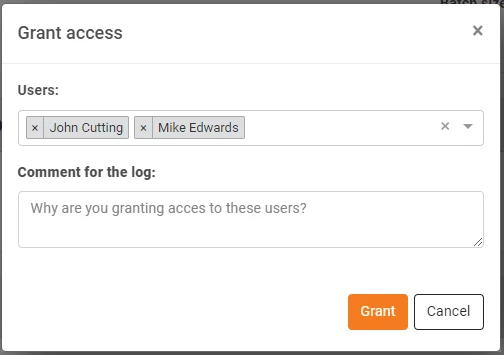
Select the user(s), who you would like to grant access to, from the dropdown. Provide a comment to keep a log of which users have been given access, to which instances and for which reasons. Then select Grant.
Revoke Access to Instances
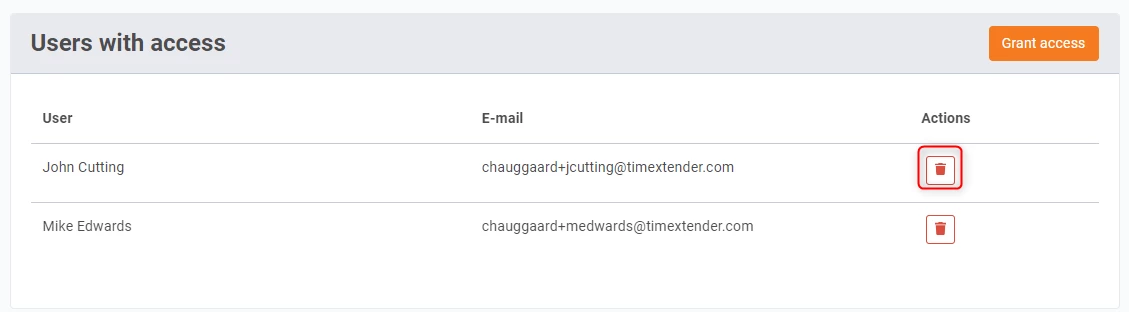
Select an instance and scroll down to the section called Users with access. Find the user whose access you wish to remove, and click on the delete icon under Actions.
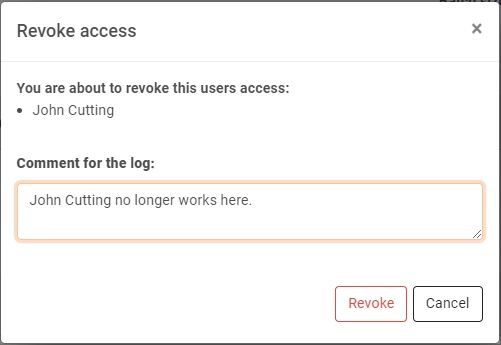
Provide a comment to keep a log of which users access' has been revoked, in regards to which instances and for which reasons. Then select Revoke.
Discussed in the community
Looking for related questions…
Didn't find your answer? Ask the community about this page — questions are answered by Timextender experts, partners and other users.