SQL Task Actions in Data Enrichment
In this article, you will read about creating SQL task actions in Data Enrichment. A SQL task action is a versatile way to make it easier to work with table data. Actions can be used to validate, backup or modify data. They can also be added as a button in the editing area or programmed automatically execute when the table is saved.
Create your first action
Here are steps to create a basic validation action:
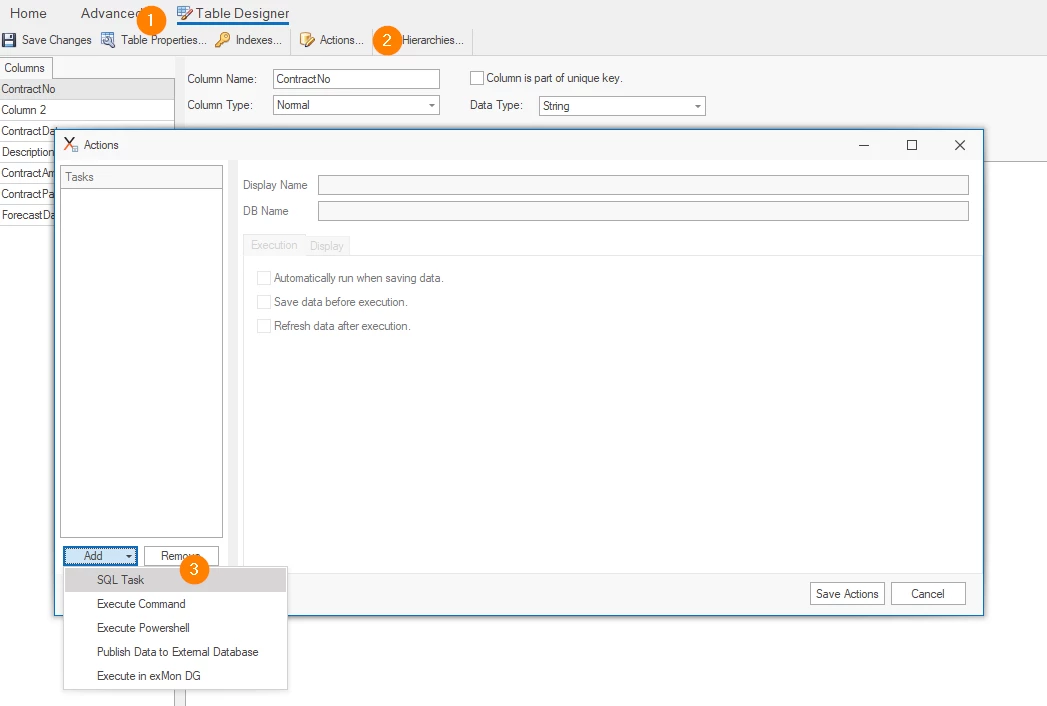
- Open the table you want to validate in Data Enrichment. Click on Table Designer in the navigation ribbon.
- Click Actions.
- Select the Add dropdown and click on SQL Task.
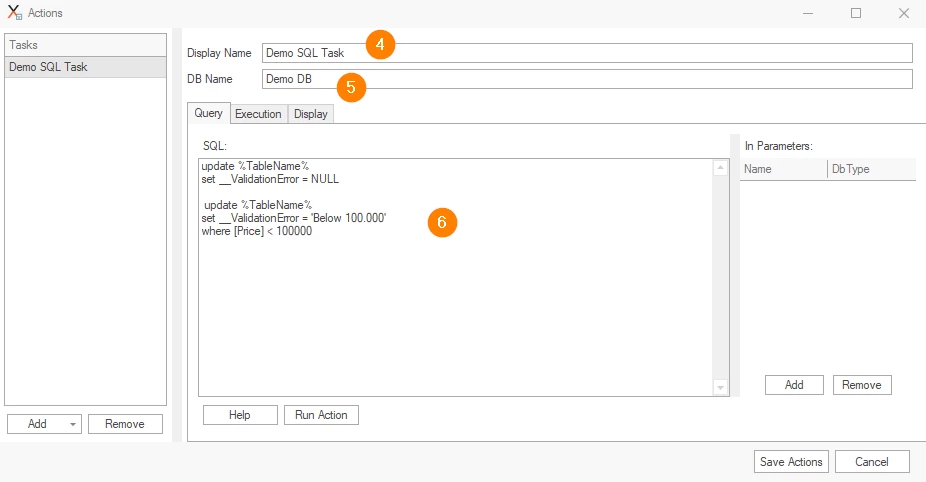
- Display name: Demo SQL Task
- DB Name: Demo DB (or your preferred Database name)
- Set the SQL query to:
update %TableName%
set __ValidationError = NULL

update %TableName%
set __ValidationError = 'Below 100.000'
where [Price] < 100000
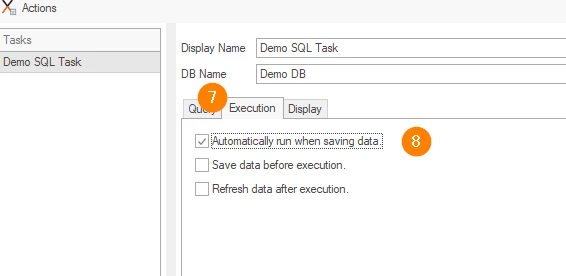
- Next, click the Execution tab
- Check Automatically run when saving data
- Selecting In Parameters allows the user to send custom parameters to the action.
- Click Run Action if you want to validate your data immediately.
- Click Save Tasks to save your action.
Discussed in the community
Looking for related questions…
Didn't find your answer? Ask the community about this page — questions are answered by Timextender experts, partners and other users.