Deliver instance synchronization
Info
Relates to Timextender Data Integration 6024.1 and later versions
This article describes how to synchronize a Deliver instance if the data type of a field in the Prepare instance has been changed. It also shows how to remap fields in the Deliver instance if a table in the Prepare instance has been deleted and the Deliver instance should use a new table instead.
Synchronizing the Deliver instance for a data type change
If the data type of a field in the Prepare instance has been changed, and this field is used in the Deliver instance, it is recommended to synchronize the Deliver instance. For example, we have a field called location_id which is bigint in the Prepare instance.
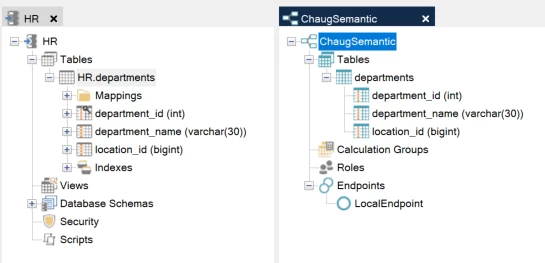
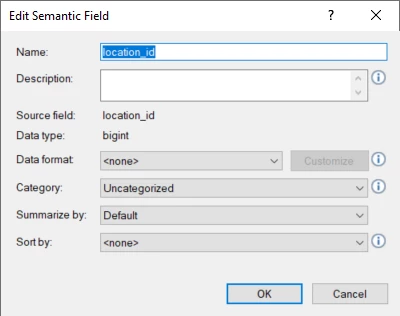
The field has been brought over to the Deliver instance, and if we right click on the location_id field here, and select Edit Field, we see that it is also a bigint in the Deliver instance.
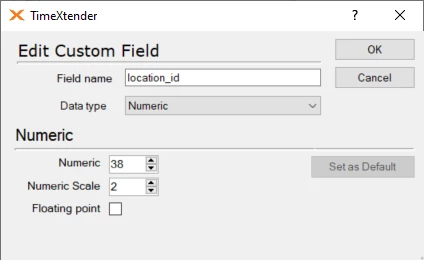
The location_id field is then changed in the Prepare instance from bigint to Numeric i.e. Decimal(38,2), by right-clicking on the field and selecting Edit Field.
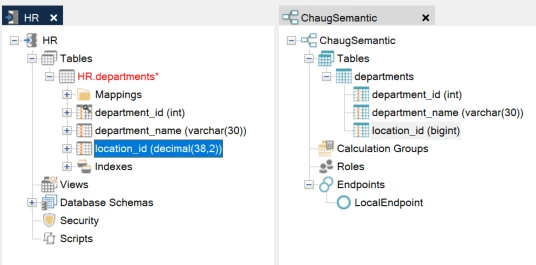
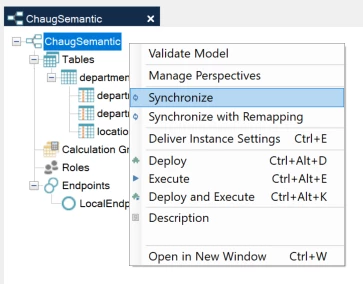
However, the field in the Deliver instance is still bigint. If we would like to change the field in the Deliver instance to numeric, so that it is aligned with the Prepare instance, right-click on the Deliver instance model and select Synchronize.
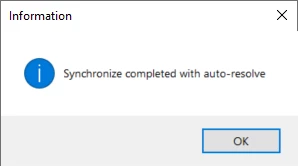
We will then be notified that the data type change has been auto-resolved.
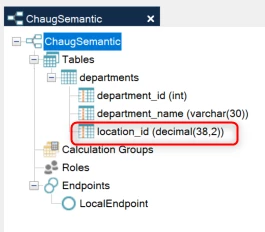
We can see that it has been changed to numeric i.e. decimal(38,2)
Auto-resolve synchronization also applies to field name changes in the Prepare instance.
Synchronizing the Deliver instance for Remapping of tables and fields
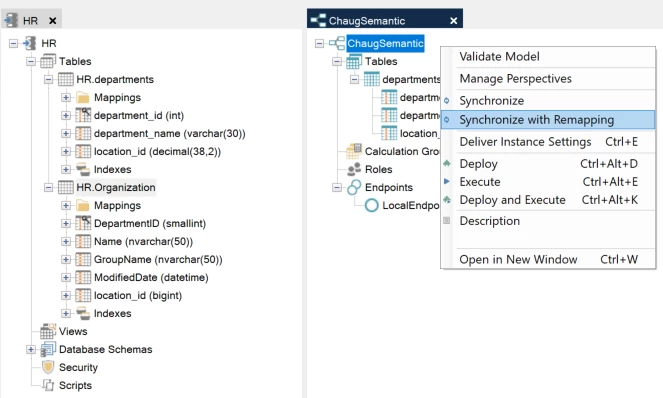
We can also synchronize the Deliver instance in order to remap tables and fields. Continuing with the same example as above, say we have a new table (HR.Organization) which contains the departments we want to use instead of the old table (HR.departments).
Right-click on the Deliver instance model and select Synchronize with Remapping and then select the table and fields you would like to remap to.
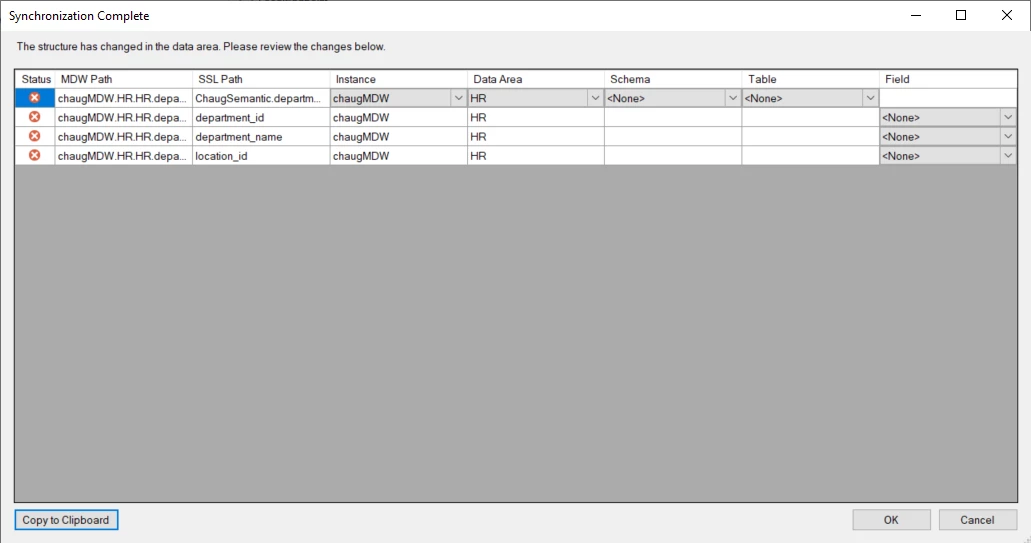
If the source table in the Prepare instance has already been deleted, right-click on the Deliver instance model and select Synchronize, the following menu appears, which indicates that the Deliver instance tables need to be remapped.
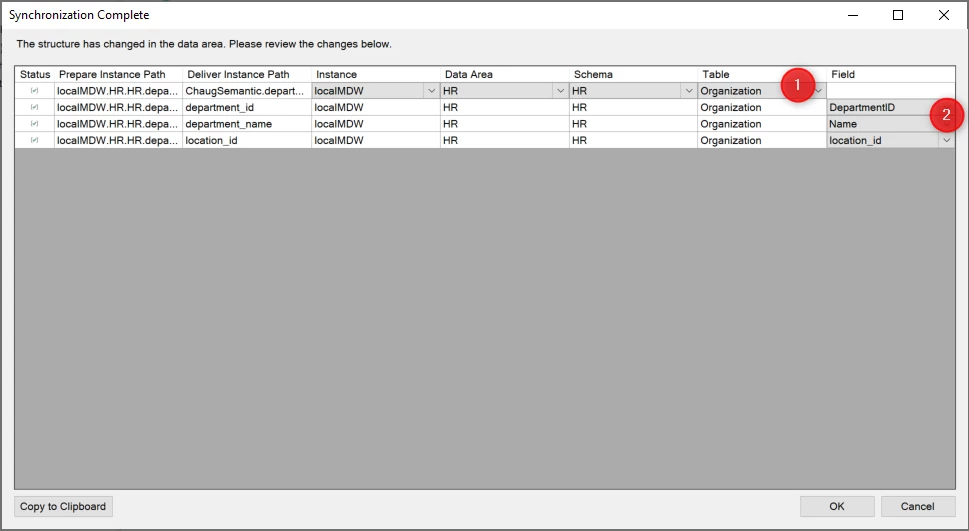
In order to reestablish the mappings (i.e. replace the old missing mappings with the new mappings), select the new schema, table and fields from the dropdowns.
If the name of the tables and fields in the Deliver instance are the same as the names of the tables and fields in the Deliver instance, they will automatically be selected in the dropdowns.
Select OK to complete the remapping.
Discussed in the community
Looking for related questions…
Didn't find your answer? Ask the community about this page — questions are answered by Timextender experts, partners and other users.