Creating a schedule — the Schedule tab
A schedule decides when work runs. This page covers the Schedule tab, where you pick the frequency and set the timing. Choosing what runs is the Tasks tab.
Orchestration → Schedules → Create, then name the schedule inline in the header.
Before the frequency: three fields that apply to all of them
- Enabled — a schedule that is off keeps its configuration and fires nothing.
- Execute environment — Production, Testing or Development. This decides which environment's version of each task runs.
- Summary — a live, plain-language description of what you have configured, in the same wording the Schedules list shows.
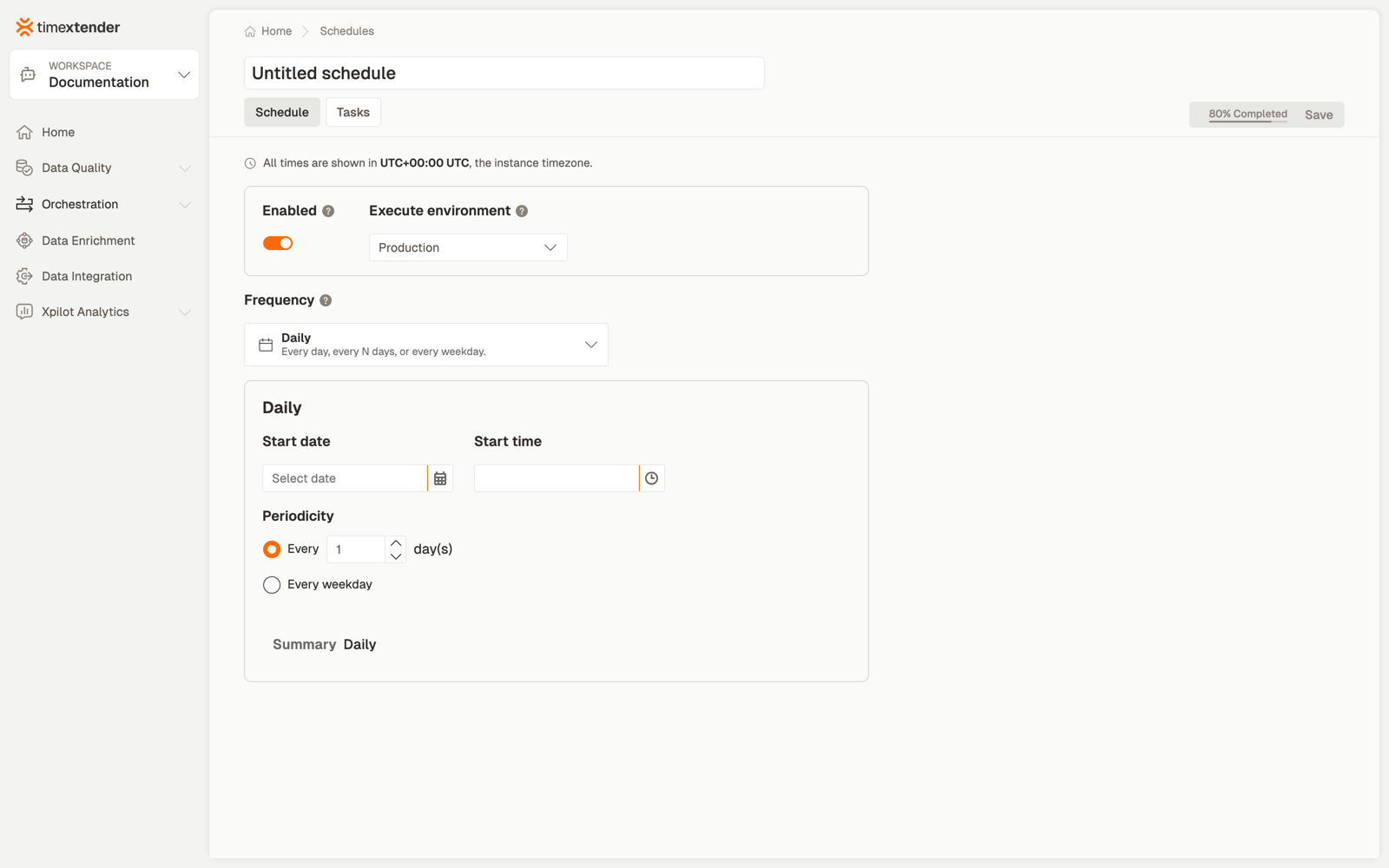
Your instance's timezone is shown at the top of the tab, as "All times are shown in UTC+00:00 UTC, the instance timezone." Times are entered and displayed in that timezone, and the correct UTC value is stored behind the scenes — so a schedule fires at the moment you intended regardless of where the server is.
The seven frequencies
In the order the dropdown lists them, with the product's own descriptions:
| Frequency | Description in the dropdown |
|---|---|
| One-time | Run once at a specific date and time, then disable the schedule. |
| Daily | Every day, every N days, or every weekday. |
| Weekly | Recur every N weeks on selected days of the week. |
| Monthly | On a fixed day of month or a day occurrence. |
| Repeat every | Re-run at a fixed hour / minute interval through the day. |
| SQL-defined | Compute the next run time with a custom query. |
| Continuous | Runs continuously. |
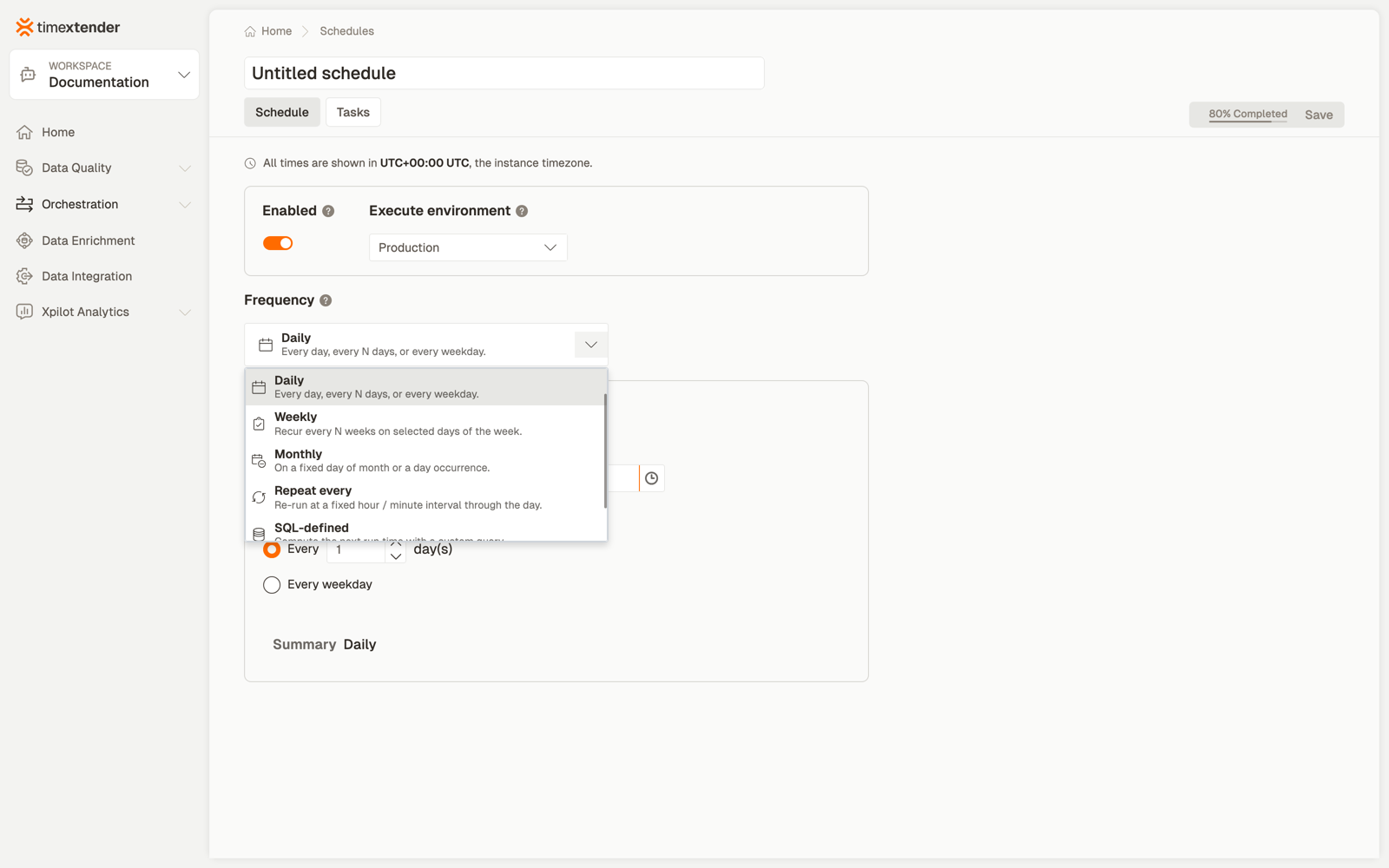
Monthly covers two different things behind one name — a fixed day of the month (1–31, or Last), or a day occurrence, such as the second Tuesday. Pick the mode first; the fields change underneath.
SQL-defined computes the next run with a query. That query runs against the Timextender platform database, not against your source systems.
Start date and start time are required
Daily, Weekly and Monthly schedules cannot be saved without a start date and a start time, the same rule that applies to One-time.
The start date is not a formality. On an "every N days" or "every N weeks" pattern it is what decides which days the schedule lands on, and without it the run time defaults to midnight UTC.
Continuous is exempt. Its start is optional and means begin as soon as enabled.
If Save is greyed out, read the note next to it
Save stays disabled until the configuration is valid, and a short note beside it says what is missing:
Start date and time are required.
Select at least one weekday.
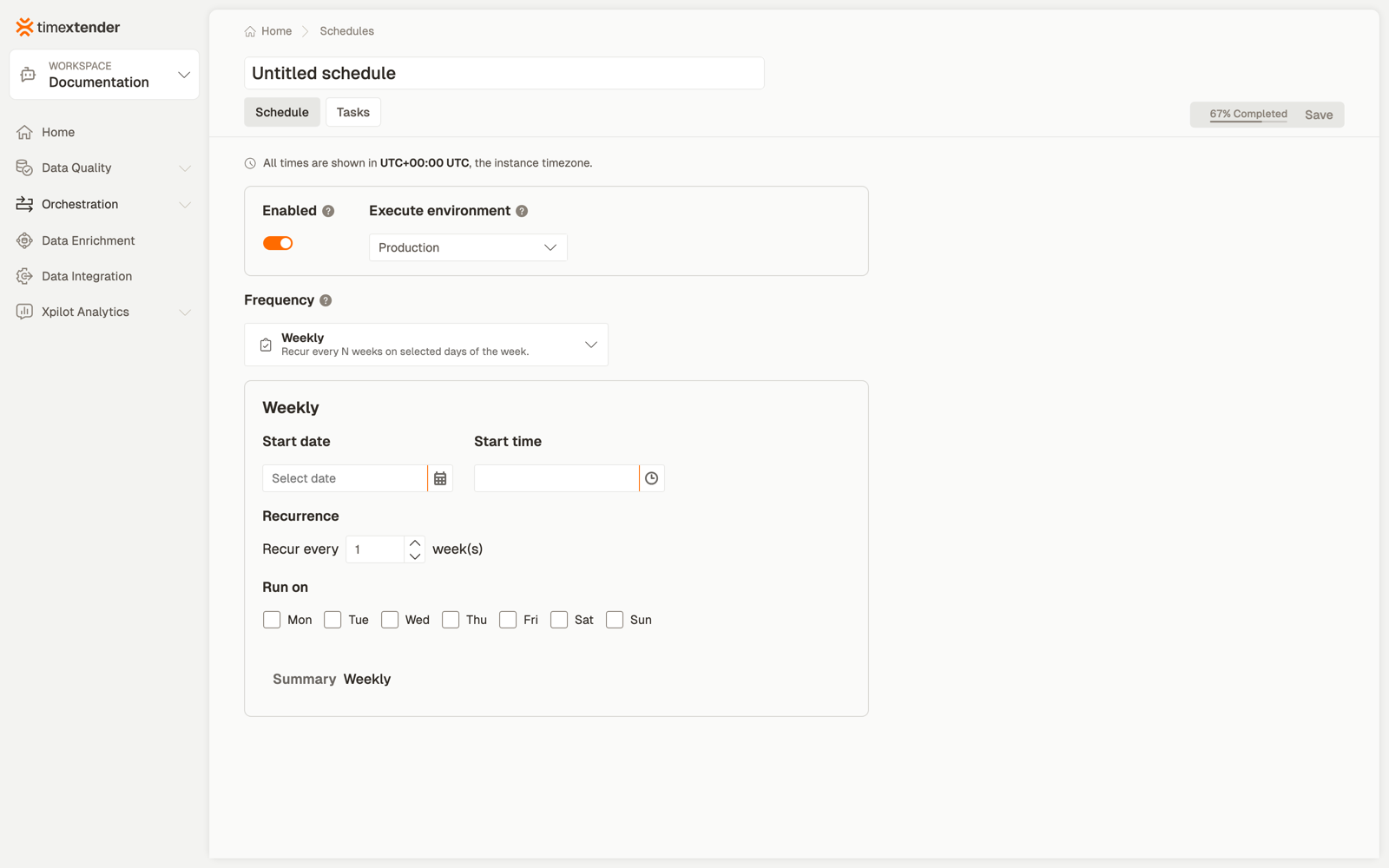
The note disappears and Save enables once the configuration is valid.
Schedules saved without a start date
A Daily, Weekly or Monthly schedule that has no start date keeps running and opens normally. The next time you change anything on it — even just its tasks — you are asked to set a start date and time before it will save.
Weekdays start on Monday
Every weekday picker in the editor — Weekly, the "only on certain days" restriction, and the Monthly occurrence picker — runs Monday through Sunday. A schedule you set for Monday runs on Monday.
The run window
Repeat every and Continuous offer Run only between specific hours, with a From and a To time. The two fields stay dimmed until you switch the window on.
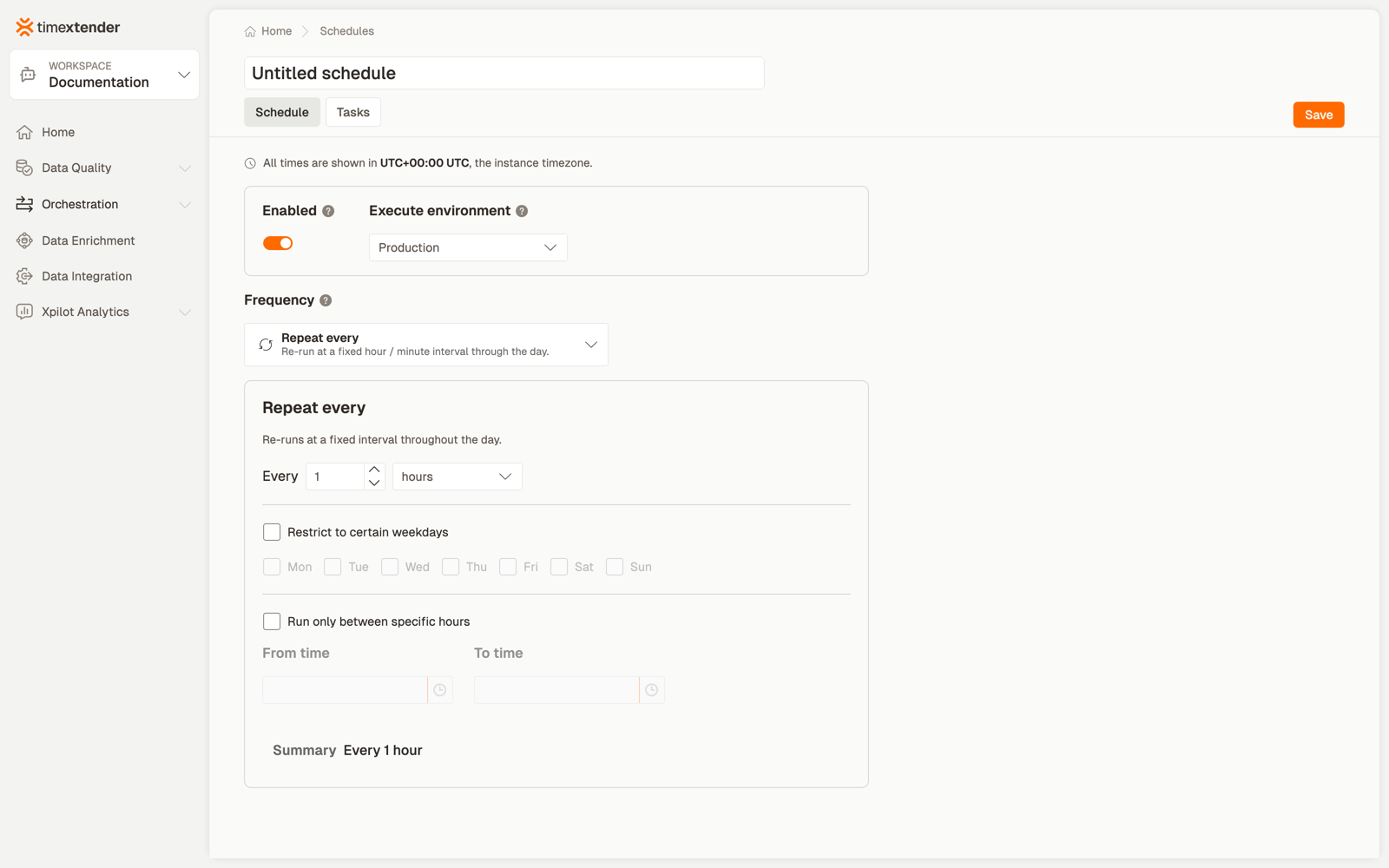
Precision and defaults
Times are set to the whole minute — seconds cannot be entered.
Best practices
Read the Summary line before saving. It is generated from the configuration, so it states exactly what the schedule will do.
Set the start date deliberately on "every N" patterns. With an interval of 3 days, the start date is what decides which days the schedule lands on.
Prefer Repeat every to Continuous when you have a window. Both accept one, but Repeat every makes the cadence explicit to the next person who opens it.
Related
- Create and assign a schedule — the Tasks tab
- Packages in the Timextender Data Platform
- What's new in 26.3
Discussed in the community
Looking for related questions…
Didn't find your answer? Ask the community about this page — questions are answered by Timextender experts, partners and other users.