Adding tasks to a schedule
The Schedule tab decides when. The Tasks tab decides what — it is where the work is attached to the schedule.
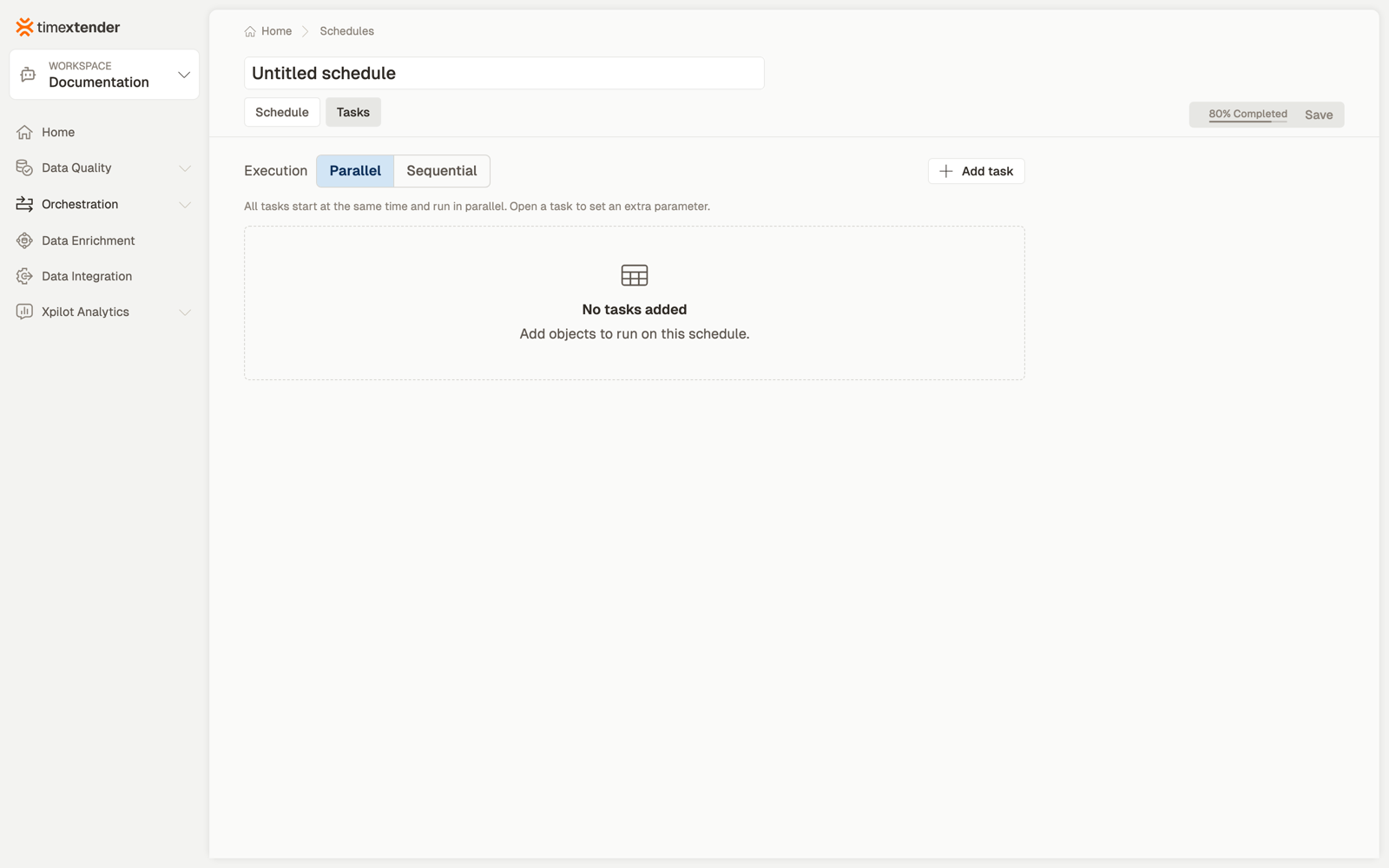
Add a task
Click Add task. A picker opens with a category rail down the left side.
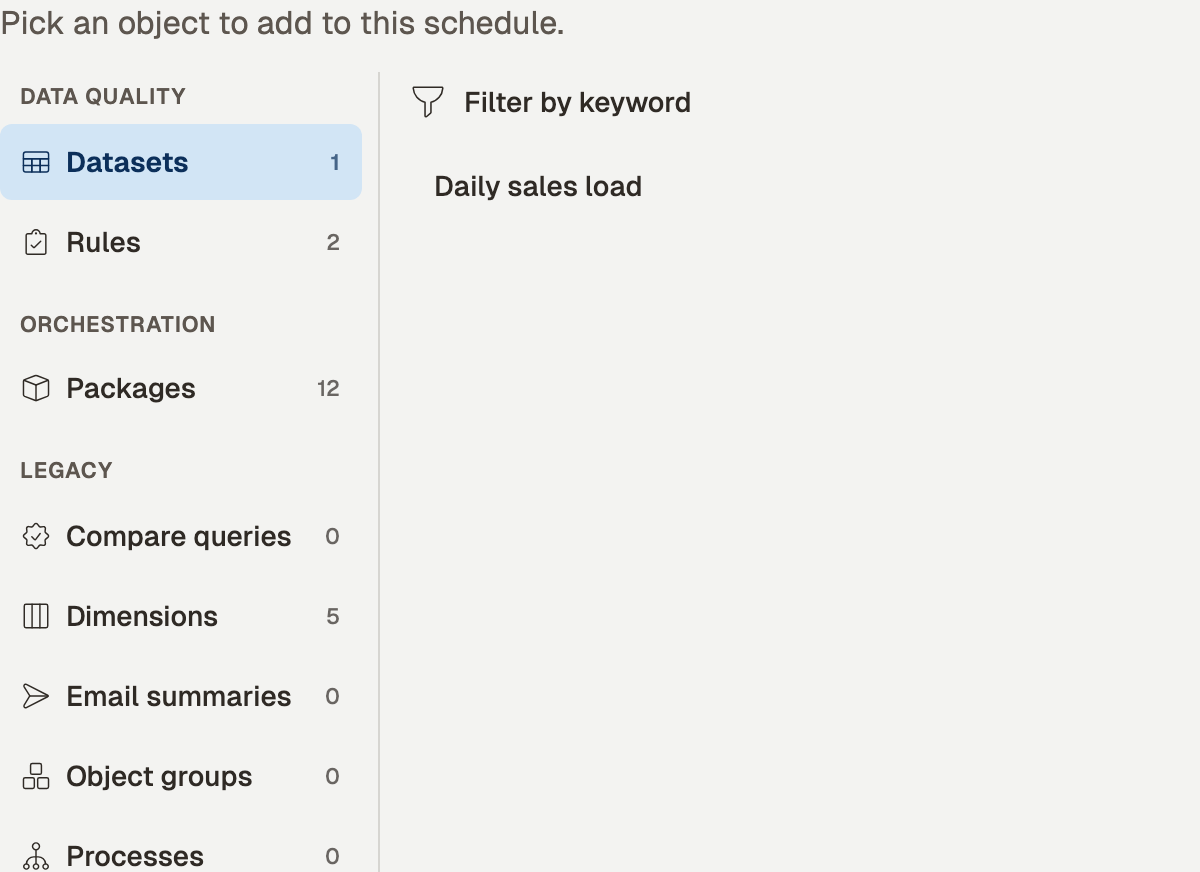
Pick a category, search if you like, and click an item to add it. It is added immediately and disappears from the list, so you can keep adding without reopening the picker. Close it when you are done.
The three groups
| Group | Categories |
|---|---|
| Data Quality | Datasets, Rules |
| Orchestration | Packages |
| Legacy | Compare queries, Dimensions, Email summaries, Object groups, Processes, Queries, Reports, Test groups |
Each category shows how many objects are still available to add. A count of 0 means either the workspace has none of that kind, or every one of them is already on this schedule.
Expect the Legacy group to shrink
Those eight categories are references to objects that live in ODQ Desktop. They are grouped together deliberately, and the group is meant to get smaller over future releases as each kind gains a native platform equivalent.
Queries and Object groups list only what you created in ODQ Desktop. The ones the platform generates for you from a rule or a dataset are left out, because the rule or dataset itself is what you add to a schedule instead. In a workspace where all of them came from rules and datasets, both categories show 0.
If the picker is empty altogether it says:
No objects are available to add. You may not have access to them, or they may already be on this schedule.
The picker lists only the objects your permissions allow you to see, so missing access is one reason a category can appear empty.
Parallel or sequential
The toggle in the tab header sets how the whole schedule runs. Parallel is the default.
- Parallel — every task starts at once.
- Sequential — one at a time, in the order listed.
This is a setting for the whole schedule, not per task.
Reorder tasks by dragging them. In Sequential mode each row shows its position — 1, 2, 3. In Parallel mode the order has no effect on the run, so rows show a parallel marker instead of a number.
Per-task extras
Extra parameter — expand a row with the chevron and type a value. A Parameter badge appears on the row once one is set. It is a single text value, not a set of key/value pairs, and it is limited to 1000 characters.
The definition link icon opens that dataset, rule or package in its own editor, in a new browser tab — so your unsaved schedule edits are not lost.
The X takes a task off the schedule. It does not delete the dataset, rule or package itself.
What saving does
Adding, removing and reordering all take effect when you save the schedule with the list arranged the way you want.
If you reference a task that does not exist in the workspace, or add the same task twice, the save is rejected with a message rather than quietly running the wrong thing.
Where run history lives
A schedule's execution history is on the Executions page in the navigation.
Related
Discussed in the community
Looking for related questions…
Didn't find your answer? Ask the community about this page — questions are answered by Timextender experts, partners and other users.