How to add a Conditional Lookup Field in Timextender Classic
Conditional Lookups allow you to create a lookup field that will only be populated when it matches a specified condition, which can either be a parameterized custom condition or a condition based on another field in the table and a predefined set of operators.
Custom Condition Example
This first example demonstrates how to create a conditional lookup field using a custom condition.
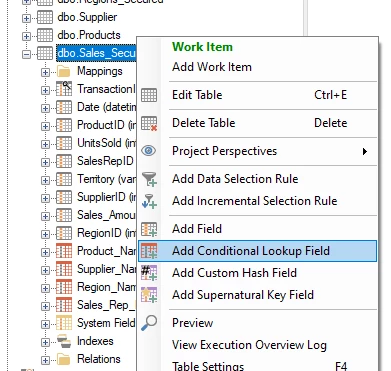
Begin by right-clicking on a table and selecting “Add Conditional Lookup Field”.
In the Add Conditional Lookup field dialog, enter an appropriate name and select the the appropriate settings that will determine how the lookup populates the value.
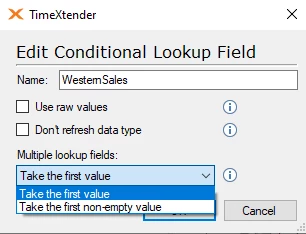
- Use raw values. Determines whether the value is populated from the raw table or the transformation table.
- Don’t refresh data type. Explicitly leave the data type unchanged.
- Multiple Lookup fields. If multiple field values satisify the condition, select the first value or the first non-null value.
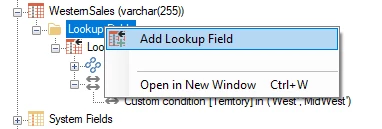
After the field is created, there are two folders underneath.
- Lookup Field
- Conditions
Right click on the Lookup Field folder and select “Add Lookup Field”.
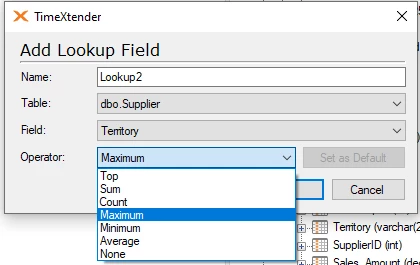
In the Add Lookup Field dialog, select the field from the other tables in the data warehouse, along with the aggregation operator (None if no aggregation is needed).
After selecting the lookup field, click on the Conditions folder to open the Condition pane on the right.
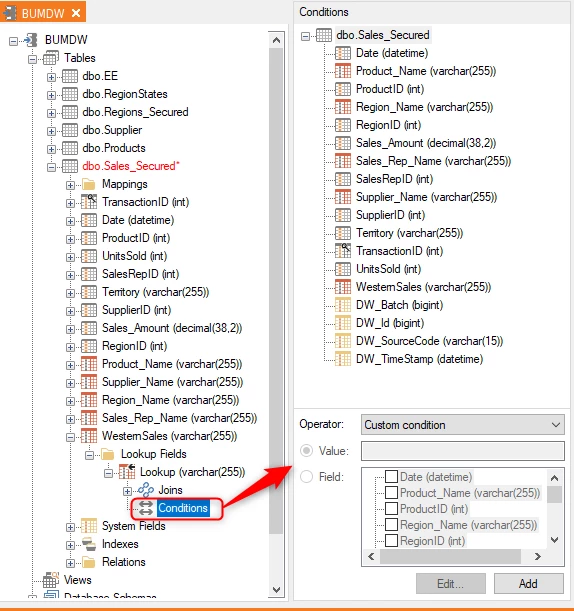
By default, the Operator is set to “Custom Condition” since none of the fields from the data table shown above are selected. To add a Custom Condition, click the Add button.
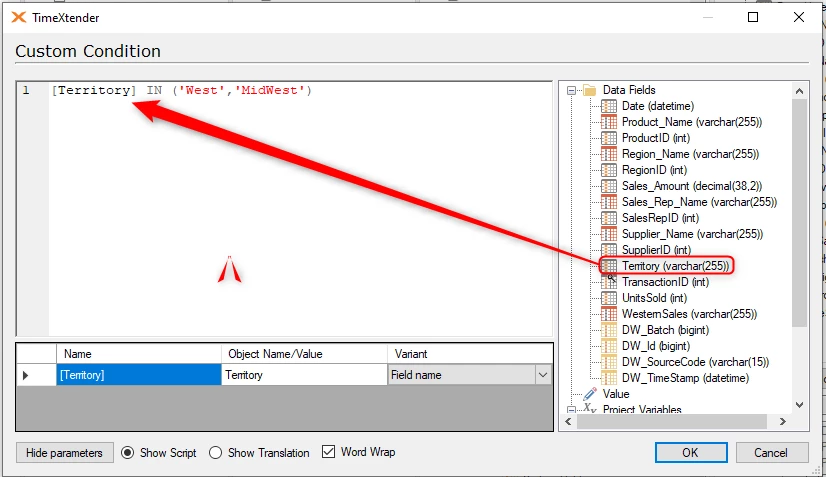
In the Custom Condition dialog, drag fields over from the right to add them as parameterized fields, and then complete the condition as appropriate.
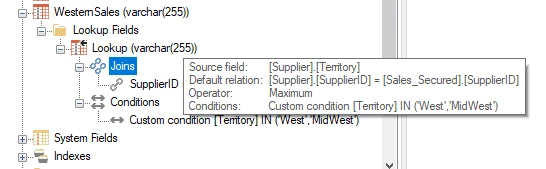
Once your lookup field and the condition are specified, you can hover your mouse over the field to see all the conditions specified.
Deploy and execute and then review the results to make sure they are correct.
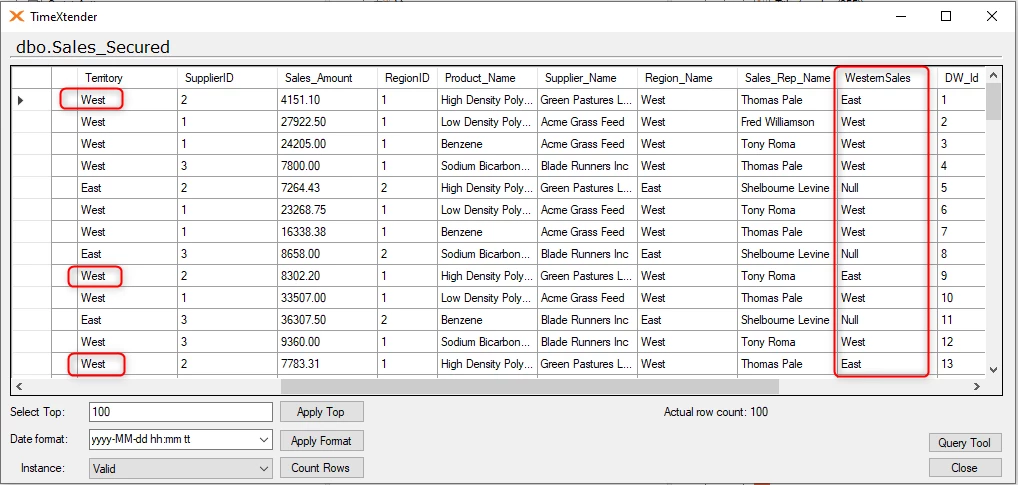
In the above, we can see that the “Western Sales” column is only populated when the Sales Territory is either “West” or “Midwest”, otherwise it is Null.
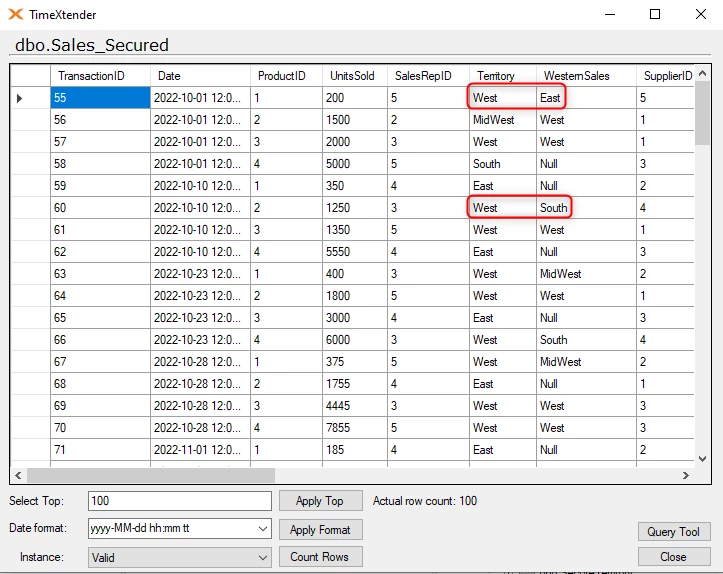
The “WesternSales” field shows the territory of the Supplier for the sales. In those instances where the customer is in the West and the supplier is not in the West or MidWest, then the seller may want to follow up to see if there is a supplier who is closer to the customer to help cut back on transportation costs.
Field and Operator Condition Example
A more streamlined approach may be to add a Conditional Lookup Field that employees a condition that references a different field from the same table along with an operator from a predefined list.
To do this, first select one of the fields from the table, as in the following example where the “Territory” field has been selected.
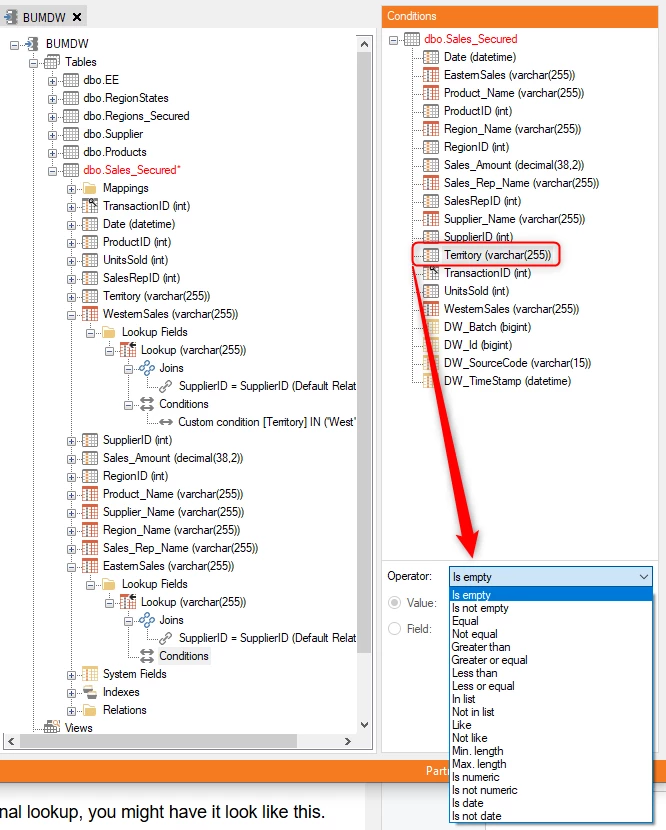
Afterwards, select one of the Operators from the drop down list to complete the condition, i.e. “is not empty”, which would mean that the lookup field is only populated if the “Territory” field is not empty.
Discussed in the community
Looking for related questions…
Didn't find your answer? Ask the community about this page — questions are answered by Timextender experts, partners and other users.