Export / Import Project in Data Enrichment
Projects and other objects created within Data Enrichment can be migrated between environments with the Export/Import feature. In order for an export/import to work both services need to have the same Data Enrichment version.
Note
Anyone can export a project but only admins can import a new project.
Export a Project
- Right-click a project and select Export Project
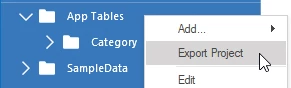
- A popup will open where you can select what you want to export, this can be both tables and database objects such as functions and stored procedures.
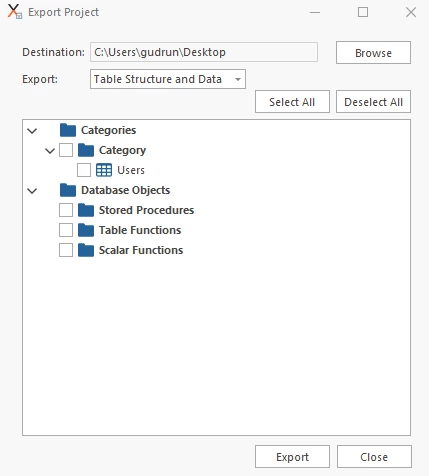
- Destination: Select where the zip folder will be saved
Export: - Table Structure and Data: Includes both structure of the tables and their data - Table Structure only: Includes only the structure of the tables
Import a Project
- Click Edit projects in the bottom left corner of the application

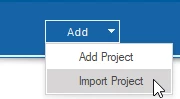
- Click the Add dropdown and select Import Project
- Select the zip folder that was created when you exported the project and give your project a new name. Then click Import Project.
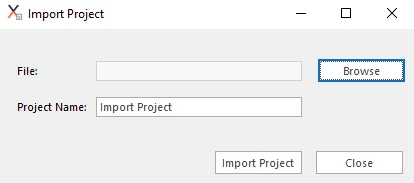
Your imported project is now visible from the navigation of the application.
Discussed in the community
Looking for related questions…
Didn't find your answer? Ask the community about this page — questions are answered by Timextender experts, partners and other users.