Publish a Timextender Data Enrichment table to PowerBI with REST API
In this article, you will learn how to Publish an exMonDM table to PowerBI with REST API.
- To publish an exMonDM table to PowerBI you start by sharing your table by clicking the advanced tab and selecting Share
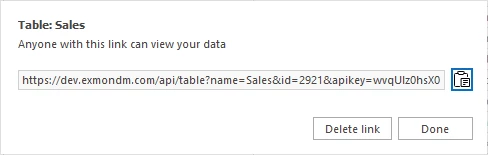
- Copy this link.
- Open PowerBI
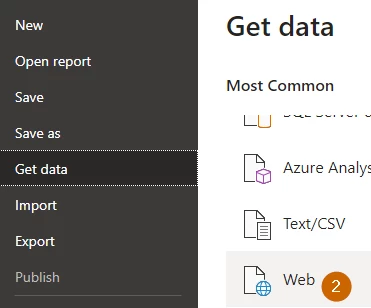
- Select File → Get data → Web
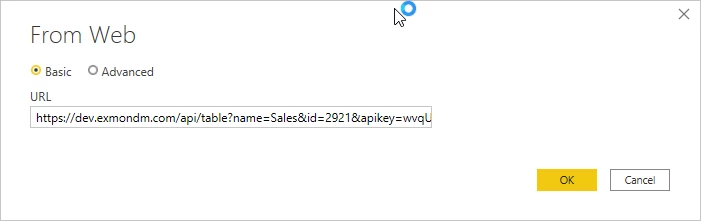
- Paste your link from step 2 into the popup dialog and click OK
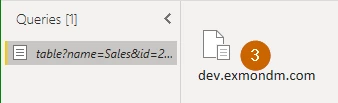
- Double click on the *.exMonDM.com link
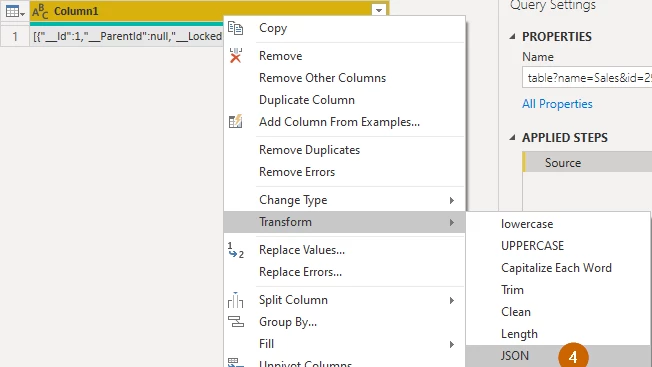
- Right-click the Column1 header, select Transform and transform the data to JSON
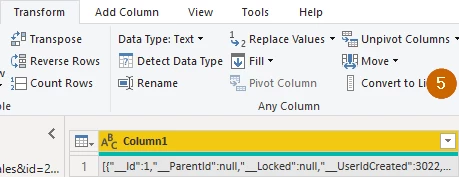
- Select the first record, switch to the Transform tab and select Convert To List
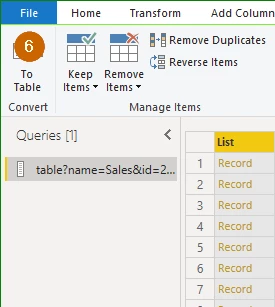
- Select the To Table button and Press OK in the popup
-
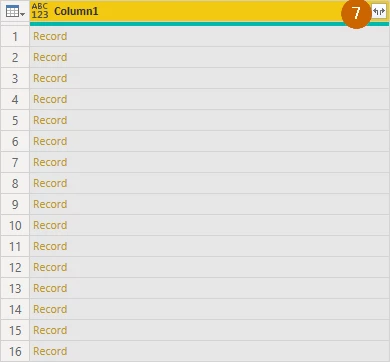
Split the Records into separate columns by pressing the button on the right side of the header
-
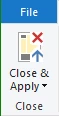
Close and Apply the results
-
Now you can schedule to refresh the data source and start creating your PowerBI report. Remember to convert your columns to the correct Data Types
Discussed in the community
Looking for related questions…
Didn't find your answer? Ask the community about this page — questions are answered by Timextender experts, partners and other users.