Web - filter, group by, search and export
In this article, you are going to read about the filter, group by, search and export functions in Data Enrichment. The Table Editor has powerful options to find and filter data but the main filtering options are:
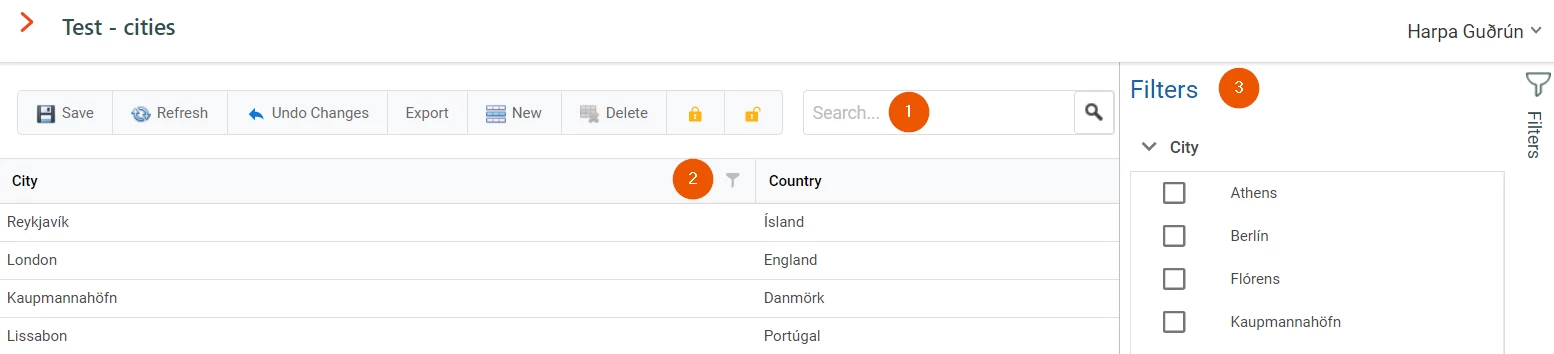
- Search - Searches data in all columns
- Column Filters - Filter specific columns based on data existing in the columns
- Filter Row - Free text search for each column
- Table Filters - Column filters for popular columns, chosen at design time.
Search
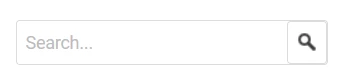
The search function allows you to search for a specific term in all columns. Click the Search box to start searching and enter the search term. When searching for multiple words, you can use quotes to search for them together.
Note
Searching data sets with millions of rows and many columns can be slow. You can use Column Filters and Auto Filter Row for a faster search.
Column Filters
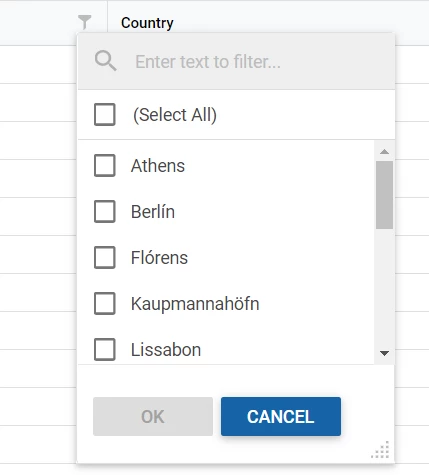
Hover over a column header and click the Funnel icon to open a Column Filter. The filter shows all values currently in the data and allows you to quickly filter to specific values. Note that numeric and date/time columns allow you to filter based on ranges.
Filter Row
Right-clicking on a column header, and then selecting Filter Row displays filtering options per column.
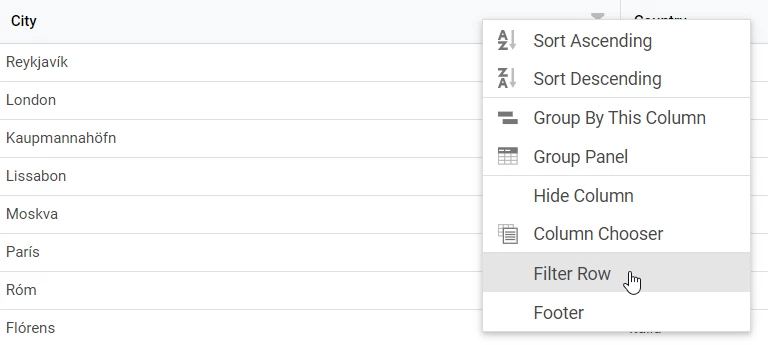
In the Filter Row, you can enter search terms specific for each column. By default, the search term can be anywhere in the field.
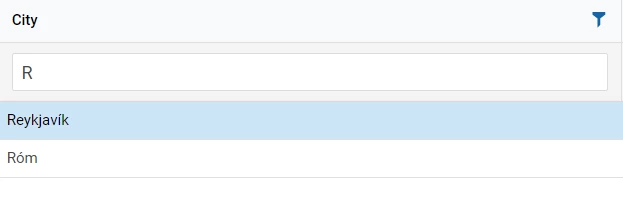
Table Filters
You can specifically configure common or regularly used filters, in the Table Designer.
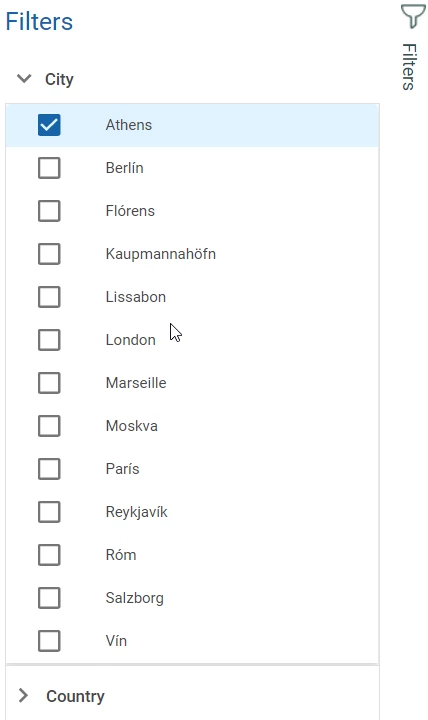
When you have the option to employ filters, you will see a Filters panel displayed on the right of the window. When a value is selected, such as Athens in the example below, the data gets filtered in the Table Editor.
Discussed in the community
Looking for related questions…
Didn't find your answer? Ask the community about this page — questions are answered by Timextender experts, partners and other users.