Create a Test Group from a template
Test groups let you add and configure multiple tests against a single table in one editor, rather than creating each test separately.
Available templates
| Template | Source |
|---|---|
| SQL Tests From Template | A table in a SQL database |
| Timextender Tests From Template | A table in a Timextender database |
| Timextender MDM Tests From Template | A table in your Data Enrichment service |
Types of test
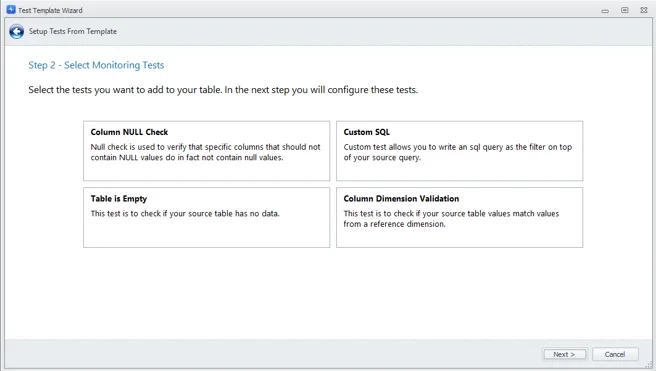
- Column NULL Check — select columns that should never be NULL. The test fails and notifies the owner if any selected column contains a NULL.
- Table is Empty — checks whether the table is empty.
- Custom SQL — supply a WHERE clause to test a custom condition.
- Column Dimension Validation — checks that source column values match values from a reference dimension.
Create the test group
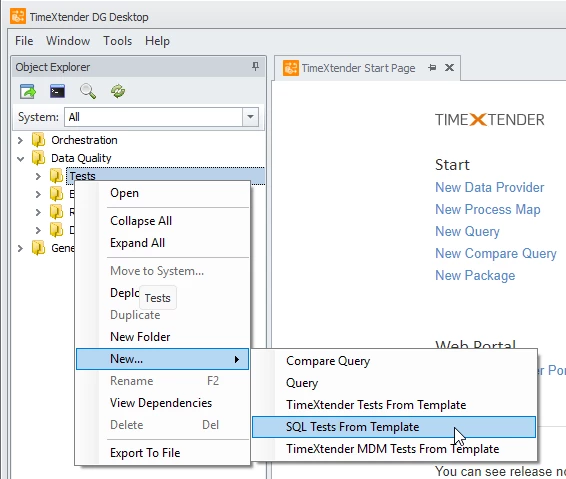
1. Right-click the object browser's Test folder and select New… → SQL Tests From Template.
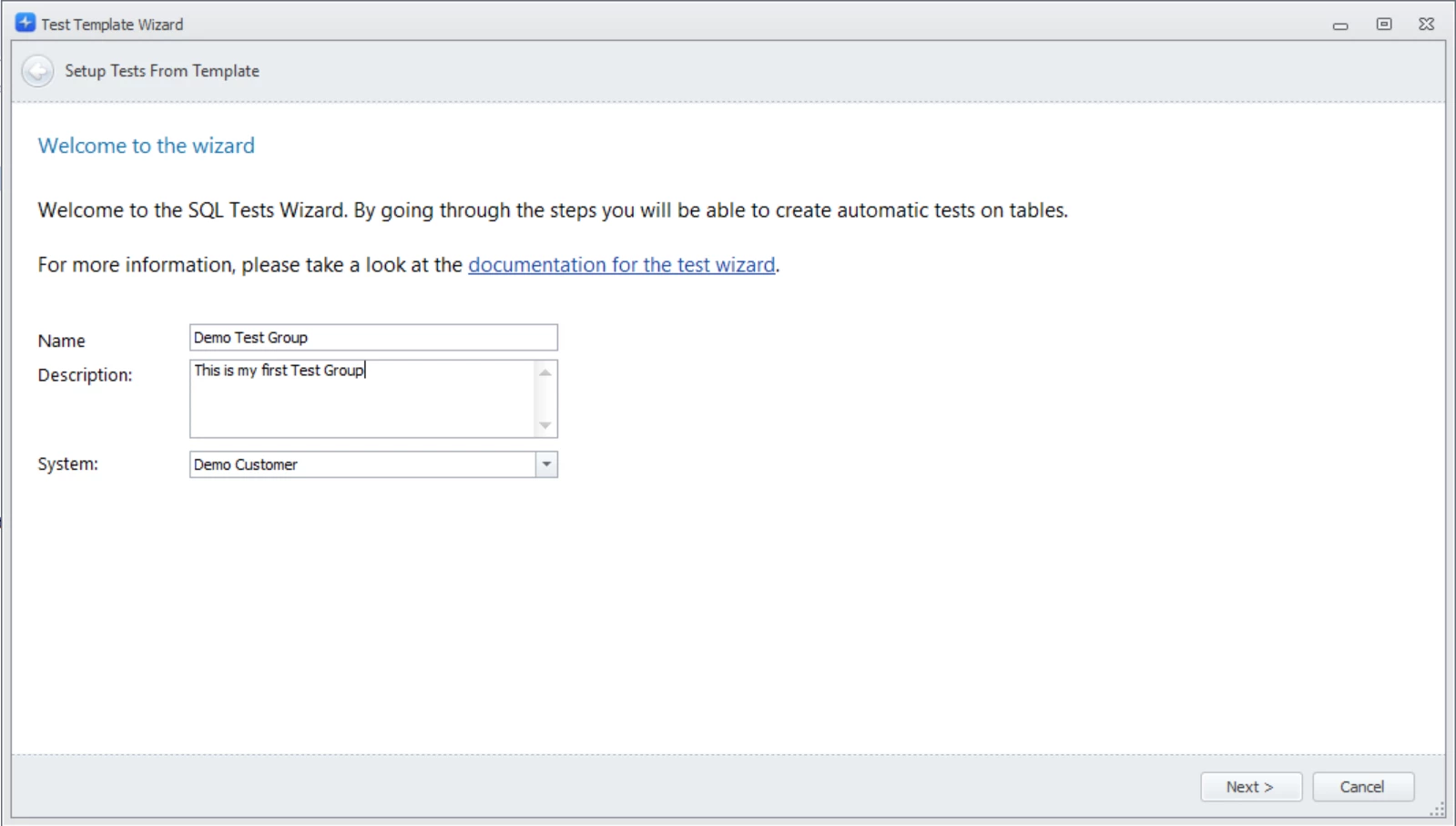
2. Set the test group properties.
- Name — a name for the test group.
- Description (optional) — what this test group checks.
- System — the system the test group belongs to.
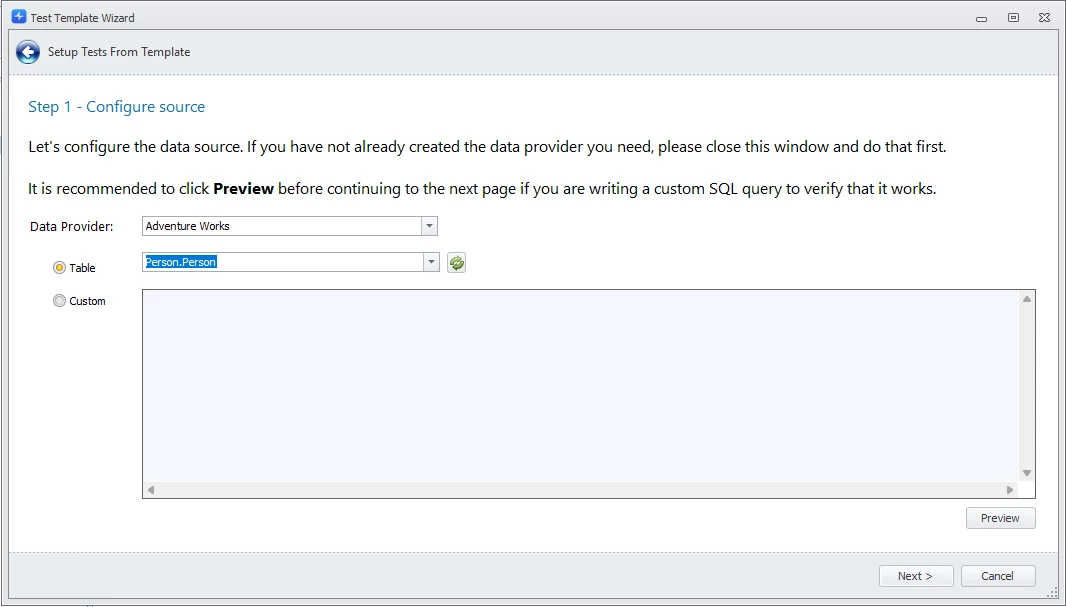
3. Configure the data source.
- Data Provider — the provider to use.
- Table or Custom — select a table from the list, or write custom SQL.
Tip
Click Preview to confirm you selected the intended table before continuing.
4. Select the tests to apply to the table.
5. Configure each selected test.
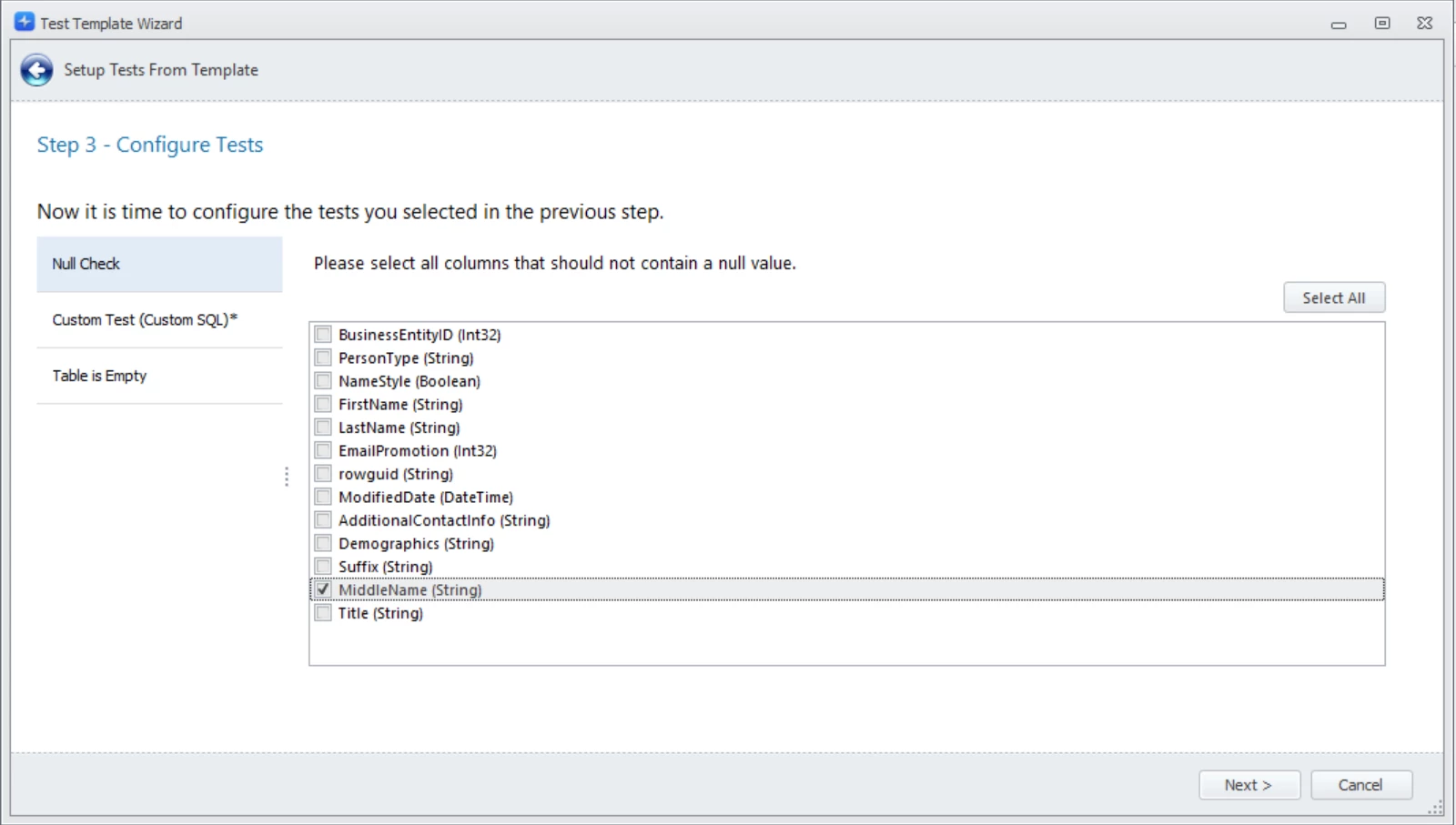
Note
Every test must be validly configured before you can move to the next step.
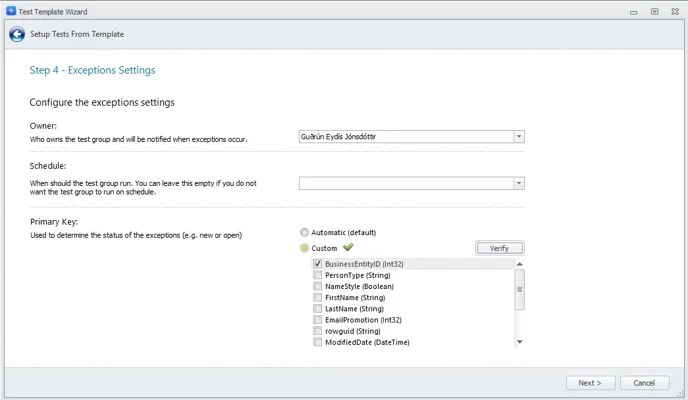
6. Configure the exception manager settings.
- Owner — notified when tests fail.
- Schedule — when the tests run.
- Primary Key (recommended) — used to determine whether an exception is new or open. Click Verify to check that the key is valid. See Choosing the correct primary key.
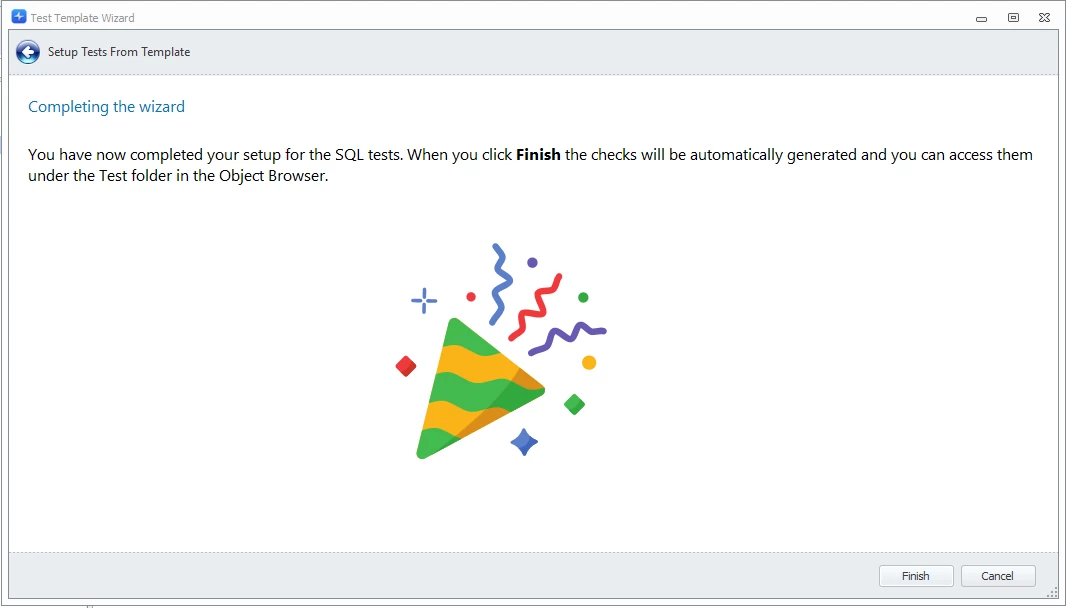
7. Finish creating the test group.
Configuring individual tests
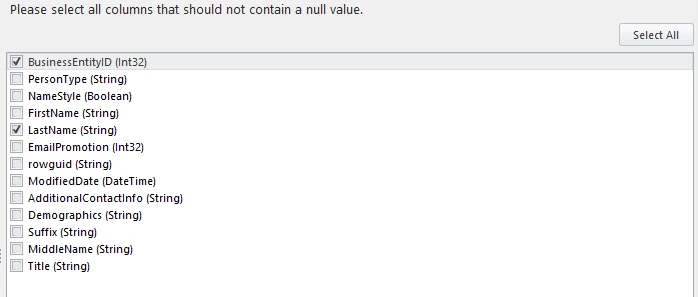
Column NULL Check
Check every column that should never contain a NULL value.
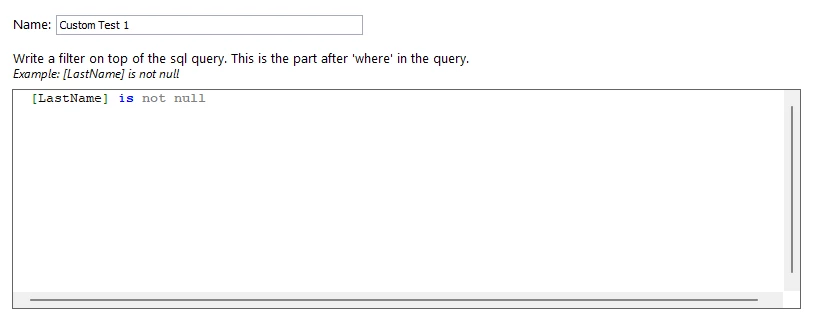
Custom SQL
Write only the part of the query that follows WHERE.
Column Dimension Validation
Choose a reference dimension for each column you want to validate. You can also indicate whether the column is permitted to contain empty or NULL values.
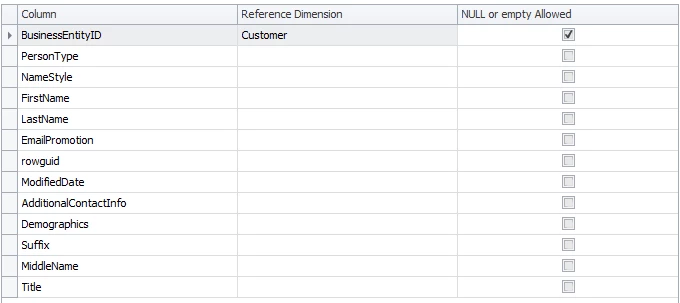
Worked example. For a transactions table with a currency column, create a dimension containing all valid currencies and select it for that column. Any value not present in the dimension is then flagged as an exception. For more on dimensions, see the Dimension walkthrough.
Discussed in the community
Looking for related questions…
Didn't find your answer? Ask the community about this page — questions are answered by Timextender experts, partners and other users.