Check if a Windows Service is running and restart if not
In this article, you will learn how to check if a Windows Service is running and restart if not, in Timextender Orchestration and Data Quality. Many applications use Windows Services for background jobs and in some cases, they might be unstable. For example, an unstable point of sales (POS) service could stop all transactions while down, and requires manual interventions by IT people.
With Timextender Orchestration and Data Quality, you can automatically monitor and restart these services, reducing the manual work of remoting and restarting. In addition, it will keep a log of all instances helping IT to pinpoint and audit these failures. Approach 1: PowerShell Package (Recommended for Orchestration)
This approach uses a PowerShell package in Timextender Orchestration. The package checks the service status, outputs diagnostic information to the console, and throws an exception if the service cannot be started — triggering any configured notifications.
Steps
- Open Timextender Orchestration and Data Quality Desktop.
- Right-click Packages in the Object Explorer.
- Select New → PowerShell.
- Give the package a descriptive name, for example: Check Windows Service – W3SVC.
- Select an Execution Connection targeting the gateway server where the service runs.
- Enter the following script, replacing 'W3SVC' with your service name:
$serviceName = 'W3SVC'
$service = Get-Service -Name $serviceName

if ($service.Status -eq 'Running') {
    Write-Output "[$serviceName] Service is running. No action needed."
    exit 0
}

Write-Output "[$serviceName] Service is NOT running. Attempting to start..."
try {
    Start-Service -Name $serviceName -ErrorAction Stop
    $service.Refresh()
    if ($service.Status -eq 'Running') {
        Write-Output "[$serviceName] Service successfully started."
        exit 0
    } else {
        throw "Service did not reach 'Running' state after start attempt. Current status: $($service.Status)"
    }
} catch {
    throw "[$serviceName] Failed to start service. Error: $($_.Exception.Message)"
Approach 2: Data Quality Query (Legacy / exMon approach)
If you are using the Timextender Data Quality Query approach, the following script returns result rows when a service is not running (rows = exceptions), and an empty result set when the service is healthy.
- Create a Query with a PowerShell data provider
- Add the following code
$serviceName = '{@servicename[preview:exMon Command Service]}'


$service = Get-Service -Name $serviceName | select Displayname,Status,@{label="NewStatus";expression={$_.Status}},@{label="Hostname";expression={[System.Net.Dns]::GetHostName()}}

if ($service.Status -ne 'Running') {

  # The service is stopped. Restart and fetch new status
  Start-Service $serviceName
  $service.NewStatus = (Get-Service -Name $serviceName | select Status).Status

  $service
} else {
  $timeXtenderResult= New-Object system.Data.DataTable
  $col1 = New-Object system.Data.DataColumn DisplayName,([string])
  $timeXtenderResult.columns.add($col1)
  $col2 = New-Object system.Data.DataColumn Status,([string])
  $timeXtenderResult.columns.add($col2)
  $col3 = New-Object system.Data.DataColumn NewStatus,([string])
  $timeXtenderResult.columns.add($col3)
  $col4 = New-Object system.Data.DataColumn Hostname,([string])
  $timeXtenderResult.columns.add($col4)

  #return empty results when everything is OK
  $timeXtenderResult
}
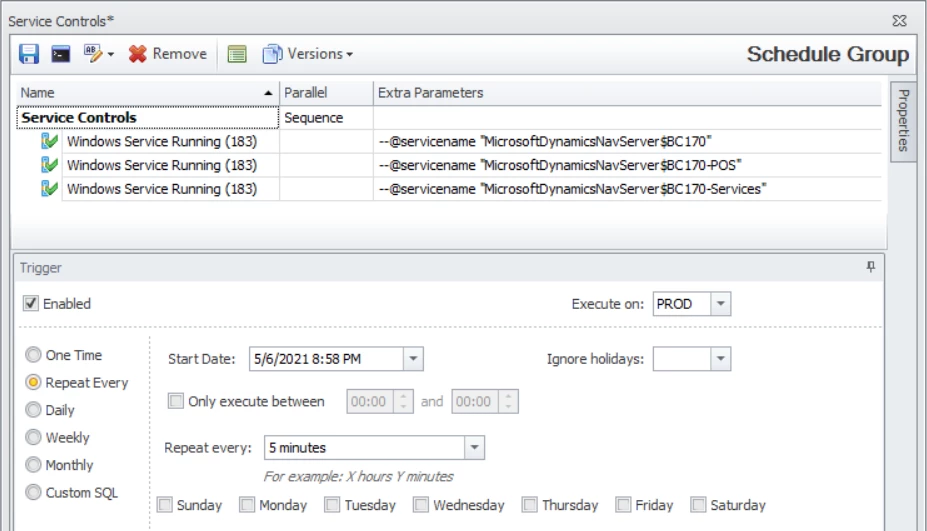
You can then list each service by adding it to a Schedule Group, Object Group, or Process by adding parameters as shown below:
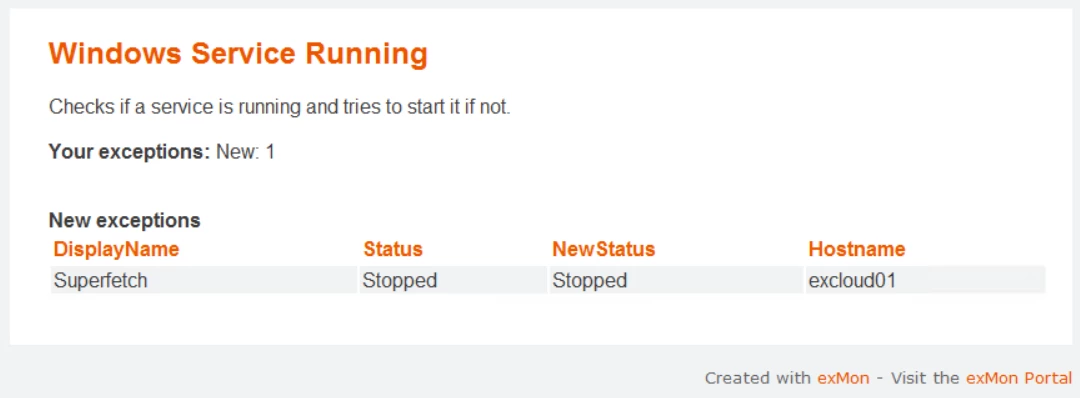
Here is an example of output for the control
Discussed in the community
Looking for related questions…
Didn't find your answer? Ask the community about this page — questions are answered by Timextender experts, partners and other users.