Fetching data from Salesforce with Timextender Orchestration and Data Quality
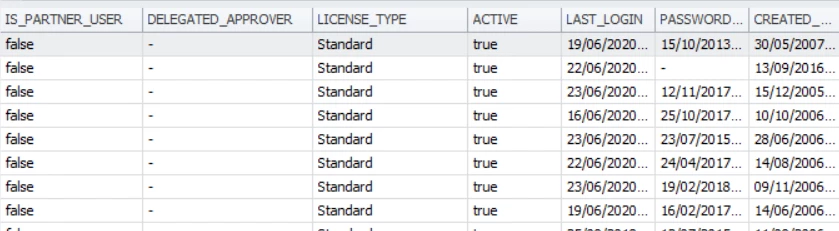
Fetching data from a Salesforce report in Timextender Orchestration and Data Qualityis best handled by using a PowerShell Data Provider. In this article, we will query Salesforce and to use either in a Query or to transfer data to a SQL Server.
Creating the query
- Create a Query and select the PowerShell Data Provider.
- Paste in the following PowerShell script
$reportPath = 'https://CUSTOMER.my.salesforce.com/services/data/v48.0/analytics/reports/XXXXXXXXXX?includeDetails=true'

# Log in to get a token
$headers = New-Object "System.Collections.Generic.Dictionary[[String],[String]]"
$headers.Add("Content-Type", "application/x-www-form-urlencoded")
$headers.Add("Cookie", "BrowserId=XXXXXXXXXXXXXXXXXXXX")

$body = "grant_type=password&client_id=CLIENTID&client_secret=CLIENTSECRET&username=USERNAME&password=PASSWORD"

[Net.ServicePointManager]::SecurityProtocol = [Net.SecurityProtocolType]::Tls12
$token_response = Invoke-RestMethod 'https://login.salesforce.com/services/oauth2/token' -Method 'POST' -Headers $headers -Body $body

# This is our token
#$token_response.access_token

$headers = New-Object "System.Collections.Generic.Dictionary[[String],[String]]"
$headers.Add("Authorization", "Bearer "+$token_response.access_token)
$headers.Add("Cookie", "BrowserId=XXXXXXXXXXXXXXXXXXXXX")

# Invoke our report
$response = Invoke-RestMethod $reportPath -Method 'GET' -Headers $headers

# Populate our result table
$timeXtenderResult= New-Object system.Data.DataTable
# Create the table structure foreach ($col in $response.reportMetadata.detailColumns) {

$column_name = $col -replace "\.", "_"

$col1 = New-Object system.Data.DataColumn $column_name,([string])
$timeXtenderResult.columns.add($col1)

}

# Loop through each row and add to the results
foreach ($row in $response.factMap."T!T".rows) {

$dtrow = $timeXtenderResult.NewRow();
$i=0
foreach ($col in $response.reportMetadata.detailColumns) {
$column_name = $col -replace "\.", "_"
$dtrow[$column_name] = $row.dataCells[$i].label

$i++

}

$timeXtenderResult.Rows.Add($dtrow)

}

$timeXtenderResult
Tips and tricks
- For reusability, it can be helpful to move everything except the first line to a Query Snippet. Then the only difference between separate Queries is the report path.
- For safety, you can move the PASSWORD and CLIENTSECRET to an encrypted Global Parameter. Then they are not visible during development or in execution logs.
- Querying services can be slow when you need to run multiple queries against the same data set. In this case, it can be helpful to create a Data Transfer which moves the data to the Timextender Orchestration and Data Quality database, and then create queries that work on that data.
Discussed in the community
Looking for related questions…
Didn't find your answer? Ask the community about this page — questions are answered by Timextender experts, partners and other users.