How to create measure folders and sub-folders in an OLAP Cube in Timextender Classic
When creating measures in an OLAP cube in Timextender Classic, it may be helpful to organize them into folders.
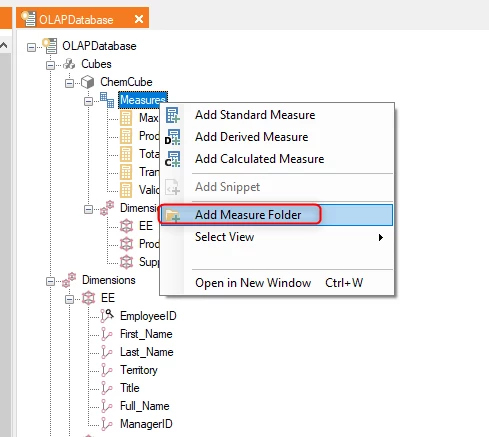
After you have created some measures that belong in a subfolder, right-click on “Measures” beneath the Cube in the tree and select “Add Measure Folder”.
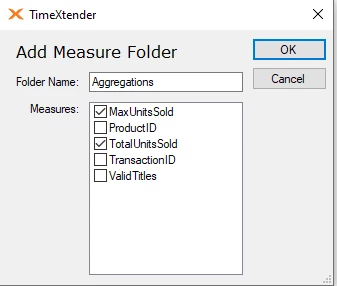
In the Add Measure Folder dialog, enter a name and check the box next to the measure that belong in the subfolder.
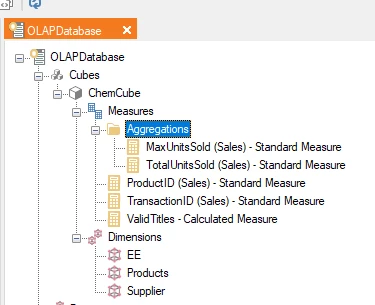
After clicking OK, the measures selected will appear in the appropriate subfolder.
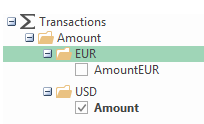
It is possible to create a measure folder hierarchy with multiple levels. Simply use backslash in the definition like in the screenshot below, where I have created a measure named Amount\USD and another named Amount\EUR.
The result in Excel will look like this:
Discussed in the community
Looking for related questions…
Didn't find your answer? Ask the community about this page — questions are answered by Timextender experts, partners and other users.