How to hide a OLAP Cube dimension in Timextender Classic
This KB Article describes how to hide a dimension in a cube. There may be different reasons for hiding a dimension, but this may be especially relevant if a dimension has only been been added for drill-through purposes. Hiding the dimension will ensure that a report user may not mistakenly drag a large drill-through dimension into a query, which may adversely affect the performance of the OLAP server.
Step by step guide
- Click on the SSAS Multidimensional Server (OLAP Server) to open it.
- Expand the Cube.
- Expand the Dimensions node underneath the Cube.
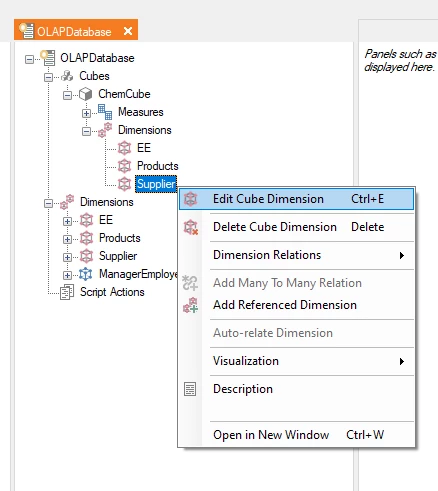
- Right-click the dimension to be hidden and select Edit Cube Dimension.
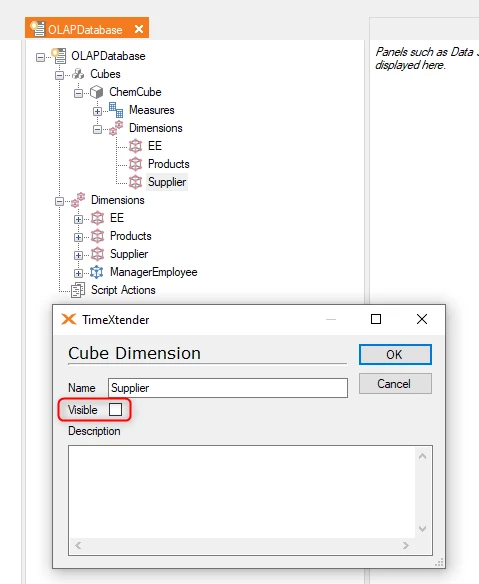
- Uncheck the “Visible” box and click OK.
- Deploy and Execute the Cube.
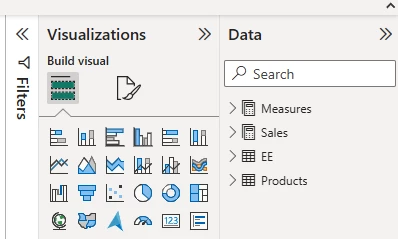
- Now, if you open up the Cube in Power BI, the dimension will no longer be shown in the list of tables.
Discussed in the community
Looking for related questions…
Didn't find your answer? Ask the community about this page — questions are answered by Timextender experts, partners and other users.