Create connection in Data Enrichment
In this article, you will learn how to create a connection in Data Enrichment. The Edit Connections window is accessible from the connection dropdown that is located in multiple places where you need to connect to an external datasource. For example, when importing into a table from a database or creating a publish data action.
Create a connection
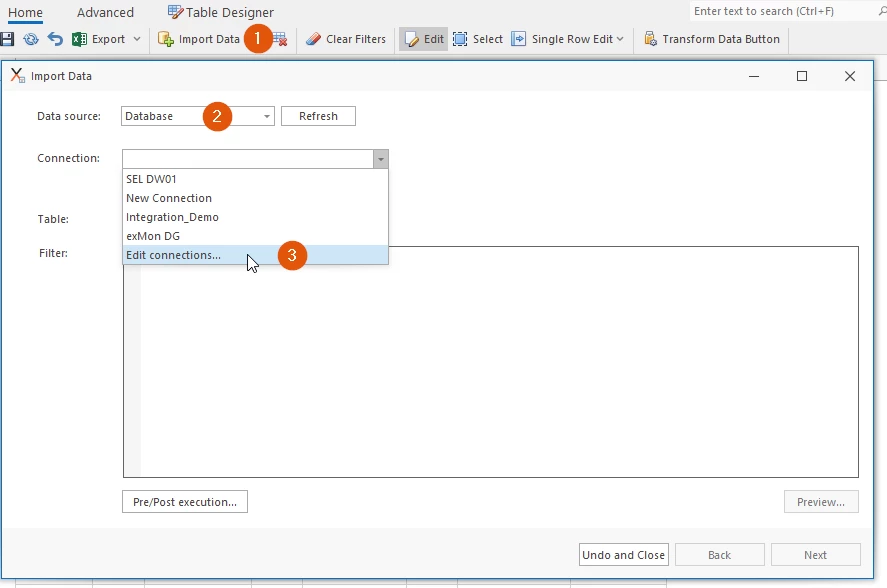
- Open a table in Data Enrichment and click Import Data
- Select Database as the Data source.
- Click Edit connections...
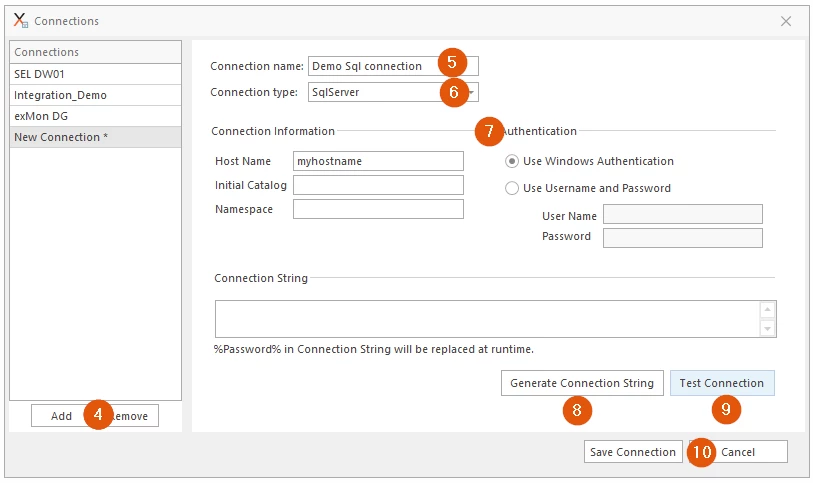
- Click Add to create a new connection.
- Write a name for your connection.
- Select the connection type (SqlServer or ODBC) from the dropdown
- Fill in the Connection Information and Authentication. Authentication can be either; Windows Authentication which uses the credential of the user running Data Enrichment, or Username and Password which uses SQL Login as authentication.
- Click Generate Connection String.
- Then, click Test Connection to confirm that the connection works.
- After configuring the connection, click Save Connection
Discussed in the community
Looking for related questions…
Didn't find your answer? Ask the community about this page — questions are answered by Timextender experts, partners and other users.