Upgrade service from the Data Enrichment Desktop
In this article, you will learn how to upgrade your service from the Data Enrichment Desktop application.
Who can upgrade?
This is a feature available to all administrators of your service.
How to upgrade
When a new version is available, the following icon will appear in the top right corner of the application.

When you click the icon, a popup will open that allows you to choose a version and a button to complete the upgrade.
Note
Some upgrades may contain database changes and it is recommended to run the upgrade when you know a limited number of users will be using the application.
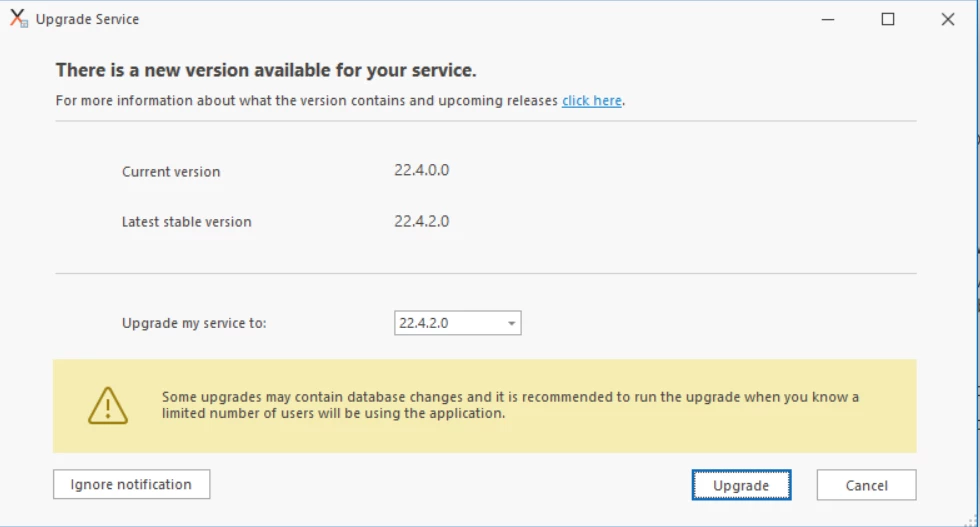
If you click Ignore notification, you will stop seeing the icon indicating a new version is available until a newer version is released.
Version information is available under Settings > About.
If you had chosen Ignore notification before you can always find the upgrade button here.
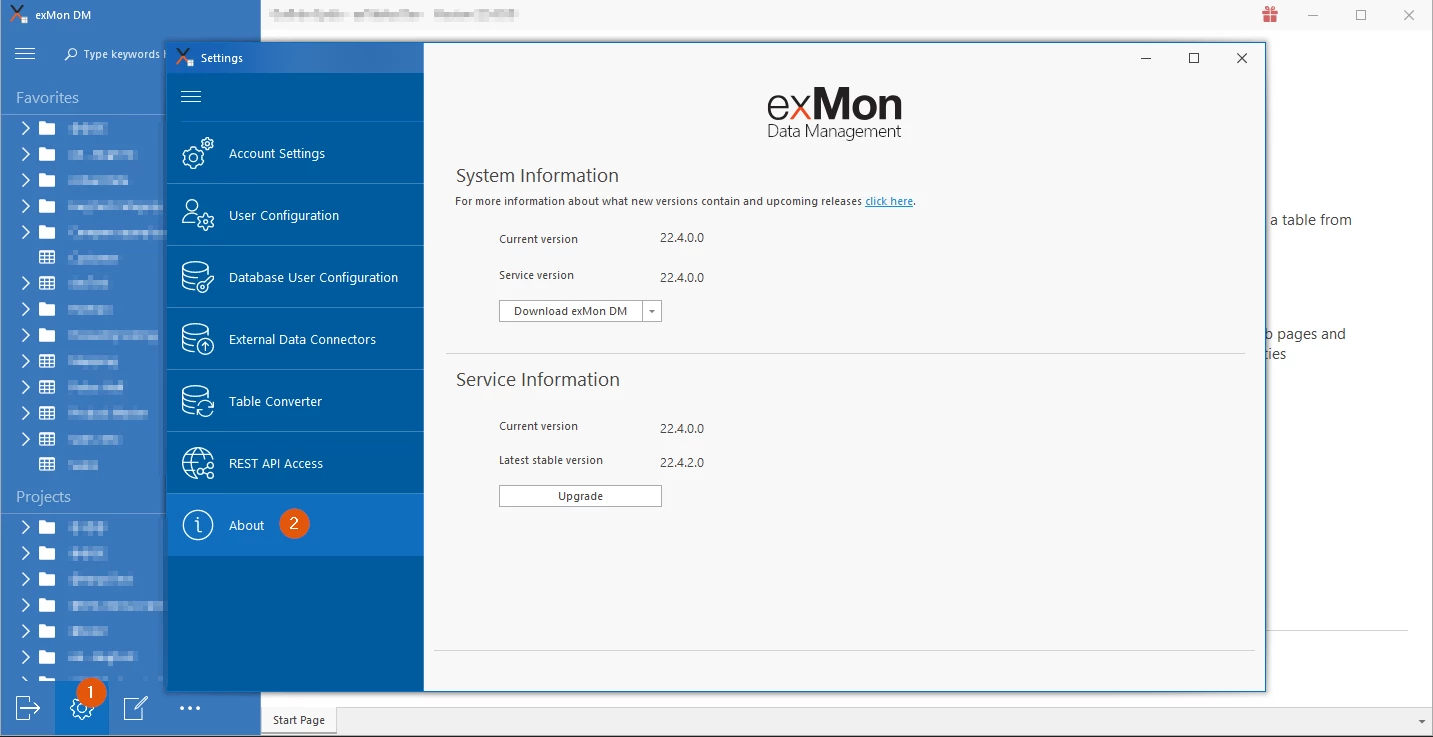
System Information
- Current version: This is the version you have installed on your machine.
- Service version: This is the version your service is currently running.
Service Information
- Current version: This is the version your service is currently running.
- Latest stable version: This is the current latest stable version that is available for your service.
Discussed in the community
Looking for related questions…
Didn't find your answer? Ask the community about this page — questions are answered by Timextender experts, partners and other users.