Lookup Columns in Data Enrichment
In this article, you will read about Lookup Columns in Data Enrichment. Lookup columns allow for easier maintenance of lists used by multiple tables. The list is set up and maintained in a normal table but is then referenced by lookup columns in each table that utilizes the list.
Common lookup columns you may see in Data Enrichment could be countries, customers or employees.
Worked example
- Open Data Enrichment & click Create Project
- Name the project lookup_demo
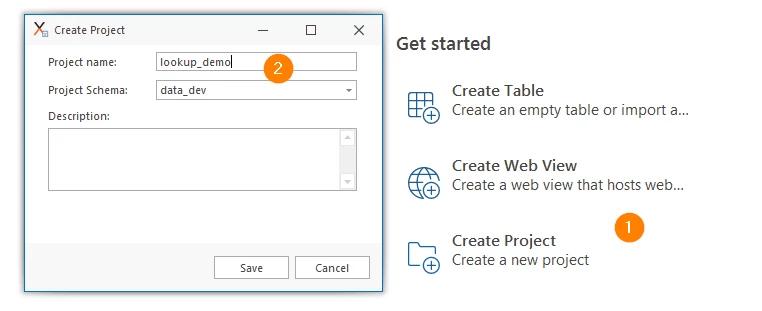
- Click Save
- Next, click Create Table
- Click Import Table from Excel or FlatFile
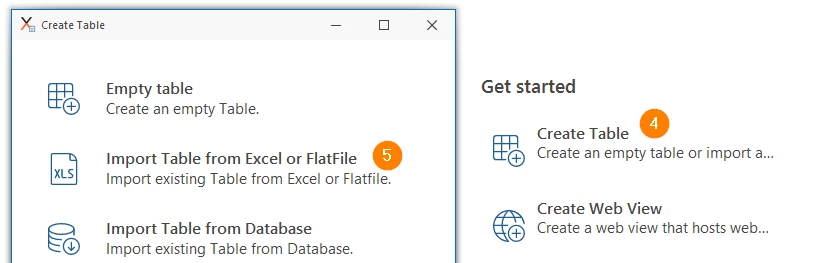
- Upload the Products table as a CSV file, then click Next
- Change the data type of Quantity, price & Total Price to Number, then click Verify
- Ensure that the next window looks like this and click confirm
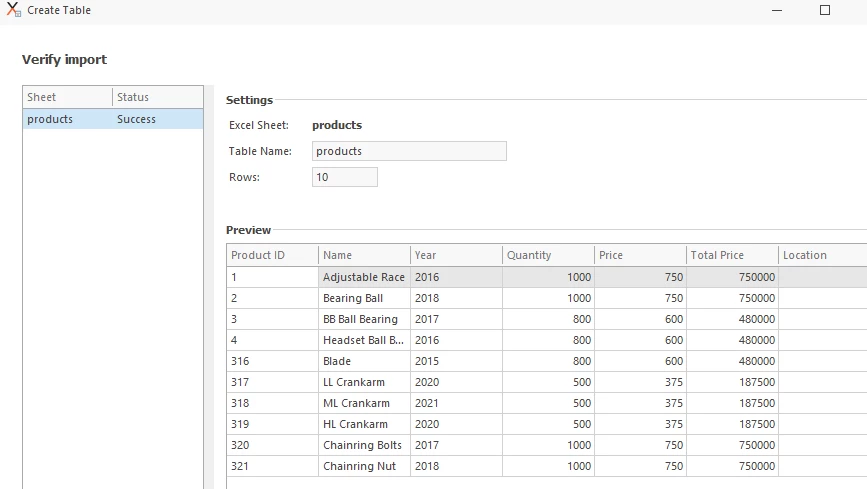
- The next window should look like this:
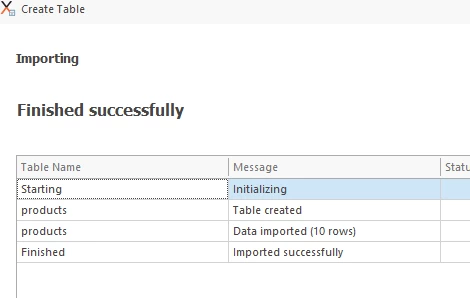
-
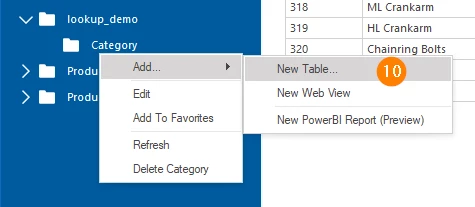
Next, add the location table by right-clicking the category folder within the lookup_demo project
-
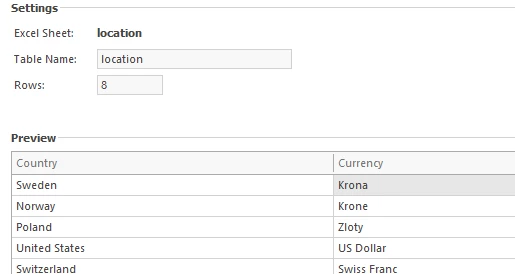
Browse for the location file and verify the data looks similar to this:
-
Click Confirm and close the window after success
Create Lookup Column
- Open up the Product table & navigate to the Table Designer in the navigation ribbon
- Change the Column Type to Lookup
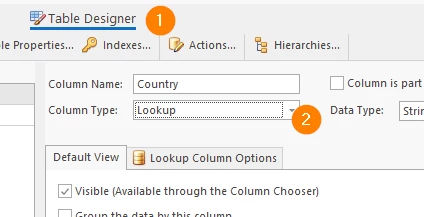
- Select the Lookup Column Options tab
- Select the lookup_demo project as the Project
- Select Country as the Key Column
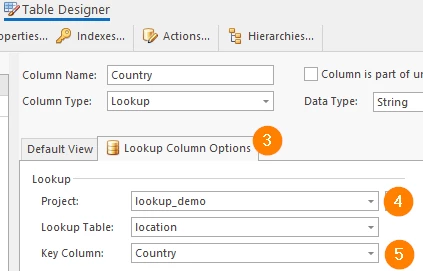
- Click Save Changes
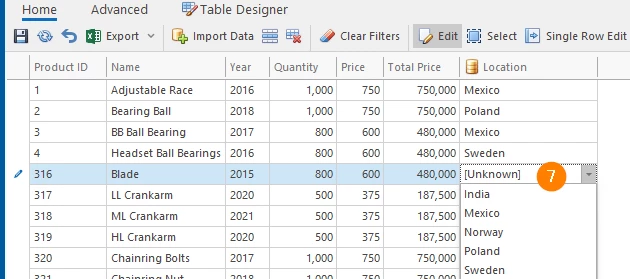
- Navigate back to the Product table homepage. You can now 'lookup' columns from the location table in the product.location fields
Additional steps
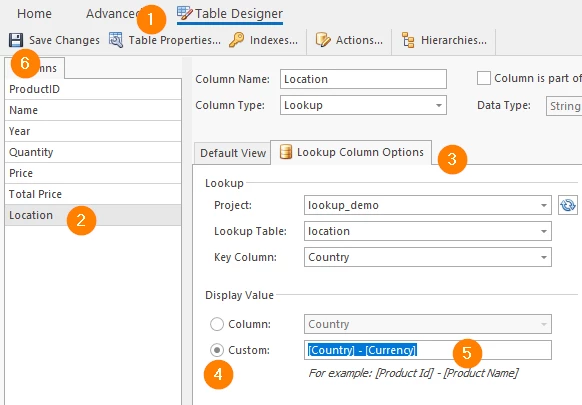
- Navigate to the Table Designer in the Products table
- Select the Location Column
- Click on the Lookup Column Options tab
- Select Custom under Display Value
- Write in [Country] - [Currency] into the input
- Click Save and Navigate back to the Product table homepage
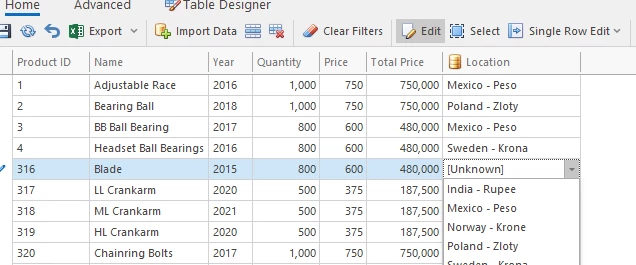
- Now the lookup column in the product table also includes the type of currency used in each country.
Downloads
Discussed in the community
Looking for related questions…
Didn't find your answer? Ask the community about this page — questions are answered by Timextender experts, partners and other users.