Customizing the Portal's theme
By default, the theme of the portal is orange-coloured windows. However, you can change this theme to fit the color schema of your company. You can also change the logo to a white and orange one. This can be convenient if the black and white logo does not fit well with the customized color.
Customize the portal’s colours & logo
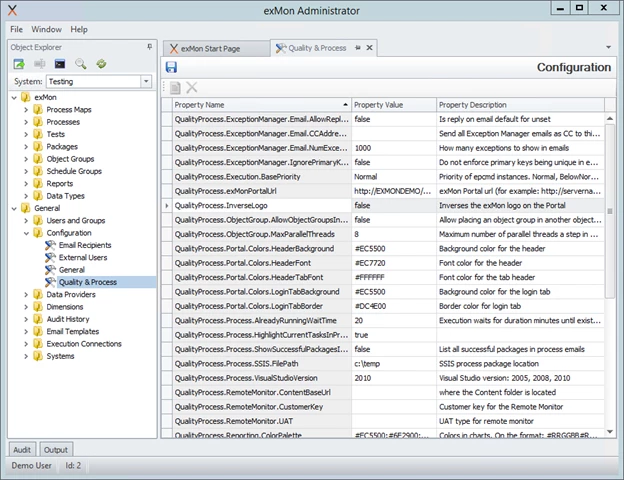
You can change the color values under General –> Quality & Process. The values for the color of the portal can be found with the prefix QualityProcess.Portal. Colors are formatted using HEX color codes and you can select your correct color codes here.
The configuration value QualityProcess.InverseLogo controls which logo icon is used. After changing these values, you need to restart the Timextender Orchestration and Data Quality site in IIS.
Discussed in the community
Looking for related questions…
Didn't find your answer? Ask the community about this page — questions are answered by Timextender experts, partners and other users.