Timextender Orchestration and Data Quality Integration Actions
In this article, you will read about the Timextender Orchestration and Data Quality Integration Actions. Integration Action allows Timextender Master Data Management to execute Timextender Orchestration and Data Quality tasks. This can be done through the context menu, toolbar button or when the table is saved.
Worked Example
- Open Timextender Master Data Management
- Open an existing project or create a new demo
- If creating a new project, name it Integration_Action_Demo
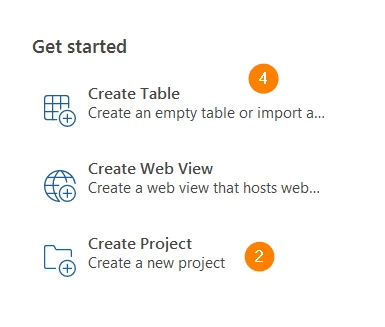
- Then, click create table and name it Integration_Action_Demo_Table
- Make sure that the Project selected is the Integration_Action_Demo project you just made
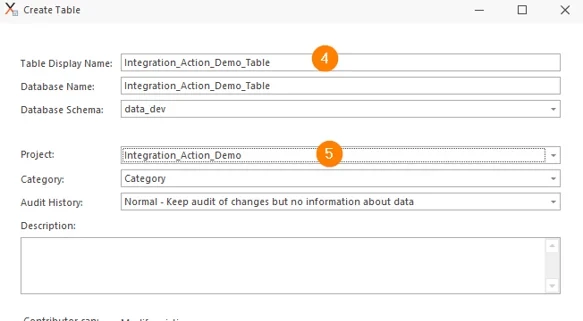
- Click Save
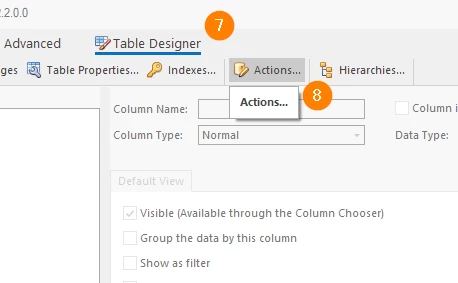
- At the top of the page, click Table Designer
- Now click Actions...
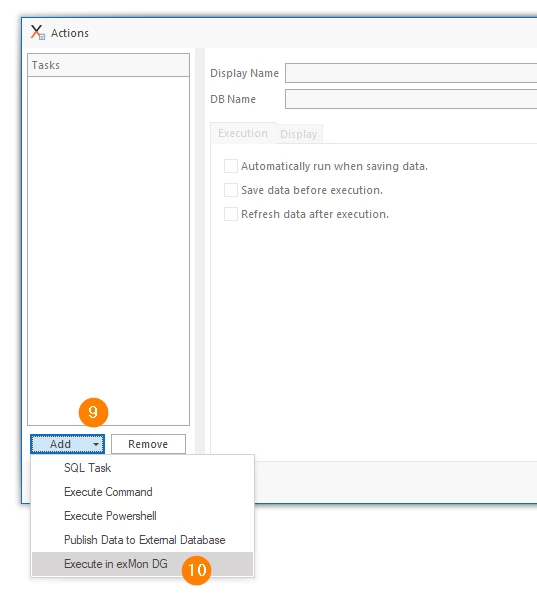
- In the bottom left of the modal, select the Add dropdown
-
Select Execute in Timextender Orchestrator
-
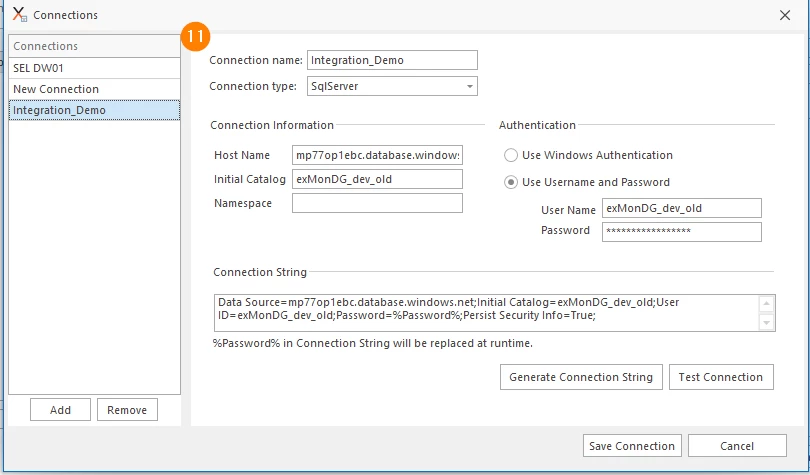
Create a new connection
- Name your connection Integration_Demo
- Ensure the connection type is an SQLserver
- Add in your hostname & initial catalogue
- Fill out the authentication credentials
- Click Generate Connection String
- Click Test Connection
- On connected, click Save
-
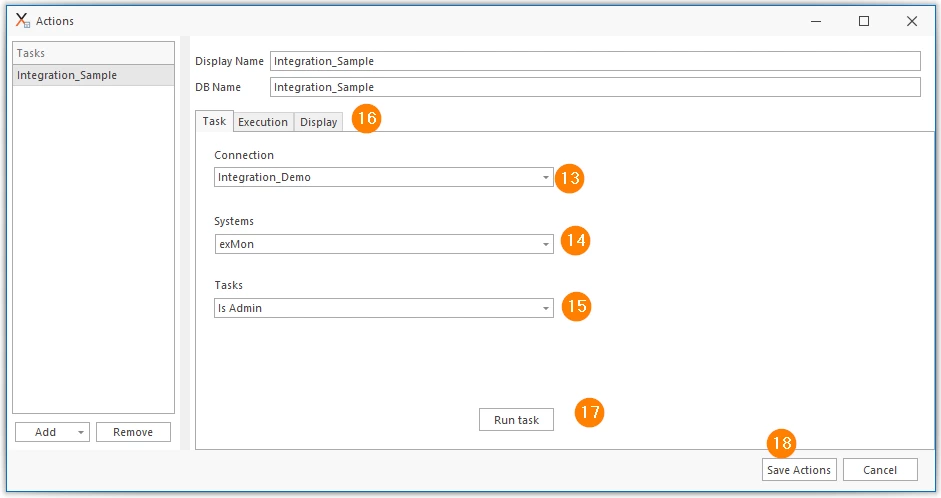
Write Integration_Sample on Display Name and DB Name
- Select the desired connection (usually your corresponding Timextender Orchestration and Data Quality)
- Select the desired system within Timextender Orchestration and Data Quality
- Select the desired task to execute
- Optional - configure additional properties which are the same as for other actions
- Run the task and make sure everything runs successfully
- Click Save
Discussed in the community
Looking for related questions…
Didn't find your answer? Ask the community about this page — questions are answered by Timextender experts, partners and other users.