Error: Login failed for user 'NT AUTHORITY\ANONYMOUS LOGON' when running a batch file in Timextender Classic
Symptoms
Error while executing a batch file attempting to run Timextender Execution Packages from a server. The error message displayed is similar to the following:
Error
Login failed for user 'NT AUTHORITY\ANONYMOUS LOGON'.
Cause
The issue can arise when Windows Authentication is being used to access one server and the operation being performed needs to also access a second linked server that may not be in the same domain. This type of Windows Authentication may be referred to as “double-hop pass-through authentication” or a “Kerberos delegation“. The error above indicates that this type of Windows Authentication is not enabled in your environment.
If the above error is related to accessing an SQL Server, as in the scenario of a batch file that is configured to run Timextender Execution Packages, then a straightforward approach in terms of implementation may be to configure Timextender to use an SQL Server username and password for authentication to the repository database, instead of using Windows Authentication. Otherwise, enabling Kerberos delegation for authentication may involve making changes to your Active Directory environment, which would normally need to be reviewed and approved by your System Administrator.
Both resolution approaches are described as follows:
Resolution
To resolve this issue, follow these steps:
-
Check Authentication Setup:
- Open Timextender Desktop using the Windows account that executes the batch file.
- Navigate to
Tools → Options → Project repository tabto review how the authentication to the repository is set up. - Ensure that the account used has the necessary permissions to access the SQL Server on the other system.
-
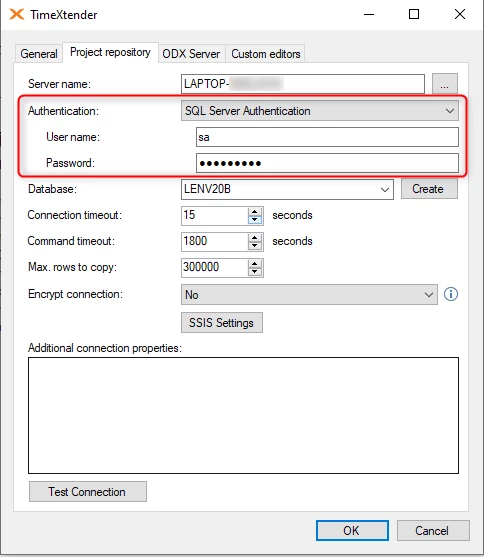
Use an SQL Server Logon:
- If the repository database is on a different server, consider using an SQL Server logon instead of Windows authentication.
- Launch the Timextender Desktop using the Windows account that executes the batch file.
- Navigate to
Tools → Options → Project repository tab - Select “SQL Server Authentication” in the Authentication drop-down menu and enter an appropriate SQL Server username and password.
-
Enable Delegation:
- If using Windows authentication, contact your System Administrator to see if they can enable delegation to allow credentials to be passed between the linked servers.
- Ensure that the service account running the SQL Server services on the target server (server C) is configured for delegation.
Reference Ticket
32679
Reference Links
- Executing a Prepare Instance table from an Ingest Instance gives the error: "Login failed for user"
- Enable remote connections to SQL Server using IP address
Discussed in the community
Looking for related questions…
Didn't find your answer? Ask the community about this page — questions are answered by Timextender experts, partners and other users.