User Management in the Timextender Classic Portal
Understanding the hierarchical structure and specific permissions and roles within the Timextender Classic Portal is crucial for effective user management. This article provides a comprehensive overview of the company structure, user-level permissions, adding new users, and managing user access.
Company Structure
Every company in the Timextender Classic Portal starts with at least one user who serves as both the contact person and company administrator. The contact person designation is purely informational, serving to identify the primary point of contact for Timextender-related matters.
User-Level Permissions
The Portal offers several key permissions that control access to various features:
- Company Admin
- Full access to company account management
- Can edit company information and manage users
- Displays a crown icon next to their name
- Cannot remove their own admin permission
- Can view license information and access the Timextender license key
- Customer Manager
- Exclusive to partners
- Administrates customer companies
- Cannot modify their own partner company
- Can view license information and access the Timextender license key
- Regular Users (i.e. neither company admins or customer managers)
- Can view license information and access the Timextender license key
Adding New Users
Prerequisites
- Company Admin permission for adding users to your company
- Customer Manager permission for adding users to customer companies
Steps to Add Users
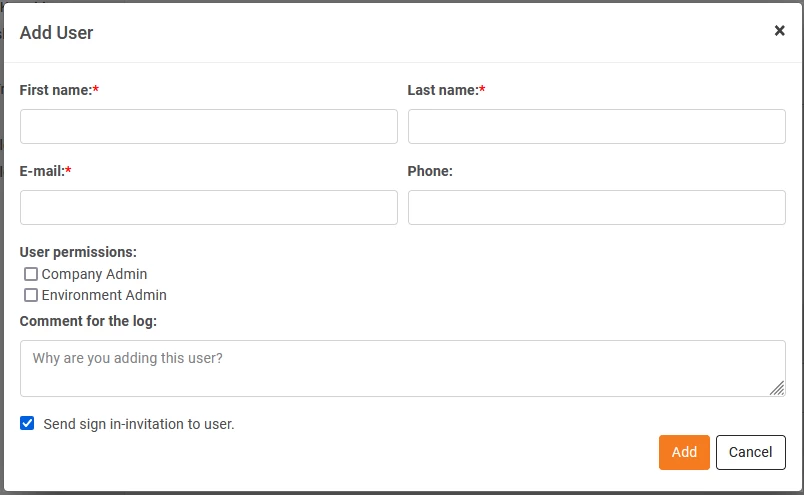
- Navigate to the Users list and click Add user
- Enter user detail
- Select appropriate user permissions
- Choose whether to send a sign-in invitation
- Click Add
Managing User Access
Sending Invitations
The system automatically sends invitation emails to new users unless opted out. To send invitations later, follow these steps:
For Company Users:
- Go to Admin > Users
- Click the user's name
- Select Send Invitation
For Customer Users:
- Navigate to My Customers > Customers
- Locate the customer
- Access the user details
- Click Send Invitation
Resetting a User's Password
If a user did not receive the invitation e-mail or has forgotten their password, company admins can trigger a password reset from within the Timextender Classic Portal. The user can also use the "Forgot your password?"-link on the sign-in page to reset their sign-in.
To reset the password for a user at your company
- Sign in to the Timextender Classic Portal as a user with the company admin permission, go to Admin > Users, click on the user's name and then click Reset Password on the user details page.
Discussed in the community
Looking for related questions…
Didn't find your answer? Ask the community about this page — questions are answered by Timextender experts, partners and other users.