Monitoring disk space with Timextender Orchestration and Data Quality
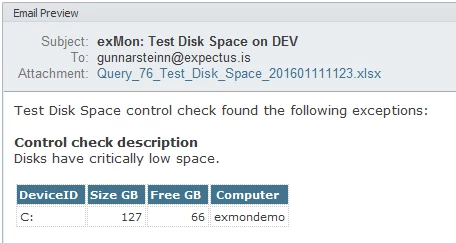
In this article, you will read about monitoring disk space with Timextender Orchestration and Data Quality. You can monitor your server's filesystem with the PowerShell data provider. This article explains how to monitor disk space on your server and how to send an email when it falls below some specified threshold.
Monitor a single server
Steps
- Create a new Query in Timextender Data Quality by right-clicking the Tests folder
- Select the PowerShell data provider
- Add the following PowerShell script to the Query window:
$computer_name = "machinename"

$limit_gb = 20

$limit_bytes = $limit_gb*1024*1024*1024

$timeXtenderResult = Get-WmiObject Win32_LogicalDisk -ComputerName $computer_name -Filter
"DeviceID!='A:' and FreeSpace<$limit_bytes"   | Select-Object  @{Name="Computer";
Expression={$computer_name}},DeviceID,@{Name="Size GB";Expression={$_.Size / 1GB}},
@{Name="Free GB";Expression={$_.FreeSpace / 1GB}} | exMon-Out-DataTable
Monitor multiple servers
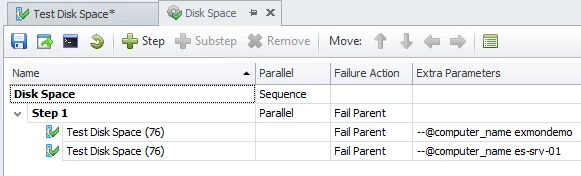
To monitor multiple servers, you can use a PowerShell script with query parameters and Object Groups.
Steps
- Replace the previous code with:
$computer_name = "{@computer_name[default:localhost][datatype:string][preview:localhost]}"

$limit_gb = 20

$limit_bytes = $limit_gb*1024*1024*1024

$timeXtenderResult = Get-WmiObject Win32_LogicalDisk -ComputerName $computer_name -Filter
"DeviceID!='A:' and FreeSpace<$limit_bytes"   | Select-Object  @{Name="Computer";
Expression={$computer_name}},DeviceID,@{Name="Size GB";Expression={$_.Size / 1GB}},
@{Name="Free GB";Expression={$_.FreeSpace / 1GB}} | exMon-Out-DataTable
Discussed in the community
Looking for related questions…
Didn't find your answer? Ask the community about this page — questions are answered by Timextender experts, partners and other users.