Power BI Refresh Package in Timextender Orchestration
In this article, you will learn how to install a Power BI refresh package. To be able to do this, in the Azure Portal, you need to create an App registration which you will use to access our Power BI. This is done under the Azure Portal> Azure Active Directory > App Registration
Create an App registration
- Open up the Azure Portal here
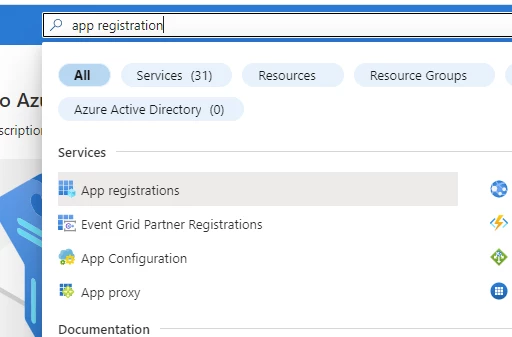
- Search 'App Registration'
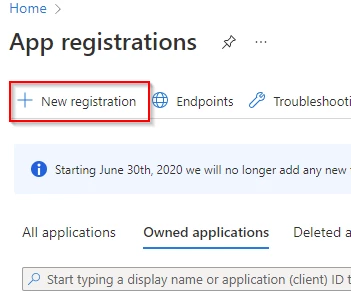
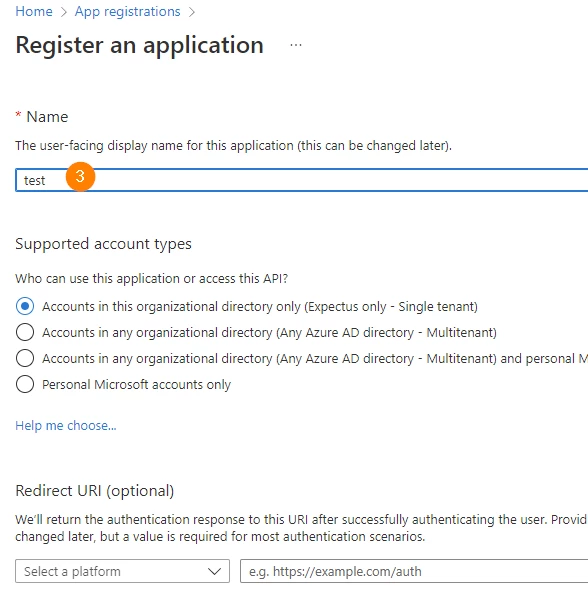
- For this example, name the application 'Test' and click Register at the bottom of the page
- Click on Certificates & secrets
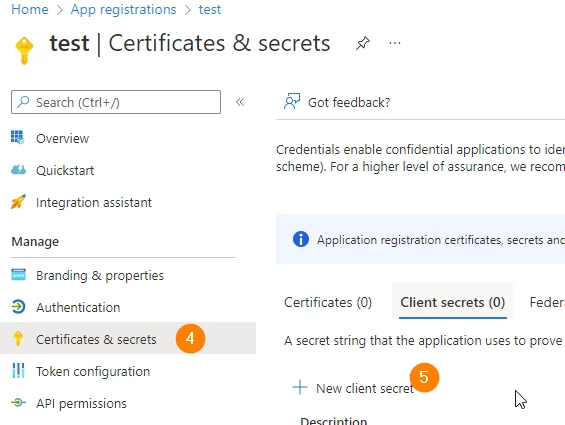
- Then, click on New client secret
- Add a description of your client secret
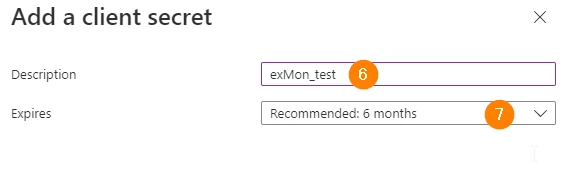
- Specify when this key should expire. Then click Add
- On the next page, copy your secret value

- Add the following permissions
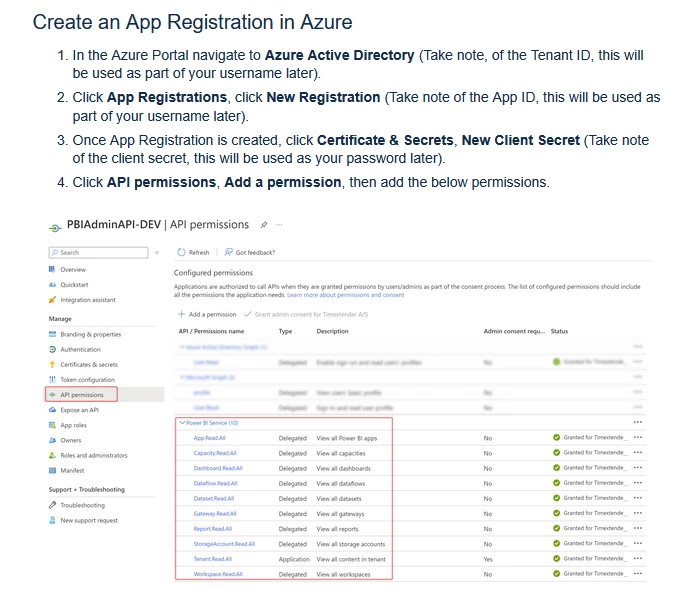
-
Enable the “Service principals can use Fabric APIs” setting under Tenant settings in the Admin Fabric portal
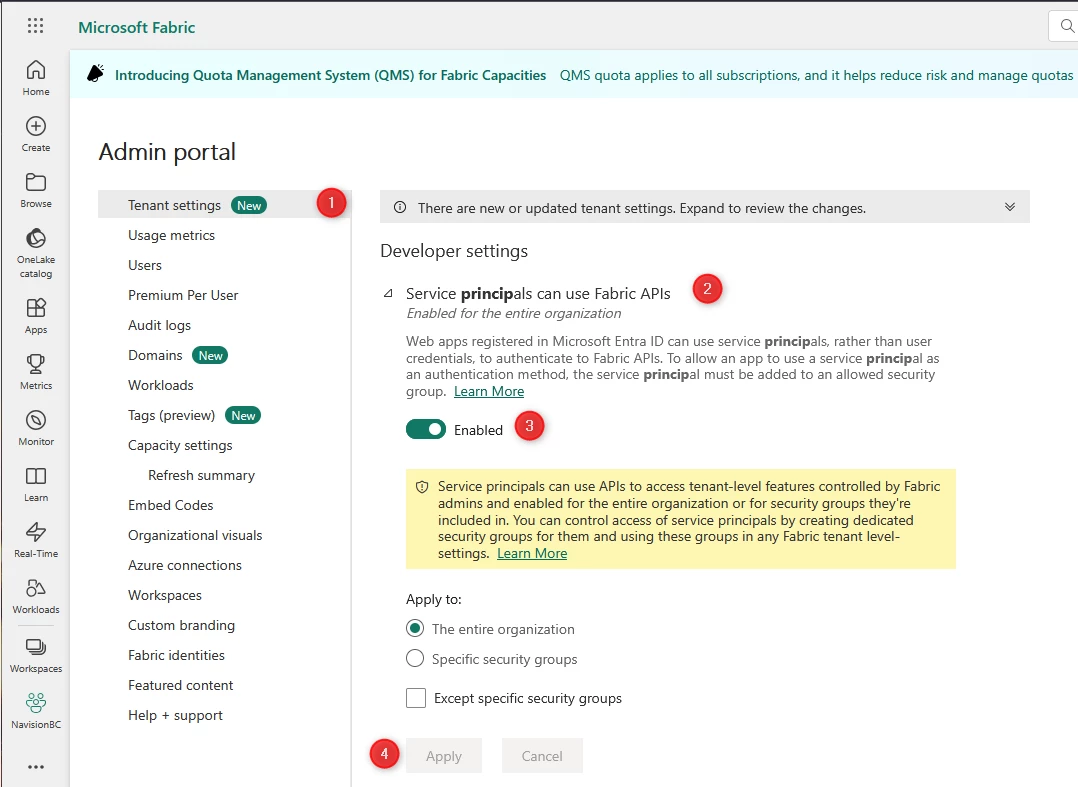
-
Open up Power BI
In Power BI
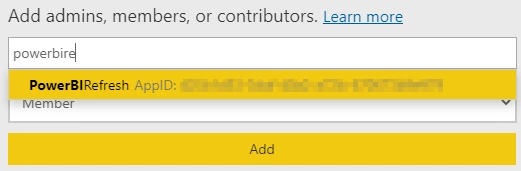
- Go to your workspace in Power BI and in the upper right corner select Access.

- Then search for your app registration and click Add.
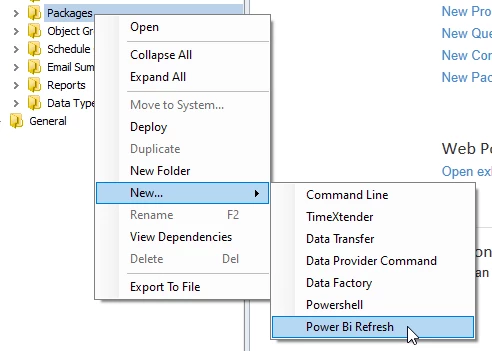
- Next, open up Timextender Orchestration and right-click Orchestration > Packages, select New > Power Bi Refresh, and then select a name for the Power Bi Refresh package.
-
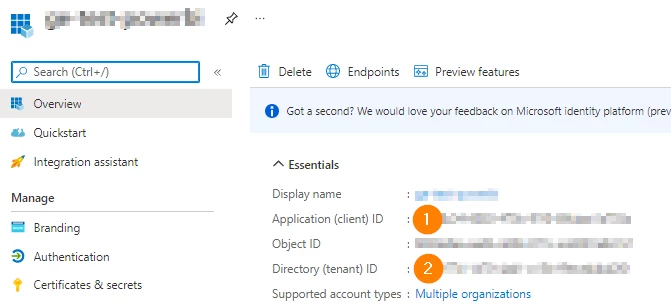
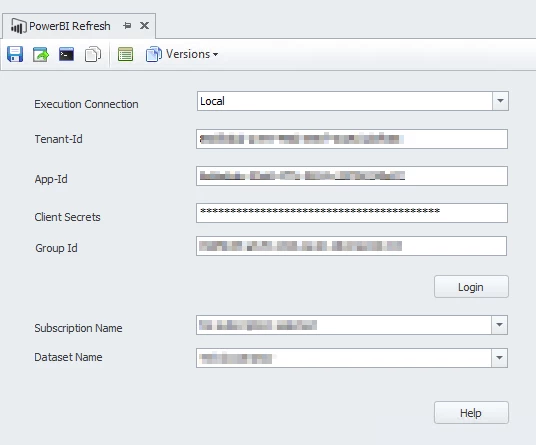
Select an Execution connection and fill in the tenant-id, app-id,client secret and the group-id and then click login, this should populate the rest of the fields. - In Azure, open the app registration and in the overview, you can find the app-id (1) and the tenant-id (2)
 - Now head to Power Bi and find out your Power BI dataset's group-id.
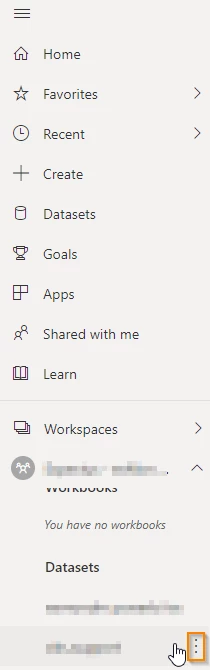
- In the left menu find your dataset, hover over it and click the three dots and select Settings.
 - The URL should look like this and you can copy the group-id (1)

- Select a subscription and dataset.
- Then when you are happy with the information in the fields you can click the save icon in the top left corner and run the Power BI Refresh package.
Discussed in the community
Looking for related questions…
Didn't find your answer? Ask the community about this page — questions are answered by Timextender experts, partners and other users.