Powershell Data Factory in Timextender Orchestration
In this article, you will read about the PowerShell data factory in Timextender Orchestration Data Enrichment.
- Download the Powershell script and DLL required to run Data Factory in Timextender Orchestration, here
- Place these two files into a folder on the machine that should run the Data Factory. In my example, I will use the directory C:\Modules
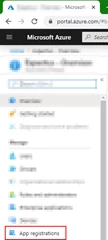
- In the Azure Portal, we need to create an App registration which we will use to access our Data Factory:
- Azure Portal
- Azure Active Directory
- App Registration
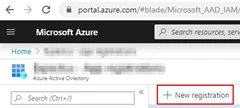
- There we select the New registration button
- When we have created our registration we get a window with some key information. Make a note of these values as they will be used in Timextender Orchestration to authenticate our execution.
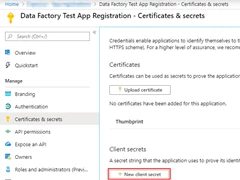
- Now we want to create a client secret to use so we select Certificates and Secrets in the menu on the left and select the New client secret button
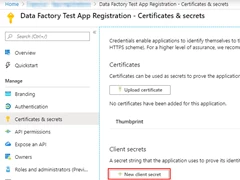
We create our secret and get a value that Timextender Orchestration will use:
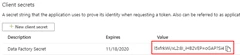
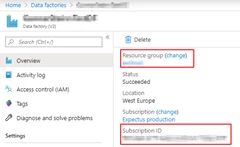
Make sure to copy this value 7. Now you need to go open your data factory under Data factories. Note down your subscription id and resource group:
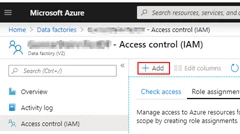
Then move to Access Control(IAM) –> Role Assignments and select the add button. Make your new App registration a Contributor to your Data factory
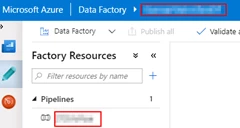
- Lastly, you need to find your Data Factory name and pipeline name. These should be easily found under your Data Factory under https://adf.azure.com/:
- Now we should have all the information we need to create a package in Timextender Orchestration.
-
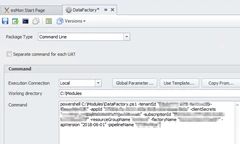
Open Timextender Orchestration Administrator and create a new Command Line package in Timextender Orchestration The Command line should look like this:
powershell C:\Modules\DataFactory.ps1 -tenantId "XXXXX" -appId "XXXXX" -clientSecrets "XXXX" -subscriptionId "XXXX" -resourceGroupName "XXX" -factoryName "XXX" -apiVersion "2018-06-01" -pipelineName "XXX"Add your own parameters to this command line from the information we created above.
Discussed in the community
Looking for related questions…
Didn't find your answer? Ask the community about this page — questions are answered by Timextender experts, partners and other users.