Powershell Power BI Refresh in Timextender Orchestration
Powershell Power BI Refresh in Timextender Orchestration
In this article, you will learn how to create a Powershell PowerBI Refresh in Timextender Orchestration. When importing queries into PowerBI, it can be useful to not have to rely on scheduled refreshes. Thankfully, Timextender Orchestration can handle refreshing the PowerBI dataset by using PowerShell scripts.
Note
Timextender Orchestration now natively supports Power BI packages and doesn't depend on PowerShell. For more information see: Power BI Refresh Package
Read on to see how to use PowerShell to refresh Power BI.
To do this follow the steps below
- Save the below PowerShell script on the computer you want to handle refreshing your PowerBI Dataset
param(
    [string]$isSettings = ""
)
$passwordPath = "C:\Temp\Password.txt"
$username = "XXXXXX@example.com"
Write-Output "$isSettings"
if([string]::IsNullOrEmpty($isSettings))
{
    Import-Module MicrosoftPowerBIMgmt
    Import-Module MicrosoftPowerBIMgmt.Profile

    $password = Get-Content "$passwordPath" | ConvertTo-SecureString
    $credential = New-Object System.Management.Automation.PSCredential($username, $password)

    Login-PowerBI -Credential $credential

    $headers = Get-PowerBIAccessToken

    $groupID = "00000000-0000-0000-0000-000000000000" # the ID of the group that hosts the dataset. Use "me" if this is your My Workspace
    $datasetID = "00000000-0000-0000-0000-000000000000" # the ID of the dataset that hosts the dataset
    # properly format groups path
    $groupsPath = ""
    if ($groupID -eq "me") {
        $groupsPath = "myorg"
    } else {
        $groupsPath = "myorg/groups/$groupID"
    }

    Invoke-WebRequest -Uri "https://api.powerbi.com/v1.0/$groupsPath/datasets/$datasetID/refreshes" -Headers $headers -Method POST
}
else
{
    Install-Module -Name MicrosoftPowerBIMgmt
    Read-Host "Enter Password" -AsSecureString |  ConvertFrom-SecureString | Out-File "$passwordPath"
}
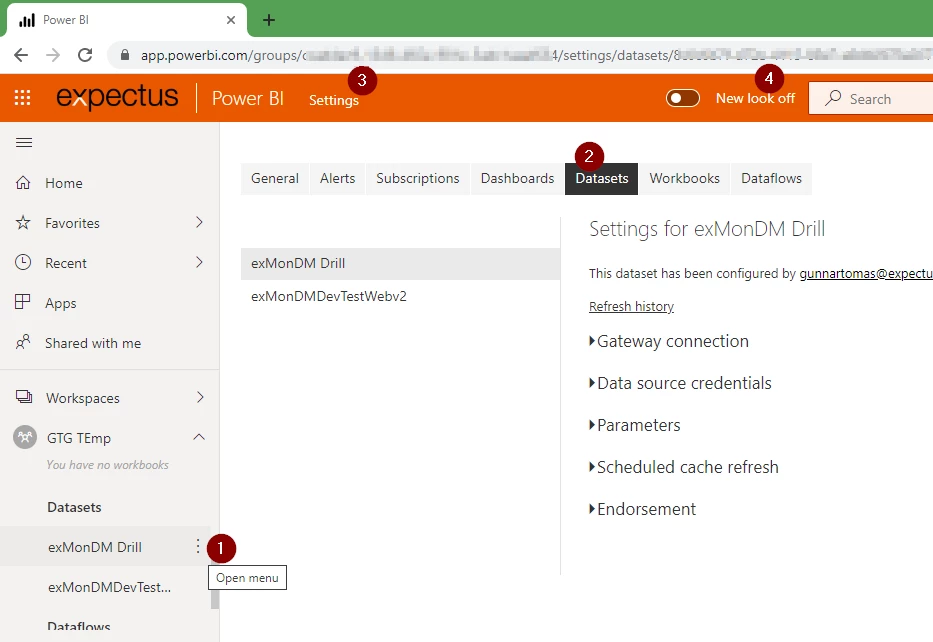
Write these IDs into the PowerShell script 3. Open The PowerShell script in PowerShell ISE 4. Change the username to preferably a service user with access to the PowerBI dataset or alternatively your own email 5. Change the password path to a path you want to store your password at, in secure string. We recommend storing the password in the same directory as the PowerShell script 6. Change the parameter line [string]$isSettings = "" temporarily to [string]$isSettings = "1" 7. Press F5 to run the PowerShell script, accept the install popup, and type in the password of the user you will use to refresh the dataset 8. Change the line back to [string]$isSettings = "" 9. Now create a package in Timextender Orchestration that executes the PowerShell script
Note
PowerBI has limitations to how many times a dataset can be refreshed per day, so be aware of that when deciding how rapidly you want to refresh your dataset
Discussed in the community
Looking for related questions…
Didn't find your answer? Ask the community about this page — questions are answered by Timextender experts, partners and other users.