Add a Infor M3 (Movex) Adapter in Timextender Classic
This adapter simplifies extraction of data from Infor M3, an ERP system previously known as Movex.
Adding a Movex/M3 adapter
- Open a business unit, right click Data Sources, click Adapter Data Sources and then click Add Movex/M3 Adapter.
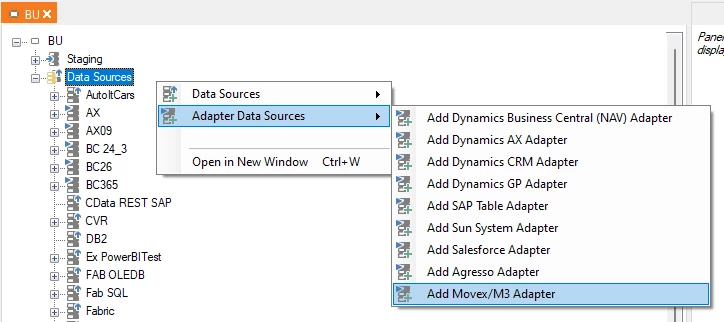
- The Add Movex/M3 Adapter window opens.
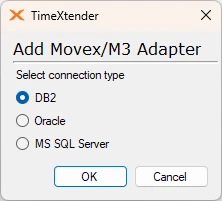
- Click the database type of your M3 installation. You have the following options: - DB2 - Oracle - Microsoft SQL Server
- Click OK.
- The standard window for adding a data source of the type you chose opens. Enter the connection details. See Adding a DB2 Data Source, Adding a Oracle Data Source and Adding a SQL Server Data Source for more information.
- Right click the M3 data source you just added and click Change Environment Schema.
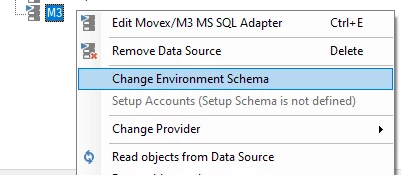
- The Setup Environment Schema window opens.
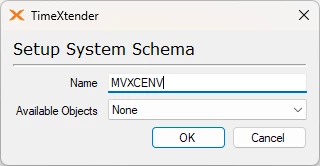
- Type the environment schema name in the Name box.
- In the Available Objects list, click None to make no tables available for use in the project, Company Tables Only to make only tables from the chosen company available or All Tables and Views to make every table and view in the M3 database available. ClickOK.
-
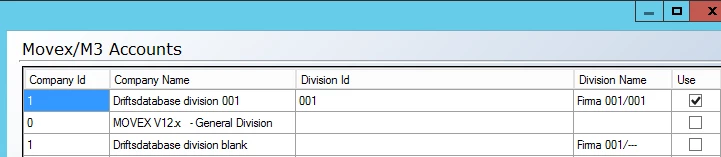
Right click the M3 data source and click Setup Accounts. The M3/Movex Accounts windows opens.
-
Select the companies and divisions to include by checking the box in the Use column. Click OK.
Discussed in the community
Looking for related questions…
Didn't find your answer? Ask the community about this page — questions are answered by Timextender experts, partners and other users.