Create a ODBC data source or convert to using a Any Source ADO.Net provider in a Business Unit
It is possible to create a specific ODBC provider. However, some options are not available. This could be if the source uses an odd escape character. You can also use Query Tables for this, which is not available for the Generic ODBC provider. You can also apply more fields, like users and passwords, as a connection string to get more options than what is generally available. This procedure should always should always be done as a solution if the standard ODBC provider has some of the issues explained.
Create or convert to an Any Source .NET ODBC data source
Start by creating an Any Source ADO.NET data source.
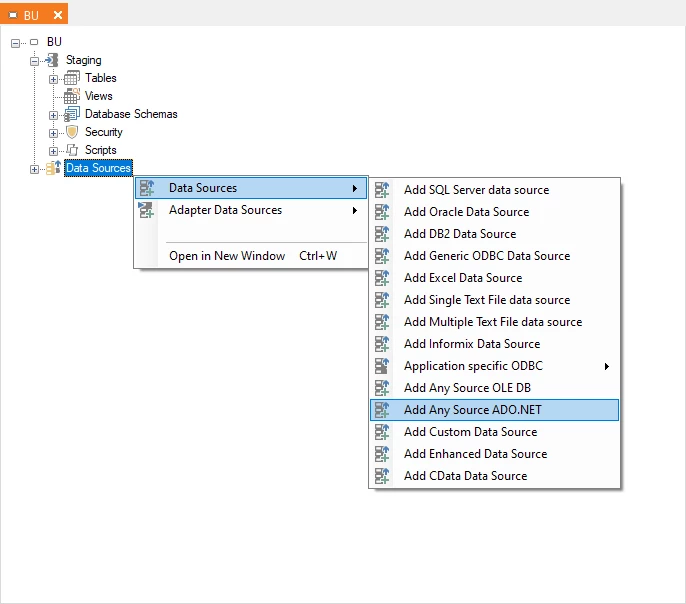
Or converting an existing ODBC data source to an Any Source ADO.NET.
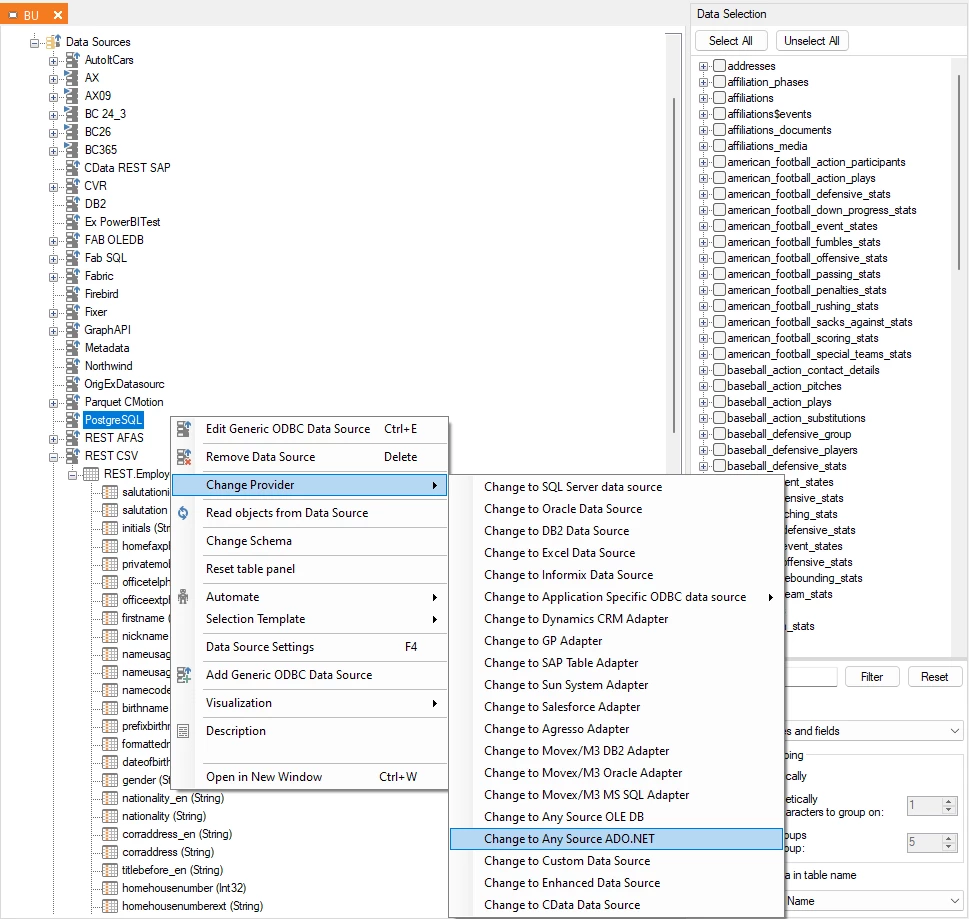
Following this, it is the same for both methods, except that the convert method still retains the same name.
Start by giving the data source a name. Then you locate the ODBC provider.
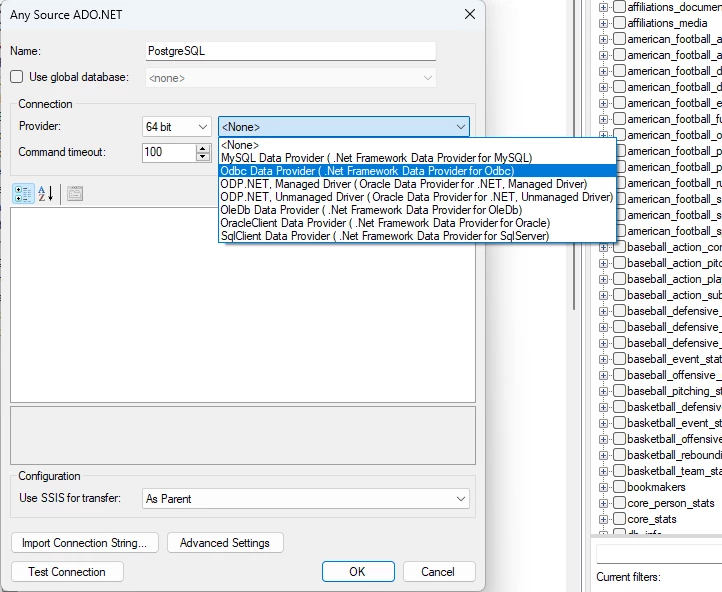
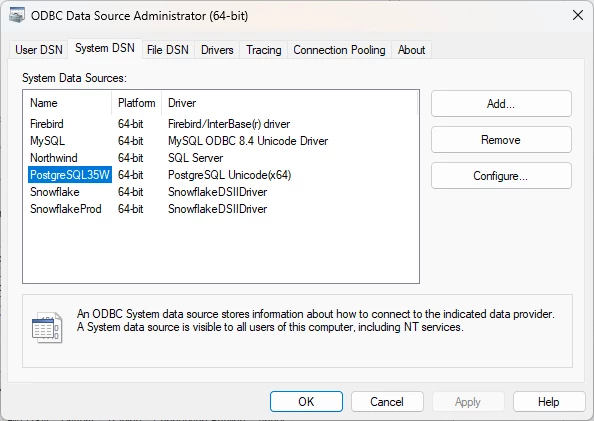
Like you would in a normal ODBC data source, you need to add the DSN name in that field.
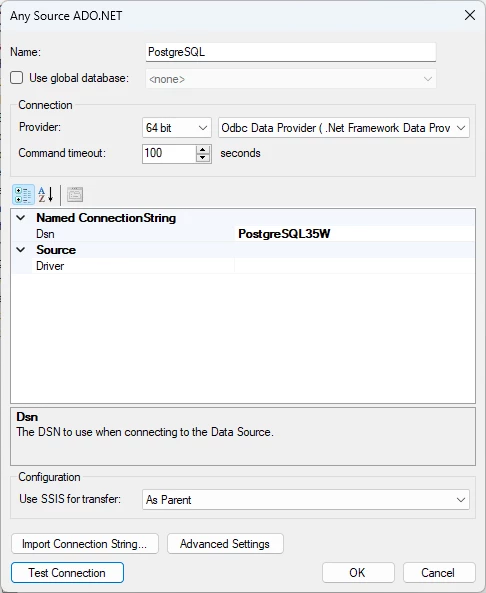
You can see the names in the ODBC Data Source Administrator under System DSN. Be sure to check the bit version of the ODBC data source.
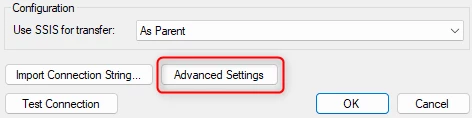
Advanced Settings
Click on the Advanced Settings.
In here, you can set the prefix and postfix. I would keep it as the default value.
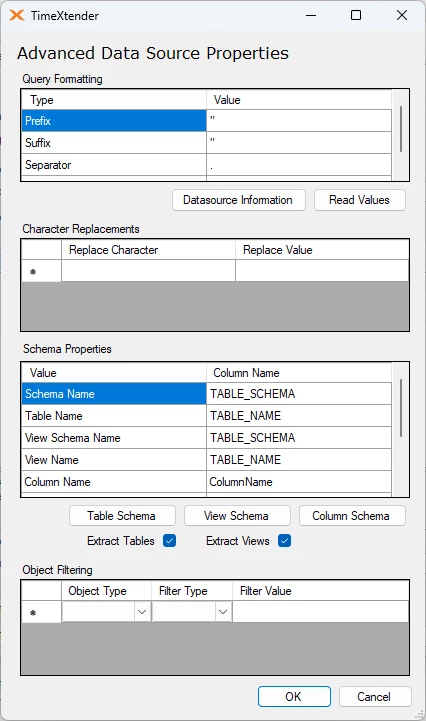
You can click on the Read Values button to see if there are any suggestions for changes.
Then you need to click on the Table Schema button.
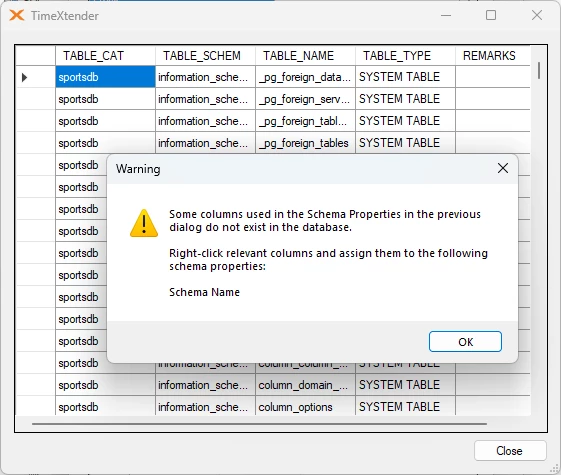
You click OK to accept the warning. You need to select a field to become the table schema field. It can be without a schema, but you still need to choose a field to be that. To do so right-click on the field you want to use and set it as the schema name.
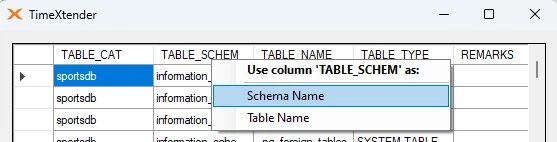
You can also do it for the Table Name if it is not also called TABLE_NAME in the source.
Once it has been closed, you can see the applied change.
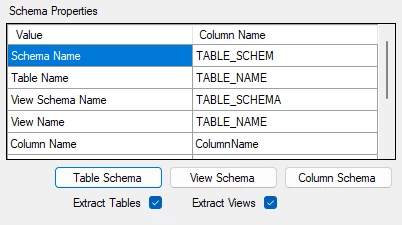
Do the same thing for Views by clicking on the View Schema button.
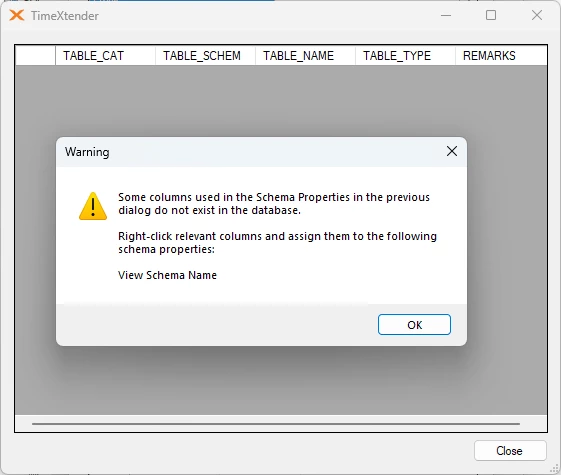
It might be empty, as there are no views, but it is still possible to set this up. Again, you need to select the table schema field as the View Schema name.
Once these steps have been taken, you will see the column names have changed.
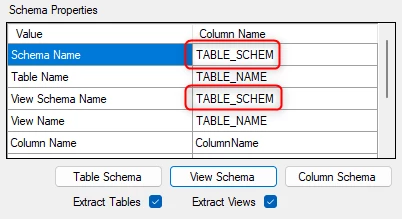
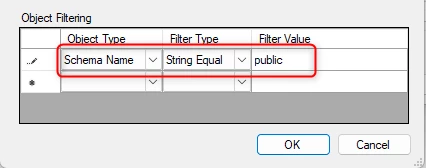
This is usually enough to make it work. You can do some object filtering if you do not want to show all tables. For example, for this PostgreSQL data source, the actual tables are in the public schema. So I have added this rule to my setup as well.
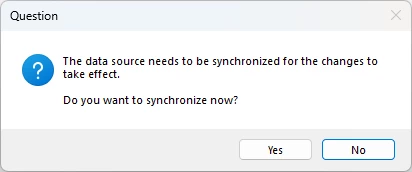
If you did not create this as a new data source, but used the change provider option, it will suggest synchronizing.
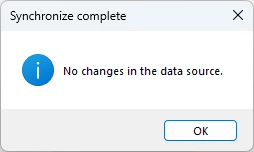
The result of doing so should be that no changes have been found.
How to add additional info in the setup
Sometimes it is a requirement that you add some extra connection info to the connection string. It may look like there is a limit to what you can do, but there is not. For example if you need to add a user and password to gain access you can add them with this method.
In a external text document you write something like the following connection string.
Then you click import connection string copy and paste in the connection string you generated.
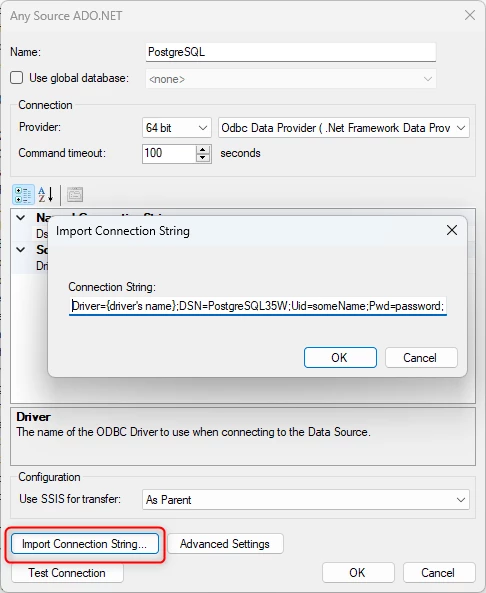
You will now see how the fields exists in the setup grid.
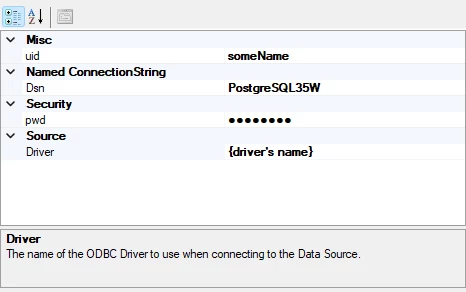
You can use any connection string properties given by the provider and if set it will appear.
Discussed in the community
Looking for related questions…
Didn't find your answer? Ask the community about this page — questions are answered by Timextender experts, partners and other users.