Share a data source setup using the Export/Import feature in Timextender Classic
At times you may want to share a specific data source setup with someone else.
Here is how this can be done.
Create the project with the data source
Lets say you have a REST data source made with the Enhanced TX REST data source provider and it needs to be shared with someone without access the the machine where TX is installed.
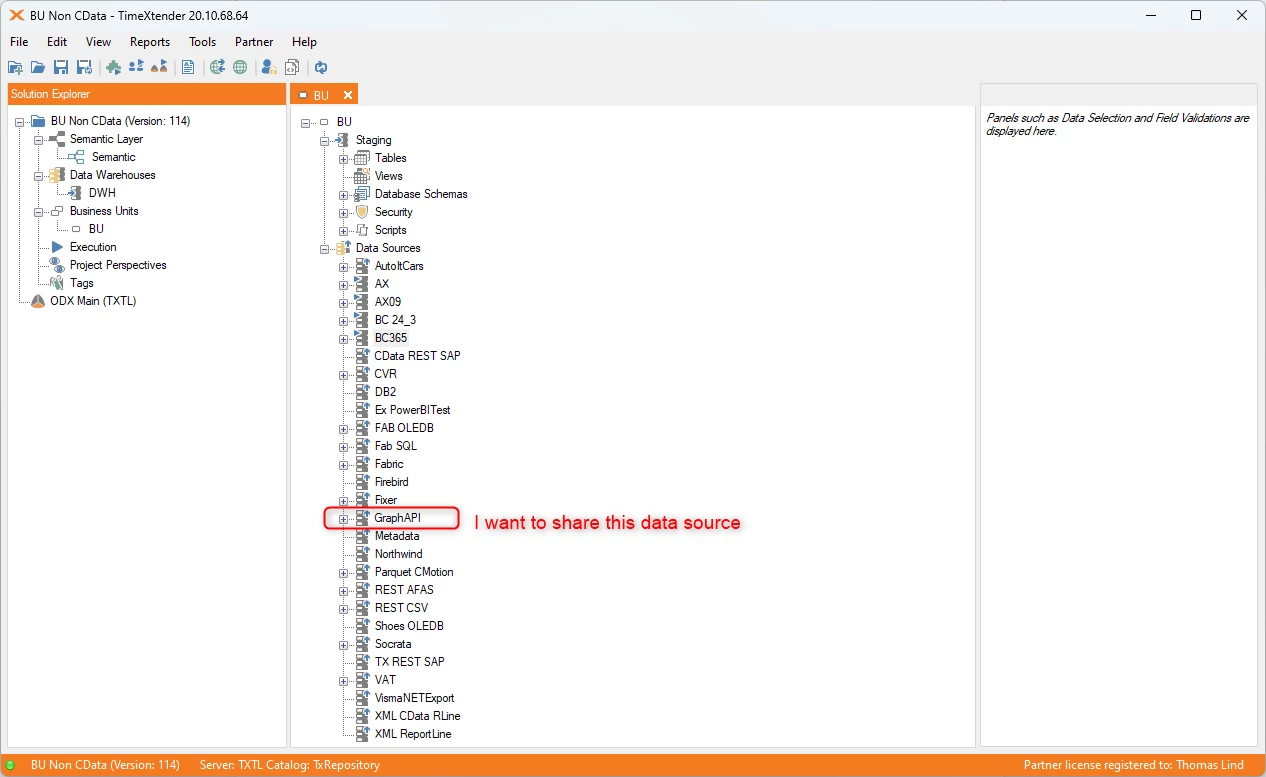
First you note the specific data source, or sources if additional ones are necessary. Then you use the save as option.
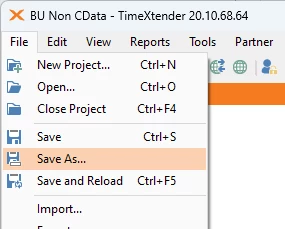
When you use this method you create a new project with the same setup the only difference is the name of it.
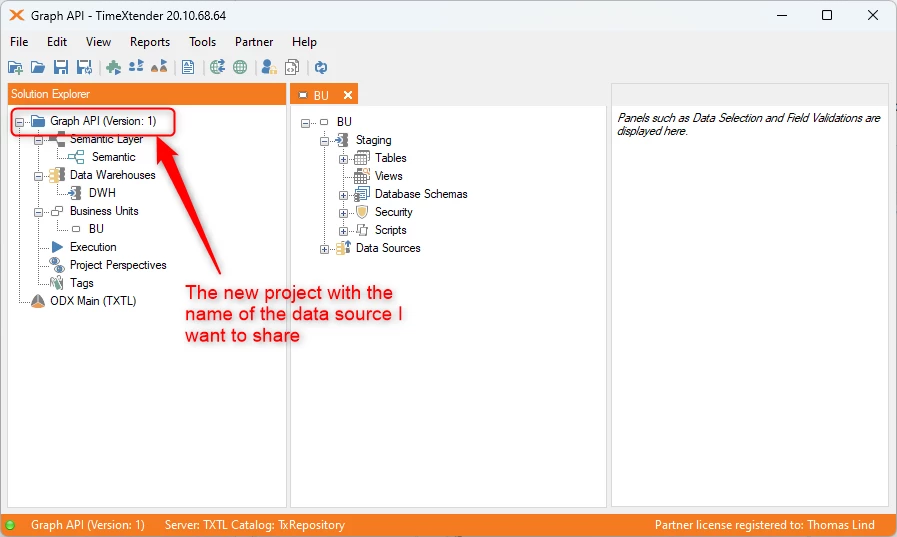
After creating the new project there still are some things to do before you are ready to export this.
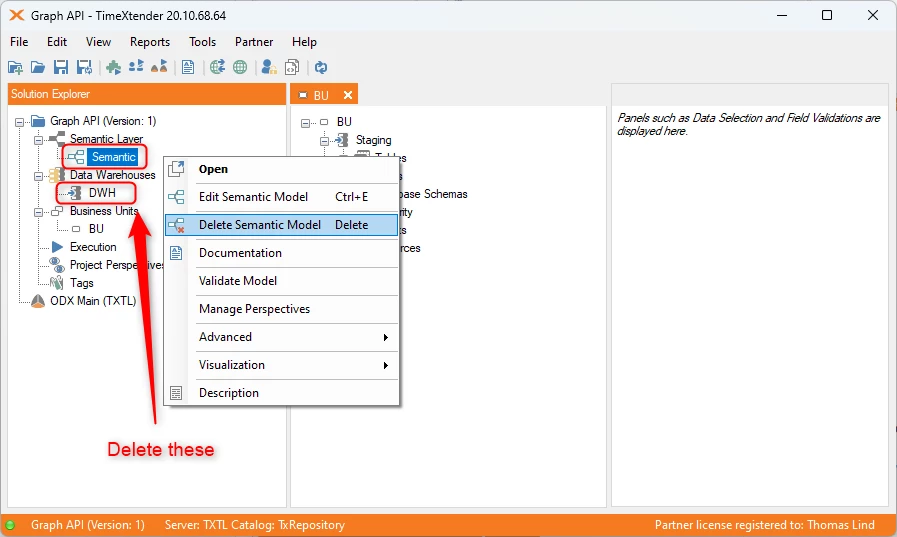
First you delete the unnecessary parts such as Semantic layers and Data warehouses.
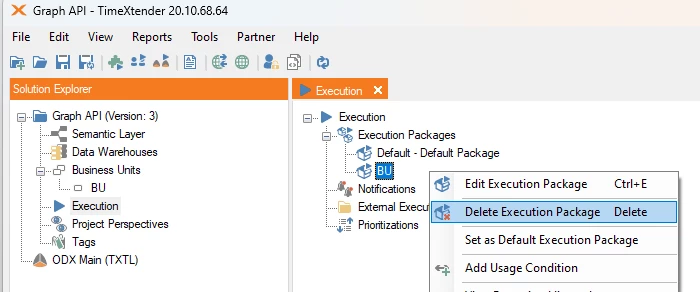
Delete all execution packages, so only the default one remains.
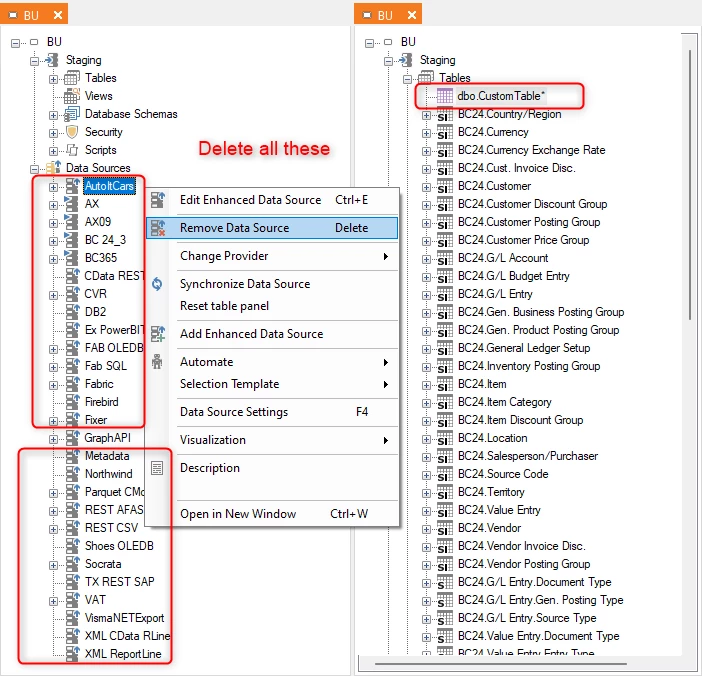
Finally you delete all the unneeded data sources and any custom tables added to your BU.
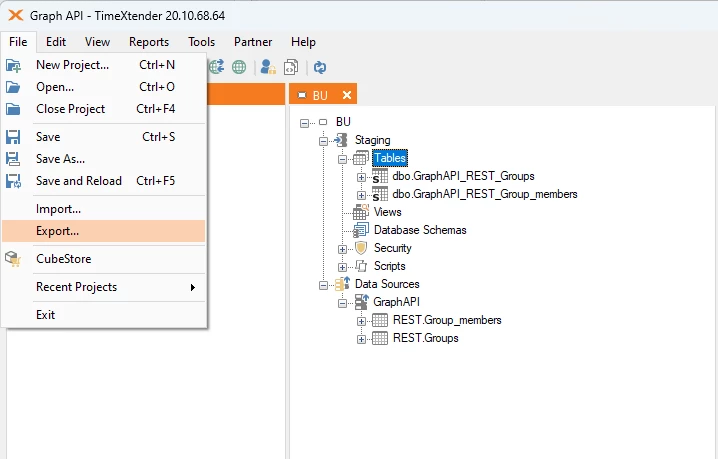
Export the project and note the version of the project
Once you are done removing data sources and only have the ones you want to export, click on the Export button.
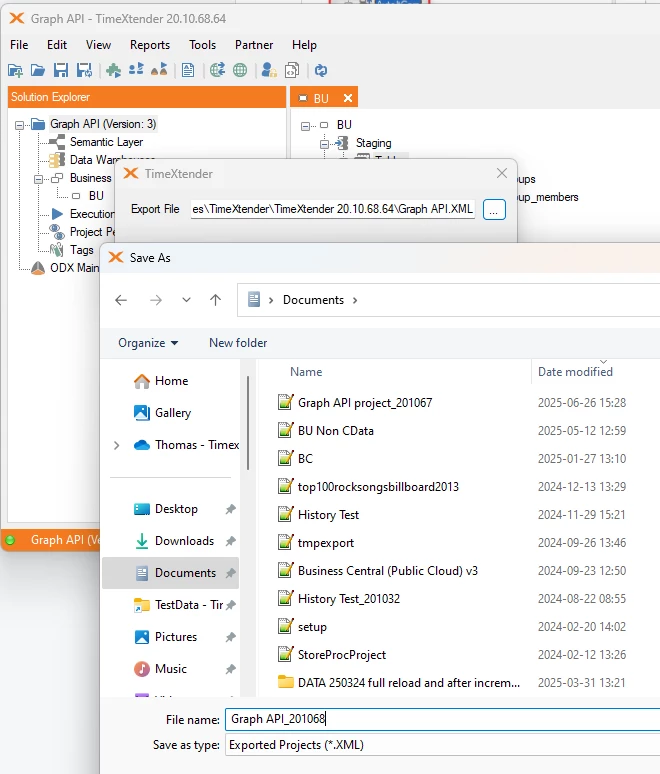
Name the project <project name>_<version>.xml and save it somewhere besides the default suggestion.
That is it you can now share this xml file.
Import the project
Open TX and without opening any project click Import and select the Export.
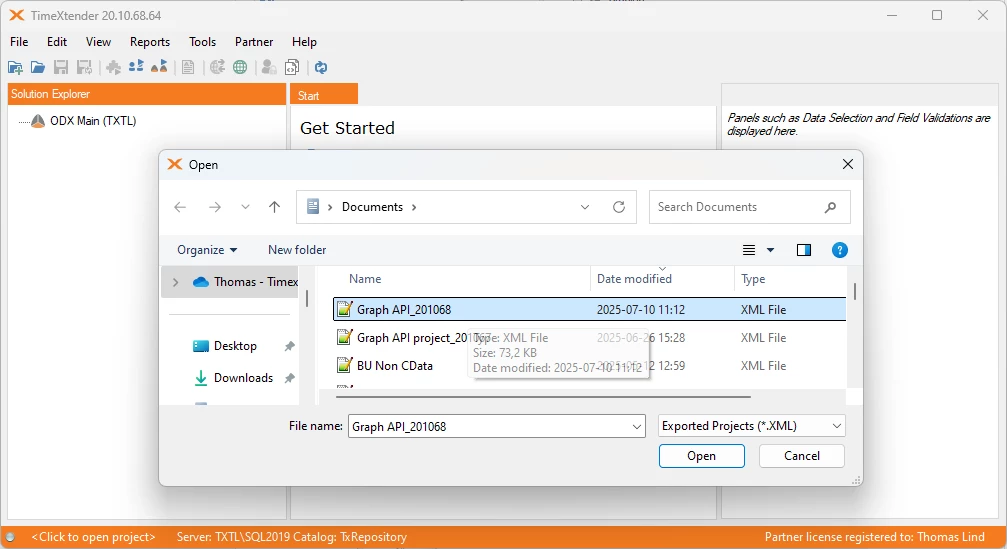
There is a slight issue though, you aren’t currently on version 20.10.68, but version 20.10.63
What you do is open the XML export file in a text editor like notepad++ and locate the <version>20.10.68</version> row.
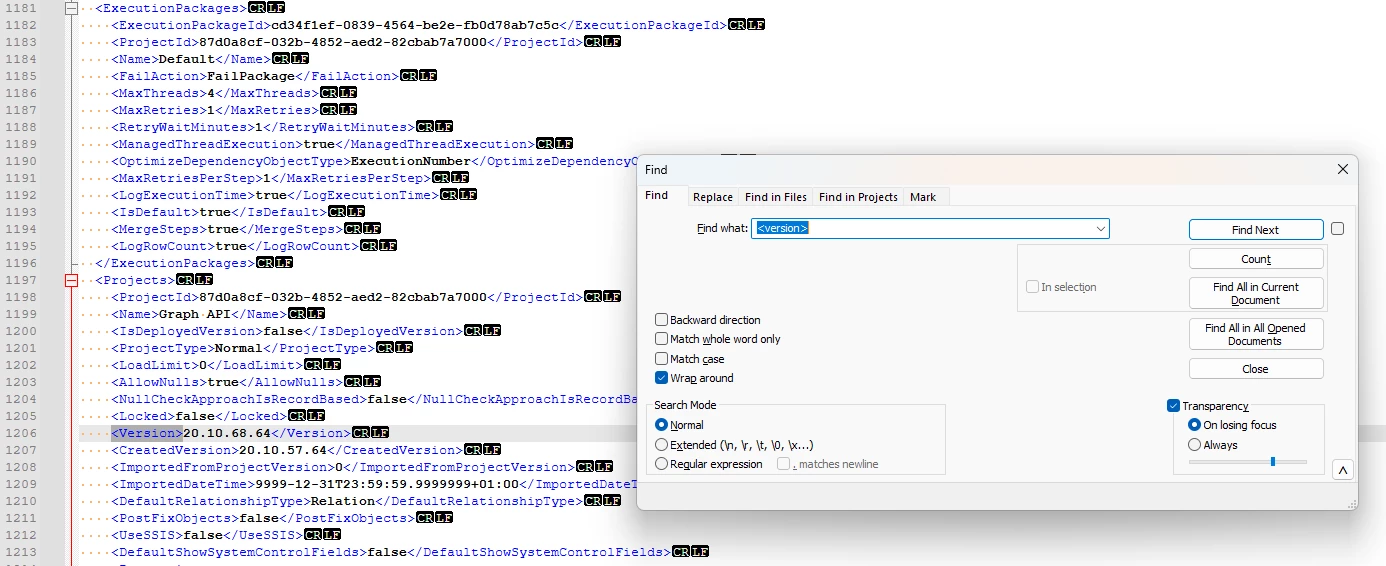
Change the content to be 20.10.63 and save the XML file. Ideally you save it under a different name, so it still follows the <project>_<version>.xml structure.
When you import a new project it will show this menu.
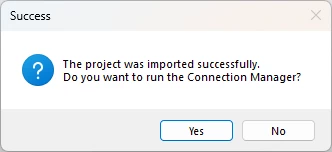
If you click Yes you will get a little wizard that helps with the import and initial setup.
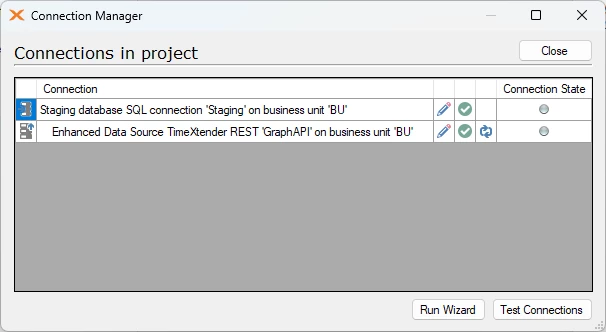
Once you are through with this wizard your project is imported and able to be used.
Discussed in the community
Looking for related questions…
Didn't find your answer? Ask the community about this page — questions are answered by Timextender experts, partners and other users.