Notify when text files contain a pattern using PowerShell and RegEx
In this post you will create a test in Timextender Data Quality, using PowerShell and regular expression, to find all lines in text files that contain a specific pattern. In this case, we will look for all lines that contain two or more semicolons.
- Create a new Query in Timextender Data Quality by right-clicking the Data Quality > Tests folder
- Hover over New
- Click on Query
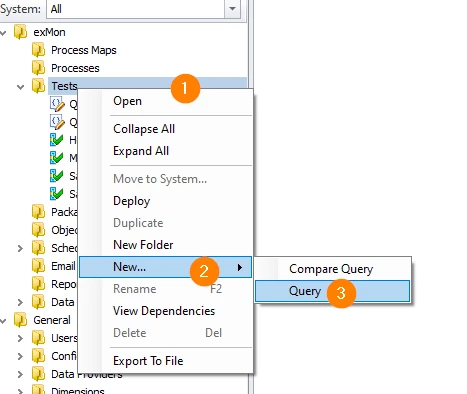
- Name your query and click OK
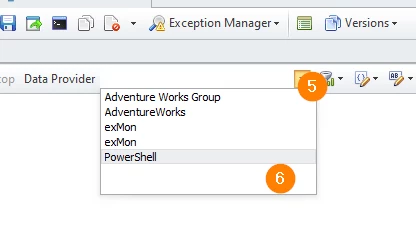
- Near the navigation ribbon, select the Data Provider dropdown
- Click PowerShell
- In the query window add the following PowerShell script:
# The files to check for
$path = "C:\temp\Names*.txt"
# The regex pattern to look for. This case, two or more semicommas in a line
$regex = "(.*);(.*);(.*)"

# Create the result DataTable
$timeXtenderResult= New-Object system.Data.DataTable

$timeXtenderResult.columns.add(($cFileName = New-Object system.Data.DataColumn FileName,([string])))
$timeXtenderResult.columns.add(($cLineNum = New-Object system.Data.DataColumn LineNum,([int])))
$timeXtenderResult.columns.add(($cText = New-Object system.Data.DataColumn Text,([string])))


# Loop through the files
$files = Get-ChildItem $path
foreach ($file in $files)
{
    # Loop through each line in the file
    $lineNum = 0
    foreach($line in Get-Content $file) {
        $lineNum++

        # If we match, add to our results
        if($line -match $regex){
            $row = $timeXtenderResult.NewRow();

            $row.FileName = $file;
            $row.LineNum = $lineNum;
            $row.Text = $line;

            $timeXtenderResult.Rows.Add($row)
        }
    }
}
Adjusting your Powershell Query
- Change the $path variable to match your files
- Change the $regex variable to match your regular expression pattern.
- Configure email settings and schedule as normal.
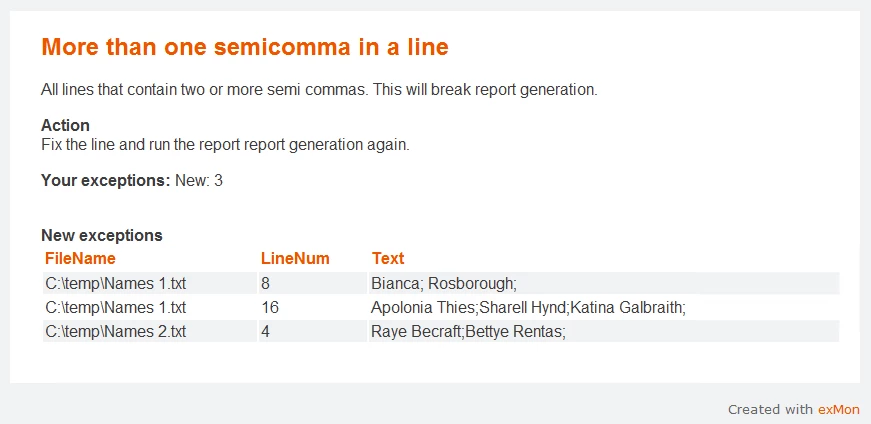
Example email from the test:
Discussed in the community
Looking for related questions…
Didn't find your answer? Ask the community about this page — questions are answered by Timextender experts, partners and other users.