Query XML data with Powershell in Timextender Orchestration and Data Quality
In this article, you will learn how to query XML data with Powershell in Timextender Data Quality. This can, for example, be used to monitor changes in files, find suspect nodes or compare against another data source.
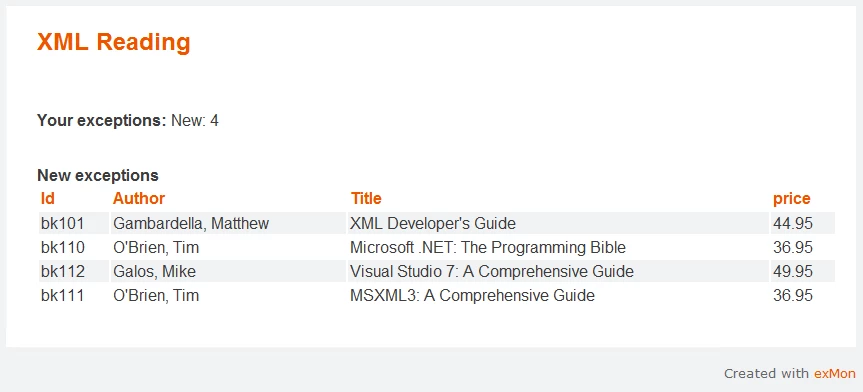
In this example, we will use data from books.xml, a list of books with attributes where we will find all books priced higher than $10.00
<?xml version="1.0"?>
<catalog>
   <book id="bk101">
      <author>Gambardella, Matthew</author>
      <title>XML Developer's Guide</title>
      <genre>Computer</genre>
      <price>44.95</price>
      <publish_date>2000-10-01</publish_date>
      <description>An in-depth look at creating applications
      with XML.</description>
   </book>
   <book id="bk102">
      <author>Ralls, Kim</author>
      <title>Midnight Rain</title>
      <genre>Fantasy</genre>
      <price>5.95</price>
      <publish_date>2000-12-16</publish_date>
      <description>A former architect battles corporate zombies,
      an evil sorceress, and her own childhood to become queen
      of the world.</description>
   </book>
   ... more books ...
</catalog>
Follow these steps to create the query
- Create a Query in Timextender Data Quality
- Choose "PowerShell" as a Data Provider
- Enter the following PowerShell script
[xml]$xml = Get-Content "C:\temp\books.xml"

$xml.SelectNodes('/catalog/book') | where {[decimal]$_.price -gt 10 } | select id, author, title, price
Example output from the test:
Discussed in the community
Looking for related questions…
Didn't find your answer? Ask the community about this page — questions are answered by Timextender experts, partners and other users.