Query Windows Service Status and Restart with Timextender Data Quality
In this article, you will read about querying Windows Service status and restart with exMon.
The PowerShell Data Provider in Timextender Data Quality can be used to query Windows Service and make sure they are up and running. In this example, we will query the status of the MapManager within Windows. If the service is stopped for some reason, we will attempt to restart it and send a message to an IT administrator.
Follow these steps to create the query:
- Create a Query in exMon Administrator
- Choose "PowerShell" as a Data Provider
- Enter the following PowerShell script
$serviceName = '{@servicename[preview:exMon Command Service]}'

$service = Get-Service -Name $serviceName | select Displayname,Status,@{label="NewStatus";expression={$_.Status}}

if ($service.Status -ne 'Running') {
    #The service is not running. Restart and fetch new status
    Start-Service $serviceName
    $service.NewStatus = (Get-Service -Name $serviceName | select Status).Status

    $service
} else {
    # return empty results
    $exMonResult = New-Object system.Data.DataTable
    $col1 = New-Object system.Data.DataColumn DisplayName,([string])
    $exMonResult.columns.add($col1)
    $col2 = New-Object system.Data.DataColumn Status,([string])
    $exMonResult.columns.add($col2)
    $col3 = New-Object system.Data.DataColumn NewStatus,([string])
    $exMonResult.columns.add($col3)

    $exMonResult

}
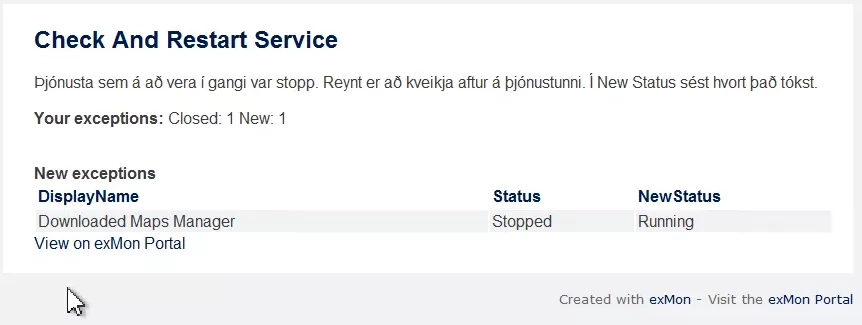
Example output from the test:
Discussed in the community
Looking for related questions…
Didn't find your answer? Ask the community about this page — questions are answered by Timextender experts, partners and other users.