Configure Azure Data Factory for data movement
Using Azure Data Factory for data movement suits large data sets: data is transferred directly from source to target rather than through the limited resources of the application server.
Timextender Data Integration can use Azure Data Factory to move data in two ways:
- Source to Ingest instance storage
- Ingest instance storage to Prepare instance storage
Create an Azure Data Factory resource
Note
Skip this step if you already have a Data Factory you want to use.
- In the Azure portal, create a new Data Factory resource.
- Select Version = V2.
- Assign Subscription, Resource Group and Location. Git integration is not required.
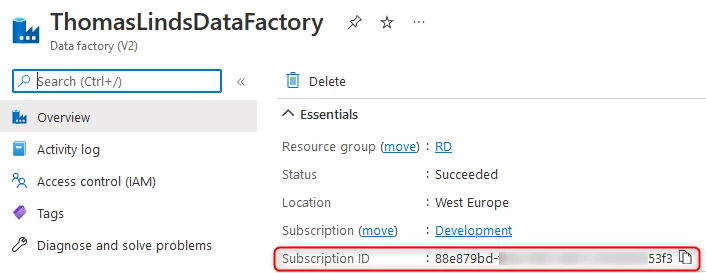
- Once deployed, note the Data Factory name, Subscription ID and Resource Group name.
Create an app registration
To reach Data Factory resources from Timextender Data Integration you need an app registration.
- In the Azure portal menu, open Azure Active Directory, select App Registrations in the menu on the left, then select New Registration.
- Enter a name and select Accounts in this organizational directory only. The value of Redirect URI is the URL at which your application is hosted. Select Register when done.
- Under Certificates & secrets, create a New Client Secret.
- Note the Tenant ID, Application ID and Client Secret.
Record the secret immediately
The client secret is encrypted after saving and cannot be read back. Store it somewhere safe before leaving the page.
Grant the app registration access to Data Factory
- Open the resource group containing the Data Factory and select the Data Factory resource.
- Select Access Control (IAM) → Add role assignment.
- Assign your app registration the Data Factory Contributor role on the resource.
These are minimum permissions
Data Factory Contributor is the minimum required in most cases. In production you may narrow permissions further to match your compliance requirements.
Role changes take time to apply
After adding or removing role assignments, wait at least 5 minutes before executing a task in an Ingest instance. Changes can take up to 30 minutes to take effect. For details, see Microsoft's Troubleshoot Azure RBAC.
Integration runtime
A self-hosted integration runtime is required when connecting to any source not hosted in Azure — a SQL Server on a VM, an Oracle server, or similar. The same applies when the Prepare instance runs on a local SQL database and you want Azure Data Factory to perform the transfer.
- Microsoft's overview: Azure Data Factory concepts - Integration runtime
- Installation guide: Create a self-hosted integration runtime
For the most common problem, see Self-hosted integration runtime issues under Troubleshooting.
Transfer from Ingest instance to Prepare instance
Not supported with Azure Synapse SQL Pool
This option is not supported when using Azure Synapse SQL Pool (SQL DW).
You can configure a separate Azure Data Factory resource per environment.
- In the portal, add a new Prepare instance or edit an existing one.
- Set the Name and database type.
- At the bottom of the page, find the Transfer from Ingest instance section.
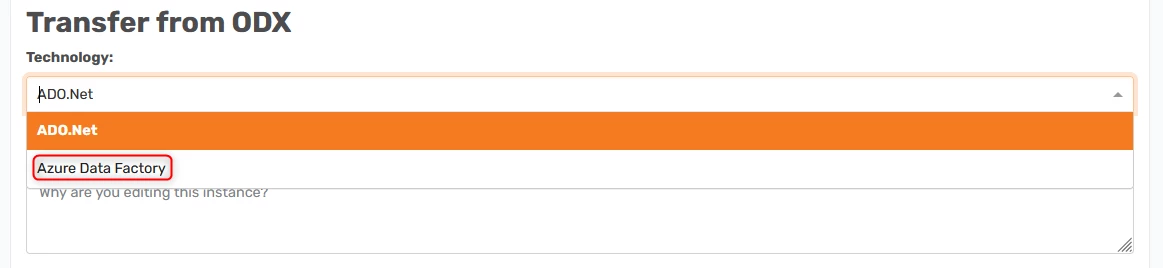
- Change Technology from ADO.Net to Azure Data Factory. The specific requirements are then shown.
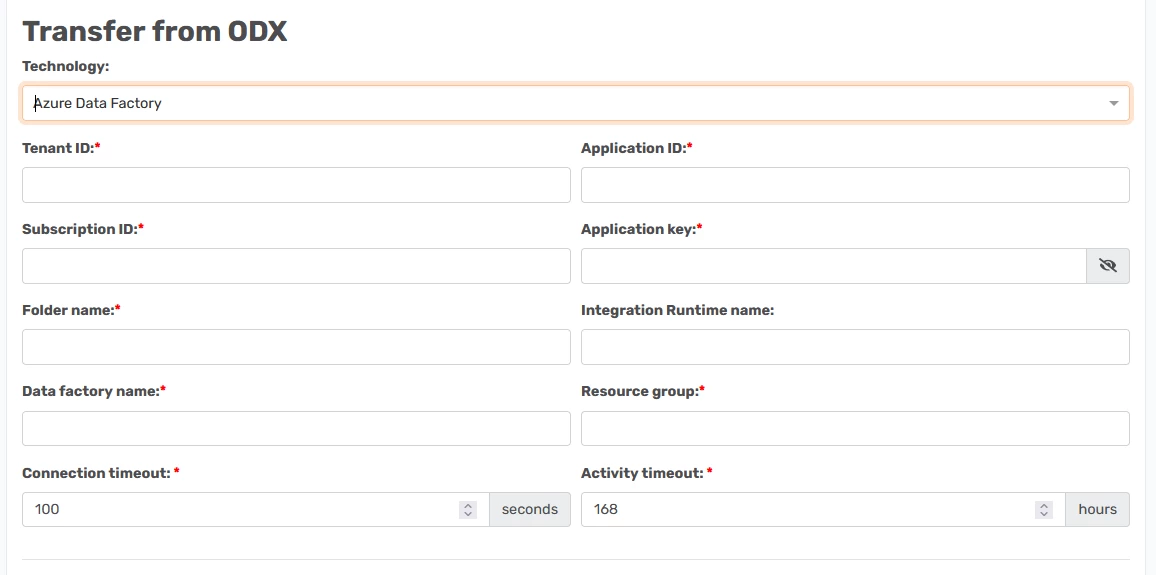
- Complete the fields:
| Field | Where to find it |
|---|---|
| Tenant ID | App registration overview |
| Subscription ID | Data Factory overview in Azure |
| Data Factory folder name (optional) | Pipelines and datasets are placed in this ADF folder |
| Data Factory Name | Your data factory in Azure |
| Application ID | The app registration |
| Application Key (client secret) | The app registration |
| Integration Runtime | Required for on-premise sources or targets; see Configure a self-hosted integration runtime |
| Resource Group | Where the data factory lives |
Transfer from source to Ingest instance storage
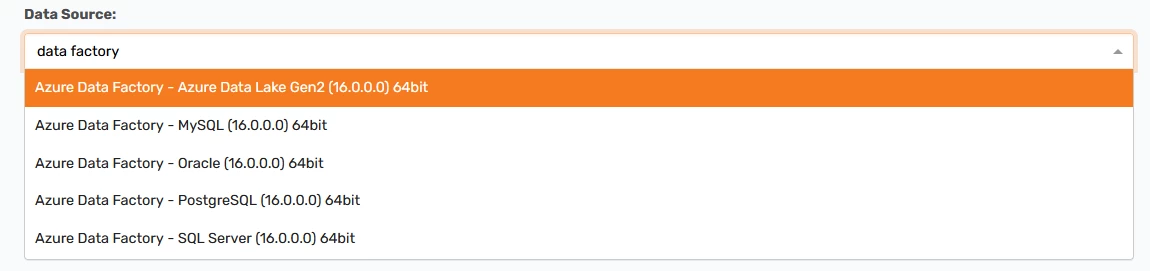
- On the Data sources page, search for data factory and choose one of the available options.
- On the Connection Info page, enter the Azure Data Factory details. These are the same fields as above, minus the integration runtime.
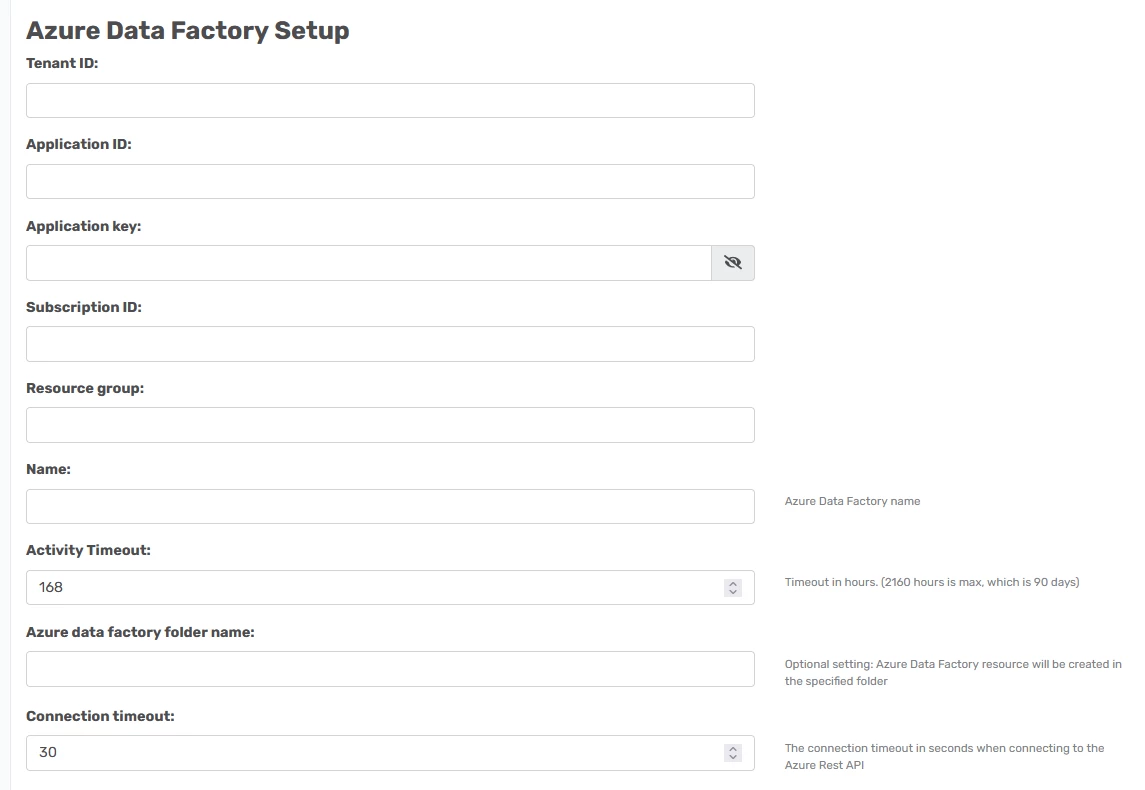
- Then configure the connection to the source itself. For an Azure SQL source:
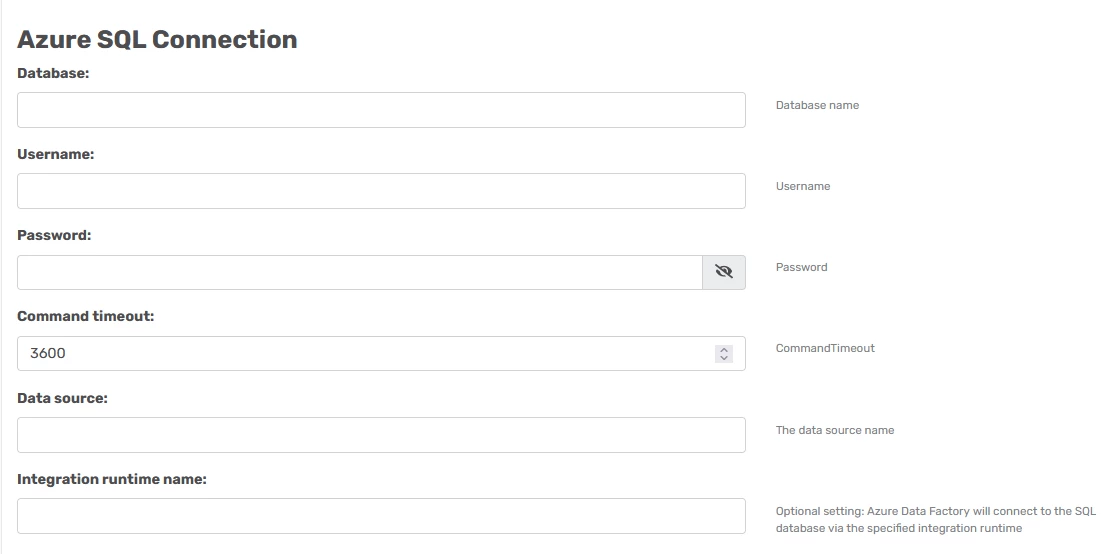
- Authentication type — SQLAuthentication is the only available option.
- Command timeout — in seconds; the default is one hour.
- Data source — the fully qualified server name. Azure Data Factory uses this when extracting data and when synchronizing metadata.
- Database — the database to connect to.
- Integration runtime name — only required for on-premise sources. If you use it, you must also configure a self-hosted integration runtime.
- Username / Password — SQL authentication credentials.
For a MySQL source:
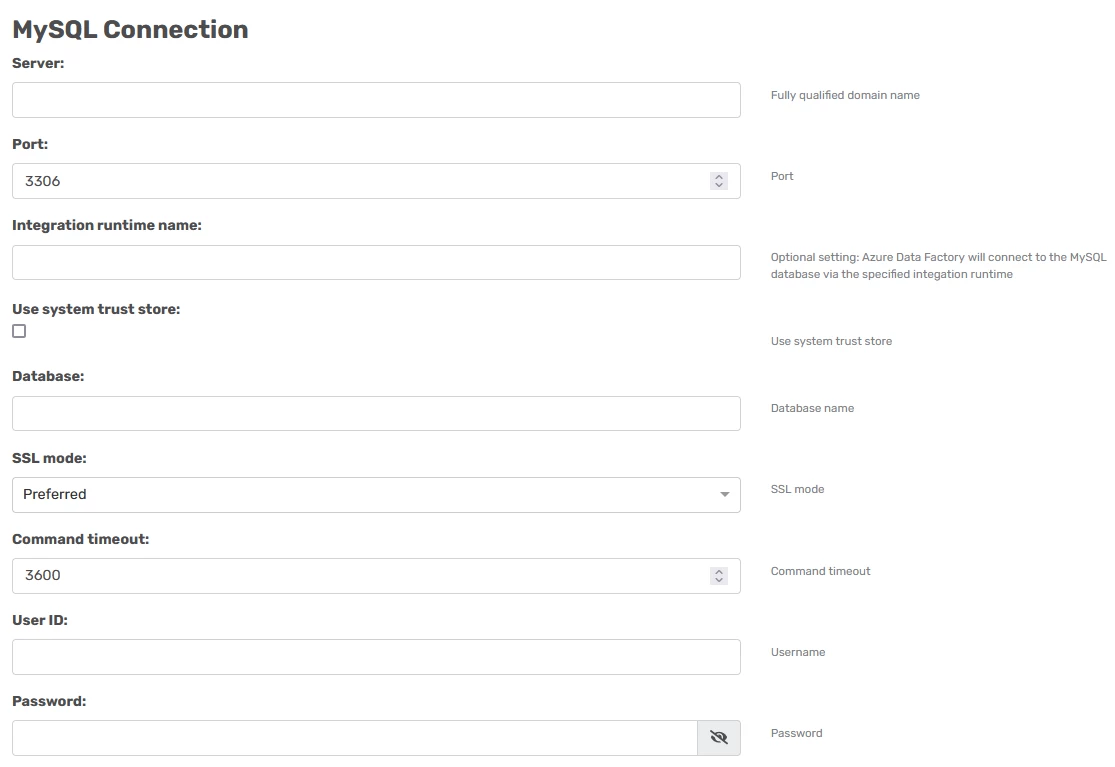
- Command timeout — in seconds; the default is one hour.
- Database — the database to connect to on the server.
- Integration runtime name — as above, only required for on-premise sources.
- Password — the password of the user account.
- Port — the default is 3306.
- Server — where MySQL is running.
- SSL mode.
- User ID — an account that has at least read access to the database.
For an Oracle source:
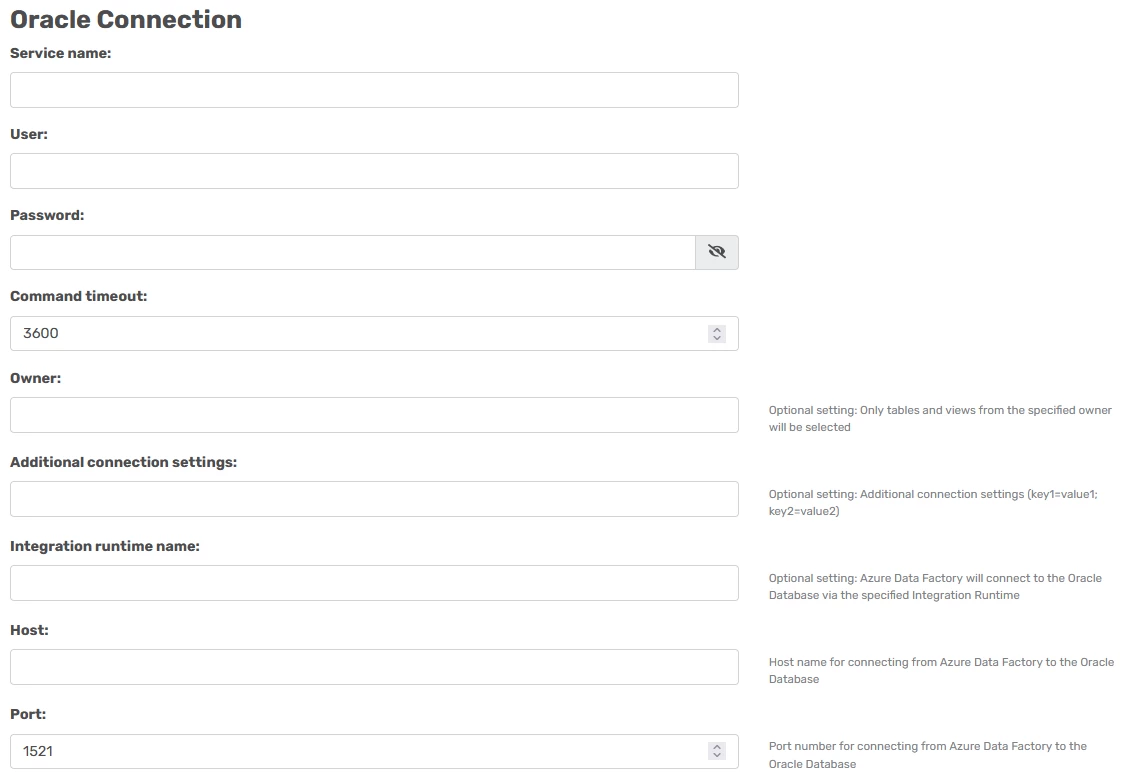
- The fields are the same as in the Oracle data source provider guide using EZ Connect. The difference is that the Host field here is the Server field in that guide, and you need an integration runtime running on the Oracle server.
- If your Ingest instance uses an Azure Data Lake Gen2 container for storage, the integration runtime needs the Java Runtime Environment to write and parse Parquet files. Install it on the same machine as the integration runtime; it can be downloaded from https://www.java.com/en/download/. For more information, see Azure Data Factory Oracle Data Source - Error executing meta data pipeline.
For a PostgreSQL source:
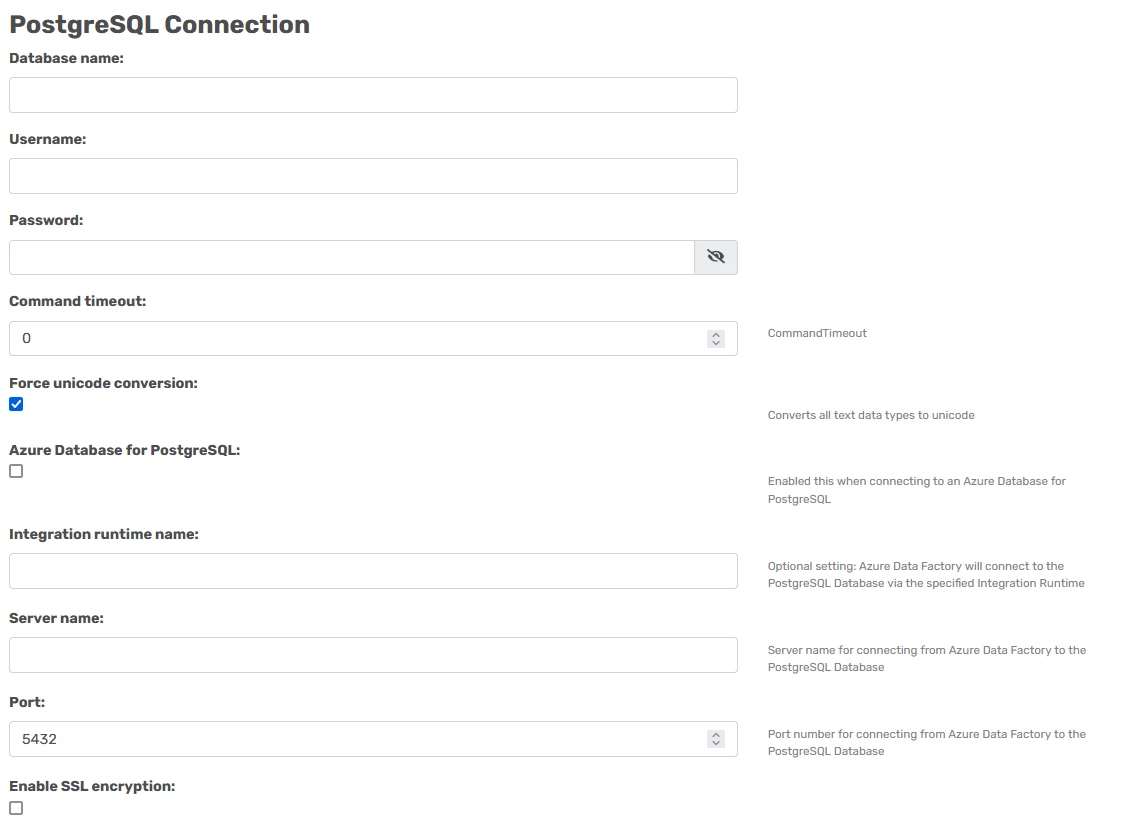
- Database Name (for example
dvdrental) — a database on the server. - Username (for example
postgres) — the user that connects to and authenticates against the PostgreSQL server. The example uses the standard admin account created during installation, but any account with read rights on the server can be used. - Password — the password of that account.
- Command timeout —
0means no timeout: it can run for unlimited time. The suggested setting is 3600. - Force unicode conversion — attempts to force all strings to NVarChar.
- Azure Database for PostgreSQL — set when the source is in Azure.
- Integration runtime name — used when the server is on a local server rather than in Azure.
- Server Name (for example
localhost) — the server where PostgreSQL is hosted. - Port — 5432 is the default port for PostgreSQL.
Troubleshooting
Connectivity error
Error
System.Data.SqlClient.SqlException: A network-related or instance-specific error occurred
while establishing a connection to SQL Server. The server was not found or was not accessible
The data source must be reachable by both Azure Data Factory and the Ingest instance. Isolate which component cannot reach it.
After changing Data Lake or Data Factory access control and role assignments:
- Wait for the changes to take effect in Azure (Troubleshoot Azure RBAC).
- Execute the Task and verify it succeeds.
- Preview tables in Data Factory.
- Synchronize the Ingest instance against the Prepare instance if the data source changed.
- Preview tables in Ingest instance storage to verify the Data Lake setup.
- Deploy and execute in Timextender Data Integration.
You can also test the connection directly from the ADF Author pane, under Datasets → the Destination dataset created for this data source.
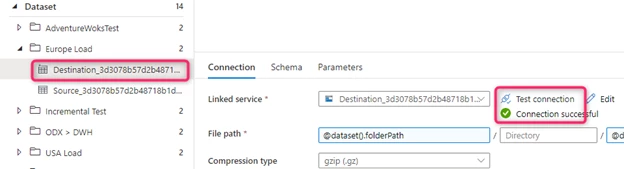
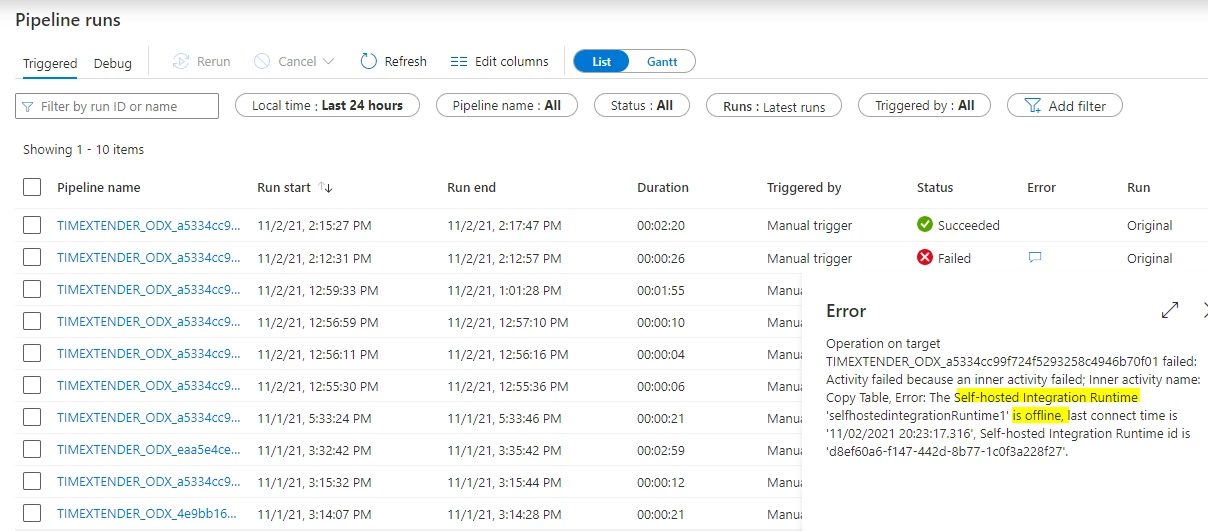
Self-hosted integration runtime issues
Verify the self-hosted integration runtime is installed and running, and study Microsoft's detailed guide, Troubleshoot self-hosted integration runtime in Azure Data Factory. Then review pipeline runs under Author → Monitor → Pipeline runs.
JreNotFound error
You have a working Ingest instance that uses Azure Data Lake storage, and you add a new Azure Data Factory data source with a self-hosted integration runtime. The Sync task completes successfully, but the Transfer task fails with:
JreNotFound
{"errorCode": "2200","message": "Failure happened on 'Sink' side. ErrorCode=JreNotFound,'Type=Microsoft.DataTransfer.Common.Shared.HybridDeliveryException,Message=Java Runtime Environment cannot be found on the Self-hosted Integration Runtime machine. It is required for parsing or writing to Parquet/ORC files. Make sure Java Runtime Environment has been installed on the Self-hosted Integration Runtime machine.,Source=Microsoft.DataTransfer.Common,''Type=System.DllNotFoundException,Message=Unable to load DLL 'jvm.dll': The specified module could not be found. (Exception from HRESULT: 0x8007007E),Source=Microsoft.DataTransfer.Richfile.HiveOrcBridge,'","failureType": "UserError","target": "Copy Table","details": []}
Cause. The integration runtime packages data as Parquet on the client side before uploading to Azure Data Lake storage, and Parquet requires a Java Runtime Environment.
Resolution. Install a Java Runtime Environment from https://www.java.com/en/download/ on the same machine as the self-hosted integration runtime. See also Microsoft's "UserErrorJreNotFound" error message when you run a copy activity to Azure.
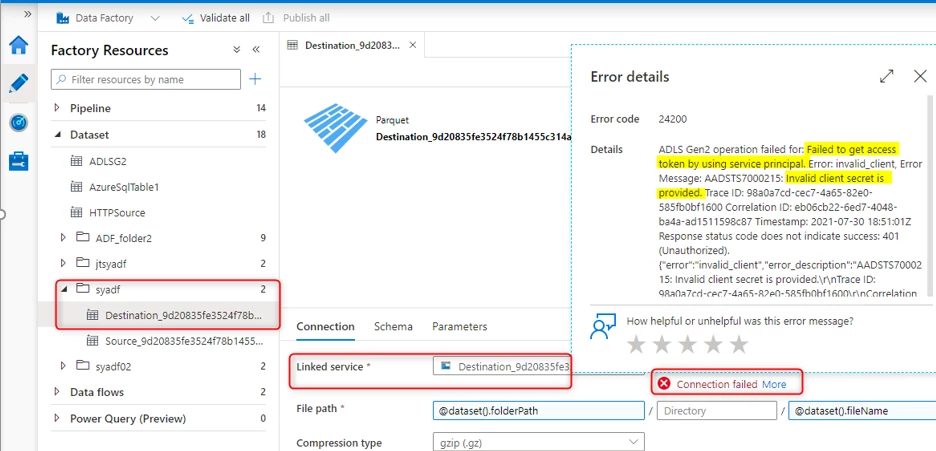
Invalid client secret
Error
Failed to get access token by using service principal .. invalid client secret
In Azure Data Factory, open the Author pane and, under Datasets, find the Destination dataset created for this data source. Resolve the access token error, then select Test connection to make sure it works.
Failed to get access token by using MSI authenticator
Error
Failed to get access token by using MSI authenticator. Acquire MI token from AAD failed. ErrorCode: invalid_clientA configuration issue is preventing authentication
Check whether the SQL authentication password has changed. Update and test the linked service in the ADF setup: Manage > Linked Services, and review the SQL Server connection.
Cannot set the AccessToken property
Error
System.Exception: Error executing meta data pipeline: { "errorCode": "2200", "message": "ErrorCode=SqlFailedToConnect,'Type=Microsoft.DataTransfer.Common.Shared.HybridDeliveryException,Message=Cannot connect to SQL Database: '.', Database: '<ODX_Storage_SQL database name>', User: ''. Check the linked service configuration is correct, and make sure the SQL Database firewall allows the integration runtime to access.,Source=Microsoft.DataTransfer.ClientLibrary,''Type=System.InvalidOperationException,Message=Cannot set the AccessToken property if the 'Integrated Security' connection string keyword has been set to 'true' or 'SSPI'.
If Ingest instance storage is on a SQL Server, change its connection from Windows authentication to SQL authentication with a user and password.
Discussed in the community
Looking for related questions…
Didn't find your answer? Ask the community about this page — questions are answered by Timextender experts, partners and other users.